Question: Can one tap silence professional access and reclaim a personal device for the weekend without risking corporate data?
Execute a clear protocol to suspend business connectivity on a shared handset. Configure the enterprise container so corporate apps stop running during scheduled off-hours. Apply precise settings to isolate corporate data from personal content—no crossover allowed.
Follow a reproducible method—set policies, confirm permissions, and verify that notifications no longer appear on the home screen. This method preserves privacy and keeps devices compliant with IT controls. The next sections will show step-by-step procedures and verification checks.
Key Takeaways
- Implement a scheduled control to suspend business access on personal devices.
- Use profile isolation to keep corporate data separate from personal apps.
- Adjust settings to stop notifications from appearing on the main screen.
- Verify suspension with simple checks—app launch and notification tests.
- Maintain compliance—document configuration and audit regularly.
Understanding the Benefits of Android Work Profiles
Deploy a managed partition that segregates enterprise apps and locks corporate settings from personal use.
Operational compatibility—The work profile feature functions on any mobile device running Android 5.0 or newer. Administrators deploy the container across supported devices for consistent policy enforcement.
Data protection—Separate apps for business prevent cross-contamination of personal and corporate data. IT controls restrict data transfer and enforce encryption for managed profiles.
Centralized administration—An administrator manages each user profile. Administrators push required apps and settings remotely, reducing setup time and ensuring compliance.
Mass deployment—Organizations using Google Workspace can provision multiple apps simultaneously. This guarantees that employees receive role-specific tools at scale.
Privacy assurance—Designated profiles block accidental exposure of personal information. The IT domain only controls business-related settings and retains no access to private user content.
How to Locate and Use the Android Work Profile Toggle
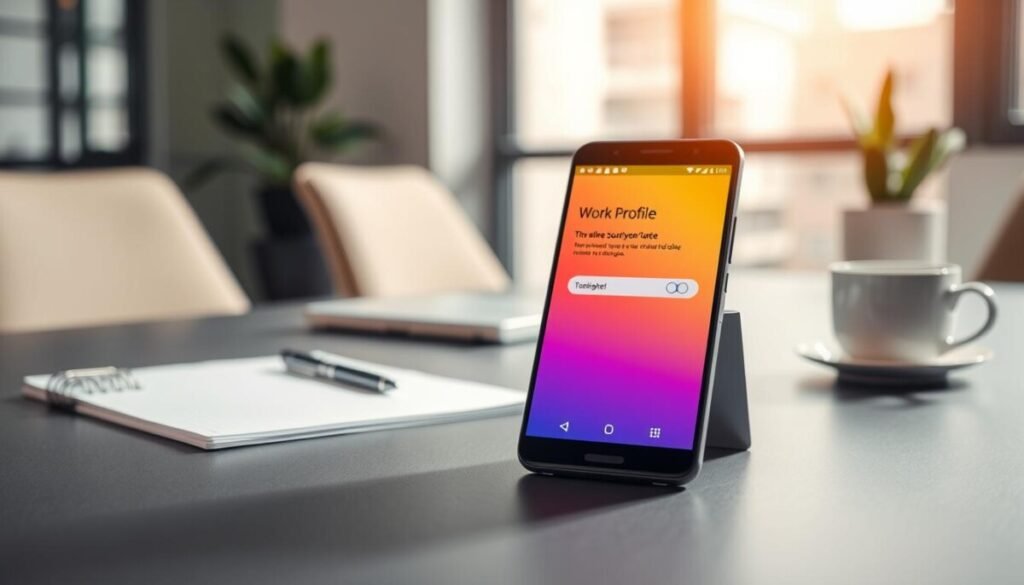
Identify the system control that pauses corporate services and validate notification suppression on the device.
Procedure: Follow three deterministic paths to find the control. Use the path that matches the hardware model and operating release.
Accessing Quick Settings
Swipe down from the system tray. Inspect the first two quick settings screens. If the control is not visible, swipe again to reveal additional tiles.
- Pause functionality requires Android 7 or later — confirm OS version before proceeding.
- Swiping to the second or third screen often reveals the required control to hide or show managed notifications.
Using the Settings App
Open main system settings. Search for the managed container entry. Tap the entry to change status.
Tip: On a Google Pixel 4 with Android 11, the managed settings are in the core menu for fast access.
Navigating the App Drawer
Open the app drawer. Look for a dedicated tab that groups managed apps. The briefcase badge marks business apps.
- Samsung Galaxy S20 and similar devices expose a specific tab for managed apps.
- Use the drawer to confirm that personal apps remain separate from managed apps on the screen.
Managing Work Apps and Data Separation
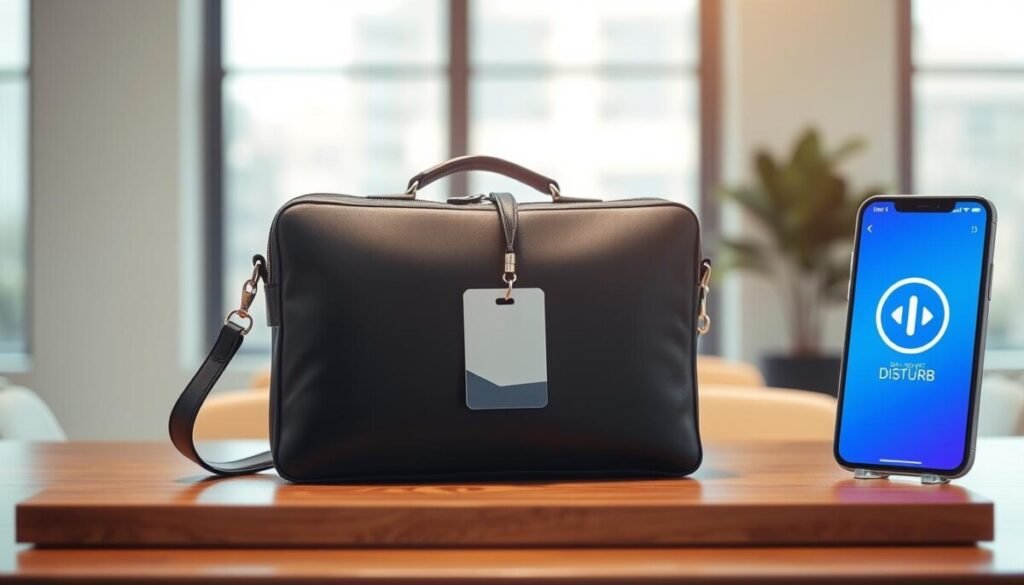
Scan the app grid for a small briefcase icon that flags company-controlled applications. This visual cue enforces the split between enterprise and personal software.
Identifying Briefcase Badges
Action: Verify app identity on the home and app list. Briefcase badges mark managed apps and prevent accidental data mixing.
- Briefcase badge equals managed corporate apps; personal apps show no badge.
- Duplicate entries may appear—two versions of the same app can exist. Use settings to control which version sends notifications.
- Badge style varies across devices—expect differences on Surface Duo and Samsung models.
- Open the managed Play Store to install authorized apps only; contact IT when a required app is missing.
- Maintain separation—managed apps keep corporate data isolated from personal files and accounts.
Confirm configuration by launching a managed app and checking that personal data remains inaccessible. For provisioning details, consult the guide on create a work profile.
Achieving Better Work-Life Balance Through Device Management
Establish a clear boundary on a personal device by pausing corporate access during off-hours. Use the work profile to stop professional interruptions and mute notifications on the main screen.
Disable managed apps and confirm that no business alerts appear. Use the work profile toggle or a scheduled profile toggle to automate suspension.
Maintain security and privacy: Control apps and settings centrally so data stays inside the managed partition while personal files remain private. For deployment guidance see the deploying work profile brief.
For tactical support and enterprise MDM planning contact Lantek at (610) 683-6883. For troubleshooting and access issues consult the access issues guide.