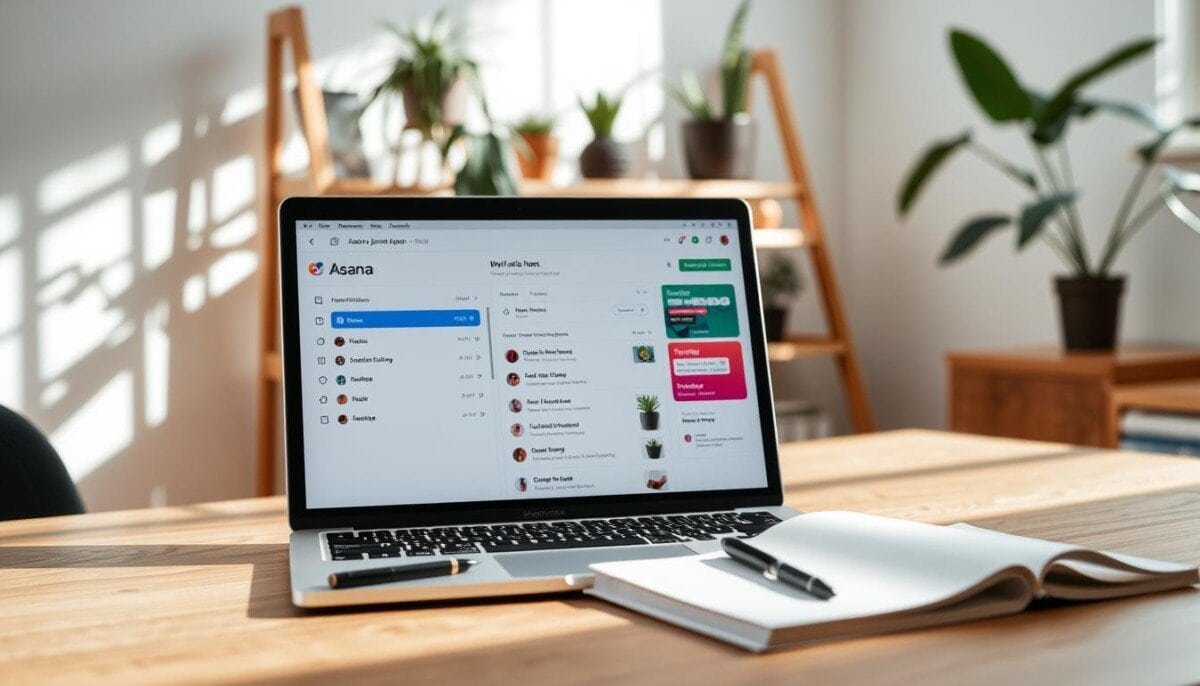
60% of professionals report interruptions from notifications cost more than one hour per day. Apply a systematic method to protect focus time.
Open the asana inbox as the primary notification centre. Use the Tab + I shortcut to reach it instantly. The page displays only task and project updates—separate from any email inbox.
Treat every notification as an action item. Complete a task, create a follow-up, or archive the notification to clear the view. That discipline prevents missed important updates and keeps team communication aligned.
Maintain a clean inbox to reduce information overload. Configure settings in the browser and the app to limit email notifications and keep work time focused.
Key Takeaways
- Use Tab + I to access the inbox quickly and maintain workflow consistency.
- The inbox is a notification hub—distinct from an email inbox and focused on tasks and projects.
- Every notification requires one action to prevent backlog and missed important items.
- Limit email notifications in settings to reduce interruptions during focus sessions.
- Regular inbox management ensures team updates and deadlines stay visible and actionable.
Understanding the Role of Focus in Asana
Interruptions erode task velocity; set notification rules to preserve flow.
Prioritize uninterrupted blocks. Treat focus as a limited resource. Assign specific hours for concentrated work and mark them in project calendars. Establishing recurring tasks setup in Asana can streamline your workflow and ensure that important activities are consistently addressed. By automating reminders and deadlines, you can maintain a clear focus on your priorities. This approach helps to minimize distractions and enhances overall productivity throughout the week.
Centralize signals. Use the inbox and portfolio views to surface status and updates. Route only essential messages to active work windows.
Manage notifications across browser and mobile settings. Configure notification frequency. Limit messages to items that require action.
- Train team members to comment inside tasks to keep communication contextual.
- Use project and portfolio tracking features to monitor status and reduce ad‑hoc pings.
- Apply the Tab shortcut for quick inbox access and immediate triage.
| Focus Principle | Action | Result |
|---|---|---|
| Signal Centralization | Route updates to inbox and portfolio | Clearer status; fewer scattered messages |
| Notification Discipline | Adjust browser and app settings | Reduced interruptions; higher productivity |
| Contextual Communication | Comment in tasks; tag team members | Better coordination; fewer coordination errors |
Malcolm Gladwell observed that teamwork errors cause systemic failures. Wayne Hedlund Consulting reports improved productivity when members centralize updates and manage their notifications. Implement these controls to strengthen communication and task management.
How to Configure Asana Do Not Disturb for Deep Work
Locate the moon icon in the upper-right corner to access quiet mode quickly. This control halts real-time alerts and creates uninterrupted blocks for focused work. Once quiet mode is activated, you can also set zoom status to away, signaling to your colleagues that you are unavailable for immediate communication. This feature helps maintain productivity by reducing distractions and clarifying your work intentions. Remember to turn off quiet mode when you’re ready to reconnect and engage with your team.
Manual Activation
Click the moon glyph in the top-right area. A filled-in white moon—per Leigh Flynn—signals that the mode is active and the notifications are paused.
- Slide the Pause Notifications toggle to the right to activate manual silence.
- Check browser and desktop settings to ensure only urgent mentions break through.
- Use the Tab key for fast access to the inbox before starting a session.
Setting Custom Durations
Open notification settings. Choose a custom duration to match the planned deep work interval. Set per-project and per-portfolio rules so tasks added do not trigger unnecessary alerts.
| Control | Action | Result |
|---|---|---|
| Pause Notifications | Toggle on manually | All non-critical notifications paused |
| Custom Duration | Select hours/minutes in settings | Predictable uninterrupted time blocks |
| Project-Level Rules | Silence specific projects/portfolio | Only critical items notify users |
Adjust email notifications and browser permissions before sessions. Train each team member to tag only urgent items. For guidance on applying these controls across small teams, reference a practical guide to project management for small businesses.
Managing Your Inbox and Notifications for Better Productivity

Keep the inbox lean by archiving each notification after it receives an action.
Apply a zero-inbox routine to limit clutter. Archive processed items so the main inbox shows only new, actionable messages.
Archiving Notifications to Maintain Clarity
Archiving moves entries to the archive tab. The main view stays clear for fresh notifications.
Click a notification to open the related task in the right panel. That panel is distinct from the email inbox and preserves project context.
- Zero-inbox method—archive every notification once the required action completes.
- Hover over each item and click the archive icon to keep the inbox focused on new tasks.
- Archiving does not delete tasks or project data; it only clears the inbox view.
- Filter notifications regularly to avoid missing important project updates and to improve communication.
- Use the browser interface and the Tab key to triage notifications quickly during work blocks.
| Control | Action | Result |
|---|---|---|
| Archive | Move notification to archive tab | Main inbox shows new messages only |
| Open | Click notification to load task panel | View task details without leaving the inbox |
| Filter | Adjust browser and notification settings | Fewer interruptions; focused task management |
Best Practices for Team Communication and Mentions
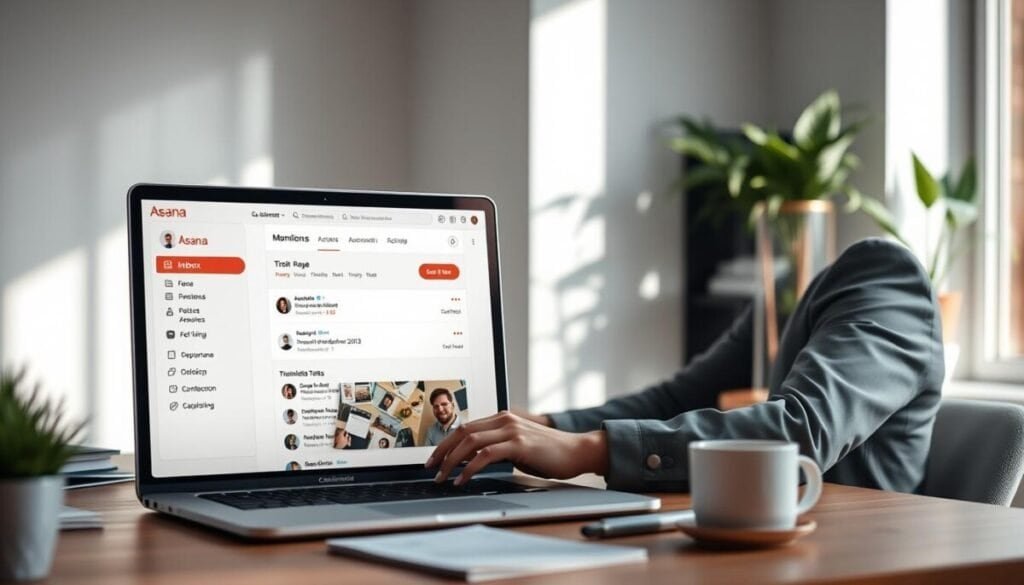
Filter the inbox by mentions to surface direct requests and reduce noise from project-wide updates.
Filtering by Mentions
Apply an @mention filter to prioritize messages that require action. This separates personal calls-to-action from general project notifications.
Wayne Hedlund Consulting recommends using mention filters to keep the main view focused on items that need a response. Configure the notification settings so only mentions generate visible alerts.
Using Direct Mentions
Always @mention specific teammates for assignments and clarifications. Treat a mention like an addressed email—clear recipient, clear expectation.
Mentions ensure the right people see task updates and status changes immediately. Limit broad messages to project comments to avoid flooding individual inboxes.
Optimizing Email Settings
Turn off default alerts for tasks added. Restrict browser and desktop notifications to mentions only.
- Receive only mention-based email notifications to avoid information overload.
- Train team members to use mentions for critical updates and questions—this reduces interrupted work time.
- Review project and portfolio settings monthly to manage notifications at scale.
| Control | Action | Result |
|---|---|---|
| Filter by mentions | Enable mention view in the inbox | Faster triage; fewer irrelevant messages |
| Direct mentions | @mention teammates in task comments | Clear ownership; reduced follow-ups |
| Email settings | Limit to mentions-only | Lower email volume; less chance to miss important updates |
Mastering Your Workflow for Consistent Results
Establish a repeatable zero‑inbox routine to lock consistent project outcomes. Archive each notification after one clear action. Keep the inbox lean to surface only current tasks and status updates.
Use the Tab + I shortcut and tighten notification settings in browser and email. Filter by mentions so teammates see critical messages first. Train each member to follow the same workflow.
Integrate training resources—see Asana training—and compare tools on project management platforms. Apply these features daily to scale management, improve communication, and raise team productivity.



