Have you ever assumed setting an away message would also block your schedule?
Managing your availability in teams matters. It helps you keep clear boundaries during vacation or meetings. If you tell colleagues you are out of office, they should know when not to interrupt you.
Quick fact: Toby found that an out of office message syncs to Outlook, but it does not block your calendar unless you create a specific appointment.
This intro shows why you must set both your status and calendar entries. You will learn how to align your status, craft a clear message, and block time so your team sees accurate availability.
For scheduling recurring availability or office-hour blocks, see how to schedule office hours in Teams to keep calendars and work hours in sync.
Key Takeaways
- Set a clear status and an out of office message so others know when you are away.
- Out of office messages sync to Outlook but don’t block time by themselves.
- Create calendar appointments to reserve time and prevent interruptions.
- Use recurring office-hour slots to show regular availability to your team.
- Confirm work hours in both apps to keep status and calendar aligned.
Understanding Automatic Replies in Microsoft Teams
When you set an out-of-office message, you shape expectations for your team.
Teams lets you publish a quick status message or schedule an out-of-office auto reply for business accounts. A status message tells colleagues what you are doing right now. An out-of-office message sends a reply to incoming chats and calls while you are away. set do not disturb in Microsoft Teams to ensure that you are not interrupted during important tasks or meetings. This feature allows you to focus without distractions, enhancing your productivity. By setting your status, your colleagues will know when it is appropriate to reach out or when to wait until you are available.
Keep in mind: setting an out-of-office status does not change your Outlook calendar. If you want time blocked, create a calendar appointment or event. That step ensures your availability matches the message you post.
Use both tools together:
- Post an office status to signal brief delays or busy periods.
- Schedule an out-of-office auto reply when you take vacation or long leave.
- Create calendar blocks so colleagues see reserved time in shared calendars.
For a step-by-step on scheduling messages and aligning status with your calendar, see how to schedule office messages.
How to Configure Automatic Replies for Business Accounts

Set clear out-of-office settings in your business account so colleagues see accurate availability.
You can schedule an office message from the desktop app. Click your profile, open Settings, then look for the out-of-office or auto reply controls. Toggle to turn automatic replies on and choose a start and end time.
Scheduling via Desktop
Use the time period fields to set exact dates and times. Pick a sensible message that tells people when you will return and who to contact in your absence.
Syncing with Outlook
Sync your app with Outlook calendar so the out-of-office message and calendar blocks match. Microsoft 365 subscribers can also set replies via File > Automatic Replies in Outlook to ensure consistency across both apps.
- Turn on out-of-office and define the replies time period.
- Choose whether to send replies outside your organization.
- Confirm calendar blocks so your calendar and status align.
| Action | Where | What to set | Why it matters |
|---|---|---|---|
| Enable auto reply | Profile > Settings | Start/end dates and times | Prevents missed messages |
| Allow external replies | Settings option | Send replies outside organization: Yes/No | Keeps external partners informed |
| Sync calendar | Outlook integration | Block calendar during absence | Shows true availability to your team |
For granular scheduling like focus blocks or recurring office hours, learn how to schedule focus time.
Setting Status Messages for Teams Free and Personal Users
Free and personal users rely on simple status edits rather than scheduled away notices. The free plan does not support scheduled out-of-office messages, so you must set a status message manually to inform your team.
How to set status: Click your profile icon, choose the option to set status message, and enter a brief office message. You can pick when the message should clear, but this is not a full scheduler.
Limitations of the Free Version
- No scheduled out-of-office: You cannot schedule an office message in advance on the free app.
- Manual revert required: Remember to change your status back when your time away ends.
- Change availability: Switch from Available to Away or another status to show your current availability.
Tip: For step-by-step guidance on more advanced time controls, see how to schedule offline status to plan around meetings and calendar blocks.
Managing Availability on Mobile Devices
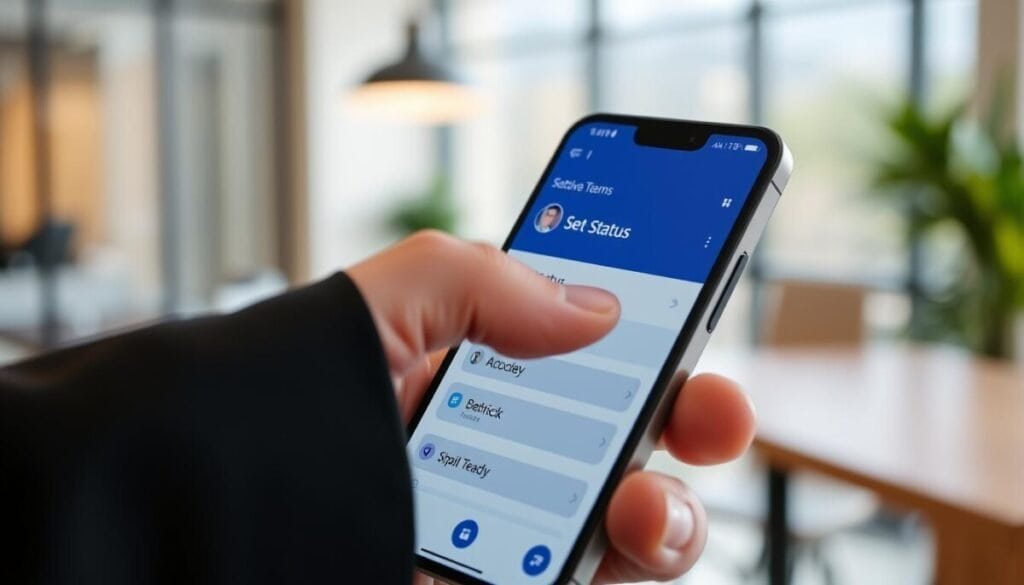
When you’re on the move, the mobile app makes it fast to update your availability.
Tap your profile icon to set a quick status message. This action tells your team where you are and if you are available.
The mobile app does not support scheduling an out-of-office message. You can still set a clear office status or choose an away status to indicate your activity.
Remember to manually reset your status when you return to the office. A short habit—check status at the start and end of the day—prevents missed messages and confusion.
- Tap profile > set status to update your message quickly.
- Choose an away or busy status so the team sees your current availability.
- Use the calendar on desktop to block time if you need scheduled protection from interruptions.
Tip: Keep the message brief and include a return time or alternate contact. That keeps expectations clear and professional on mobile.
Removing Out of Office Status and Automatic Replies
When you return, clear your away settings so your availability is accurate. This avoids missed messages and keeps schedules consistent.
Business Desktop Procedures
Open your profile and go to Settings. Find the section that controls automatic replies and toggle it off for the selected time period.
Also check the start and end dates times fields in your Outlook integration. Turning off the auto reply and clearing calendar blocks ensures your office status and calendar match.
Reverting Status in Free Versions
If you use the free plan, remove your status message manually. Click your profile and hit the trashcan icon next to the current status message to clear it.
Then set status to Available so your team sees you are back in the office.
Mobile Cleanup
On mobile, tap your profile, open the status box, and tap the X next to your message. Save with the checkmark to confirm the change.
Make this a quick habit. Reverting your office status after time off helps colleagues know when to contact you and prevents confusion.
- Quick checklist: toggle off auto reply, clear status message, update calendar blocks.
- Verify Outlook sync to confirm send replies settings and visibility.
- Confirm your profile shows Available at the start of the business day.
Need a step-by-step? Learn how to remove out of office with detailed desktop and mobile instructions.
Best Practices for Professional Communication While Away
Clear out-of-office communication keeps workflows smooth while you’re away.
Before you leave for vacation, create a responsibilities document. Share it with your team and update shared calendars so everyone knows who owns what.
Set a concise office message in your profile and in the outlook calendar. Include return dates and a short period when you’ll be unavailable.
Always include contingency contact details. Name a backup contact and state when they can help. That prevents stalled requests from outside your organization.
- Create reusable templates for away messages to keep tone and details consistent across the organization.
- Set office status on shared calendars so colleagues don’t schedule meetings during your time off.
- Keep your profile updated so the team can find alternatives while you are on vacation.
Follow these simple steps in your settings and calendar. They save time, reduce interruptions, and keep business moving.
Streamlining Your Workflow During Time Off
Let integrations handle routine tasks so you can truly disconnect on vacation.
Use tools like Zapier to link your workflows and keep work moving while you are out of the office. Connect ticket systems such as Atera or form tools like Typeform so incoming items route to the right queue.
Set an automatic replies message and an away status in your app and sync it with Outlook and your calendar. Then configure an integration or bot to triage tickets, notify backups, and log essential details.
That approach preserves business continuity, reduces interruptions, and gives you clear time away with peace of mind.