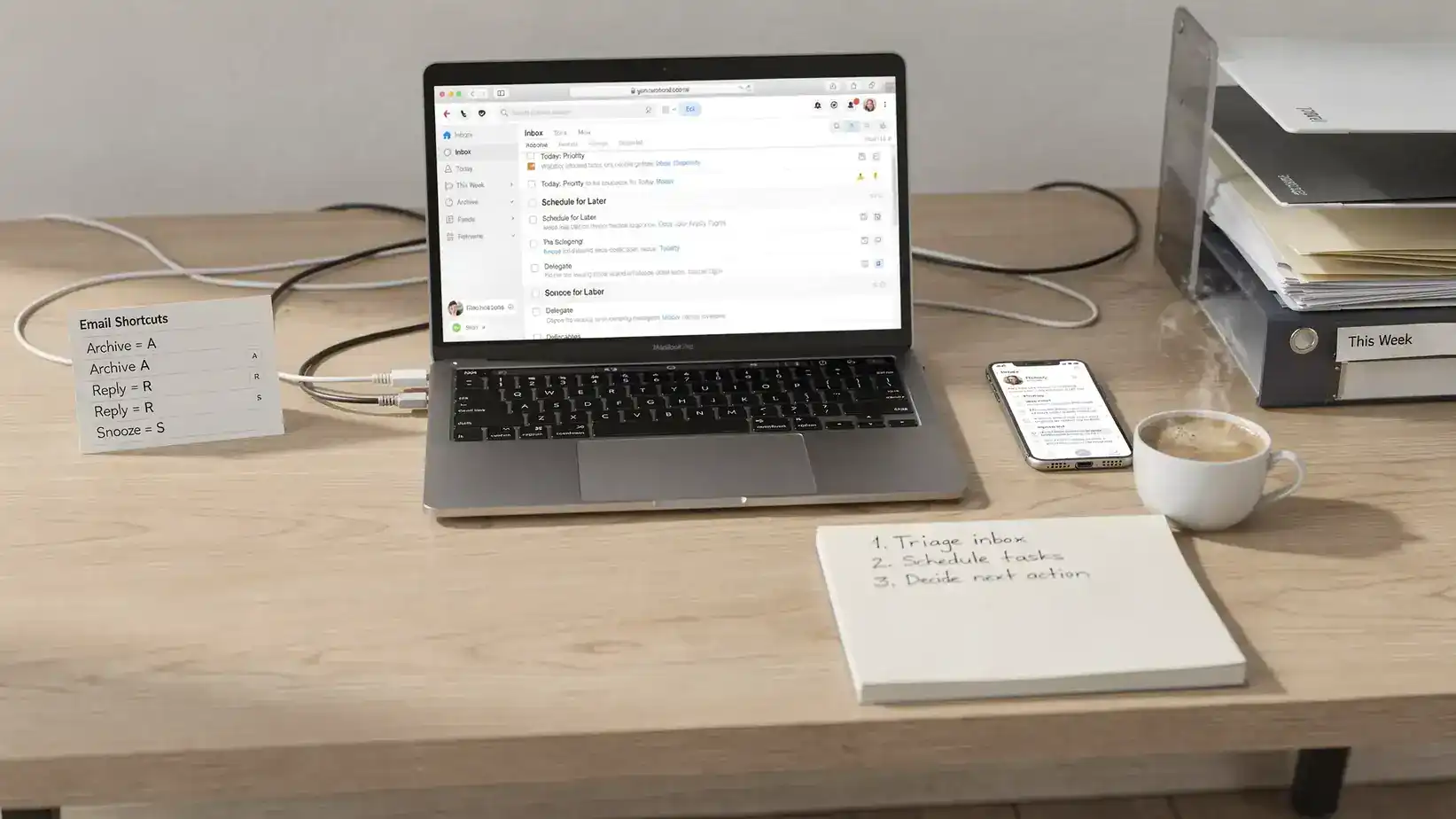
Email is still where approvals, invoices, client requests, project updates, newsletters, calendar changes, receipts, and account alerts collide. A good email app does not just help you send messages. It helps you decide what matters, what can wait, what should become a task, and what should never reach your inbox again.
That matters because communication overload is now a productivity problem, not just an organization problem. Microsoft’s 2023 Work Trend Index found that the average Microsoft 365 user spent more time communicating than creating, which explains why inbox control has become a core part of digital workflow optimization.
Below is a practical comparison of the best email apps for productivity and inbox control, including options for solo professionals, Apple users, Microsoft 365 teams, privacy-focused users, AI-assisted workflows, and power users who want keyboard-driven speed.
What makes an email app productive?
The best productivity tools reduce decisions. For email, that means fewer inbox checks, less manual sorting, faster replies, stronger search, and better handoff from email to your calendar or task management tools.
Before choosing an app, look for these capabilities.
| Feature | Why it matters | Examples of useful controls |
|---|---|---|
| Smart triage | Separates important messages from noise | Priority inbox, focused inbox, sender screening, bundles |
| Automation | Reduces repetitive sorting and filing | Filters, rules, labels, categories, auto-archive |
| Follow-up control | Prevents important messages from disappearing | Snooze, reminders, pinned messages, waiting-for views |
| Response speed | Helps you reply without starting from scratch | Templates, snippets, AI drafts, keyboard shortcuts |
| Calendar and task integration | Turns email into scheduled action | Send later, meeting scheduling, task creation, reminders |
| Search and archive | Keeps the inbox clean without losing information | Advanced search, unified inbox, local folders, tags |
| Privacy and security | Protects sensitive work and personal data | MFA support, encryption, phishing protection, app permissions |
Quick picks: best email apps by use case
| Email app | Best for | Productivity strengths | Watch-outs |
|---|---|---|---|
| Gmail | Google Workspace users and general productivity | Priority Inbox, labels, filters, search, snooze, templates, scheduled send | Labels are powerful but can get messy without a system |
| Outlook | Microsoft 365 teams and business users | Focused Inbox, rules, categories, calendar, tasks, enterprise controls | Features can vary between classic Outlook, new Outlook, web, and mobile |
| Superhuman | Power users who want speed | Keyboard shortcuts, split inboxes, reminders, snippets, AI help | Premium option, best for heavy email users |
| Spark | Multi-account users and small teams | Smart Inbox, sender screening, snooze, send later, shared drafts | Some collaboration features require paid plans |
| Shortwave | AI-first Gmail workflows | AI summaries, bundles, natural language search, email-to-task workflows | Mainly for Gmail and Google Workspace accounts |
| Proton Mail | Privacy-focused users | Encrypted mailbox, aliases, filters, Proton ecosystem | Fewer workflow integrations than Gmail or Outlook |
| Apple Mail | Mac, iPhone, and iPad users | Native Apple integration, VIPs, Remind Me, Send Later, privacy protection | Best inside the Apple ecosystem |
| Thunderbird | Free desktop power users | Open-source control, advanced filters, unified folders, add-ons, OpenPGP | Interface is less polished than newer premium apps |
| HEY | Users who want a full inbox reset | Sender screening, Imbox, Feed, Paper Trail, Reply Later | Requires adopting a very opinionated workflow |
| Mailbird | Windows users managing many accounts | Unified inbox, app integrations, account management | Windows-first and paid for full functionality |
1. Gmail: best all-around email app for Google users
Gmail remains one of the strongest email apps for productivity because its core tools are flexible enough for beginners and power users. Labels, filters, search operators, Priority Inbox, snooze, scheduled send, templates, and Google Calendar integration give you a complete inbox control system without needing a separate desktop client.
The biggest Gmail advantage is search. If you are comfortable archiving instead of filing everything into folders, Gmail lets you keep the inbox clear while still finding old messages quickly. Labels also make it easy to create overlapping systems, such as Client, Waiting, Finance, and Read Later, without duplicating emails.
Gmail is a great choice if you already use Google Calendar, Google Drive, Google Meet, or Google Tasks. For a deeper setup, our Gmail Priority Inbox guide explains how to train Gmail to surface important emails more consistently.
Choose Gmail if you want a reliable web-first inbox with strong search, flexible automation, and a low learning curve.
2. Outlook: best email app for Microsoft 365 teams
Outlook is the best fit for many workplaces because it combines email, calendar, contacts, tasks, and Microsoft 365 admin controls. Focused Inbox helps separate likely important messages from lower-priority email, while rules and categories give teams a practical way to standardize inbox handling.
Outlook is especially useful if meetings drive a lot of your work. Calendar availability, scheduling, Microsoft Teams integration, shared mailboxes, and task follow-up tools make it easier to connect email decisions to actual time on the calendar.
The main caution is that Outlook now exists in several versions, including classic desktop, new Outlook, Outlook on the web, and mobile apps. Some features appear in different places depending on the version. If Outlook is your main inbox, start with our Outlook Focused Inbox guide and then use Outlook email filters to automate recurring messages.
Choose Outlook if your work already runs on Microsoft 365, Teams, OneDrive, SharePoint, and shared calendars.
3. Superhuman: best for keyboard-driven power users
Superhuman is built for people who spend hours in email every day and want to process messages as quickly as possible. Its biggest appeal is speed: keyboard shortcuts, command-style navigation, split inboxes, reminders, snippets, undo send, and AI-assisted features are designed to keep your hands off the mouse and your inbox moving.
The app is best for founders, executives, sales professionals, recruiters, consultants, and client-facing operators who need to clear high-volume inboxes without missing follow-ups. If you only check email a few times per day, Superhuman may be more than you need. If your inbox is a revenue channel or client operations hub, its time savings can be easier to justify.
Choose Superhuman if email is central to your job and you want the fastest possible triage experience.
4. Spark: best for collaborative email and multi-account control
Spark is a strong choice for users who manage several inboxes and want a modern interface with smart sorting. Its Smart Inbox groups newsletters, notifications, and personal messages so you can process similar email types together. It also includes snooze, send later, reminders, pins, sender screening, and team collaboration features such as shared drafts and comments.
Spark works well for small teams that need to discuss email internally before replying, but do not need a full customer support platform. For example, a marketing team can draft a client response together without forwarding the same thread across multiple inboxes.
Choose Spark if you want a polished multi-account inbox with collaboration features and stronger triage than a basic mail client.
5. Shortwave: best AI email app for Gmail users
Shortwave is an AI-focused email app designed around Gmail and Google Workspace accounts. It is useful if your biggest problem is not sending email, but understanding and prioritizing long threads quickly. Features such as AI summaries, inbox bundles, natural language search, and task-style handling make it easier to process busy inboxes in batches.
Shortwave is especially helpful for people who receive many long conversations, status updates, newsletters, or internal discussions. Instead of opening every message, you can use summaries and bundles to understand what needs action.
The trade-off is account support. If your email setup is outside Gmail or Google Workspace, Shortwave may not fit. You should also review AI data handling policies before using any AI email app for sensitive client, legal, healthcare, or financial communications.
Choose Shortwave if you use Gmail and want AI-assisted summaries, search, and triage.
6. Proton Mail: best for privacy-first inbox control
Proton Mail is not the most automation-heavy email app, but it is one of the best choices for users who prioritize privacy. Proton offers encrypted mailbox storage, end-to-end encryption between Proton users, aliases through the broader Proton ecosystem, filters, folders, labels, and apps across major platforms.
It is a strong option for journalists, consultants, privacy-conscious professionals, and anyone who wants to reduce dependence on ad-driven email ecosystems. Proton Mail also pairs well with Proton Calendar, Proton Drive, Proton VPN, and Proton Pass if you prefer a privacy-centered tool stack.
The productivity trade-off is integration depth. Gmail and Outlook connect to more third-party tools, CRMs, scheduling apps, and workplace systems. Proton Mail is best when privacy matters more than maximum automation.
Choose Proton Mail if your top priority is secure personal or professional email with solid everyday controls.
7. Apple Mail: best native email app for Apple users
Apple Mail is easy to overlook because it comes built into macOS, iOS, and iPadOS, but it is a capable productivity app for users who live inside the Apple ecosystem. VIP senders, smart mailboxes, rules on Mac, Focus mode integration, Remind Me, Send Later, undo send, and Mail Privacy Protection make it practical for everyday inbox control.
The biggest benefit is system-level integration. Apple Mail works smoothly with Calendar, Contacts, Spotlight, Siri, Focus modes, and iCloud. If you already use an iPhone, iPad, and Mac, keeping email native can reduce app switching.
The downside is that Apple Mail is less ideal for teams, advanced automation, and users who need the same experience across Windows, Android, and the web.
Choose Apple Mail if you want a simple, private, native inbox across Apple devices.
8. Thunderbird: best free open-source desktop email app
Thunderbird is a long-running open-source email client that gives users deep control without locking them into a subscription. It supports multiple accounts, local folders, advanced filters, message rules, add-ons, unified inboxes, calendar features, and OpenPGP encryption.
Thunderbird is especially useful for users who prefer desktop email, want local archives, or manage older IMAP accounts. It is also a good option for technically comfortable users who want customization without relying on a proprietary app.
The trade-off is polish. Thunderbird is powerful, but it can feel less modern than Superhuman, Spark, or Shortwave. Still, for free desktop inbox control, it is one of the strongest options available.
Choose Thunderbird if you want open-source flexibility, offline access, and advanced filtering without a premium plan.
9. HEY: best for a radical inbox reset
HEY is not just an email app with extra features. It is a different philosophy for email. Instead of allowing every sender into your inbox by default, HEY uses sender screening and separates messages into areas such as Imbox, Feed, Paper Trail, Reply Later, and Set Aside.
This makes HEY appealing for people who feel that traditional inboxes are broken. Newsletters do not need to sit beside client messages. Receipts do not need to compete with project decisions. Unknown senders should not automatically get your attention.
The downside is that HEY works best when you commit to its system. If you need deep integration with Gmail, Outlook, or your company’s existing email stack, it may not be the easiest transition.
Choose HEY if you want to rebuild your email habits from the ground up.
10. Mailbird: best Windows email hub for multiple accounts
Mailbird is a practical option for Windows users who want one place to manage multiple email accounts. It offers a unified inbox, app integrations, contact management, layouts, and productivity features for users who prefer a desktop client over browser-based email.
It is useful for freelancers, small business owners, and operators who manage personal, client, and business inboxes from one machine. The unified view can reduce the constant tab switching that happens when you keep Gmail, Outlook, and other webmail accounts open separately.
Mailbird is less compelling if you work mostly on Mac, mobile, or inside a locked-down enterprise environment. It is best for Windows-centered workflows where convenience and consolidation matter most.
Choose Mailbird if you want a single desktop hub for multiple Windows-based inboxes.
How to choose the right email app for your workflow
The best email app is the one that matches how email enters your day. A solo creator does not need the same inbox system as a sales team. A privacy-focused consultant does not need the same app as a Microsoft 365 administrator.
| If your main problem is… | Start with… | Why |
|---|---|---|
| Too many newsletters and notifications | Gmail, Spark, HEY, Shortwave | They help group, screen, or separate low-priority messages |
| Important messages getting buried | Outlook, Gmail, Superhuman | Focused inboxes, priority views, reminders, and search reduce misses |
| Too much manual sorting | Gmail, Outlook, Thunderbird | Filters, rules, labels, and folders automate repeat patterns |
| Long threads wasting time | Shortwave, Superhuman | AI summaries and fast navigation help you process context quickly |
| Managing many inboxes | Spark, Mailbird, Thunderbird | Unified inboxes reduce account switching |
| Privacy concerns | Proton Mail, Apple Mail, Thunderbird | Stronger privacy posture and more control over data handling |
| Team collaboration on replies | Spark, or a shared inbox tool | Internal comments and shared drafts reduce forwarding chaos |
If your email volume is really customer support, operations routing, or sales queue management, a personal email app may not be enough. In that case, look at shared inbox tools such as Front, Missive, Help Scout, or a CRM-linked support platform.
A simple inbox control system that works in any app
Switching apps will not fix email overload unless you also change your workflow. Use this five-part system no matter which email app you choose.
- Separate email checking from email doing: Check email at planned times, then turn real work into tasks, calendar blocks, or project updates.
- Use three action states: Every message should become Do now, Schedule, or Archive. If it does not fit, create a clearer rule.
- Automate recurring senders: Use filters or rules for invoices, receipts, newsletters, system alerts, reports, and internal notifications.
- Snooze instead of rereading: If a message cannot be handled now, snooze it to the exact day or time you can act on it.
- Write repeat replies once: Use templates or snippets for scheduling, follow-ups, status updates, intake questions, and boundary-setting responses.
For timing your replies, combine inbox batching with scheduled send. Our Gmail Schedule Send guide shows how to send messages at better times without keeping your inbox open all day.
When you need more than an email app
Sometimes inbox overload is a symptom of a broken workflow. If every approval, request, file, status update, and escalation happens through email, a better email client may only make the chaos faster.
That is when it may be worth replacing repeat email chains with a form, dashboard, portal, or lightweight internal tool. For teams with recurring email-driven processes, a custom development partner such as Ravenna Interactive, a Laravel, Statamic, and React Native development firm can help turn messy inbox workflows into structured software.
A good rule of thumb: if you have created more than ten filters to manage the same process, the process may need a tool of its own.
Security and privacy checks before switching email apps
Before connecting a new email app, review what permissions it requests. Some apps need full mailbox access to provide search, AI summaries, scheduling, or unified inbox features. That may be reasonable for your workflow, but it should be intentional.
Use this quick safety check before connecting any email client:
- Enable multi-factor authentication on your email account.
- Review app permissions after installation and remove tools you no longer use.
- Avoid giving sensitive inbox access to unknown browser extensions.
- Check whether AI features process message content and whether you can disable them.
- Keep phishing protection habits strong, especially when using multiple inboxes.
If security is a major concern, read our guide to common email security issues before testing new apps.
Common mistakes that keep inboxes messy
The most common mistake is treating the inbox as both a communication channel and a task list. Email is good for receiving information, but weak for prioritizing work. Once a message requires real effort, move it to your calendar, task manager, CRM, or project tool.
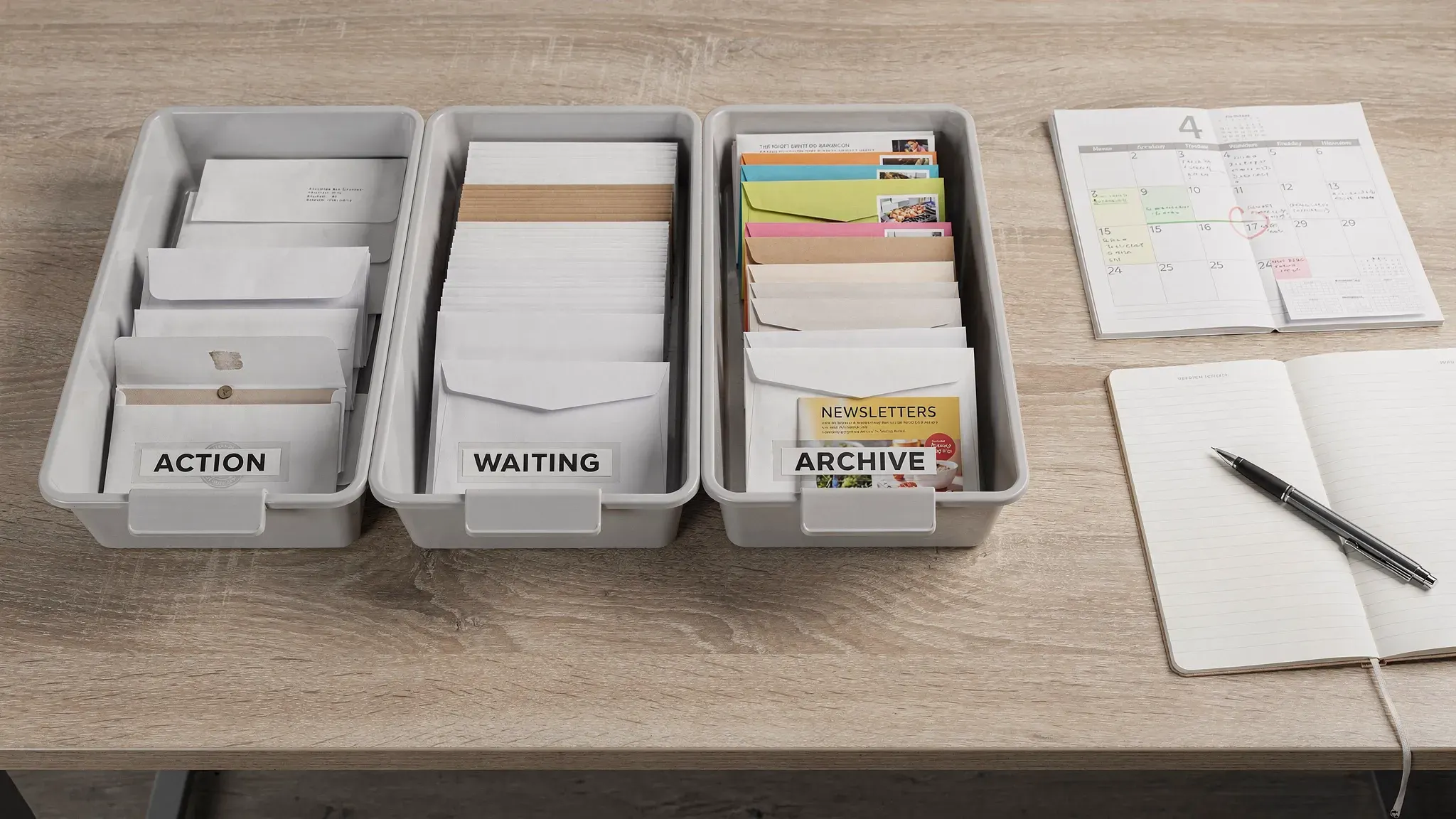
Another mistake is creating too many folders. A simple system is easier to maintain than a perfect one. For most users, Archive, Waiting, Action, Read Later, and a few client or project labels are enough.
The third mistake is relying on notifications. Productivity-focused email setups usually reduce notifications, not increase them. Your app should make important email easier to find during processing windows, not interrupt you all day.
Frequently Asked Questions
What is the best email app for productivity? Gmail is the best all-around choice for most Google users, while Outlook is best for Microsoft 365 teams. Superhuman is the strongest option for heavy email power users, and Spark is excellent for multi-account and collaborative workflows.
Which email app is best for inbox zero? HEY is the most opinionated app for resetting your inbox habits, but Gmail, Outlook, Spark, and Superhuman can also support inbox zero if you use archive, filters, snooze, and scheduled processing times consistently.
Is Gmail or Outlook better for productivity? Gmail is usually better for web-first search, labels, and Google Workspace workflows. Outlook is usually better for Microsoft 365 organizations, shared calendars, enterprise controls, and Teams-connected scheduling.
Are AI email apps safe to use? AI email apps can be useful, but you should review their data handling, permissions, and admin controls before connecting sensitive accounts. For regulated industries, check whether AI processing is allowed by your company’s policies.
Should I use a desktop email app or webmail? Use webmail if you want easy access from any device and fewer setup issues. Use a desktop app if you manage many accounts, need local archives, prefer offline access, or want a unified inbox outside the browser.
What is the best email app for teams? Outlook is best for many Microsoft 365 teams, while Spark works well for smaller teams collaborating on replies. If email is used for support, sales, or operations queues, consider a shared inbox or CRM instead of a personal email client.
Build your inbox control stack
Start by choosing the email app that matches your ecosystem: Gmail for Google, Outlook for Microsoft 365, Apple Mail for Apple devices, Proton Mail for privacy, or Superhuman and Shortwave for high-speed and AI-assisted workflows.
Then add the habits that make the app work: filters, priority views, snooze, templates, scheduled send, and a clear handoff from email to your calendar or task manager. For more step-by-step tutorials, explore the email and productivity guides on Online Tool Guides to keep improving your workflow one tool at a time.



