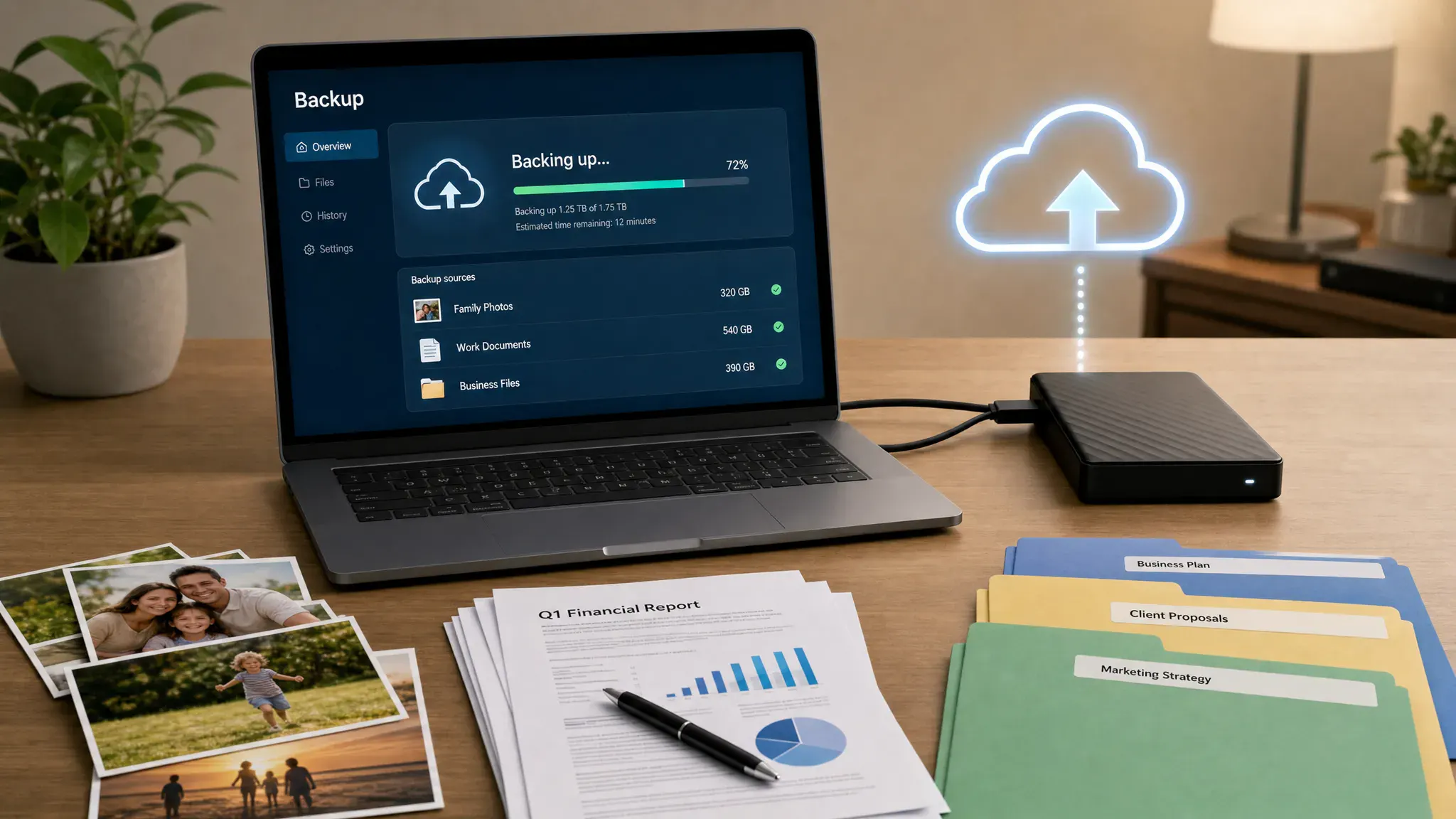
Your laptop can be replaced. Your photos, tax documents, client files, website backups, and creative projects are much harder to recover. That is why the best online backup services are not just “nice to have” utilities. They are insurance against accidental deletion, ransomware, theft, failed hard drives, and the day your coffee meets your keyboard.
A good online backup service runs quietly in the background, keeps older versions of your files, encrypts your data, and gives you a realistic way to restore everything when something goes wrong. The right choice depends on how many devices you use, whether you need full system image backups, how much control you want over encryption, and how simple the restore process needs to be.
Security agencies consistently recommend keeping tested backups as part of ransomware resilience. CISA ransomware guidance specifically emphasizes maintaining backups, protecting them from attackers, and verifying that restore processes work. For most home users, freelancers, and small teams, an online backup service is the easiest way to add that off-site protection.
Quick answer: the best online backup services for most users
If you want the short version, these are the online backup services most people should compare first in 2026.
| Service | Best for | Backup style | Key strength | Watch for |
|---|---|---|---|---|
| Backblaze | Simple personal backup | Unlimited backup for one computer | Easiest set-and-forget option | Not designed for full system image backups |
| IDrive | Multi-device households and small teams | Cloud backup with storage quotas | Backs up multiple computers and mobile devices | More settings to configure |
| Acronis Cyber Protect Home Office | Security-conscious users | Local, cloud, and image backup options | Combines backup with cyber protection features | Can feel heavier than basic backup apps |
| Carbonite | Hands-off home and office users | Continuous file backup | Simple automatic protection | Features vary by plan |
| CrashPlan | Freelancers and small businesses | Business-focused endpoint backup | Strong fit for work devices and retention needs | Less consumer-oriented |
| Arq Backup or Arq Premium | Power users | Backup client with flexible destinations | High control over storage and encryption | Requires more technical setup |
| Synology C2 Backup | Synology and NAS-friendly users | Cloud backup tied to Synology ecosystem | Good fit for users already managing NAS workflows | Best value if you are in that ecosystem |
The key is not finding the service with the longest feature list. The key is choosing the one you will actually leave running, monitor occasionally, and test before disaster strikes.
Online backup vs cloud storage: what is the difference?
Online backup and cloud storage overlap, but they solve different problems. Cloud storage tools like Google Drive, Dropbox, OneDrive, and iCloud are built mainly for syncing, sharing, and accessing active files across devices. They are excellent collaboration tools, but they can also sync mistakes. If you delete a folder, corrupt a file, or sync encrypted ransomware files, that change may spread quickly.
Online backup services are designed for recovery. They usually run continuously, watch selected folders or entire drives, retain file versions, and help you restore a computer after failure. Many also support external drives, private encryption keys, physical restore options, or business retention rules.
If you are still evaluating how cloud-based file systems work, our guide to what it means to have data stored online is a useful companion. For backup specifically, think in terms of recovery, not convenience.
| Feature | Cloud storage | Online backup |
|---|---|---|
| Primary purpose | Syncing and sharing files | Recovering lost or damaged data |
| Best use case | Collaboration and access across devices | Disaster recovery and file restoration |
| Handles accidental deletion | Sometimes, depending on trash and version history | Usually, with version retention rules |
| Backs up full computer | Usually no | Often yes, depending on service |
| Best for ransomware recovery | Limited unless versioning is strong | Better if version history and retention are configured |
The safest setup is often both. Use cloud storage for daily work and sharing, then use an online backup service to preserve a recoverable copy of what matters.
How we evaluated the best online backup services
For this guide, we focused on practical peace of mind rather than niche enterprise features. A backup app can have perfect technical specs and still fail you if setup is confusing or restores are painful.
The main criteria were:
- Ease of setup: The service should make it obvious what is protected and what is not.
- Restore experience: Download restores, file browsing, version recovery, and physical restore options all matter.
- Security controls: Encryption, private key options, multifactor authentication, and device management are important.
- Version history: Backups should protect against accidental edits, deletion, corruption, and ransomware.
- Device coverage: Some users need one computer protected, while others need multiple laptops, phones, external drives, or NAS devices.
- Cost predictability: Unlimited plans are simple, while quota-based plans can be better for multiple devices.
- Reliability and transparency: Clear backup status, alerts, and restore testing options reduce surprises.
For teams building software products, the human side matters too. Security and backup features only help when users trust them and understand when to act. If your team is shipping AI-powered workflows where trust, retention, and usability can break quickly, the AI Product Adoption Deck can help diagnose those adoption gaps alongside your technical recovery planning.
Best online backup services compared
Backblaze: best for simple, automatic personal backup
Backblaze is the easiest recommendation for someone who wants to protect one Mac or Windows computer without becoming a backup expert. Install it, choose the files or drives you want covered, and let it run in the background.
Its biggest appeal is simplicity. Backblaze is known for unlimited personal computer backup, clear status indicators, and straightforward restores. It can also back up external drives if they are connected regularly, which is helpful for photographers, creators, and anyone who keeps large archives outside the main computer.
Backblaze is not the best fit if you want full system image backups, complex retention policies, or one plan covering many computers. It is ideal when you want one primary machine protected with minimal maintenance.
Choose Backblaze if: You have one main computer and want the least complicated path to reliable cloud backup.
IDrive: best for multiple devices and mixed backup needs
IDrive is a strong choice for families, freelancers, and small teams with several devices. Unlike single-computer unlimited services, IDrive typically uses a storage quota that can cover multiple computers and mobile devices. That makes it flexible if you have a work laptop, home desktop, phone photos, and maybe a secondary machine.
It also offers features that appeal to users who want more control, including snapshots, versioning, and backup options for different device types. Some plans and configurations support NAS or server use cases, which makes IDrive more versatile than a basic personal backup app.
The tradeoff is complexity. You should spend time checking which folders, devices, and schedules are actually included. IDrive can provide excellent coverage, but it rewards users who review settings carefully.
Choose IDrive if: You need one account to protect several devices and you do not mind a slightly more hands-on setup.
Acronis Cyber Protect Home Office: best for backup plus security tools
Acronis Cyber Protect Home Office is for users who want backup and cyber protection in one environment. It supports file backups, local and cloud backup strategies, and system image-style recovery options depending on configuration. That makes it a serious option for people who want more than basic file recovery.
Acronis is especially relevant if ransomware protection, malware scanning, and full-machine recovery are high priorities. If you want to restore not just a folder but an entire working computer environment, this category of tool is worth considering.
The downside is that Acronis can feel more feature-rich than some people need. If your goal is “protect my documents and photos with no decisions,” Backblaze or Carbonite may feel simpler. If your goal is “build a layered personal recovery plan,” Acronis is more compelling.
Choose Acronis if: You want stronger local backup, image backup, and security features in the same workflow.
Carbonite: best for hands-off home and small office backup
Carbonite has long been positioned around easy, automatic cloud backup. It is a good fit for users who do not want to think much about backup configuration but still want continuous protection for important files.
Its appeal is similar to Backblaze, with a focus on simple background backup and a familiar consumer experience. Carbonite can be a comfortable choice for home offices, professionals, and less technical users who want a recognized backup brand.
Before choosing it, compare plan details carefully. Features such as external drive backup, automatic video backup, courier recovery, and advanced controls can vary by plan. If you have large media archives or external drives, verify that your selected plan covers them.
Choose Carbonite if: You want simple automatic backup and prefer a guided, consumer-friendly experience.
CrashPlan: best for freelancers and small businesses
CrashPlan is more business-focused than most consumer backup tools. It is built for continuous endpoint backup, which makes it a useful option for freelancers, consultants, and small businesses that need work computers protected with less reliance on manual habits.
The service is attractive when you want strong device backup, retention controls, and a workflow that feels more appropriate for business data than family photos alone. It can also make sense for creative professionals with large work files who need ongoing protection.
For a single home computer, CrashPlan may be more than you need. For a small business where lost files mean lost revenue, it becomes easier to justify.
Choose CrashPlan if: You are protecting work devices and want a business-oriented backup service without jumping into enterprise complexity.
Arq Backup and Arq Premium: best for power users who want control
Arq is a favorite among technical users because it separates the backup app experience from the storage destination. Depending on the version and setup, you can back up to cloud storage providers or use Arq’s bundled option. This gives you more control over encryption, destinations, and backup design.
That flexibility is powerful. You can create backup solutions such as a local backup, cloud backup, or hybrid strategy that fits your exact storage preferences. For people comfortable with cloud storage pricing, private encryption keys, and restore testing, Arq can be an excellent cloud backup solution.
It is not the easiest choice for beginners. You will need to understand where your backups live, how storage is billed, and how to restore from your selected destination.
Choose Arq if: You want advanced control and are comfortable managing backup destinations and encryption settings.
Synology C2 Backup: best for NAS-friendly workflows
Synology C2 Backup makes the most sense for users already familiar with Synology’s ecosystem or those building a more structured home office and small business backup setup. If you use a Synology NAS, C2 can fit naturally into a broader local-plus-cloud strategy.
NAS users often already think in layers: files on computers, centralized storage on the NAS, then cloud backup for off-site resilience. C2 can help complete that final layer, especially for users who prefer vendor-integrated tools.
If you do not use Synology hardware or do not want to manage storage infrastructure, another service may be simpler.
Choose Synology C2 if: You use Synology products or want a backup plan that pairs local network storage with cloud protection.
Which online backup service should you choose?
The “best” backup service is the one that matches your risk, habits, and devices. Use this table to narrow your shortlist quickly.
| Your situation | Best starting point | Why |
|---|---|---|
| You have one main laptop or desktop | Backblaze | Simple unlimited computer backup with minimal setup |
| You have multiple computers and phones | IDrive | One account can cover a broader device mix |
| You want full-machine recovery options | Acronis | Better fit for image backup and local-plus-cloud recovery |
| You want a simple household backup plan | Carbonite | Consumer-friendly automatic backup |
| You run a freelance or small business office | CrashPlan | Built around business endpoint protection |
| You are technical and want custom storage | Arq | Flexible destinations and encryption control |
| You use a Synology NAS | Synology C2 | Fits naturally into NAS-based backup workflows |
| You mainly need file sharing | Google Drive, Dropbox, or OneDrive plus a backup service | Sync tools are useful, but should not be your only recovery plan |
If you are unsure, start with the simplest service that protects your main computer automatically. You can always build a more advanced system later. The biggest backup mistake is waiting for a perfect plan and having no plan at all.
Security features that matter most
Marketing pages can make every service sound secure. Instead of scanning for buzzwords, focus on the controls that affect real recovery.
Encryption: Online backup services should encrypt data in transit and at rest. Some services also offer private encryption keys. Private keys can improve privacy, but they create responsibility. If you lose the key, the provider may not be able to recover your files.
Multifactor authentication: Always enable MFA on your backup account. If an attacker gets into your email or backup dashboard, they may be able to delete restore points or compromise your recovery options.
Version history and retention: Versioning is what helps when you overwrite a file, sync corrupted data, or discover ransomware damage days later. Check how long old versions are kept and whether extended retention costs more.
Restore testing: A backup you have never restored is only a theory. Choose a service that makes small test restores easy, then schedule a recurring restore test.
Account recovery: Make sure you can recover access securely without creating a weak point. Store private keys, recovery codes, and important credentials in a safe place. If you are comparing password tools, read our guide on whether password managers are safe before storing backup credentials.
Device and session controls: If your service shows active devices, connected apps, or recent login activity, review those settings periodically.
For additional privacy while accessing files on public networks, a VPN can complement backup security and serve as one of the vital data protection measures, although it does not replace encryption or MFA. Our best VPN services guide explains what to look for.
A simple 30-minute backup plan for peace of mind
You do not need an enterprise disaster recovery plan to protect your personal or small business files. You do need a routine that is easy enough to maintain.
- List your irreplaceable data: Include photos, videos, tax records, business files, password vault exports, creative projects, website backups, and client deliverables.
- Choose one primary online backup service: Pick based on your number of devices, storage size, and comfort with configuration.
- Confirm what is included: Check folders, external drives, desktop files, documents, downloads, and media libraries.
- Add one local backup: Use an external drive or NAS for faster recovery when your computer fails.
- Enable MFA and save recovery codes: Store recovery codes somewhere you can access even if your main computer is gone.
- Run a test restore: Restore a few files to a new folder and confirm they open correctly.
- Create a calendar reminder: Review backup status and test restores monthly or quarterly.
This gives you a practical version of the 3-2-1 backup idea: multiple copies, more than one storage type, and at least one copy away from your primary device.
Common online backup mistakes to avoid
Even strong backup services fail when users assume too much. Watch for these common problems.
| Mistake | Why it hurts | Better approach |
|---|---|---|
| Assuming cloud sync is the same as backup | Deleted or corrupted files can sync across devices | Use dedicated backup with version history |
| Never testing restores | You may discover problems only after data loss | Restore sample files on a schedule |
| Forgetting external drives | Large photo, video, or archive drives may be excluded | Confirm external drive backup rules |
| Ignoring retention settings | Older clean versions may disappear too soon | Choose retention that matches your risk |
| Using weak account security | Attackers may access or delete backups | Enable MFA and protect recovery codes |
| Backing up everything without priorities | Costs and restore times can balloon | Identify mission-critical files first |
Peace of mind comes from knowing exactly what is protected, how far back you can recover, and how long restoration will take.
Final recommendation
For most people, Backblaze is the best starting point because it is simple, automatic, and hard to misconfigure for a single computer. For multiple devices, IDrive is usually the better shortlist option. For users who want deeper recovery and security features, Acronis is worth comparing. For freelancers and small businesses, CrashPlan deserves a close look. For technical users, Arq offers the most control.
If you are protecting personal memories, choose simplicity. If you are protecting revenue-generating work, choose stronger protection options that enhance retention, monitoring, and restore capabilities. If you are protecting a team, document the process so recovery does not depend on one person remembering how everything works.
Frequently Asked Questions
What is the best online backup service overall? Backblaze is the easiest overall recommendation for a single personal computer because it is simple and automatic. IDrive is often better if you need to back up multiple devices under one account.
Is online backup better than an external hard drive? Online backup is better for off-site protection because it can survive theft, fire, or local hardware failure. An external drive is better for fast local restores. The best setup uses both.
Can online backup protect against ransomware? It can help if the service keeps clean older versions and your backup account is protected. Version history, retention settings, MFA, and restore testing are essential.
Should I use Google Drive, Dropbox, or OneDrive as my only backup? Not if the files are important. These tools are excellent for syncing and sharing, but a dedicated backup service usually gives you better recovery options after deletion, corruption, or device failure.
How much online backup storage do I need? Add up the folders and drives you cannot afford to lose, then include room for growth and versions. Photos, videos, design files, and virtual machines can increase storage needs quickly.
How often should I test my backups? Home users should test restores at least every few months. Freelancers and businesses should test monthly or after major device, folder, or policy changes.
Build a safer digital workflow
The right backup service is one part of a reliable digital toolkit. Pair it with strong passwords, MFA, secure cloud storage habits, and clear restore routines. At Online Tool Guides, we help you compare tools, avoid weak setups, and build workflows that keep your work protected before something breaks.