Can a simple digital board replace the chaos of remote meetings and keep great ideas from disappearing? That question matters because, since 2020, work shifted toward hybrid and remote setups. Teams now need reliable digital spaces for visual ideation across time zones.
Our expert review focuses on platforms you already know: Miro, Stormboard, Mural, and FigJam. We tested these apps for handling images, text, templates, and real-time feedback.
Choosing the right board means weighing integrations, templates, and advanced design features against your workflow. Some products shine for complex projects; others speed up meeting prep and task tracking.
In short: the right selection keeps your team aligned, preserves ideas, and reduces meeting time. Read on to learn which option fits your projects and devices.
Key Takeaways
- Remote work made digital whiteboards essential for visual collaboration.
- Miro, Mural, Stormboard, and FigJam each offer distinct strengths.
- Evaluate apps by images, text handling, templates, and feedback tools.
- Integrations matter when you want fewer app switches and smoother workflows.
- Pick a board that fits your project complexity and device mix.
The Evolution of Remote Collaboration
Remote and hybrid work reshaped daily workflows, making visual collaboration a core practice. Since 2020, organizations in the United States and beyond moved project work across time zones. That shift forced a more sophisticated approach to shared visual communication.
A modern whiteboard now functions as a central hub where team members sync plans, attach files, and map processes. It keeps work visible when people are scattered across continents.
Effective collaboration needs a reliable board that supports real-time interaction. Teams that adopt this habit reduce meeting drift and preserve ideas between sessions.
- Visual hubs help teams translate complex concepts into actionable tasks.
- Real-time features keep momentum during fast-paced sprints.
- Consistent use bridges the gap between office presence and digital connectivity.
Make the board part of your daily routine to keep clarity throughout a project. When every team member can see and edit the same canvas, collaboration becomes measurable and repeatable.
Defining the Best Online Whiteboard Tools for Modern Teams
Teams win when they pick software made to hold ideas, templates, and project artifacts in one place. A dedicated digital whiteboard should act like a physical board, but with unlimited space and searchable archives.
Core capabilities to demand are an infinite canvas, live collaboration, and easy file attachments. These features keep multiple projects tidy and let every user add notes or move items in real time.
Integration matters. Choose a product that connects to your project management apps so tasks stay linked to the board. That reduces app switching and saves meeting time.
- Replicates physical board behavior with digital scale.
- Supports templates to structure brainstorming and meetings.
- Stores content and tracks progress across projects.
| Feature | Why it matters | What to check |
|---|---|---|
| Unlimited canvas | Keeps ideas and boards organized without space limits | Pan, zoom, and search across large projects |
| Real-time collaboration | Ensures every team member can edit and contribute live | Low-latency cursors, presence indicators, and edits history |
| Integrations & templates | Connects work to PM apps and speeds up sessions | Built-in templates, Zapier or native integrations, and export options |
| Content storage | Preserves notes, images, and attachments for future review | Versioning, permissions, and project folders |
Essential Features to Look for in Digital Whiteboards
Choose a platform that lets your team move freely across an infinite canvas and stay in sync. In practice, that means two core capabilities must work flawlessly: scale and presence.
Unlimited Canvas Capabilities
An unlimited canvas lets teams zoom and pan without hitting artificial edges. This ability supports large project maps, multi-session ideation, and layered design work.
Look for simple navigation, fast zoom, and the option to organize boards into folders. Also prioritize the ability to attach images, text, and files so content stays with the idea.
Real-Time Collaboration Standards
Real-time presence makes collaboration reliable. Cursors, live edits, and quick syncing ensure every user sees updates during a meeting or async work session.
Practical checklist:
- Low-latency updates so edits appear instantly for all users.
- Cross-device access so team members join from desktop, tablet, or phone.
- Templates and export options to structure brainstorming and keep workflows moving.
| Feature | Why it matters | What to check |
|---|---|---|
| Unlimited canvas | Keeps large ideas and multi-stage projects in one place | Pan/zoom speed, search, and bookmarking |
| Real-time sync | Prevents version drift during meetings | Presence indicators, edit history, and latency |
| File attachments | Holds images, notes, and text for context | Drag-and-drop, preview, and export |
When you evaluate options, compare how each app handles large canvases and real-time edits. For a broader look at integrations and meeting features, see this guide to online meeting tools.
Miro for Streamlining Complex Workflows
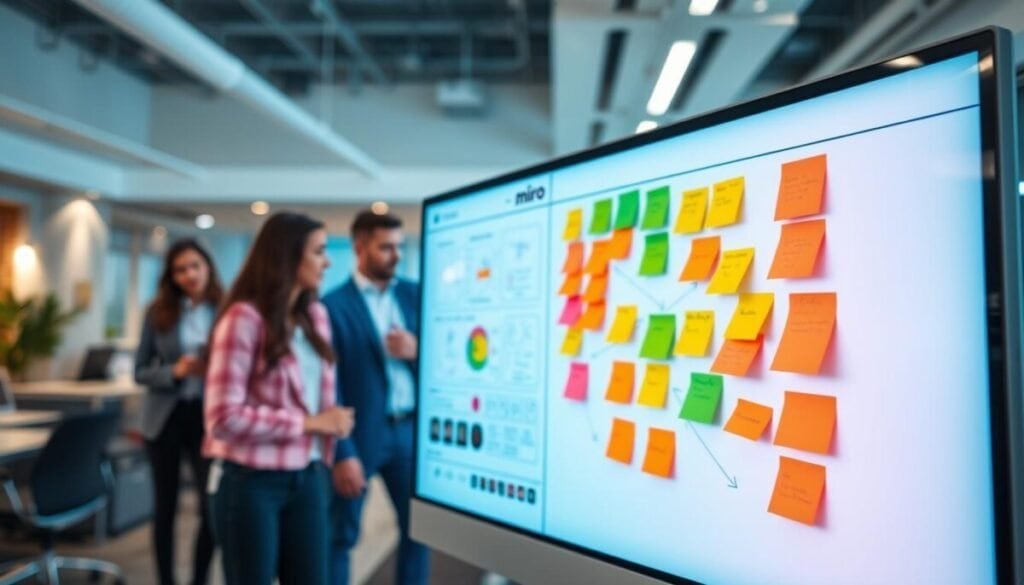
Miro brings structure to sprawling projects so teams can convert ideas into trackable work.
If your team runs multi-stage initiatives, Miro acts as a central whiteboard and task hub. The platform gives you an infinite canvas that scales with project scope. Use sticky notes, frames, and templates to break work into clear steps.
The free plan includes three editable boards. The Starter plan begins at $10 per user per month for more boards and advanced features. Miro integrates with over 100 apps, including Jira and Slack, which helps Agile teams keep tasks synced across systems.
Integrating Tasks with Project Management
Assign tasks directly from the canvas and link cards to external apps. That keeps task owners visible and reduces context switching.
- Track progress: move items through workflows and view activity history.
- Maintain alignment: comments and real-time cursors keep collaboration steady.
- Start fast: use templates to run brainstorming or planning sessions in minutes.
| Plan | Editable Boards | Notable Integrations |
|---|---|---|
| Free | 3 editable boards | Slack, Google Drive |
| Starter ($10/user/mo) | Unlimited boards | Jira, Confluence, Slack |
| Enterprise | Advanced controls & SSO | 100+ third-party apps |
Stormboard for Structured Brainstorming Sessions
Stormboard gives you a disciplined canvas for running repeatable brainstorming workflows. It turns simple sticky notes into a collaborative whiteboard so teams can dig deeper into ideas without chaos.
Use Stormboard when your group needs clear sections, archived iterations, and an easy way to assign follow-up tasks. The app supports drag-and-drop notes, inline text chat, and task cards so nothing slips through after a meeting.
- Organize ideas into sections to manage complex project brainstorming.
- Save every iteration of a meeting for review and revision.
- Assign tasks directly from the board and keep conversations in one place.
| Plan | Storms / Users | Notable features |
|---|---|---|
| Personal (Free) | 5 Storms | Sticky notes, drag-and-drop canvas |
| Business | Per user | Saved iterations, task assignment, team chat |
| Price | $10/user/mo | Advanced collaboration features |
Practical result: Stormboard keeps brainstorming focused and traceable. Your team finishes meetings with clear tasks, a saved history, and a tidy digital whiteboard that supports ongoing work.
Mural for Facilitating Large Remote Meetings

When dozens of contributors join a session, Mural keeps ideas organized and feedback honest.
Mural suits large remote teams that need structure. It offers a free plan for three murals and a Team+ tier from $12 per user per month. The platform gives you multiple boards and a shared canvas to split work into clear areas.
Facilitator Guidelines for Meetings
Use built-in facilitation templates to run focused sessions with minimal prep. Templates include timers, prompts, and role suggestions to keep the meeting moving.
Practical tips:
- Set timeboxes to keep brainstorming on schedule.
- Assign facilitators to guide discussion and manage actions.
- Group sticky notes quickly with templates to surface patterns.
Anonymous Voting Features
Mural’s anonymous voting encourages honest feedback. When vote counts appear without names, quieter users speak up and bias drops.
This feature pairs well with facilitator rules. Combine timed rounds, voting, and grouping to turn ideas into tasks and follow-ups. For more meeting features and integrations, see this meeting features guide.
| Feature | Why it matters | How to use it |
|---|---|---|
| Facilitation templates | Reduces prep time and standardizes runs | Pick a template, add timers, assign roles |
| Anonymous voting | Encourages candid input from all users | Run blind votes after idea rounds |
| Multiple boards | Keeps complex projects organized | Create board sections per workflow or team |
| Real-time collaboration | Aligns teams during live meetings | Use presence indicators and live cursors |
FigJam for Collaborative Design and Prototyping
When your team moves from sketches to functioning prototypes, FigJam shortens the gap between thought and test.
FigJam offers a free plan for three files and a Professional plan starting at $5 per user per month. It integrates tightly with Figma so designers can jump from low-fidelity ideation to high-fidelity prototypes without losing context.
Use sticky notes and voting to surface feedback in real time. Those simple interactions help teams converge on ideas faster and capture consensus during brainstorming sessions.
- Deep design integration: shared libraries and templates keep components consistent across files.
- Flexible canvas: supports collaborative design work and iterative reviews.
- Feedback loop: comments, votes, and live edits let designers act on feedback immediately.
| Plan | Files / Access | Key design features |
|---|---|---|
| Free | 3 files | Sticky notes, voting, basic templates |
| Professional ($5/user/mo) | Unlimited files | Figma integration, shared libraries, advanced templates |
| Team use case | Design teams, cross-functional groups | Seamless handoff to Figma, real-time collaboration |
Evaluating Alternative Virtual Whiteboard Options
Compare what your conferencing app offers against standalone boards to save time and cost.
Many conferencing platforms — Zoom, Microsoft Teams, and Webex — include a basic whiteboard for quick sketches and note-taking. These built-in options give easy access during meetings and reduce app switching.
But there is a trade-off. If your team needs advanced features like infinite canvas navigation, sticky-note analytics, or template libraries, dedicated products such as Lucidspark and Draft.io can deliver more depth. Pricing and regional availability may affect your choice.
- Do you require robust real time collaboration across many users?
- Will advanced grouping, export, or design integrations matter for projects?
- Does the included whiteboard in your meeting software meet recurring needs?
| Option | Strength | When to pick |
|---|---|---|
| Built-in conferencing | Fast access, low overhead | Quick meetings, simple ideas |
| Standalone apps | Richer features, templates | Complex brainstorming, design work |
| Regional alternatives | Price or compliance benefits | Teams with local constraints |
Test before you buy. Try a few apps and see which board keeps your team aligned. For a broader look at collaboration options and integrations, visit this guide on online collaboration tools.
Integrating Whiteboards into Your Daily Tech Stack
When your board syncs with project software, meetings turn into measurable progress. Make the board a core part of your stack so ideas flow directly into execution.
Use a shared whiteboard to keep one central repository for notes, tasks, and assets. That reduces duplicated effort and keeps decisions visible to everyone.
Choose apps that support cross-device access so your teams contribute from desktop, tablet, or phone. Consistent access lowers friction and preserves momentum across time zones.
- Smoother handoffs: link sticky notes to tickets in your PM software.
- Faster meetings: convert brainstorms into assigned actions without copying content.
- Single source of truth: centralize files, comments, and templates for project continuity.
| Integration | Why it matters | Example |
|---|---|---|
| PM sync | Keeps tasks traceable from idea to delivery | Link to Jira or Asana cards |
| File storage | Attaches context to decisions | Auto-save to Google Drive or OneDrive |
| Auth & access | Controls who edits and views content | SSO, role-based permissions |
Integrate steadily. Start with one team, measure time saved, then expand. Small steps keep workflows stable and let your users adopt the new software without disruption.
Leveraging AI to Enhance Your Creative Process
AI is changing how teams capture and organize ideas on a shared canvas. Smart features reduce manual cleanup and let you focus on creative decisions. These capabilities now appear across leading whiteboard apps and help teams move from scattered notes to structured plans.
Automated Sticky Note Grouping
Automated grouping clusters sticky notes by theme, priority, or sentiment. That saves time when dozens of notes pile up after a fast brainstorming session.
AI analyzes text and images, then suggests groups you can accept or refine. This keeps the canvas tidy and speeds decision-making.
Generating Templates from Prompts
Modern apps let you type a short prompt and generate relevant templates instantly. Use this to scaffold sessions, create agendas, or set up retrospectives in seconds.
Result: fewer setup steps and more consistent workflows across teams.
AI-Powered Summarization
After a session, AI can produce concise summaries that highlight top ideas, assigned actions, and open questions.
These summaries help users catch up quickly and turn creative output into trackable work without manual notes.
| Feature | How AI helps | What to expect |
|---|---|---|
| Sticky note grouping | Auto-clusters related notes | Faster synthesis, clearer themes |
| Template generation | Creates session layouts from prompts | Reduced setup time, standardized runs |
| Summarization | Extracts key takeaways | Actionable recaps, assigned tasks |
Choosing the Right Platform for Your Team Needs
Start by matching platform capabilities to the way your group actually works. List the core features you need for ideation, task handoff, and long-term project capture.
Test before you commit. Try a short pilot and compare real-time edits, templates, and integrations. See how users adopt the process and how the board links to your project apps.
Consider scale and growth. Pick a product that adds features over time and keeps your team aligned as work expands.
Need a place to compare collaboration platforms? See a roundup of collaborative platforms and use a collaborative platforms guide and this feature testing guide for practical steps.
Choose a board your team will use every day. When adoption is high, collaboration becomes routine and projects move faster.