
Most people don’t actually need “more storage” in 2026, they need reliable access, safe sharing, and a clean way to recover from mistakes or ransomware. The tricky part is that cloud based storage services now come in several flavors (sync drives, backup vaults, developer object storage), and choosing the wrong type creates pain later: missing files offline, accidental oversharing, surprise egress fees, or a false sense of backup.
This guide helps you choose the right cloud storage in 2026 based on your use case, security expectations, and how you work across devices.
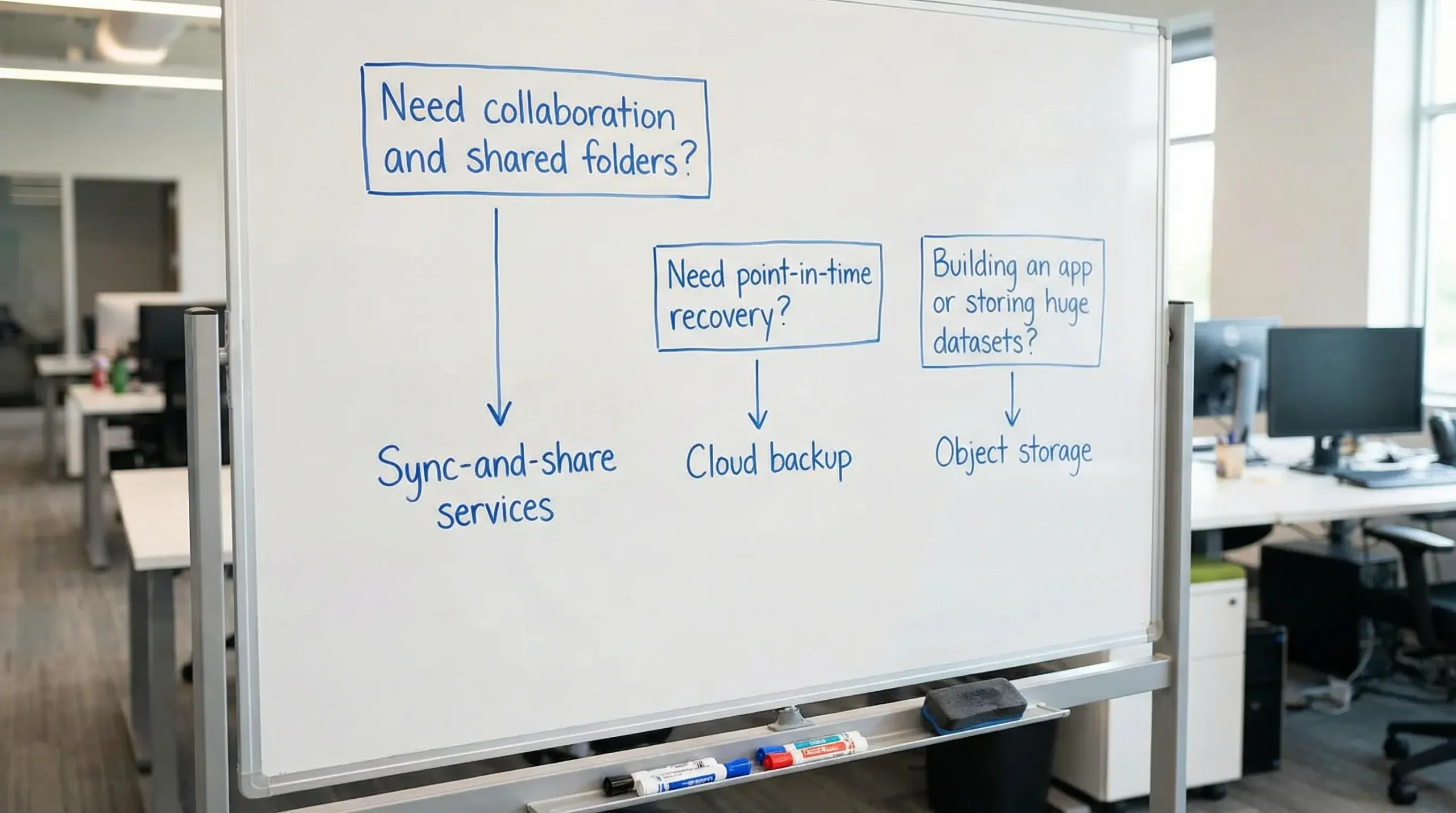
What “cloud based storage services” means in 2026 (3 categories)
Before comparing providers, decide which category you actually need. Many people mix them up.
| Category | What it’s best for | What it’s not | Typical examples |
|---|---|---|---|
| Sync and share | Everyday files, collaboration, sharing links, multi-device access | True backup (it syncs deletions too) | Google Drive, OneDrive, Dropbox, iCloud Drive, Box |
| Cloud backup | Disaster recovery, ransomware recovery, point-in-time restores | Real-time collaboration | Backup-focused services (varies by vendor) |
| Object storage | Apps, websites, developer workloads, archival, big data | “Folder-like” UX out of the box | Amazon S3, Backblaze B2, Wasabi |
A useful baseline definition of cloud computing characteristics (on-demand self-service, broad network access, resource pooling, rapid elasticity, measured service) comes from NIST SP 800-145. Storage offerings differ mostly in how they implement those characteristics for consumers vs businesses.
The 2026 decision checklist (what actually matters)
Marketing pages tend to look the same. These are the criteria that separate a smooth setup from a constant headache.
1) Your ecosystem and “default” workflows
If you live in Microsoft 365 all day, OneDrive often wins on convenience. If your team is Google Workspace-first, Drive usually feels native. If you are all-in on Apple devices, iCloud Drive can be the least friction.
Rule of thumb: pick the service that integrates with the apps you already use for documents, calendar, and email, unless you have a strong reason to optimize for privacy or admin controls.
2) Collaboration depth (not just file sharing)
Ask:
- Do you need real-time co-editing and comments?
- Do you need shared drives/team spaces with clear ownership?
- Do you rely on link sharing, expiring links, or password-protected links?
For many teams, collaboration features are the reason to choose a platform, not raw gigabytes.
3) Security model: encryption vs end-to-end encryption
Most mainstream services encrypt data in transit and at rest. Fewer offer end-to-end encryption (E2EE) or zero-knowledge encryption, where the provider cannot read your files.
If you handle sensitive client data, health information, legal documents, or internal IP, decide early whether you require E2EE by default, or if standard encryption plus strong access controls is sufficient.
To evaluate a provider’s claims, look for a security or trust center that explains keys, access controls, and audits. Examples (for reference):
- Apple’s iCloud Security Overview
- Dropbox’s security documentation
- Box’s Trust Center
4) Recovery features (version history, undelete, ransomware response)
In 2026, “I deleted a folder” is still a top cause of data loss, and ransomware is still a top cause of business disruption.
Look for:
- Version history that is easy to use (and long enough for your risk)
- Simple restore workflows
- Admin visibility into mass deletions or suspicious activity (for teams)
5) Admin, compliance, and audit needs (for teams)
If you manage a team, prioritize:
- Role-based access control
- Audit logs
- Device management
- External sharing controls
This is where consumer-first tools can start to feel limited, and enterprise tools can justify their cost.
6) Offline access and mobile experience
Offline mode matters more than people expect, especially for travel, field work, or spotty Wi-Fi.
Test this: can you mark folders offline on mobile, edit, then sync changes cleanly later?
7) Cost predictability (and hidden fees for object storage)
For sync-and-share, pricing is usually straightforward. For object storage, pay attention to:
- Data egress charges (downloading data out)
- API request costs
- Lifecycle and replication costs
If you are not sure, start with a sync-and-share service, then “graduate” to object storage once you have a defined technical workflow.
8) Exit strategy: export and migration
Every provider makes it easy to upload, fewer make it easy to leave.
Check:
- Can you bulk export with folder structure intact?
- Are there file type conversions that could lock you in?
- Can you transfer ownership cleanly if a team member leaves?
Quick picks: which cloud based storage service fits your 2026 use case?
Instead of declaring one universal “best,” here are the most common scenarios and the types of services that usually fit.
If you want the simplest “set it and forget it” storage for everyday work
Look at: Google Drive or Microsoft OneDrive.
Why they are often the default:
- They’re tightly integrated with their productivity suites (Docs/Sheets/Slides or Office apps)
- Collaboration is mature
- Account management is familiar for most teams
Where to validate security and admin posture:
- Google Workspace Security
- Microsoft OneDrive documentation
If your household is Apple-first (iPhone, iPad, Mac)
Look at: iCloud Drive.
Why it works well:
- Low-friction sync across Apple devices
- Convenient integration with Photos and device backups (depending on your setup)
Tradeoff to consider:
- Cross-platform collaboration and admin features can be less flexible than business-first services.
Reference: Apple’s iCloud security overview.
If you frequently share large folders with clients or collaborators
Look at: Dropbox.
Why people still pick it:
- Strong sync experience across platforms
- Widely supported integrations
- Sharing flows are familiar to clients (important when you cannot control what tools they use)
Start your due diligence here: Dropbox security.
If you need enterprise governance, workflows, and compliance tooling
Look at: Box.
Why it’s a common enterprise choice:
- Strong admin controls and governance focus
- Designed for business content management patterns
Validate trust and compliance details here: Box Trust Center.
If privacy is your primary requirement (client confidentiality, sensitive files)
Look at: Providers that emphasize end-to-end encryption or zero-knowledge options.
In this category, your evaluation should focus less on “features” and more on:
- How encryption keys are managed
- Whether E2EE is default or optional
- Account recovery model (some privacy designs trade convenience for security)
A useful starting point for understanding E2EE positioning is Proton’s overview of Proton Drive.
Important: “private” is not a standardized label. Read the technical explanations, and if it’s for business, confirm it with your security or compliance lead.
If you are a developer, creator, or IT admin storing lots of data for apps
Look at: Object storage (Amazon S3, Backblaze B2, Wasabi).
When object storage is the right move:
- You are storing large media libraries, backups, logs, or application data
- You want lifecycle rules (move older data to cheaper tiers)
- You need programmatic access and automation
Where to start learning:
- AWS Amazon S3 documentation
- Backblaze B2 Cloud Storage
Note: object storage is powerful, but you typically add a third-party interface or build your own workflow for browsing, permissions, and sharing.
A simple comparison table (so you can narrow choices fast)
Use this table to reduce your shortlist. It intentionally avoids price claims because pricing changes frequently and varies by plan, region, and bundle.
| Best-fit priority | Usually choose | Why |
|---|---|---|
| Seamless docs collaboration | Google Drive or OneDrive | Deep integration with productivity apps and sharing workflows |
| Apple ecosystem convenience | iCloud Drive | Built-in experience across Apple devices |
| Client-friendly sharing and cross-platform sync | Dropbox | Widely adopted, smooth sync and sharing patterns |
| Admin controls and enterprise governance | Box | Strong trust, governance, and enterprise content workflows |
| Privacy-first storage | E2EE/zero-knowledge oriented providers | Better fit when provider access to files must be minimized |
| App-scale storage and automation | S3/B2/Wasabi (object storage) | API-driven, scalable storage for technical workloads |
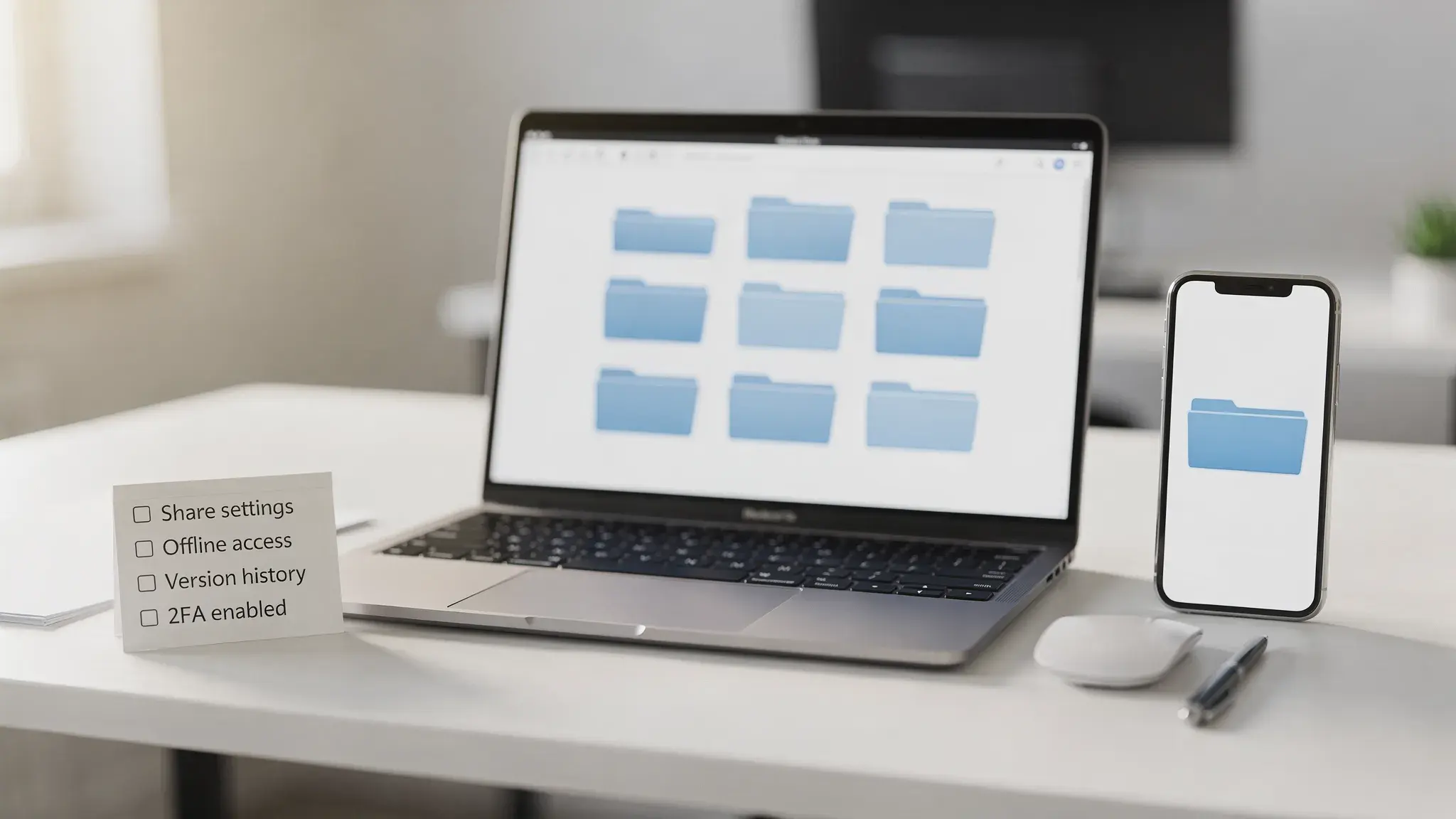
How to evaluate a storage service in 30 minutes (practical test)
Do a quick “real life” test before committing your workflow.
- Create a test folder with 20 to 50 files: PDFs, images, a spreadsheet, and a large video.
- Share the folder with a second email (or a colleague) and test permission changes (viewer vs editor).
- Install the desktop sync app and test selective sync (choose only some folders).
- Test mobile offline access by marking files offline, turning on airplane mode, then opening and editing.
- Delete a few files, then restore them, and restore an older version of one file.
If any of these steps feel confusing, they will be worse during an emergency.
Migration tips (avoid the most common “we lost stuff” mistakes)
Cloud migrations fail for boring reasons: inconsistent permissions, duplicate folders, and sync conflicts.
Keep a “source of truth” during migration
Pick a single location that is considered authoritative until the cutover is complete. If you allow edits in two systems at once, you invite conflicts.
Migrate in phases, not all at once
Start with:
- Personal files
- A low-risk shared folder
- One team or department
Then expand.
Treat sync services and backup as separate layers
A sync-and-share service is not a complete backup strategy. If your data is important, consider a separate backup workflow (even if it’s just periodic exports to another storage location). This is especially important for small businesses.
For broader tooling decisions beyond storage, you may also like our guide on how to find and buy digital tools that work.
Frequently Asked Questions
What are cloud based storage services? Cloud based storage services let you store files on remote servers and access them from multiple devices. In 2026, most services also include syncing, sharing, collaboration, and recovery features.
Is cloud storage the same as cloud backup? Not always. Sync-and-share tools mirror changes across devices, including accidental deletions. Backup tools focus on point-in-time recovery. Many people use both for important data.
Which cloud storage is best for small businesses in 2026? It depends on your stack. Teams in Google Workspace often choose Drive, Microsoft 365 teams often choose OneDrive, and compliance-heavy organizations often shortlist Box. Evaluate admin controls, sharing restrictions, and recovery features.
Do I need end-to-end encryption for cloud storage? You need it when the risk of provider access to your files must be minimized (highly sensitive client data, legal or medical documents, certain regulated workflows). Otherwise, strong access controls, MFA, and good admin policies may be sufficient.
What should I check before switching cloud storage providers? Confirm export options, folder ownership transfer, link-sharing behavior, version history, offline access, and how the provider handles deleted users and shared folders.
Next step: build your shortlist, then compare tools side by side
If you’re narrowing down options, focus on your top two use cases (collaboration, privacy, client sharing, developer storage) and test them with the 30-minute evaluation above.
For more step-by-step tool guides and comparisons, browse the latest posts on Online Tool Guides and keep your workflow decisions simple, documented, and easy to reverse.


