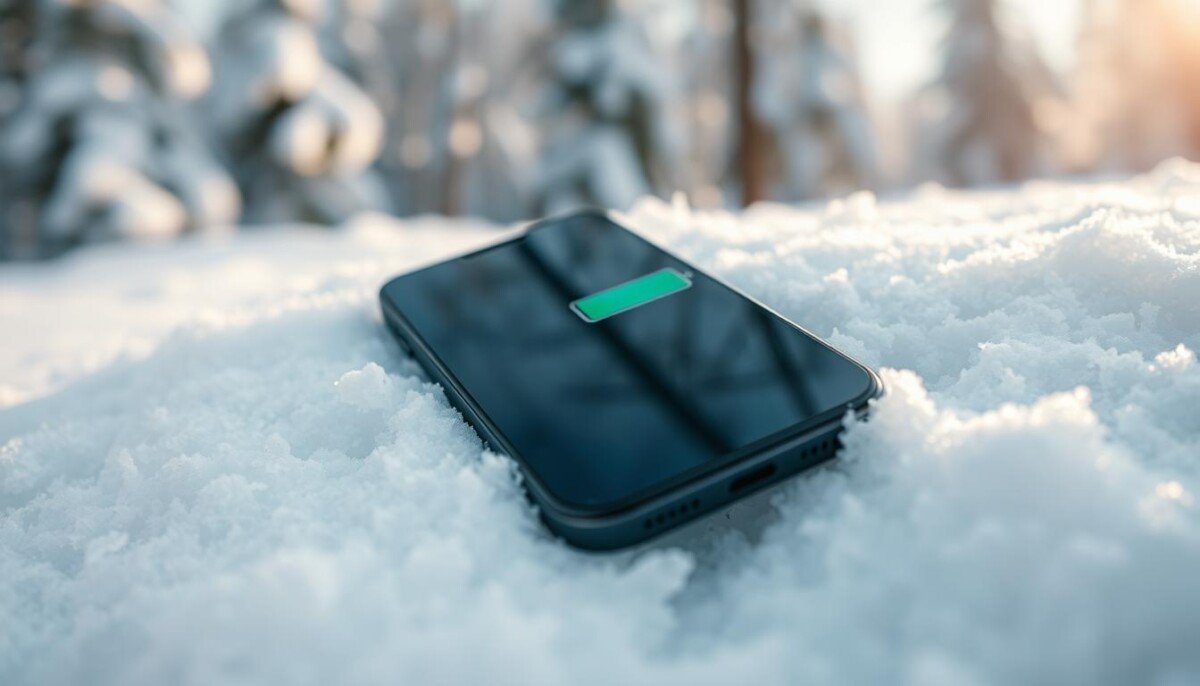
Have you ever wondered why your device dies faster on a winter walk? This guide shows how freezing temperatures sap power and what you can do to stop sudden shutdowns.
Battery University and Apple both note that lithium-ion cells perform best within a set temperature range. When temps drop, a phone may lose capacity and show rapid drain.
Understanding the effects of freezing on your device is the first step. Today we share practical tips to protect your phones, keep a steady charge, and stretch battery life when the thermometer falls.
Simple habits — a reliable charger, warm pockets, and planned charging — can prevent mid-day failure. For more on managing extreme operating ranges and heat-related issues, see this guide on overheating and fixes: smartphone overheating causes and fixes.
Key Takeaways
- Freezing temperatures reduce cell capacity and cause faster drain.
- Keep devices within recommended ranges to protect battery life.
- Carry a reliable charger and plan charges before heading out.
- Store phones close to your body to preserve power.
- Small steps today prevent sudden failures in the field.
Understanding Cold Weather Phone Battery Drain
Low outdoor temperatures can make a lithium cell seem weak, even when it still holds most of its energy. Understanding why this happens helps you decide whether the drop is temporary or a sign of real damage.
The Science of Electrolyte Thickening
Inside the cell, the liquid electrolyte thickens as temperatures fall. That slows lithium ions and reduces the rate at which the device can draw energy.
The energy stays in the cell, but chemistry limits delivery to the screen and processor.
Temporary vs Permanent Capacity Loss
Data from Battery University shows a device at 27°C may read 100% but drop to roughly 50% at -18°C. This is often a temporary capacity change, not a fault that needs a new battery.
If you let the device warm for a few minutes, the percentage usually returns and normal life resumes.
- Thickened electrolyte causes short-term performance problems.
- Energy remains inside the cell; delivery is limited by temperature.
- Wait a few minutes to check if readings recover before replacing parts.
| Condition | Approx. Capacity | Impact |
|---|---|---|
| 27°C (room) | ~100% | Normal performance |
| -18°C (outdoor) | ~50% | Reduced run time until warm-up |
| Repeated extreme use | Varies | Possible long-term capacity loss if exposed often |
Key point: short drops in reported charge usually mean temporary delivery limits, not permanent damage. Monitor cell health over time and avoid repeated exposure to extreme conditions to protect long-term performance.
Essential Tips to Keep Your Device Warm

Keep your device close to your body to use natural heat and prevent sudden power loss. Storing it in an inside jacket pocket is the easiest and most effective way to keep phone warm during a winter outing.
If you lack an insulated pocket, place the device inside a small bag or even a child’s mitten for extra insulation. These layers slow temperature transfer and help preserve charge and performance.
Avoid exposing the device to prolonged low temperatures. Stable internal temperatures protect long-term battery health and reduce frustrating shutdowns.
- The most effective way is an inside pocket by your body.
- Use a small bag or mitten when an insulated pocket is unavailable.
- Keep the device out of direct exposure to freezing air to preserve power.
Optimizing Phone Settings for Winter Performance
Small changes in settings can extend runtime when temperatures fall. Make adjustments before you head outside so the device keeps working when you need it most.
Leveraging Low Power Mode
Enable Low Power Mode to cut background tasks, limit push syncing, and reduce screen brightness. This lowers energy use and slows battery drain during prolonged exposure to low temperatures.
Activate it before leaving the house rather than waiting for a critical level. Proactive management preserves charge and helps maintain steady performance on long commutes or outdoor shifts.
- Turn on low power or power mode before going out to extend runtime.
- Lower screen brightness to reduce display draw and save energy.
- Limit background app refresh and heavy connections to ease load on the cell.
- These steps reduce battery drain and protect performance when ambient temperatures drop.
Combine settings with carrying tips from earlier sections for the best results. Together, behavior and configuration ensure your device stays reliable through a full day of winter travel or work.
The Dangers of Charging in Freezing Temperatures
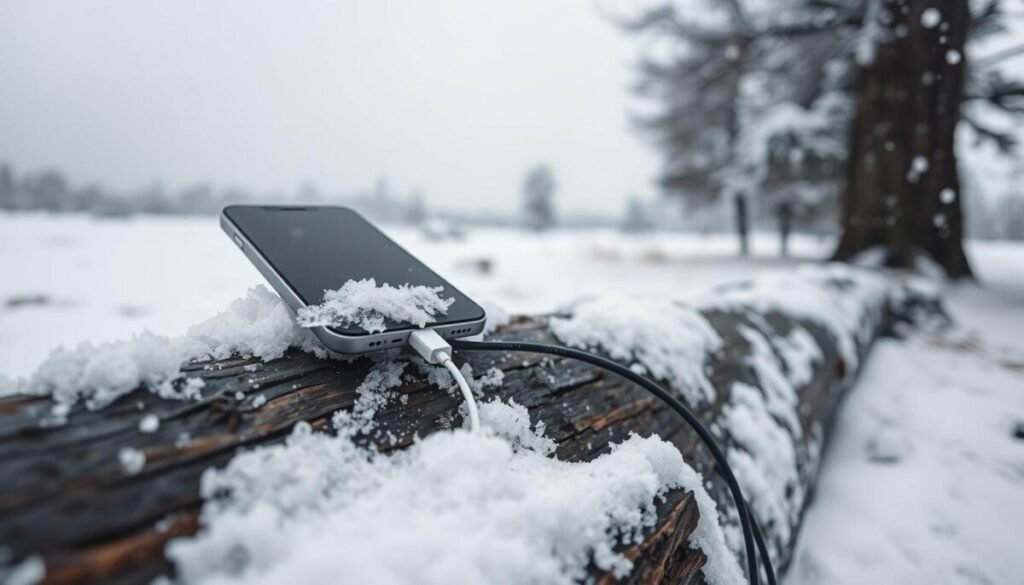
D charging immediately after exposure to subzero air can create lithium plating on the anode. This builds metal deposits that lower capacity and cause permanent damage.
Apple recommends an operating range of 0°C to 35°C for iPhones. If your device is colder than that, wait before you plug it in.
Understanding Lithium Plating
Lithium plating happens when ions deposit as metal instead of intercalating into the anode. Once plating forms, the cell can lose capacity and health for good.
Why You Should Wait Before Charging
Give the device 20–30 minutes indoors to reach room temperature. This short wait prevents irreversible harm and protects long-term performance.
Avoiding Wireless Charging in the Cold
Wireless pads create uneven heat patterns. That stress can worsen internal damage when the cell is still cold.
- Do not charge immediately after coming in from the cold.
- Warm the device for 20–30 minutes before using any charger.
- Avoid wireless charging until the device is at room temperature.
| Action | Risk if Cold | Recommended Wait |
|---|---|---|
| Wired charging | High — lithium plating and capacity loss | 20–30 minutes indoors |
| Wireless charging | Medium — uneven heat can stress the cell | Wait until fully warmed, then use wired if possible |
| No charging | Low — safest immediate option | Keep device in an inside pocket or bag until warm |
Managing Navigation and Power Usage Outdoors
When you rely on maps outdoors, a warm carry method and careful app use keep your device working longer.
Store your device in an insulated pocket or small bag to slow heat loss and protect capacity. This simple step preserves energy while you navigate.
Use navigation sparingly. Turn off route voice or refresh less often. Lower screen brightness and hide unnecessary layers on the map to cut drain.
- Enable low power mode before you start a trip to reduce background tasks.
- Bring a high-quality Anker power pack for multiday outings; it offers reliable extra power in a light pack.
- Share navigation tasks with another device when possible to split the load and extend runtime.
| Action | Benefit | When to Use |
|---|---|---|
| Insulated pocket or bag | Preserves capacity and performance | Always during outdoor navigation |
| Anker power pack | Compact backup power for multiday trips | Long hikes, extended field work |
| Low power mode + dim screen | Reduces app and display draw | When battery is limited or temperatures drop |
Conclusion: Protecting Your Battery Life
A mix of insulation, settings, and sensible charging protects your device in low temps.
Keep your phone in an inside pocket and use low power mode before long outings. These small steps preserve charge and extend runtime.
Always let the device warm to room temperature for a few minutes before you plug in a charger. Waiting prevents permanent damage and helps maintain capacity and long-term health.
Use practical tools like insulated cases and quality power packs. For more on safe handling and operating ranges, see protecting mobile devices.
Follow these habits and your phones will stay reliable, keeping performance strong and usable time longer.



