
Want to know why some meeting audio becomes searchable while other sessions stay silent? If you run meetings, this question matters. A clear transcript turns spoken ideas into searchable text. It helps participants catch missed points and keeps records accurate.
First, you must check your organization’s policy and admin settings to allow recording and meeting transcription. When organizers turn off Microsoft 365 Copilot, both recording and transcription stop, so make sure policies permit the feature.
During a live session, click the More actions button to start transcription. The live captions and transcript appear for participants and save alongside the video in OneDrive or SharePoint. A clear meeting chat updates with the transcript status so everyone knows what was captured.
Need a step-by-step for scheduling or managing sessions that keep transcripts available? See this guide on scheduling office hours in Teams for related tips on policy and recording settings.
Key Takeaways
- Check admin policies to allow recording and transcription for your organization.
- Start transcription from the More actions menu during a live teams meeting.
- Transcripts save with the meeting recording in OneDrive or SharePoint.
- Live captions and transcripts improve accessibility and searchability.
- Turning off related Copilot features also disables recording and transcription.
Understanding the Role of Meeting Transcriptions
A live transcript creates a real-time written record of what was said during a meeting or event. This turns audio into searchable text so you and your team can find decisions, action items, and ideas later.
Participants can open the transcript after the meeting to see timestamps and speaker names. That clarity helps teams assign follow-ups and verify who said what.
- Searchable record: Review specific discussions long after the meeting ends.
- Accessibility: Text improves access for users with hearing needs and non-native speakers.
- Accurate attribution: The system tracks each speaker so the transcript matches the conversation.
- Storage: When you record meeting events, the transcript sits with the video in your organization’s OneDrive or SharePoint.
Admins set default policy and settings to control who can record and use the transcription feature. You can also access the transcript via the meeting chat, or consult a short guide on scheduling that helps keep transcripts available: scheduling focus time in Teams.
Prerequisites for Enabling Transcriptions in Microsoft Teams
Confirm licensing and policy before you try to capture a transcript. The meeting organizer must hold a valid Microsoft 365 license, such as Office 365 Enterprise E1, E3, or E5.
Note: transcription is controlled at two levels. It is both a per-organizer and a per-user policy setting. The person who starts the recording or transcript must have the setting turned on.
Licensing Requirements
Make sure your admin assigns proper licenses to users who will host meetings. Without the right license, recording and transcription features will not appear as an option.
Technical Dependencies
- Admin settings: Set the Allow transcription policy to true in the admin center for relevant users and groups.
- App version: Update the desktop client to the latest release for full recording transcription support.
- Audio & network: Stable internet and clear audio inputs are essential for accurate text output.
- Language: Confirm the meeting language matches supported options for best results.
How to Enable Transcriptions in Microsoft Teams via Admin Center
Administrators can control transcript and recording permissions from Meetings > Meeting policies in the admin center. This is the central place to set defaults and apply exceptions across your organization.
Start by expanding Meetings and selecting Meeting policies. New policies default with transcription set to On, but you can edit the Global policy or create custom policies for departments and groups.
Configuring Meeting Policies
Use the Meeting policies page to toggle the transcription option so users can start transcription during a meeting. Turn the recording option on or off to match your privacy posture.
- Assign policies: Use Manage users to apply a custom policy to specific user names.
- Granular control: Restrict recording and transcription for selected groups or allow them for others.
- Events & formats: For webinars and town halls, modify settings under Events policies.
- Scale via PowerShell: Run Set-CsTeamsMeetingPolicy when you need to change policies across many users quickly.
- Default behavior: Setting the policy to On makes the transcript feature available by default for meetings organized by those users.
After you change a policy, allow some time for it to propagate. Then verify access by checking a user’s meeting options or the meeting chat after a short test meeting.
Activating Live Transcripts During a Meeting
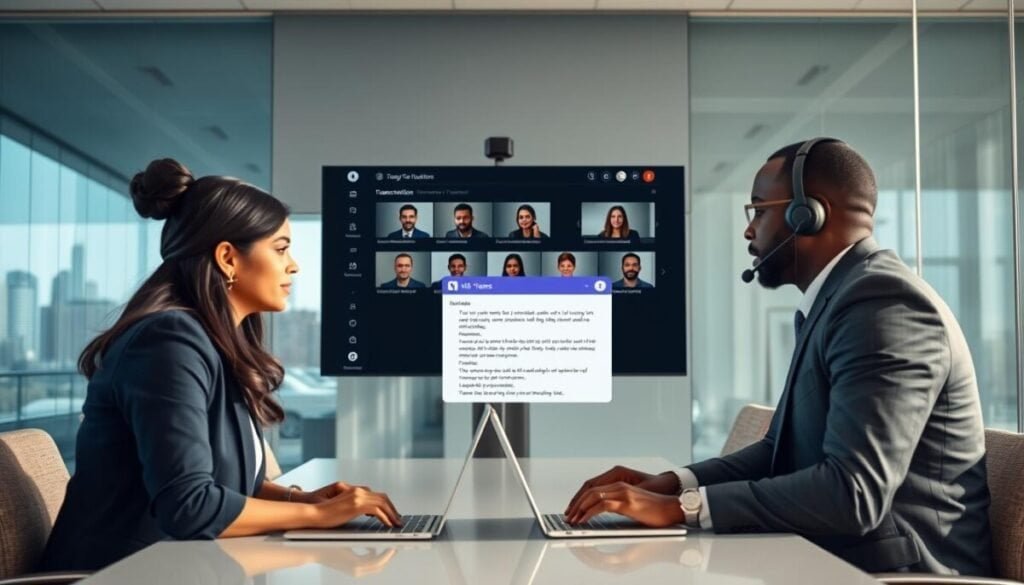
To capture a live transcript, open the meeting interface, click More actions, and choose Start transcription. That single step notifies all participants that the session will be recorded and transcribed for future reference.
The live transcript appears on the right side of your screen. You can follow the conversation as text appears in real time. Live captions also display for on-the-spot clarity when audio quality varies.
If you need to stop the process, return to More actions and select Stop transcription. The system ends the text capture immediately and logs the time.
- The transcript saves automatically with the meeting recording and becomes searchable after the meeting ends.
- Users can access the saved transcript via the meeting chat or the recap tab for review and follow-up.
- Because the transcript links to the recording, you can watch video and read text side-by-side to confirm decisions and action items.
Tip: Check your admin policy and meeting settings beforehand to ensure user access and default options permit transcription and recording.
Leveraging Teams Premium for Advanced Transcription Features
Premium subscriptions unlock live translation that converts spoken audio into the viewer’s chosen language. This option helps global teams follow meetings in their preferred tongue.
Live translated transcription lets each participant read the transcript in a chosen language in real time. The meeting organizer must hold a Teams Premium license for attendees to use this capability.
Live Translated Transcription
Support for up to 10 languages gives users flexible access during a teams meeting. Attendees can switch text to match their comfort level without pausing the discussion.
Multilingual Speech Recognition
AI-driven speech recognition improves accuracy for diverse accents and mixed-language sessions. That makes the transcript more useful for follow-up and action items.
- Greater inclusion: Participants read translated captions as audio plays.
- Context-aware: AI boosts relevance so the transcript matches the meeting topic.
- Admin control: Verify policy and settings so the premium option applies to your users.
| Capability | Standard | Teams Premium |
|---|---|---|
| Live translation | No | Yes — up to 10 languages |
| Multilingual recognition | Basic | Enhanced AI models |
| Transcript accuracy | Good | Higher, context-aware |
| Organizer license required | Not required | Required |
Managing Permissions and Privacy Settings
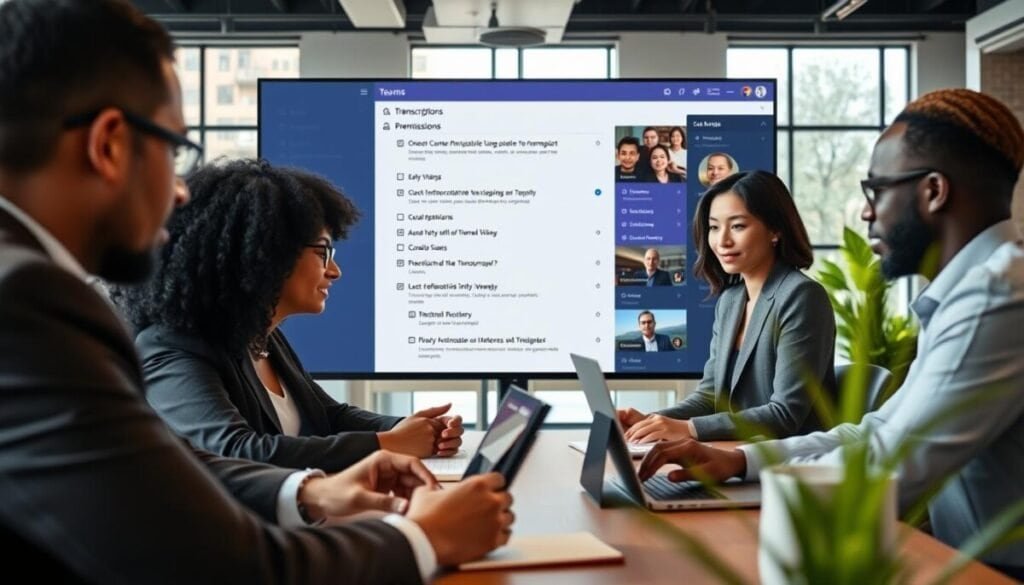
You can restrict participant actions so sensitive transcripts never leave the meeting environment.
As an admin, you decide whether organizers may block copying or forwarding of chat, captions, and the transcript. This control reduces unintended data exposure.
By default, the meeting organizer holds primary permission to manage the transcript. Admins can override that via policy to limit access for specific users or groups.
- Protect sensitive content: Restrict download and forward options for transcripts and recordings.
- Adjust file-level permissions: Edit access in SharePoint or OneDrive to control view and download rights.
- Mind broken links: Moving or copying a transcript file can sever the link to the original recording and require manual permission fixes.
- Inform participants: Tell users about privacy settings so expectations and compliance remain clear.
| Control | Default Holder | Impact |
|---|---|---|
| Copy/forward restrictions | Admin / Organizer | Prevents distribution of transcript text and captions |
| File access (OneDrive/SharePoint) | Organizer, editable by Admin | Limits who can view, edit, or download the transcript file |
| Policy overrides | Admin only | Enforces organization-wide privacy and compliance |
| File movement | Depends on destination | May break recording links; requires manual permission updates |
Action: Review your meeting policy and set clear permissions so transcripts and recordings remain secure and compliant.
Troubleshooting Common Transcription Issues
When transcripts fail to appear, start with a quick permission and app-version check before deeper troubleshooting.
Checking permissions is the fastest way to rule out account-level blocks. Run the transcripts diagnostic tool in the Microsoft 365 admin center to confirm a user meets requirements.
Checking User Permissions
Confirm the meeting organizer has the required license and that the admin policy permits transcription and recording.
Also verify the attendee account has the proper user settings. Outdated app versions often prevent the feature from initializing, so ask users to update their client.
Locating Missing Recordings
If a meeting recording does not appear in OneDrive, inspect the meeting chat for a recording chiclet. A chiclet often means the recording failed to upload and lives in temporary storage for up to 21 days.
Missing files also occur when recording wasn’t started correctly or when a recording policy was disabled at the time of the meeting.
Handling Expired Files
Expired transcripts or recordings may be retrievable from the recycle bin. If the file is gone, contact your admin to check retention settings and recovery options.
Admins can edit retention policy to prevent critical meeting recordings and transcripts from auto-deleting before they are needed.
- Use the admin diagnostic tool to validate user permissions.
- Update the client app to avoid initialization failures.
- Check chat for the recording chiclet when the file is missing.
- Review recycle bin and retention settings for expired content.
| Issue | Likely Cause | Quick Fix |
|---|---|---|
| No transcript option | Organizer lacks license or policy set to off | Verify license and update policy in admin center |
| Recording present in chat only | Upload to OneDrive failed | Download chiclet within 21 days or contact admin |
| Transcript expired | Retention policy or auto-delete elapsed | Check recycle bin; request admin recovery or edit retention |
| Poor captions or errors | Old client or poor audio quality | Update app; improve microphone and network |
For step-by-step recovery tips and common fixes, consult this quick guide to meeting transcript fixes.
Maximizing Meeting Productivity Through Accurate Documentation
Consistently capturing a written record changes how teams act on meeting outcomes. When you use transcription, each session becomes a searchable artifact that keeps action items visible.
Make sure participants know the process before the session starts. Clear notice builds trust and reduces confusion about privacy and access.
Use the saved transcript as the single source of truth. Team members can focus on the conversation instead of note taking. That raises engagement and shortens follow-ups.
Review your policy so transcripts stay secure and discoverable. As you refine the use of microsoft teams, these records will raise meeting quality and cut repeat discussions. Consider incorporating the practice of pinning messages in Microsoft Teams to highlight key information for easy reference. This feature can help team members quickly access important updates and decisions made during meetings. Enhancing communication in this way will promote clarity and efficiency in your collaborative efforts. scheduling team meetings with Microsoft Bookings can streamline the process even further. This tool enables team leaders to set up meetings effortlessly, reducing the back-and-forth typically required to find suitable times. Utilizing these technologies will not only save time but also foster greater collaboration among team members.