Have you ever been locked out at the worst possible moment? For many users, that frustrating pause comes when security steps fail during login.
Two-factor authentication adds a vital layer of protection for accounts. When you use facebook, this guard stops intruders even if they have your password. Yet, a few precise technical issues can break the flow.
Most failures trace back to time or settings mismatches. Authentication tokens rely on accurate device time and updated security settings. Over the past years, engineers tightened protocols, but mismatched clocks and outdated options still cause errors.
In this guide you will get clear, practical solutions to resolve facebook two factor authentication problems fast. We draw on expert experience and step-by-step fixes so you can restore access and keep your account secure. One common issue users face is the delay in receiving the authentication codes. It’s essential to check that your phone number is correctly linked to your account and that you have a strong network signal. Additionally, understanding the various twofactor authentication troubleshooting tips can help you resolve issues efficiently.
Key Takeaways
- Ensure your device time is automatic and synced to avoid token errors.
- Update security settings before troubleshooting login issues.
- Use clear, step-by-step solutions to restore access quickly.
- These defenses reduce phishing risk that rose over recent years.
- Follow expert-tested steps to keep your account reliably secure.
Verifying Account Contact Information
Start by confirming the contact details tied to your account—this simple check solves many access issues.
Why this matters: A wrong phone number or country code stops text delivery and prevents you from getting a code. Take two minutes to confirm what’s on file.
Checking Phone Number Accuracy
Open your settings, go to personal settings, then click Personal Details. Look for the phone entry and confirm every digit.
Make sure the number on your facebook account has no typos. If you can’t get a security code, check your device and carrier settings to ensure messages from social services aren’t blocked.
Updating Country Codes
When you update the phone number, set the country code correctly. For the United States use +1. An incorrect code will stop SMS delivery.
- Ensure the phone number is linked to your account to receive the verification code.
- Confirm security settings so the number on file is current and typo-free.
- If you still don’t get code texts, follow this guide to troubleshoot setup issues for next steps.
Troubleshooting Facebook Two Factor Authentication Problems
If you can’t get a code at login, start by checking basic network and device settings.
Begin with connectivity. A weak internet link or flaky cellular signal blocks codes. Switch between Wi‑Fi and mobile data, then retry getting a code.
Next, verify your device software. Outdated OS builds or app versions can conflict with security checks. Update the app and reboot the device before another attempt.
- Confirm your phone number is active and able to receive SMS messages.
- If texts fail, try an alternate method to get code, such as backup codes or an authenticator app.
- Reset your password and re-enable two-factor authentication if access remains blocked.
- Check security settings for flagged activity that may stop login attempts.
If steps fail, contact facebook support or consult the help center for outages. For guided fixes on account access, follow this link to account access issues.
Optimizing Device Time and Network Settings

A mismatched device clock often breaks the code exchange—so syncing time is the fastest fix.
Why it matters: Tokens and codes rely on precise time. If your device time or zone is wrong, the server and your device will disagree and deny access.
Syncing Automatic Time Zones
Open your device settings and enable Automatic Date & Time and Automatic Time Zone. This ensures your device updates after travel or daylight changes.
If you use an authenticator app, confirm the app’s time correction option is active so generated codes match server expectations.
Restarting Network Hardware
Restart your router or modem to clear temporary network issues. A simple reboot often fixes packet loss that interrupts the login handshake.
Run a quick speed test to verify your internet connection is stable before you try to get code notifications again.
Closing Background Applications
Close unnecessary apps that use data in the background. This frees bandwidth and avoids delays in receiving SMS or push codes from the security service.
If these steps do not restore access, consult our guide on two-factor authentication problems for deeper troubleshooting or contact support with details about your device, time settings, and network status.
Switching to Authenticator App Security
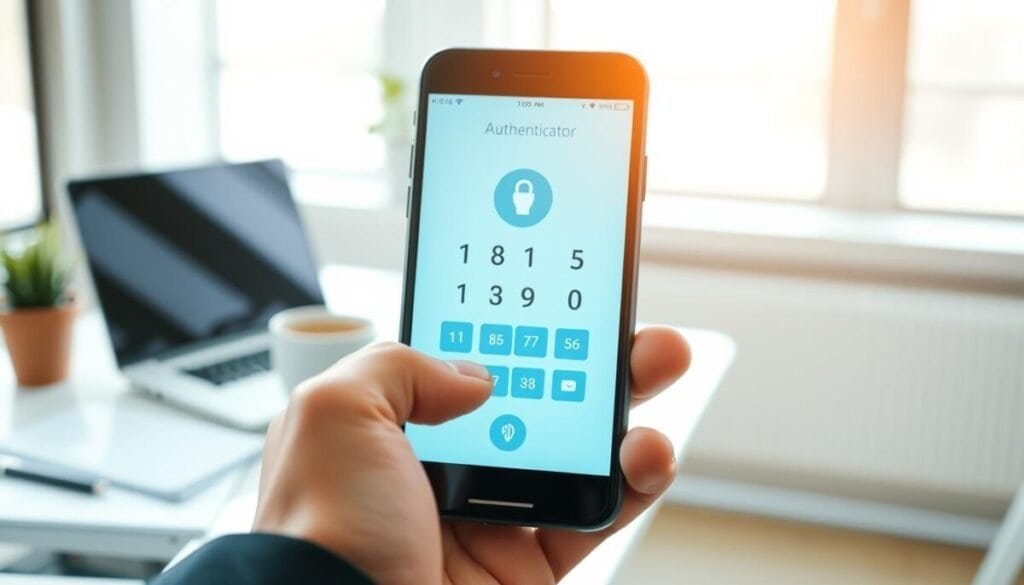
Move to a dedicated token app to reduce SMS dependence and speed recovery when access is blocked.
Why use an authenticator app? These apps generate time-based codes on your device. They work without cellular service and cut the risk of intercepted SMS messages.
Linking Third Party Apps
Download a reputable app like Google Authenticator or Authy from your device store. Then open your facebook security settings and choose the option to link an authenticator.
- Scan the QR code in security settings to sync time-based tokens.
- Save backup codes and store them somewhere safe in case you lose the device.
- Test a generated code before you log out to confirm the app and settings are synced.
If you run into issues linking a third-party app, see the step-by-step guide for third-party login issues. Official app documentation will also answer common questions about setup and time correction.
Clearing Browser Data and Disabling Interference
Start by clearing cached data to remove corrupted browser files that block login flows.
Clear cache and cookies. Open your browser settings and delete cached images, cookies, and site data. This removes stale files that can stop the code exchange and prevent account access.
After clearing data, close the browser and restart your device. Reopen the browser and try the login again to confirm the change took effect.
Disable VPNs, proxies, and extensions. These services can reroute traffic or block scripts that the authentication app needs. Turn them off temporarily and retry the login. If you’re still facing issues, consider following the instagram login error troubleshooting steps to identify potential problems with your account. Check if your password has been changed and ensure your account hasn’t been locked or compromised. Additionally, verify that the app is updated to the latest version, as outdated software can contribute to login difficulties.
- If a persistent login problem remains, clear browser data again and test in a private window.
- Try a different browser to isolate whether settings or extensions cause the issue.
- If you still cannot get a code, contact facebook support or review the guide on code generator issues for targeted steps.
Keep a clean browser environment. Regularly clearing data and auditing extensions reduces future interference. This helps your device, app, and browser communicate reliably so you regain swift access when time-sensitive codes arrive.
Final Steps for Securing Your Digital Presence
Wrap up with a quick audit of your contact info, apps, and browser settings.
First, enable two-factor authentication and add an authenticator app to reduce SMS reliance. Save backup codes and confirm your phone number is current in account settings.
Keep your browser clean and your device time synced so codes match the service. Update passwords regularly; a strong password remains your first defense.
If you still cannot access your facebook account after these solutions, contact facebook support or follow the forgot Facebook password guide for recovery steps.