Seeing a loop of errors when you try to sign in? That frustrating pause usually traces to three places: the network path, the device or app state, or your account and security settings. You will get clear, fast checks for each so you can fix the problem without wasting time.
Symptoms range from the app stalling at load to codes not arriving or a generic error message. We map each symptom to a next action: quick network tests, forcing the app closed, and verifying account status.
In minutes you can isolate a flaky internet route, remove device-level blockers such as VPN or DNS filters, or complete a secure recovery flow. If two-factor prompts or connected apps complicate access, follow the concise steps and use the recovery guide linked here for code-generator and recovery details: account recovery and code generator issues.
Key Takeaways
- Start with a network check to rule out internet path problems.
- Force-close the app and pause before reopening to clear cached sessions.
- Inspect device settings for VPNs or DNS filters that block endpoints.
- Follow the recovery flow if security challenges block access.
- Use the linked guide for code-generator and detailed recovery steps.
Identify the issue quickly: symptoms, scope, and what to check first
Pinpoint the visible behavior first: frozen screens, recurring prompts, or missing codes. Record the exact status text and the time it happened. These details guide the fastest fix.
Scope the problem in 60 seconds. Try another app and open a website. If other apps work, focus on this specific app. If everything fails, check the network and your device settings. If the problem persists specifically with the app, investigate potential updates or reinstall it to resolve the issue. Many users have reported a similar facebook reels not playing issue, indicating it may be a common bug. Additionally, verifying if your device meets the app’s requirements can help in troubleshooting.
If two-factor codes are delayed, check the correct email or phone and look in spam. Try signing in via mobile Safari at the web address; if the browser succeeds, the issue is an app session or cache.
Quick triage steps
- Test another device to confirm if the issue is local.
- Switch Wi‑Fi to cellular (or vice versa) to isolate the network.
- Verify your password and recent changes; confirm no autofill is using an old pass.
| Symptom | Likely cause | First step |
|---|---|---|
| Stuck on loading | Expired session or app cache | Force-close and relaunch the app |
| “Try Again” loop | Blocked endpoints or network issue | Switch networks; reset network settings if needed |
| Missing two-factor code | Wrong email/phone or delivery delay | Check email, SMS, and backup methods |
Capture these facts: exact error text, the button you tapped, and which account you tried. Use that list when you move to targeted troubleshooting or when you follow the recovery guide.
app loading errors has more steps if the browser and device checks do not clear the issue.
Fix connection and device causes before anything else
Start with basic connectivity checks; a quick network swap often resolves the issue. Toggle Wi‑Fi off and try mobile data. Then switch back. Test a different hotspot or public Wi‑Fi to isolate where the problem lives.
Restart sequence
Force-close the app by swiping it away, wait ten seconds, then relaunch. If that fails, restart device to clear transient radio and memory states. Retry sign-in right after the reboot to check results.
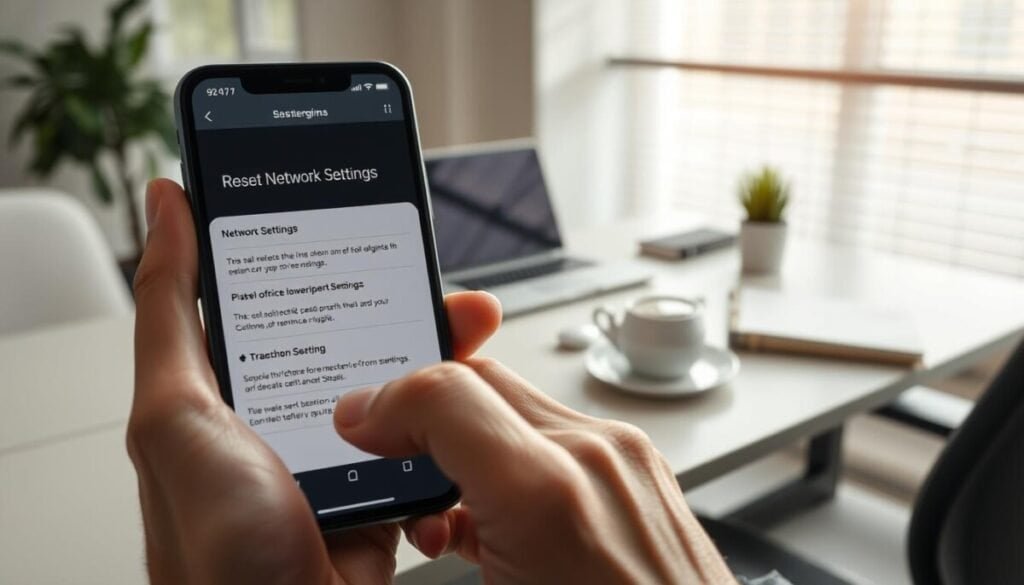
Reset Network Settings
Follow: Settings > General > Transfer or Reset iPhone > Reset > Reset Network Settings. This will clear saved Wi‑Fi, VPN, and APN profiles. Reconnect and test the internet.
Reinstall the app & VPN checks
If the app is still stuck, delete it, reboot the phone, then download from the App Store. If you use a VPN, disconnect and retry. If that fixes it, adjust the VPN protocol or reset its profile and test again.
- Change only one variable per step and test each time.
- Document what changed and the exact time it worked.
For account-side steps if access still fails, see our guide to account access issues for the next troubleshooting moves.
facebook won’t let me login on iphone 15 plus: account, settings, and security checks

Start with account-level checks before changing device settings. Confirm any security alerts or identity verifications that could block access. Look for messages asking you to confirm identity or recent password resets.
Verify account status and security alerts
Check security notifications in your profile and email. If the service flagged unusual activity, follow prompts to clear holds.
Reset your password safely
Use the email or phone linked to your account to request a reset. Confirm you can receive codes before proceeding. For detailed recovery steps, follow the reset password guide.
Clean up connected logins and Account Center
Go to Settings & privacy > Settings > Apps and websites and use account remove for stale services. Then open Account Center to review Personal details and Account ownership and control for any restrictions.
Two-factor and login approvals
Confirm authenticator codes, SMS delivery, and that device time is set automatically. If web recovery is easier, log facebook via a browser and then review active sessions and data export options in Account Center. If you encounter facebook phone number update issues, it may be helpful to verify that your account settings are configured correctly. Additionally, check that your contact details are current to ensure you receive any necessary security alerts. Regularly updating your recovery options can also provide an extra layer of security for your account.
| Check | Action | Why it matters |
|---|---|---|
| Security alerts | Follow prompts | Clears holds that block access |
| Connected apps | Remove unused | Stabilizes sign‑in |
| Two‑factor | Verify codes/time | Prevents code drift |
If access still fails, see account access issues for the next steps and record times and details of each change.
You’re back in: keep your account accessible next time
,
With access restored, take quick actions to keep your account available the next time an issue appears.
Back up data now: use Account Center to download your information set to All time, HTML, and High media quality. Save that archive off the device.
Clean third‑party logins and create a bottom‑line recovery list: current password, updated email and phone, 2FA backup codes, and trusted devices. Keep the app updated from the App Store and note network behavior so you can toggle Wi‑Fi or cellular fast.
Make sure 2FA works on a second phone and store backup codes safely. If you plan to delete a page, transfer admin first. For 2FA setup details, see the two‑factor authentication guide. Additionally, ensure that your recovery options are up to date to avoid being locked out of your accounts. If you need to secure your Facebook account, here’s how to enable facebook 2fa, which adds an extra layer of protection against unauthorized access. Always be vigilant about monitoring your accounts for any suspicious activity after enabling 2FA.
Fast bottom checklist: switch networks, force‑close app, restart, reset network settings, try web login, then reset phone only if needed.