Stuck at the change screen and wondering why the flow breaks? You landed here because a password change failed or stalled. This intro maps the quickest path to a fix for both desktop and mobile users.
Follow clear steps: on desktop go to Settings & Privacy → Settings → Security and login → Change password. In the app tap your profile picture → Settings & Privacy → Settings → Security and login → Change password. Meta also lists Accounts Center → Password and security → Change password as an alternate route.
If the page blocks you, use the login “Forgot password?” flow to receive a reset code at any account email address or phone number. Keep your recovery email or mobile address ready. If you lack access, trusted contacts or ID checks may appear.
Key Takeaways
- Exact navigation: use the Settings → Security and login path on web and app.
- Alternate route: Accounts Center offers Password and security → Change password.
- Use “Forgot password?” to get a reset code sent to every registered email or number.
- Prepare recovery info: have your email, phone, or ID ready to speed verification.
- Harden account security: enable two-factor and login alerts after you change the password.
- Confirm contact details and recovery settings to avoid repeat issues.
Understand why Facebook won’t let you change your password right now
Before you try again, confirm a few quick signals that commonly stop the flow.
Common causes
Wrong current password is the top reason changes fail. Check your password manager or browser vault first.
Expired sessions can block the flow. Sign out and sign in again to refresh authentication.
An outdated app or a flaky network can interrupt the process. Update iOS/Android and switch networks if needed.
Security holds
Systems flag risky signals like unknown devices or a location/address mismatch. That triggers a temporary hold for extra security.
If you get an unexpected reset notice at your email, treat it as a potential sign of suspicious activity and review recent logins.
Quick checks before you start
- Confirm access to the recovery email and registered phone number.
- Try the change from a recognized device or home network to reduce friction.
- Have verification codes ready and keep account information current to speed recovery.
If the process still seems blocked, use the simpler reset flow or consult a guide on account access issues for step-by-step options.
Change your password while logged in (desktop and mobile)
You can change a password while signed in by following a few clear menu steps on desktop or mobile.
Desktop steps
Sign in, click the top-right menu, then go to Settings & Privacy → Settings → Security and login → Change password.
Enter your current password, type the new password, retype it, and click Save changes. If prompts appear, complete them to refresh your session.
Mobile steps
Open the app, tap your profile picture, then Settings & Privacy → Settings → Security and login → Change password.
On iOS and Android the labels match. Enter the current password, set a new password and tap Update password.
Strong new password tips
- Use 12+ characters with mixed case, numbers and symbols.
- Avoid names, address fragments, or common patterns.
- Use a reputable password manager to generate and store a 12–16 character passphrase.
- If the interface sends you to Accounts Center, follow Accounts Center → Password and security → Change password and then follow on-screen prompts.
After confirming the change, log out of other sessions and update your recovery email and number to keep account security strong. For the “forgot” flow, see this password reset guide.
Use the Facebook login page to reset password if you’re locked out
Start at the official login page and trigger the recovery flow to reset facebook password quickly.
Click “Forgot password?” then enter email or phone to locate your account. You may see multiple delivery choices if several addresses are on file.
Get and use the reset code
Choose email or SMS and wait for the code to arrive. If you don’t see a code, check spam, filters, and carrier delays before requesting another.
Enter code on the next screen and set a strong new password. Avoid reusing previous passwords to reduce risk from old breaches.
After you regain access
Follow on-screen prompts to log out of other sessions. Then go to Settings → Security and login → Where you’re logged in and review recent devices.
If you can’t use your email phone number, skip to advanced recovery options. Always verify the page domain before entering credentials to avoid phishing.
| Step | Action | Tip |
|---|---|---|
| 1 | Open login page and select “Forgot password?” | Use a known device and network to speed recovery |
| 2 | Enter email or phone to locate account | Pick the delivery choice tied to your email or phone number |
| 3 | Receive and enter code | Check spam and request a new code if delayed |
| 4 | Set a new password and confirm | Use 12+ characters and avoid old passwords |
| 5 | Log out other devices and review sessions | Look for unknown devices and end suspicious sessions |
Change password via Accounts Center for connected Meta accounts
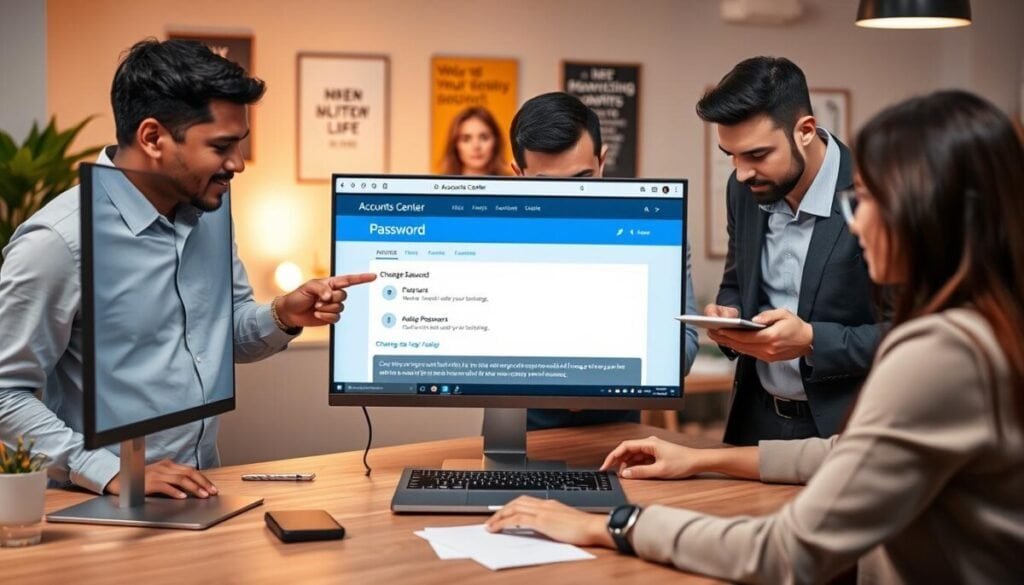
Manage linked profiles in one place by opening Accounts Center and starting the change password flow.
Accounts Center route: go to Password and security → Change password, then pick the specific Facebook profile you want to modify.
Enter your current credential, set a new password, and confirm. After you save, the new password applies across all active sessions for that facebook account.
- Open Accounts Center to update Facebook and Instagram credentials in a single method.
- Select Password and security → Change password and choose the target account.
- Complete any code checks if prompted; these confirm you started the process.
- Keep recovery email and phone current under Accounts Center → Personal Details → Contact info for faster verification.
- Use a password manager to generate and store a unique credential per account and label entries clearly.
If you see an error, retry from a recognized device and confirm the app or browser is up to date. This central route reduces navigation differences and shortens the overall process for teams and admins.
facebook won’t let me update my password: what to do when you can’t access your email or phone
When you can’t access the recovery email or phone on file, begin from a device and network you’ve used with your account before.
Recognized devices and locations increase the number of recovery options shown. Start the flow from home Wi‑Fi or a phone you previously used for login. This often reduces friction and can surface alternate verification methods.
Trusted contacts: how the multi-code process works
If you configured Trusted Contacts earlier, you can request help without the registered number or address. Facebook splits a recovery code into parts and sends each part to the friends you chose.
Collect all parts, combine them in the recovery page, and follow prompts to regain access. Keep a note of who received a code and when—documenting speeds troubleshooting.
ID verification: what to expect
If other methods fail, Facebook may ask for a government ID (driver’s license or passport). Upload a clear, legible photo with names and dates matching your profile.
Reviews can take 48 hours to a week or more. Avoid repeated submissions; each reupload can reset processing time. If you need extra guidance, consult the account access issues guide.
- Try recovery from a known device and network first.
- If you lack an access email or phone, use Trusted Contacts or ID checks.
- Enter an email address you control when prompted for updates.
- Keep phone number records handy and update contact info after recovery.
Didn’t get the reset code? Fix code delivery, email, and SMS issues
When a code does not arrive, treat email and carrier routing as the likely culprits.
Start with email: check Spam, Promotions, and any filtered folders. Search for “Facebook” and the exact email address tied to the account. If you find messages in a filter, add the sender to your safe list to prevent future loss.
Verify the phone route: confirm the full international phone number format. Some carriers block short codes or international texts. If SMS fails, try the alternate delivery option if provided.
Wait a few minutes before requesting a fresh code; expired codes are common and repeated rapid requests can be throttled. Turn off VPNs during the flow — location anomalies often trigger added checks or delays.
Quick checklist
- Search all mail folders and remove mail filters that auto-archive.
- Confirm the saved email address and that no domains are blocked.
- Validate phone formatting and carrier support for short codes.
- Try email if SMS fails, or vice versa, and complete any on-screen confirmation prompts.
- If problems persist, start the process from a known device and network and consult a guide on code generator issues.
Lock down your account after changing your password
With the password changed, the next priority is to remove lingering sessions and tighten login protections.
Log out of other devices and review “Where you’re logged in”
Immediately sign out of other sessions and open Where you’re logged in on the account page. End any device or location you don’t recognize.
Look for unfamiliar operating systems, cities, or repeated attempts. Logging out forces old sessions to reauthenticate with your new credential.
Enable two-factor authentication and turn on login alerts
Enable two-factor authentication via Accounts Center → Password and security → Two-factor authentication to block logins even if the password leaks.
Turn on login alerts so you receive immediate notices for unrecognized sign-ins. Save backup recovery codes if your 2FA method offers them.
Update recovery options and prune risky apps and websites
Update recovery email and phone number in Accounts Center → Personal Details → Contact info to ensure future recovery works smoothly.
Review Apps and Websites and remove untrusted connections. Store credentials in a manager and rotate passwords on a schedule to keep the account secure.
- Log out other sessions and review active devices right away.
- Enable two-factor authentication and save backup codes.
- Turn on login alerts for immediate security signals.
- Update recovery email, phone number, and address info.
- Remove risky third-party apps and websites from settings.
- Document which page you used to change settings for future reference.
For a step-by-step reset and recovery walkthrough if you still need it, follow this password reset guide.
Think someone else accessed your account? Use facebook.com/hacked

Suspect an intruder? Open facebook.com/hacked and choose “My Account Is Compromised” to begin guided recovery right away.
Red flags to watch for
Unknown logins from unfamiliar cities or devices are the clearest sign of compromise.
Also watch for sudden profile edits, messages you did not send, or unexpected ad charges.
Guided recovery flow
Identify your account with an email or phone number, then try the last password you recall.
The flow forces a password change, prompts a review of recent devices, and asks you to confirm suspicious activity.
When recovery is harder
If the attacker changed your email or phone or controls two-factor authentication, pick “Try another way.”
You may need to enter a received code or upload a government ID; reviews can take days. Remain patient and avoid repeated submissions.
| Step | Action | Outcome |
|---|---|---|
| 1 | Visit facebook.com/hacked | Begin official compromised-account workflow |
| 2 | Identify account with email or number | System locates profile and shows recovery options |
| 3 | Enter last known password or choose alternate option | Triggers security checks and reset process |
| 4 | Upload ID if requested | Verification may restore access after review |
| 5 | Secure account and enable two-factor authentication | Locks out attacker and restores control |
Why securing your email is critical to Facebook password recovery
Control of your email account directly governs many password reset flows. Your inbox receives reset links and codes that allow account owners to change credentials. If someone else controls that inbox, they control the recovery process.
Email as the master key: reset links, codes, and takeover risks
Your email address is the primary delivery point for reset links and one-time codes. An attacker who reads that mail can request a reset and use the code to take over the account.
Check forwarding rules, filters, and access logs in your mail client regularly. Small changes there can silently reroute critical recovery information.
Best practices: strong unique password, 2FA, and phishing awareness
Use a long, unique password for your email that differs from any social or banking credentials. Store it in a trusted manager.
Enable two-factor authentication on the email account and keep at least one alternate email address or phone number for recovery. That extra step blocks most automated takeovers.
- Verify sender domains before clicking reset links or entering a code.
- Review account security settings and remove unknown devices.
- Document your recovery process so you act fast if you see suspicious notices.
Get back in control today: follow these steps to update and secure your Facebook account
Start with immediate actions you can complete in minutes to secure the account and finish the reset process.
If you’re signed in, go to Settings & Privacy → Settings → Security and login → Change password and set a strong new password. For cross‑Meta accounts, use Accounts Center → Password and security → Change password.
If you’re locked out, open the facebook login page, tap Forgot password and follow on‑screen prompts to enter the code sent to your email or phone number. If mail doesn’t arrive, check spam and filters or try the alternate delivery option.
After access is restored, log facebook out of other sessions, enable two‑factor authentication, update recovery email and phone number, and remove risky app permissions. For a full reset walkthrough, see this guide on how to reset password and a fix for changing contact info at change phone number issues.