Fact: users can schedule an email up to 49 years in advance — a scale that changes planning for long-term campaigns and reminders.
This guide commands precise control of timed delivery. It explains the built-in schedule send feature and the step that opens a window to pick date and time.
Use the arrow next to the send button to access options. Choose a preferred time, confirm, and the message moves to a dedicated folder for review.
Key Takeaways
- Automate delivery — ensure each email reaches the recipient at optimal times.
- Built-in feature — access scheduling from desktop and the mobile app.
- Review stored scheduled emails in their folder before the final date and time.
- Click the arrow by the send button — open the menu to set date and hours.
- Use scheduled messages for follow-ups and deadline-driven communication.
Why You Should Use Gmail Schedule Send
Plan message dispatch to match recipient time zones and optimal engagement periods. Use the gmail schedule send capability to avoid after-hours impressions and to protect professional timing.
- Draft anytime; send during business hours to improve open rates and reduce odd-hour mail.
- Reach recipients across regions—align date and time with local activity patterns.
- Batch work; reduce interruptions—manage the inbox by queuing messages for later delivery.
- Use the schedule send button to review drafts in the scheduled emails folder and prevent missing attachments.
| Benefit | Impact | Action |
|---|---|---|
| Timed delivery | Higher opens during peak time | Set date and time per recipient zone |
| Draft buffer | Fewer incomplete emails | Review scheduled emails folder before final send |
| Batching | Improved workflow focus | Plan multiple messages; queue for later |
Strategic Timing for Better Email Engagement
Pinpoint delivery windows using empirical open-rate data. Choose times that intersect recipient attention cycles. Use metrics to guide every decision.
Time zone alignment prevents missed opportunities. When working with international clients, convert your local hours to the recipient’s local business hours. Account for a different time when planning major outreach.
Time Zone Considerations
Convert timestamps to the recipient zone before you schedule email. Verify the date time to avoid after-hours delivery. Prioritize local business hours for critical messages.
Optimal Days for Outreach
Data shows emails sent between 4:00 AM and 8:00 AM PST hit a 42.7% open rate. Tuesdays and Thursdays consistently outperform other days. Use these times and days as benchmarks.
- Send on Tuesday or Thursday for higher engagement.
- Avoid late-night work emails — they risk being buried by morning.
- Analyze past date and time performance to refine future campaigns.
- For example, a well-timed email on Tuesday morning outperforms weekend outreach.
Maintain consistent scheduling to keep a professional presence in the recipient’s inbox. Track results; iterate timing to improve opens and responses.
How to Use Gmail Schedule Send on Desktop
Control message timing on desktop using built-in options beside the send button.
Compose the email. Click the arrow next to the button to open the menu.
Select the schedule send option. A confirmation window appears with three preset times. Presets include common choices such as tomorrow morning at 8:00 AM.
- Choose a preset for quick timing.
- Or use pick date to define a custom date time.
- Verify the selected date and time before finalizing.
Once confirmed, the message moves to the scheduled emails folder. The desktop interface makes managing multiple messages simple. For example, pick a Tuesday morning to land at the top of the recipient inbox.
| Action | Result | Tip |
|---|---|---|
| Click arrow beside send button | Open scheduling menu | Use presets for speed |
| Select pick date | Set precise date time | Confirm time zone accuracy |
| Confirm scheduling | Message moved to scheduled emails | Review folder before the target day |
Scheduling Emails via the Mobile App
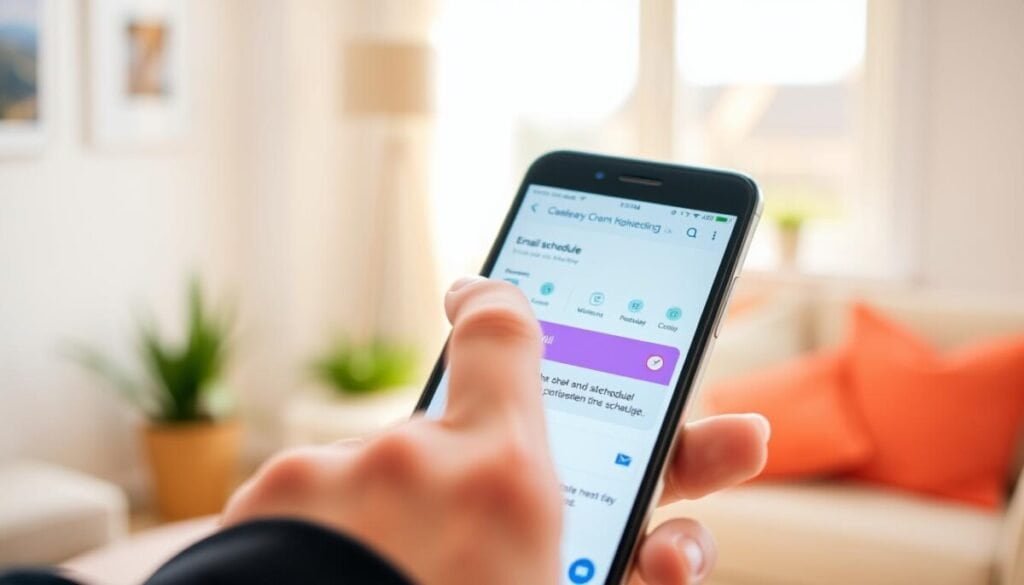
Mobile controls put timed delivery in the palm of the hand—set date and time on the go.
Compose the email on the device. Tap the three dots in the top-right corner to open the menu. Select the schedule send option to access preset times or a custom picker.
Differences Between Android and iOS
Both Android and iOS provide a pick date & time interface. Interaction and visuals differ slightly—controls adapt to platform conventions. Confirm the chosen date time in the confirmation window to queue the message.
- Process mirrors desktop; use the app for quick queuing.
- Tap three dots — reveal the option to pick date & time.
- Verify the confirmation window to ensure the scheduled email is queued.
| Platform | Control | Key action |
|---|---|---|
| Android | System-styled picker | Tap three dots → pick date & time |
| iOS | Native modal picker | Tap three dots → confirm window |
| Desktop | Menu arrow beside button | Use presets or pick date |
Result: Use the app to manage scheduled emails while mobile. Professionals maintain workflow continuity and keep messages timed for optimal recipient response.
Managing and Editing Your Scheduled Messages
Reclaim a queued message before dispatch to correct content or timing. Open the Scheduled folder to view pending items. Inspect the listed entries to confirm recipients and subject lines.
Canceling a Pending Send
Navigate to the Scheduled folder. Select the target message. Click the Cancel send option to halt delivery.
The action moves the message back to Drafts. That reversal preserves original content and headers. It removes the previously set scheduled time.
Modifying Draft Content
Open the draft in Drafts. Edit body text, attachments, or recipients as required. Use the pick date feature to reapply a new date time.
Confirm the new scheduled time before exiting the window. Failure to reapply scheduling leaves the message unsent in Drafts.
- Navigate to Scheduled to select the specific message.
- Click Cancel send to move it to Drafts for editing.
- Edit content or attachments; then pick date to reschedule.
- Always confirm the new scheduled time to reinstate timed delivery.
| Action | Result | Key step |
|---|---|---|
| Open Scheduled folder | View pending emails | Select message to manage |
| Click Cancel send | Message returns to Drafts | Edit content or recipients |
| Use pick date | Set new scheduled time | Confirm in the scheduling window |
For cross-platform workflows, consult the guide to schedule Teams messages to align timed communications across tools.
Advanced Automation with Third-Party Tools
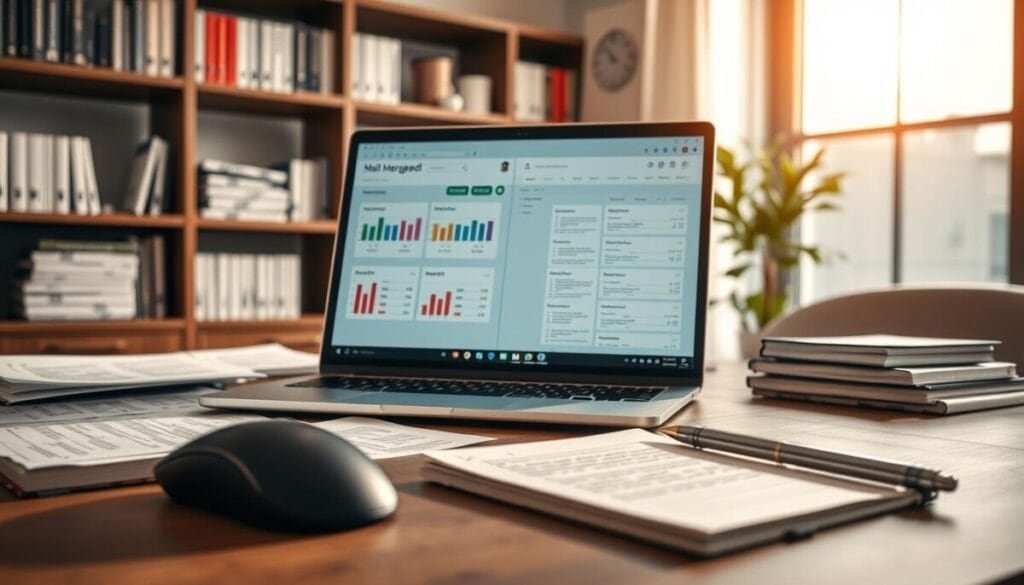
Integrate specialized mail platforms to run personalized sequences with precise date and time targeting.
Automate complex workflows. Use a mail merge tool to dispatch personalized email batches at a chosen date time. Add tracking to record opens and link clicks. Automate follow-up rules—set intervals and conditional branches.
Follow-up messages account for 55% of replies in many campaigns. Implement sequences that escalate after nonresponse. Monitor performance and pause sequences if deliverability drops.
- Choose tools compatible with current mail provider and authentication standards.
- Include warm-up steps for new domains—8–12 weeks to build reputation.
- Use tracked messages to refine timing and recipient targeting.
| Capability | Benefit | Action |
|---|---|---|
| Mail merge | Personalized bulk email | Map recipient fields; set date and time |
| Automated follow-ups | Higher response rate | Define intervals; enable conditional steps |
| Tracking & analytics | Measure opens and clicks | Adjust sequences based on metrics |
| Warm-up process | Improved inbox placement | Gradual volume increase over 8–12 weeks |
For cross-tool workflows, reference a practical guide on using sheets to orchestrate timed outreach: use Google Sheets to schedule tweets. Monitor results continuously to maintain deliverability and scale outreach with control.
Troubleshooting Common Delivery Errors
Identify the root cause of a blocked delivery — rate caps or authentication gaps are common culprits.
Understand daily limits. Personal accounts cap at 500 messages per day. Google Workspace accounts cap at 2,000 messages per day. Exceeding a cap causes delivery errors and holds queued messages.
Understanding Daily Sending Limits
Check the scheduled emails folder to confirm whether a scheduled email is blocked. The folder lists pending items and error notices.
If a message failed due to capacity, the restriction resets on a rolling 24-hour basis. Wait up to 24 hours for the account quota to restore before retrying.
- Verify the recipient list for accuracy; invalid addresses trigger bounces and reduce capacity.
- Use the arrow beside the button in the compose window to review the timing and target details.
- If limits are hit regularly, spread scheduled emails across multiple days to preserve daily allowance.
- Implement SPF and DKIM authentication — these protocols reduce spam flags and improve deliverability.
| Issue | Immediate Check | Action |
|---|---|---|
| Daily quota exceeded | Account activity; scheduled emails folder | Wait 24 hours; stagger future emails |
| Bounced recipient | Invalid address or domain | Validate recipient; remove bad addresses |
| Authentication failure | SPF/DKIM records | Update DNS records; reauthorize mail |
For SMTP codes and diagnostic guidance refer to the official troubleshooting reference on SMTP errors and codes. For practical resolution steps and account-level fixes consult this troubleshooting guide: G Suite email troubleshooting.
Mastering Your Email Workflow for Future Success
Implement systematic timing rules to align message delivery with measurable engagement peaks.
Master the gmail schedule send feature to optimize workflow. Plan a queued scheduled email and confirm the chosen date time.
Use the scheduled emails folder to review content. Edit or cancel send as needed before the target date.
Apply consistent rules for morning and weekday times. Use the mobile app or desktop options to pick date and confirm the scheduled time.
Monitor results. For technical delivery issues consult the G Suite email troubleshooting guide to resolve account-level problems and preserve inbox placement.



