Can one simple setting buy thirty seconds of error-free communications?
Establish control over outgoing messages by configuring the account-level delay. This guide defines the feature, shows the constraints enforced by Google servers, and explains how to extend the buffer to thirty seconds.
Configure the option to gain a measurable safety net for every email. The default time limit often proves insufficient. Adjust the send time to review and correct drafts before final delivery.
Master the unsend email function to preserve professional standards. Understand technical limits — the limit is enforced server-side — and apply a systematic approach to settings for consistent results.
Key Takeaways
- Enable the feature to create a configurable delay for emails.
- Extend the send time to 30 seconds for effective error correction.
- Recognize server-enforced limits — configuration controls client behavior.
- Systematically adjust settings to standardize outgoing communications.
- Use the unsend email gmail capability to reduce premature deliveries.
Understanding How Gmail Undo Send Works
A brief server-side buffer creates a controllable interval between clicking and actual message delivery.
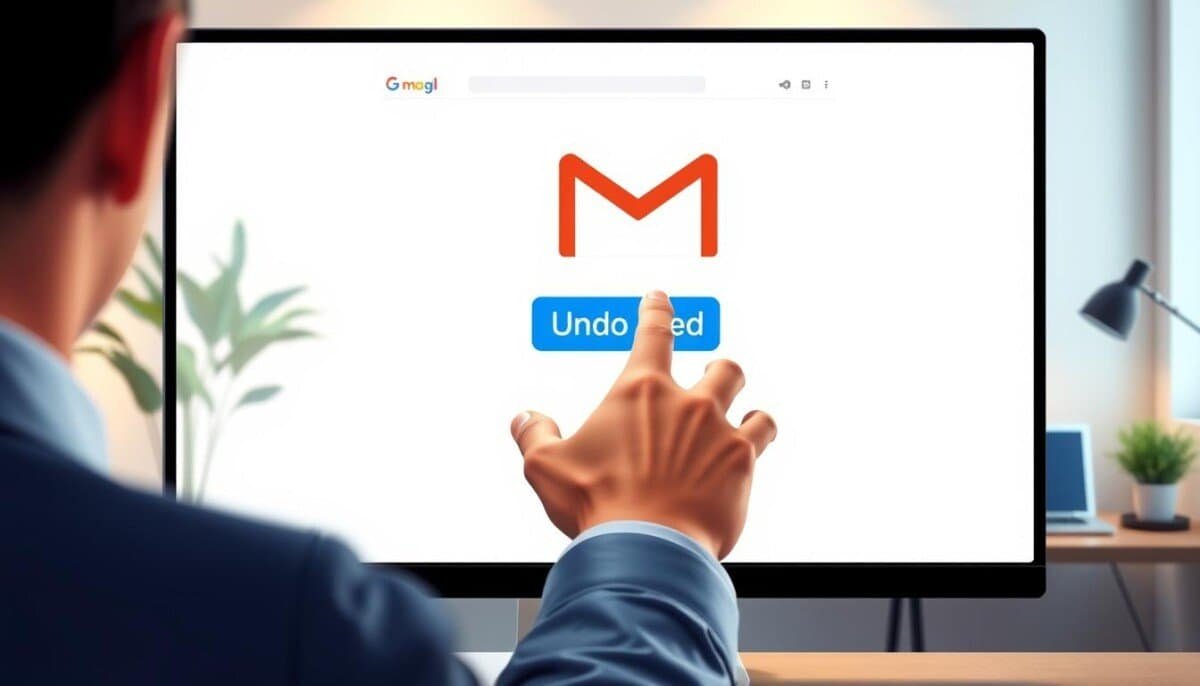
Purpose: The system holds the outgoing email for a short time on Google servers. This creates a window—measured in seconds—during which the user can stop a mistaken message.
The feature operates as a delay mechanism rather than a true recall email function. If the user triggers the retraction within the allowance, the message never reaches the recipient inbox.
- The mail remains in a temporary outbox for the configured seconds.
- If no action occurs within the window, the sent email is permanently dispatched to recipients.
- This process prevents premature delivery and mitigates a common mistake.
Operational limits are clear—once the message leaves the server, recall is impossible. Use the built-in delay to maintain control over every email transmission.
Configuring Your Gmail Undo Send Settings on Desktop
Set a configurable delay in the desktop interface to intercept mistaken transmissions.
Purpose: Create a controlled window to retract an incorrect message before delivery.
Adjusting the Time Delay
- Open the gear icon at the top-right of the inbox to access quick controls.
- Select see settings to open the full configuration panel under the General tab.
- Locate the undo send feature; choose a period—5, 10, 20, or 30 seconds—from the dropdown.
Saving Your New Preferences
- Scroll to the bottom of the page after selecting the desired send time.
- Click click save or save changes to apply the new settings.
- Confirm the message sent notification remains for the chosen period so the button to click undo is visible within the window.
Limitations of the Mobile Application
On handheld devices, the recall window defaults to five seconds and cannot be extended.
The mobile app provides a fixed five-second delay for the undo send feature. Users cannot adjust this time limit. The constraint applies across both iOS and Android platforms.
This implementation places the undo button at the bottom of the interface for a very brief period. Action must occur within those five seconds to stop a message from reaching the recipient.
- The mobile app lacks controls to extend the time limit; desktop remains the only option for longer windows.
- Every message sent from the mobile app follows this five-second rule—no additional features exist to halt delivery.
- The function prioritizes speed over review—exercise extreme caution when composing emails on mobile.
- If the bottom button is missed, the email is permanently delivered to the inbox of the recipient.
Recommendation: Use the desktop settings when a longer review period is required for sensitive emails.
Utilizing Keyboard Shortcuts for Faster Retraction
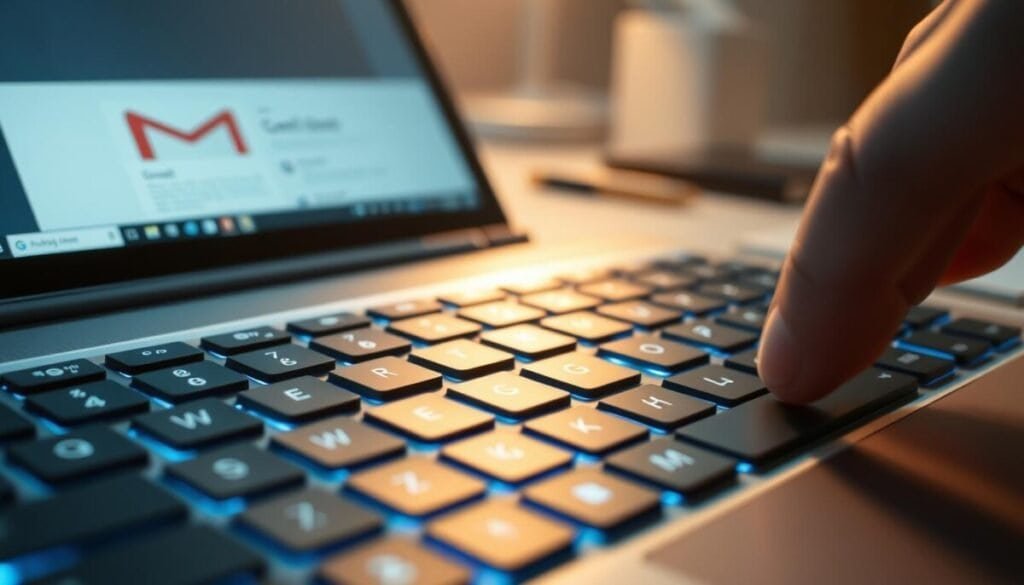
Activate keyboard shortcuts to accelerate retraction and reduce error exposure.
Purpose: Enable a single-key action to halt a mis-timed email within the configured delay.
Enabling Shortcuts in Settings
Open the gear icon. Select see settings. Locate the keyboard shortcuts toggle.
Enable the option. Then click save or save changes to apply the preference to the gmail account.
With shortcuts active, press the Z key immediately after a send action to trigger the recall email command.
- This bypasses the small button at the bottom of the screen.
- The system reopens the original message in compose for edits or deletion.
- Use this method for high-volume workflows to reduce time lost to corrections.
Note: The hotkey works only within the server-side time window. Enable the setting proactively—this feature is not active by default for all users.
Leveraging Schedule Send to Prevent Errors
Schedule delivery to create hours-long review windows before any message leaves the outbox.
Purpose: Use the schedule send feature to hold an email until a chosen date and time. This creates a deliberate buffer for verification.
Access the option via the dropdown arrow adjacent to the send button. Choose a specific date and hour. Confirm recipients and attachments before final dispatch.
Advantages:
- Removes pressure of immediate delivery—permits hours or days of review.
- Holds the message on Google servers until the scheduled time.
- Reduces reliance on the undo send option and on brief-second corrections.
| Method | Review Window | Control Level | Use Case |
|---|---|---|---|
| Scheduled delivery | Hours to days | High | High-stakes emails and planned campaigns |
| Desktop recall buffer | Up to 30 seconds | Medium | Quick corrections after immediate sending |
| Mobile brief buffer | 5 seconds | Low | Casual mobile messages |
Why You Might Need to Cancel an Email
Canceling an email mid-course prevents small errors from becoming public; act decisively within the configured buffer.
Purpose: Provide criteria for when to use the retraction window and how it preserves professional communications.
Correcting Typos and Information
Cancel a message when text contains factual errors or embarrassing typos.
Correct the content, then resume transmission.
This avoids follow-up corrections and preserves credibility.
Addressing Wrong Recipients
Stop delivery immediately if recipients are incorrect.
Prevent sensitive data from reaching unauthorized parties.
Review recipient lists before final dispatch.
Managing Emotional Responses
Retract messages sent in frustration.
Use the brief time to revise tone and remove impulsive language.
This reduces long-term professional risk.
- The undo send feature creates a seconds-long buffer to reconsider content.
- If a mistake is found, act within the configured seconds to retract the sent email.
- Missing attachments, obsolete information, or wrong recipients all justify cancellation.
- Use scheduling or configuration workflows—see how to configure undo send time for longer review windows.
- For persistent delivery problems, consult a guide to troubleshoot delivery issues.
Troubleshooting Common Issues with the Undo Button
Confirm client compatibility before assuming a platform-level fault with the recall button.
Action: Verify the gmail undo send option is enabled in General > Settings. If the control is off, the undo send prompt will not appear.
Check network stability. A slow connection can allow the message to leave servers before the window initializes. Verify the inbox for the recipient—delivery indicates the seconds-long buffer expired.
- Confirm use of the native web client—third-party mail apps often bypass the built-in feature.
- Set desktop and mobile app delays independently; mismatch causes confusion across devices.
- Increase the send time in settings if the message sent notification disappears too fast.
- Use a supported browser and update the application; outdated clients may hide the button.
- When problems persist—refresh the browser, clear cache, and re-authenticate the account.
Limit: If the configured period elapses, the message is permanently delivered; no recall email gmail method will reverse it.
Adopting Preventive Habits for Professional Communication
Establish a composing workflow that isolates content creation from recipient selection. Draft the full email first—then add recipients. This prevents accidental dispatch of incomplete messages.
Verify settings regularly. Confirm the gmail undo send option and other safety controls to maintain a consistent buffer time.
Proofread every message before finalizing. Treat each email as a permanent record—check tone, facts, and attachments.
- Create an attachments-and-links checklist to reduce mistakes in high-stakes emails.
- Use scheduling for sensitive correspondence—gain additional time for a final review.
- Keep the inbox organized—focus improves accuracy when composing messages.
- View the undo send feature as a secondary defense—not a replacement for diligence.
Apply these habits consistently. Control over sending emails improves professional outcomes and protects recipients from preventable errors.
Mastering Your Email Workflow for Better Accuracy
Implement technical controls and strict habits to make each message accurate.
Enable the gmail undo send setting and set the maximum period allowed. Pair that configuration with a standardized drafting workflow—compose first; add recipients last.
Use schedule and keyboard features to create longer review windows. Require a final pass for every email before the configured time expires. Verify attachments and confirm recipient lists in the inbox view.
Audit settings regularly. Treat the recall email capability as a temporary safety net—not a substitute for proofreading. For related notification management, review how to manage Facebook email notifications to keep delivery reliable.