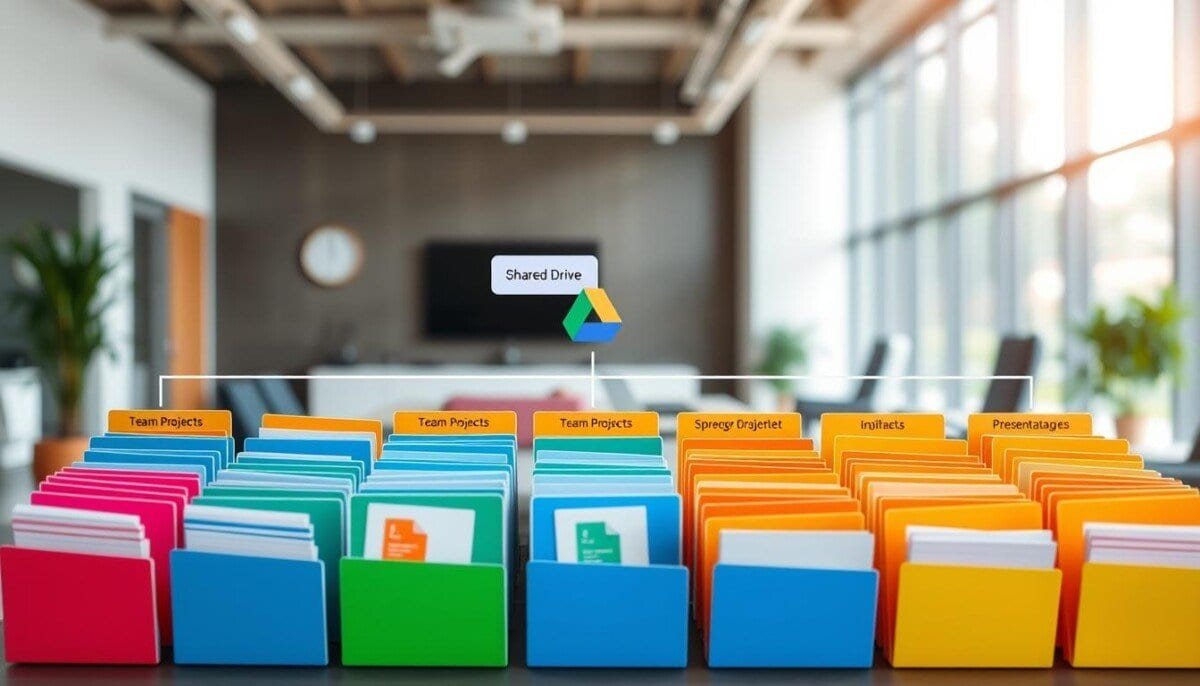
Fact: Shared drives are supported across Google Workspace editions — including Business Starter and Enterprise — and the admin capabilities were updated on 2026-03-23.
Establish a clear folder structure. Configure shared drives so files remain owned by the organization rather than by departing members. Assign roles to each administrator to prevent data loss and to enforce consistent naming conventions.
Centralize work in shared drives. Ensure users access essential documents without breaking the folder hierarchy. Use workspace settings to control permissions and retention.
Follow this guide to set up a scalable google drive team organization. Leverage service features to retain critical business data when members leave. Consult this resource for collaboration options: best cloud storage for collaboration.
Key Takeaways
- Implement shared drives to keep files owned by the organization.
- Define folder structure and naming rules for consistent management.
- Assign administrator roles to prevent data loss and control access.
- Centralize work so business data persists after members depart.
- Use google workspace settings to enforce permissions and retention.
- Follow a repeatable setup — scale across teams and departments.
Understanding the Role of Shared Drives in Team Productivity
Design storage so persistent access to project documents is guaranteed across staff changes.
My Drive vs. shared drives
My Drive vs. Shared Drives
My Drive serves personal files. Use it for private drafts and client notes.
Shared drives host collective content. Files remain owned by the company account. This prevents loss when members leave.
Benefits of Centralized Storage
- Persistent access: Members retain access to project files without repeated sharing.
- Consistent folders: Central folders reduce fragmented files folders and speed retrieval.
- Controlled permissions: Managers assign view or edit rights to limit exposure of sensitive documents.
| Characteristic | My Drive | Shared Drives |
|---|---|---|
| Ownership | Individual member | Company account |
| Best use | Personal work and drafts | Cross-member projects and documents |
| Access control | User-granted sharing | Manager-defined permissions |
For comparative collaboration options, consult the best cloud storage for collaboration guide to align platform features with project needs.
Planning Your Google Drive Team Organization Strategy
Map out dedicated shared drives for departments, client work, and cross-functional projects. Assign each shared drive a single, explicit purpose—company policies, client deliverables, or project archives. Incorporating tools like using Microsoft Planner in Teams can enhance collaboration across these shared drives. Teams will be able to track progress on tasks and deadlines more effectively while ensuring that everyone stays aligned with the project’s objectives. This integration ultimately leads to improved communication and productivity within the organization.
Define naming conventions—use date stamps, department codes, and project IDs. Enforce the format centrally to prevent duplicate folders and improve searchability. Implement tools that offer notion features for effective project management, allowing teams to collaborate seamlessly. By customizing templates and workflows, you can enhance productivity and ensure all stakeholders are aligned on their tasks. Regularly review and optimize these tools to adapt to the evolving needs of your projects.
- Map which departments or project teams require dedicated shared drives.
- Group related files folders so members locate documents without delay.
- Restrict access by category—sensitive information stays compartmentalized; general resources remain open.
- Include contractors and clients in scoped shared drives when collaboration is required.
- Schedule regular audits to prune obsolete files and maintain the folder structure.
| Shared Drive Purpose | Typical Access | Primary Content |
|---|---|---|
| Departmental | Restricted by role | Policies; internal documents |
| Project | Project members + clients | Deliverables; timelines |
| Company-wide | All members | Templates; reference files |
Plan access paths—ensure members find documents through an intuitive folder hierarchy. Consult the best cloud storage services for platform alignment with business needs.
Technical Setup for Shared Drives
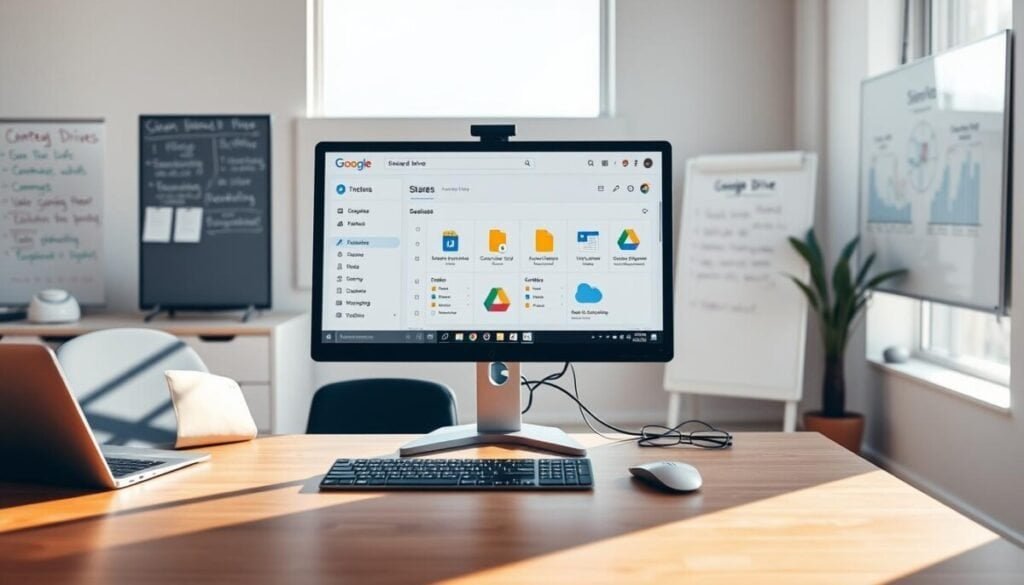
Set the admin console policy first to control who can provision shared drives. Define creation rights and sharing limits in the google workspace Admin console before creating containers. This step prevents sprawl and enforces consistent management.
Configuring Admin Console Settings
Restrict which users may create a shared drive. Configure sharing rules to permit or block external access. Enable service settings that log changes and protect company data.
Creating New Shared Drives
Open the drive interface and click the New button to initialize a shared drive container. Assign the proper top-level unit or select a subunit for granular control. Document the purpose in the description field.
Adding Team Members
Add members with explicit access levels—Manager, Contributor, Commenter, Viewer. Use the table below to match role to capability and to simplify permission reviews.
| Role | Can Manage | Can Edit Files |
|---|---|---|
| Manager | Yes | Yes |
| Contributor | No | Yes |
| Viewer | No | No |
- Move files from My Drive when permissions allow.
- Audit access regularly to maintain file and folder structure.
- Follow these best practices to ensure secure access to documents.
Managing Permissions and Access Control

Control who can modify, share, or download files by enforcing role-based permissions.
Define roles before adding users. Select the proper access level as a first step.
Defining Access Levels and Roles
Use five standard roles—Manager, Content Manager, Contributor, Commenter, Viewer. Each role maps to a clear set of actions.
- Managers add or remove members and change permissions.
- Content Managers organize folders and edit files but cannot change managers.
- Contributors edit and upload files.
- Commenters leave feedback only.
- Viewers read files without edit rights.
When adding a user, click the add members button and send an email invite. Select the level that limits exposure.
| Role | Can Edit Files | Can Manage Members | Can Change Sharing |
|---|---|---|---|
| Manager | Yes | Yes | Yes — restrict downloads |
| Content Manager | Yes | No | Limited |
| Contributor | Yes | No | No |
| Commenter / Viewer | No (Commenter sees comments) | No | No |
Set sharing controls to block download, print, or copy for sensitive files. Allow folder inheritance for efficiency. Override inheritance on a per-file basis when needed.
Schedule periodic permission reviews to remove stale members. Consult the user management guide for step-by-step procedures: user access settings. Troubleshoot sync or permission glitches using this practical guide: sync troubleshooting.
Best Practices for File Management and Migration
Plan migrations with a phased checklist to protect existing folder hierarchies.
Inventory files and folders first. Tag high-priority content and note current permissions.
Use the recommended large migration procedures for bulk moves — administrators must follow an established page of migration best practices: large migration best practices.
Move files in controlled batches. Use the move files feature to preserve the folder tree and avoid data loss.
Verify permissions after each batch. Confirm that users and managers retain correct access levels.
- Establish folder structure before moving content — reduce duplication and simplify retrieval.
- Document purpose for each shared drive to guide user behavior and retention.
- Schedule audits quarterly to remove obsolete files and maintain a clean workspace.
| Step | Action | Outcome |
|---|---|---|
| Inventory | List files folders and permissions | Risk map for migration |
| Batch move | Use move files feature | Preserved hierarchy |
| Verify | Check access levels | No unintended exposure |
Communicate the migration plan via email to all users and managers. Provide a short contact page for issues and use a sync troubleshooting guide when transfer errors occur: sync troubleshooting.
Sustaining Long-Term Collaboration and Data Integrity
Schedule regular reviews of shared drives to keep structure aligned with evolving projects.
Perform quarterly audits of access and permissions. Verify that members retain only the access required for current roles. Remove stale users and fix any permission drift.
Mandate that people move files into the correct shared drive as part of standard procedures. This prevents clutter in personal accounts and preserves file versioning and backups.
Keep the folder structure adaptable. Allow new shared drives when projects expand. Maintain consistent sharing policies to protect sensitive data while enabling collaboration.
Sustain long-term success—require active participation from members and document the governance steps. Consult the cloud storage services guide for alignment with business continuity and access best practices.



