Question: Can a simple note system drive strict time-blocked discipline and replace scattered task lists?
Establish a precise method. Attach a clear date and time to every note. Set a single reminder for each critical task. This enforces accountability.
Use the interface to tag tasks, set the schedule, and monitor execution. Create a habit—review notes each morning. Track completion rates and adjust tags for recurring work.
Migration note: In the second half of 2025 the reminder system will move into the Tasks framework—plan migration now to preserve workflows.
Key Takeaways
- Attach a date and time to every note for precise triggers.
- Use a single reminder per task to reduce noise and improve focus.
- Review notes daily to maintain consistent time-blocking habits.
- Tag and categorize tasks for rapid retrieval and analytics.
- Prepare for the 2025 migration to Tasks to keep workflows uninterrupted.
Understanding the Integration of Google Keep Reminders
Trace the data flow to determine which apps display a saved reminder.
When a reminder is created in Tasks, it synchronizes across the Tasks interface and appears in Calendar and in Keep. This creates a single source of truth for scheduled obligations.
By contrast, a reminder saved within the Reminders system stays local to Keep only. Treat that as an isolated note unless migrated to Tasks.
Operational rules:
- Save critical items to Tasks — the entry will be visible in Tasks, Calendar, and Keep.
- Link a note to a task to preserve data accessibility through the primary Tasks interface.
- Confirm that saved google tasks retain their metadata during migration to avoid lost triggers.
Follow these rules to ensure the reminder visible state is predictable. Audit saved data during the migration window. Enforce a single workflow to minimize duplicated alerts and maximize visibility.
Setting Up Timed Tasks for Better Productivity
Configure each note with an exact date and time so the schedule becomes enforceable.
Creating New Note Reminders
Open an existing new note. Select the remind later dialog located at the bottom of the interface.
Choose whether to save to google tasks or to the Reminders system. The dialog clarifies how the reminder saved is processed and where the note task will appear.
Selecting Date and Time
Use the top menu to set the precise date time for the task. Enter a clear title and verify the date and time fields before saving.
Notifications deliver on the scheduled date and again 24 hours after the scheduled time—if the entry is saved google tasks as the destination. Confirm the reminder visible state in the calendar or Tasks view.
- Initiate from an existing new note—open, then tap the remind later dialog at the bottom.
- Set date and time via the top controls; add a concise title.
- Review dialog options to ensure reminders saved google target the correct app.
- Expect a notification on the date and a follow-up 24 hours later when saved to Tasks.
For workflow tools and alternatives, reference note-taking and organization guides via note-taking tools.
Managing Your Saved Reminders Across Google Apps
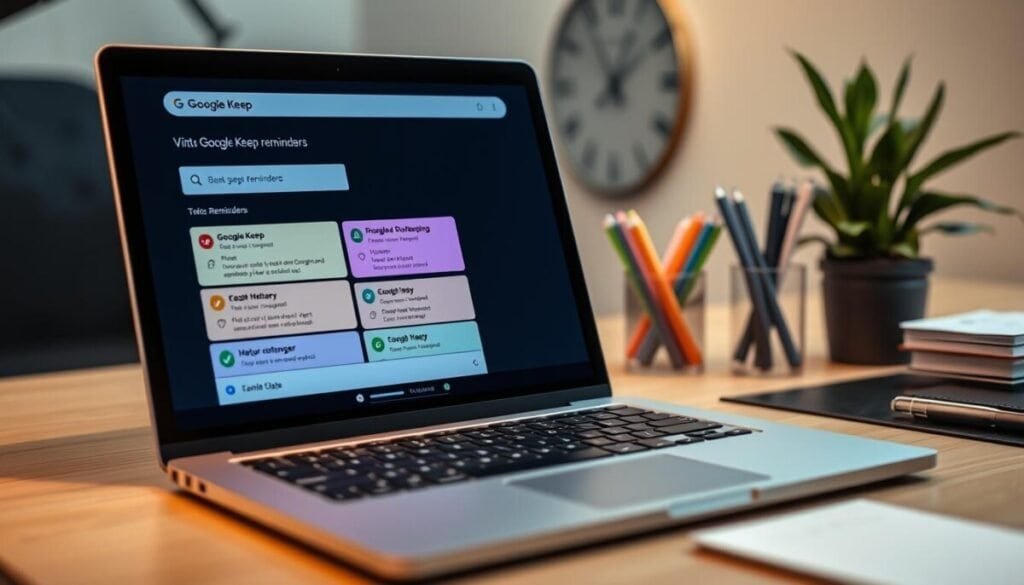
View upcoming reminders by opening the menu and selecting Reminders at the top left of the Keep interface. This displays all scheduled items for review.
Editing and Deleting Tasks
Edit a task title only from Calendar, Tasks, or Gemini to preserve metadata across apps. Change title there—then confirm the reminder visible state in the task calendar.
Delete reminder entries from Calendar or Tasks to remove the alert. Deleting in those apps does not delete the original note in Keep. If the user must delete note content, note deletion does not remove the associated task unless the user explicitly removes the task.
- Manage upcoming reminders from the top-left menu for a clear audit.
- Use the task calendar or the primary Keep interface to delete reminder entries.
- Click the notification icon at the top to view upcoming reminders not attached to any note.
Adjusting Default Settings and Notification Preferences
Adjust default schedules to align preset reminder windows with the user’s daily workflow.
Change default values for morning, afternoon, and evening to match work blocks. Access the settings menu to set the default reminder times. Save changes to apply across the account.
Changing Preset Times
Open Settings. Edit the morning, afternoon, and evening presets. Enter a precise time and confirm the date behavior for each slot.
| Preset | Recommended Use | Default Time | Change Default Action |
|---|---|---|---|
| Morning | Deep work start | 08:30 | Settings → Presets → Morning |
| Afternoon | Follow-up tasks | 13:30 | Settings → Presets → Afternoon |
| Evening | Wrap-up and review | 18:00 | Settings → Presets → Evening |
Managing Mobile Notifications
Install the Tasks or Calendar app on the device. Route alerts through those apps for reliable mobile delivery.
Adjust notification settings inside the app. That controls badge behavior and sound. Reference the Tasks notification setup for platform specifics: Tasks notification setup.
Handling Unattached Reminders
Review the notification icon at the top of the interface to surface unattached reminders. Convert any orphan entry to a note task or delete it to avoid duplicate alerts.
Configure the system to enforce consistent default reminder times. This ensures each task and title align with expected alert behavior across apps and saved google tasks.
Mastering Your Workflow for Long Term Success
Enforce strict task limits to protect data integrity across the Tasks ecosystem.
Maintain no more than 100,000 tasks to avoid sync errors and potential data loss. Validate task date fields; any entry beyond year 3000 will auto-adjust to 2900. Monitor repeating entries—intervals above 1000 days will be capped by the system.
Surface pending items from the past 365 days in the all-day calendar view to audit backlog. Apply routine housekeeping—archive completed notes and prune obsolete task entries.
Follow prescriptive maintenance: set quotas, schedule quarterly audits, and export critical data periodically. For supplemental workflow tactics, consult productivity productivity tips and external note-taking tools.