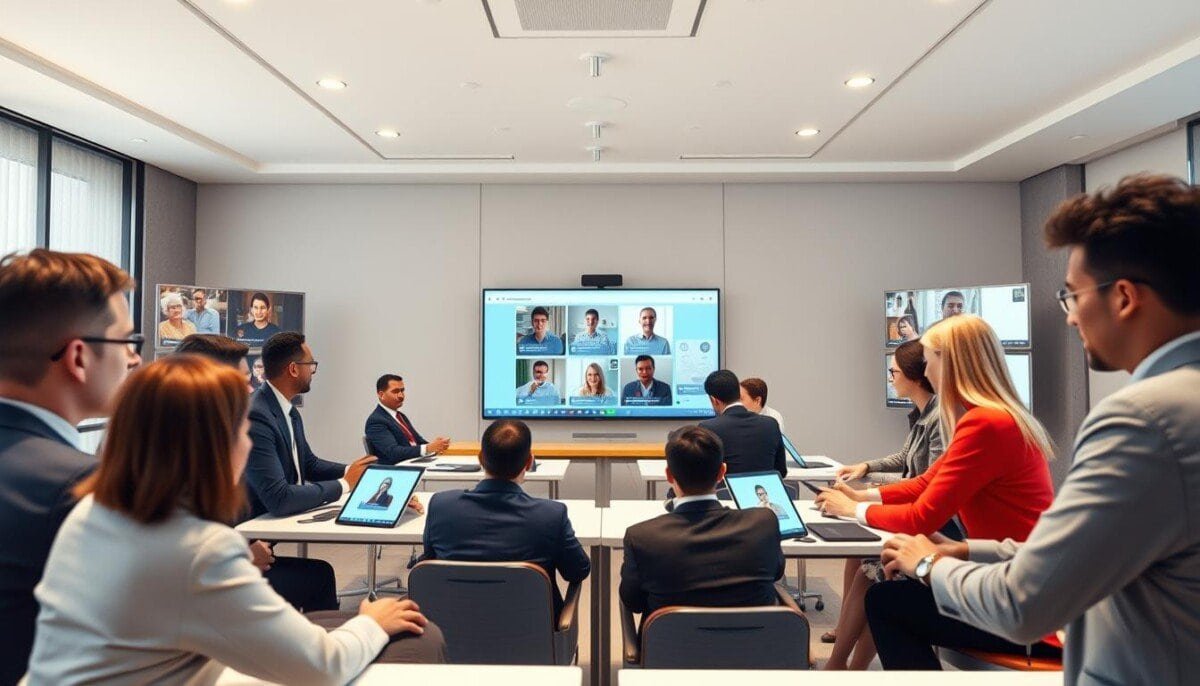
Can a large video meeting become a series of focused workshops in minutes? The host must split the main meeting into smaller groups to increase engagement and output. Use a systematic approach to assign tasks, set timers, and monitor progress.
Breakout rooms enable targeted discussions. They transform a standard call into parallel sessions for training, brainstorming, and learning. The host retains control of the main meeting while participants work in dedicated room spaces.
Implement technical checks before session start. Label each breakout room with clear objectives. Rotate participants when time finishes to maintain momentum and equal participation.
Key Takeaways
- Structured grouping: Use breakout rooms to split large meetings into focused sessions.
- Host control: Maintain oversight of the main meeting while facilitating parallel groups.
- Engagement boost: Smaller groups improve participation and idea sharing.
- Operational prep: Test settings, assign roles, and set time limits.
- Outcome focus: Define clear tasks for each breakout room to ensure productive discussions.
Understanding the Value of Breakout Rooms
Prepare each subspace with a clear objective and necessary resources before participants disperse.
Smaller groups drive deeper discussion. Use google meet to split a large meeting into targeted sessions. That structure increases engagement and reduces time lost to multitasking.
Benefits are measurable. Breakout rooms foster focused discussions. They suit brainstorming sessions, training, and collaborative learning.
- Divide large groups — create manageable units that encourage contribution from every participant.
- Support targeted work — run parallel discussions to handle complex agendas efficiently.
- Improve outcomes — smaller groups increase participation and satisfaction during the meeting.
- Maintain control — the host assigns tasks and monitors progress without disrupting the main session.
Eligibility Requirements for Google Meet Breakout Rooms
Establish which Workspace editions permit subspace creation and confirm participant access methods.
Verify subscription and device prerequisites before scheduling small-group work.
Supported Workspace Editions
Access to breakout capability requires an eligible plan. Include Essentials, Business Standard, Business Plus, Enterprise Starter, Enterprise Essentials, Enterprise Standard, Enterprise Plus, Education Plus, Teaching and Learning Upgrade, Workspace Individual, and Nonprofits. The host must confirm an active subscription on the organization account.
Participant Access Rules
- Participants must use a computer or the latest mobile Meet or Gmail app to join breakout functionality.
- Meet Hardware can join but cannot be pre-assigned to a room before the meeting starts.
- Phone dial-in users may participate with functional limitations.
- Anonymous attendees admitted to the main call can join subgroups.
- Third-party conferencing devices are generally incompatible; require official client tools.
- The host is responsible for verifying permissions and technical readiness before the meeting.
How to Create Breakout Rooms in Advance
Use the Calendar event settings to predefine up to one hundred subgroups for the meeting.
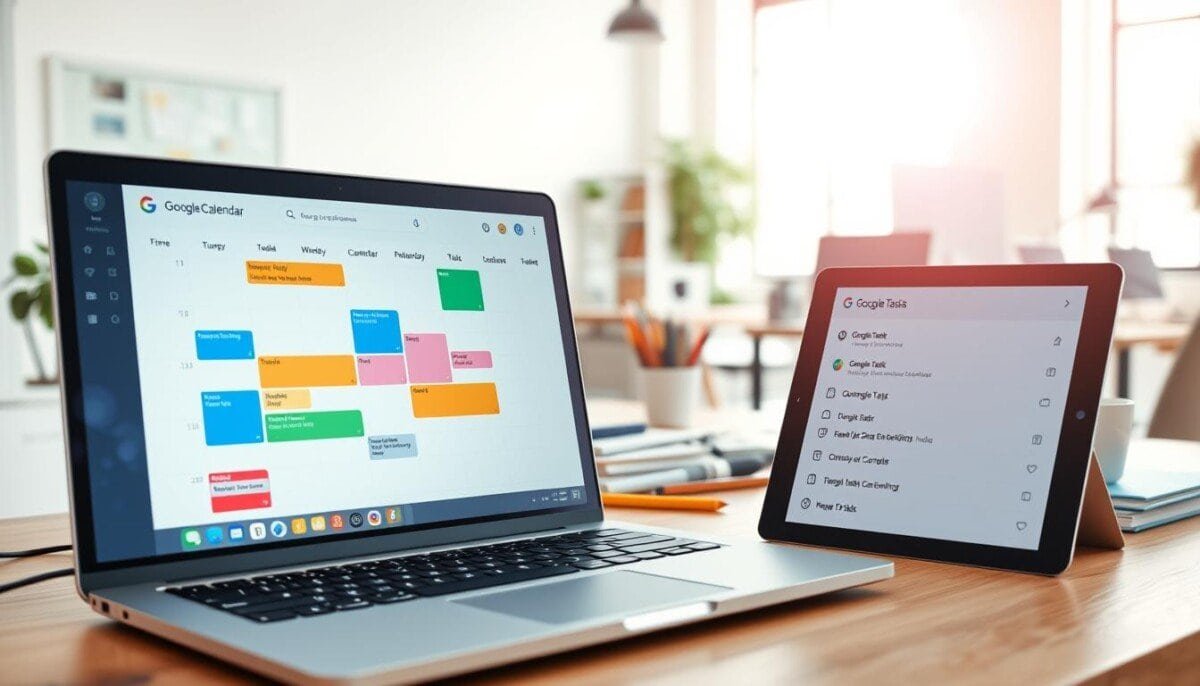
Plan the structure before participants arrive. Open the event in Google Calendar. Select the advanced configuration panel. Choose the number of rooms and the distribution method.
Invite participants individually to enable pre-assignment. Do not use a Google Group when assigning specific rooms. Save the configuration to lock the layout.
- Hosts can create 100 subgroups—use this to scale sessions for large events.
- Assign participants to specific rooms in the panel; changes may be saved at any time.
- Participants will join assigned sessions automatically when the host opens the subgroups live.
Adjust assignments during the live meeting when needed. This proactive setup reduces transition time and enforces the meeting plan. Confirm permissions in Google Workspace before finalizing.
Setting Up Breakout Rooms During a Live Meeting
Use the in-call Activities control to split a meeting into multiple focused groups instantly.
Configuring Timer and Room Settings
Access the Activities button during the live call. Select the option to create breakout sessions. The host can create 100 rooms when scale is required.
Set a timer for each session—maximum one hour. A 30-second countdown will alert participants before closure.
- Assign co-hosts to manage individual rooms and monitor progress.
- Move people between room groups to balance participation.
- Participants receive a prompt to join breakout and can use group chat.
- Use the button to end sessions early and return everyone to the main room.
The host must monitor the main meeting and jump between rooms to resolve questions. Balance allocated time with objectives to keep discussions productive.
Managing Participants and Room Assignments
Assign people to targeted groups swiftly to keep parallel work aligned to objectives.
Use precise controls to manage group placement. The host drags name badges into specific rooms in the breakout configuration panel. Use the shuffle feature for random distribution when balance is required.
Participants cannot move themselves between subgroups. Only the host or a designated co-host may reassign people. Monitor the main room to view status and to reassign attendees as needed.
- Drag and drop badges to assign participants to specific rooms.
- Use the shuffle button to randomize distribution across all available rooms.
- Add co-hosts to manage large groups and reduce reassignment latency.
- Reassign rejoining participants manually to restore original group placement.
| Action | Control | Result |
|---|---|---|
| Manual assign | Host / co-host | Targeted groups |
| Shuffle | Host | Random balance |
| Monitor | Main room view | On-track sessions |
Communicate assignments clearly before sessions start. For scheduling tools and automation, consult the marky ai scheduler guide.
Best Practices for Facilitating Productive Sessions

Define explicit objectives for each subgroup before the session begins. Provide clear deliverables and a timeframe. Attach measurable outcomes to every agenda item.
Setting Clear Meeting Goals
State one concise goal per session. Use written prompts in the main agenda. Share success criteria so participants know when work is complete.
Assigning Facilitator Roles
Assign a facilitator and a note-taker to each room. The facilitator enforces time and scope. The note-taker captures decisions and action items.
- Facilitator: manage pace and clarify tasks.
- Note-taker: record outcomes and next steps.
- Host: visit periodically to verify progress.
Encouraging Active Participation
Provide structured prompts for brainstorming sessions and training tasks. Use a visible timer to limit each discussion segment. Rotate roles between groups to surface diverse perspectives.
For additional setup tactics, consult these virtual breakout best practices — virtual breakout best practices.
Troubleshooting Common Technical Issues
Diagnose connectivity faults quickly to avoid wasted session time.
If audio or video drops, refresh the browser or rejoin the meeting. This action resolves most client-side faults. Close unused tabs to free bandwidth. Ask affected participants to check microphone and camera permissions before rejoining.
Participants can click the “Ask for help” button inside a breakout room to notify the host immediately. Hosts must use a desktop computer to create breakout rooms and to manage assignments live.
If the timer fails to display, the host provides verbal time updates to keep sessions on track. If a participant is lost after rejoining, the host reassigns that person manually to the original room via the settings panel.
- Refresh or rejoin to fix audio/video problems.
- Use “Ask for help” to summon host assistance from a room.
- Close extra tabs to improve network performance.
- Verify mic and camera permissions before the session starts.
- Contact Google Workspace support for persistent platform issues.
For step-by-step diagnostics and deeper fixes consult this troubleshooting guide.
Enhancing Collaboration with AI Meeting Assistants

Add AI audio and transcription tools to each smaller session to preserve clarity and record outcomes.
Use targeted assistants to keep conversations focused and searchable.
Integrate noise cancellation—Krisp—into each breakout room to filter background sound. This improves audio for every participant. Clear audio reduces repetition and speeds progress.
Leveraging Noise Cancellation and Transcription
Attach automated transcription—Notta—to capture dialogue and generate summaries. The host receives searchable minutes after the session ends. Teams avoid manual note-taking and reduce post-meeting work.
- Noise suppression: Krisp mutes ambient noise for remote contributors.
- Automated transcripts: Notta creates verbatim logs and concise summaries.
- Reviewable outputs: Summaries help the host verify outcomes from each group.
| Capability | Krisp | Notta |
|---|---|---|
| Primary function | Noise cancellation | Transcription & summarization |
| Benefit | Clearer audio for video and chat | Accurate meeting minutes |
| Use case | Noisy environments | Training and learning sessions |
Combine these tools with google meet and Google Workspace to create a robust environment for professional collaboration. AI assistants let participants focus on tasks while the system documents decisions and action items.
Final Thoughts on Mastering Virtual Group Discussions
Close each parallel session with a rapid debrief and documented next steps. Summarize decisions. Assign owners. Set deadlines. This practice preserves clarity and enforces accountability for future meetings.
Use breakout rooms strategically to increase contribution from every participant. The host must rotate, monitor, and capture outcomes. Capture notes in a shared file for fast retrieval.
Consistent practice sharpens execution. Repeat the workflow—plan, assign, timebox, review—to improve facilitation skill. Apply these methods in google meet to scale better group sessions and to keep the main meeting focused on core objectives.