
More than 100,000 users install this extension to reshape virtual meetings—an adoption rate that demands attention.
Install the google meet grid view tool to force all participant tiles to load. Enable a consistent layout for large sessions. See every attendee at once. Manage presence and engagement with precision. During your meetings, it can be helpful to turn off notifications during focus time to minimize distractions. This allows participants to engage more fully and maintain their attention on the conversation. By fostering a distraction-free environment, you can enhance productivity and collaboration among team members.
The independent developer adds a functional button to the interface. This button toggles the enhanced display. The extension is not an official product of the main platform—maintain that compliance awareness.
When users use grid, the browser loads every video feed. That behavior preserves a balanced tile matrix. The result supports professional collaboration and clear visual cues.
For troubleshooting and deeper configuration steps consult the detailed guide on improved meeting layouts at troubleshooting and setup.
Key Takeaways
- Install the extension to display all participants simultaneously.
- Use the developer button to toggle the enhanced layout quickly.
- The tool forces each video feed to load—stability for large calls.
- Recognize the extension is third-party—verify permissions and updates.
- Adopt the grid to improve visual engagement and meeting control.
Understanding the Need for Enhanced Meeting Layouts
Default display modes limit visible participants in larger sessions. Standard configurations often cap the number of people shown. That cap impairs oversight for instructors and hosts.
To change layout settings, users tap the three dots in the bottom-right menu. That native method rarely allows the user to see everyone. The restriction forces frequent switching and reduces situational awareness.
Implement a custom layout solution when a video conference requires constant visual monitoring. An extension loads all participant tiles into a uniform matrix. The result: consistent participant visibility and improved focus during long meetings.
- Teachers can monitor students in real time.
- Organizers maintain equal presence for each participant.
- Absence of a dominant speaker becomes manageable.
For configuration details and problem solving, consult the troubleshooting and setup guide.
How to Install and Enable Google Meet Grid View

Ensure the browser meets extension prerequisites to guarantee correct operation with the redesigned meeting interface.
Browser Requirements
Use a current Chromium-based browser. Version compatibility is mandatory—version 1.0.8 of the extension supports the new interface.
Confirm available memory and a stable internet link. Older machines may struggle when many videos render.
Activation Steps
Install the extension from the Chrome Web Store. Click the add button to place the tool in the browser bar.
The extension icon appears in the top right corner. Enter a meeting before clicking the icon—activation requires an active video stream.
- Toggle the button to force a uniform layout and see participants in one matrix.
- Use options to highlight the speaking person or hide participants without video.
- If performance issues arise, verify the internet connection or hardware age as recommended by the developer.
| Requirement | Action | Notes |
|---|---|---|
| Browser | Update to latest build | Extension v1.0.8 compatible |
| Session | Join meeting first | Activation needs active video |
| Mobile | Share screen from desktop | Only desktop shows full matrix |
Customizing Your Video Conference Experience
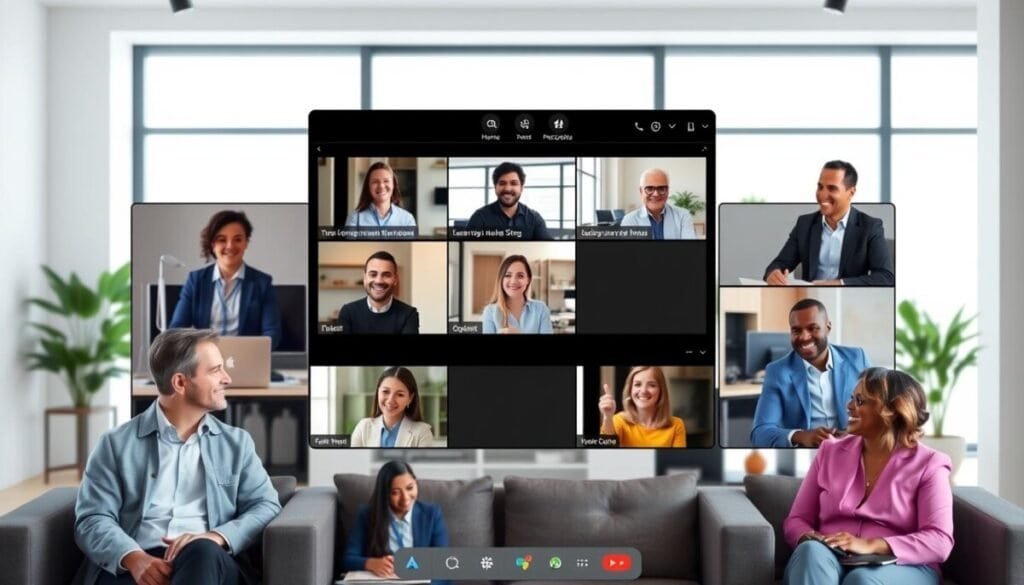
Configure layout controls to match meeting type and participant count. Apply settings before or during a live session to maintain professional presence.
Adjusting Display Preferences
Enable self-video in the matrix to monitor framing and lighting. Toggle the option to hide participants without active cameras to reduce clutter.
Activate the control bar added by the extension. The control bar appears in the top right corner of the screen — next to chat and participant lists.
- Use the Highlight speakers feature — a yellow border marks the active window to enhance attention.
- Enable Push to Talk — press space to unmute and avoid accidental audio transmission.
- Switch modes dynamically between standard view and the grid view to suit different meeting types.
| Option | Effect | When to use |
|---|---|---|
| Include self | Shows own video in matrix | Recording or presentation prep |
| Hide inactive cameras | Reduces visual noise | Large participant counts |
| Highlight speakers | Visual cue for active speaker | Panel discussions |
Adjust display preferences to keep layout optimized for the number of participants and the meeting purpose. Use the extension button on the bar or corner to change layout settings in real time.
Troubleshooting Common Performance Issues
Diagnose common slowdowns by isolating local hardware and network variables first.
Confirm extension version—version 1.0.15 released January 29, 2026. Ensure the build matches the deployed release. Updates often resolve compatibility and layout bugs.
Check CPU and memory. Older processors struggle when the extension forces every video feed to render. Disable other heavy apps to free resources.
Verify bandwidth. High-bandwidth video calls require a stable uplink. Test the connection and reduce camera quality if required.
- Toggle the extension button off and on when the matrix fails to load.
- Click the three dots in the corner to refresh native layout controls.
- Disable conflicting extensions—multiple tools can produce visual glitches.
- Temporarily disable the matrix to lower local load—useful for teachers monitoring students.
If problems persist—reinstall the extension and confirm no browser policies block it. For guided diagnostics and advanced fixes consult the troubleshooting guide available at grid view not working troubleshooting.
| Symptom | Likely cause | Immediate action |
|---|---|---|
| Slow frame rates | High CPU usage | Close apps; lower camera quality |
| Missing tiles | Conflicting extensions | Disable other extensions |
| Layout fails to load | Outdated extension | Update to v1.0.15 |
For an overview of compatible meeting tools and integration tips visit online meeting tools. Follow these steps to maintain a consistent view google meet experience in large meetings. To enhance participation for all attendees, it’s essential to enable live captions in Google Meet. This feature ensures that everyone can follow along easily, especially in noisy environments or during discussions in different languages. Additionally, encouraging participants to utilize this tool can significantly improve communication and understanding throughout the meeting.
Maximizing Collaboration During Virtual Meetings
Adopt the tiled matrix to maintain equitable visibility across all attendees. Use the grid view to foster presence and reduce missed cues.
Keep the extension active while you share screen. Present materials and still see participants. Toggle the button in the top right for fast mode changes.
Require Push to Talk to control audio. That method lowers background noise and enforces orderly turns to speak.
Update the extension regularly. The developer delivers fixes and features for teachers and students. Organize videos into a stable layout so every participant counts during high-stakes meetings.



