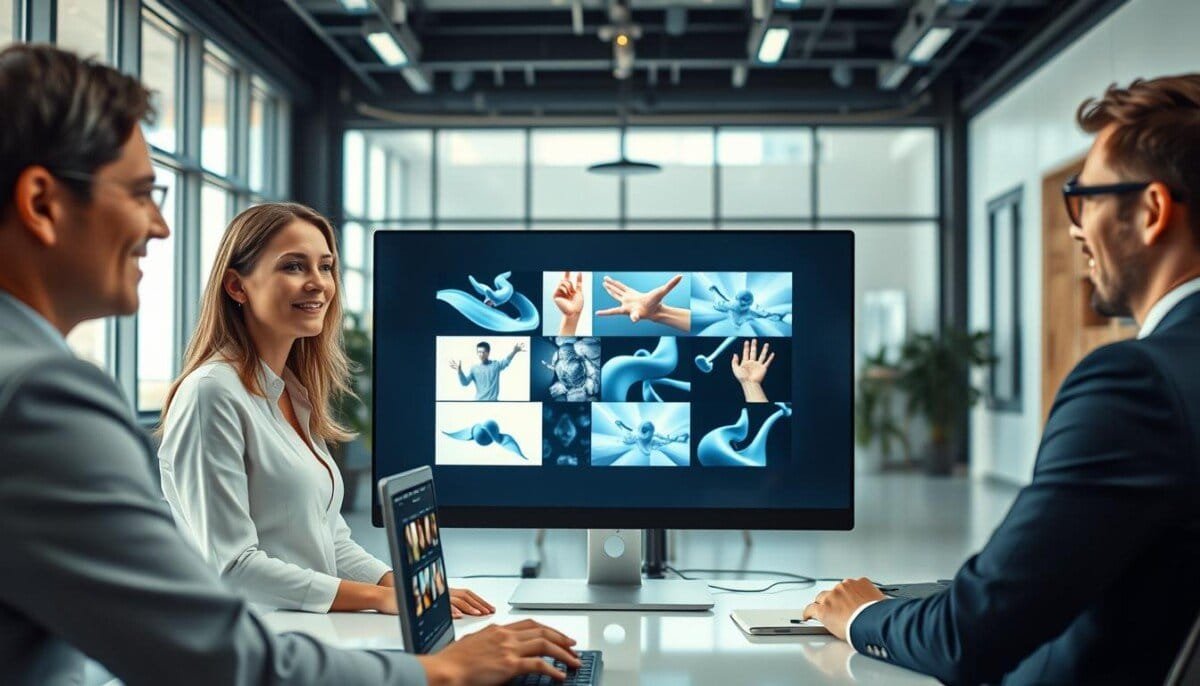
Can a single prompt turn your idea into a finished clip that matches your exact vision? This guide answers that question and shows the practical steps you can use right now.
Gemini Omni has replaced the older tool inside the Gemini app to streamline creative work. You can use simple spoken or typed prompts to generate videos that reflect your concept.
We explain how to create video assets fast, whether you start from scratch or remix your existing gallery. The focus is on clear steps and on tools that save time for busy professionals.
Expect to learn: which features speed up production, how to transform ideas into polished clips, and ways to keep quality high while cutting effort.
Key Takeaways
- Gemini Omni replaces Veo to simplify creative prompts and workflow.
- You can create video content quickly with conversational commands.
- Tools support making new clips or remixing existing assets.
- Understanding core features helps you stay competitive in content production.
- Both pros and hobbyists gain efficiency and better creative control.
Understanding the Evolution of Google Veo AI Video
Gemini Omni replaces veo 3.1 and brings a stronger core for prompt-led media creation. This shift is a milestone for the brand and for professionals who rely on fast results.
The new generation model combines Gemini intelligence with generative media to make video generation more intuitive. You get a product designed for editing and creation in one place.
Veo 3.1 set important groundwork. Gemini Omni builds on that architecture to deliver a more robust foundation for future projects. The result is smoother workflows and fewer manual fixes.
- Improved media capabilities for complex prompts.
- Tighter integration between generation model and editing tools.
- Clearer, more cohesive user experience across the brand’s suite.
The net effect is practical: you spend less time troubleshooting and more time refining ideas. Gemini Omni aims to meet professional needs at scale while preserving creative control.
Getting Started with Multimodal Content Creation
Get set up: confirm you are 18+ and subscribe to the correct plan to access the full suite.
Core intelligence
Core Intelligence
The model blends text, images, and short clips so your ideas come to life with natural motion.
You use conversational prompts to shape each step, which gives you tighter control over edits.
This approach speeds how you create video while keeping outputs aligned with your intent.
Multimodal Capabilities
Multimodal tools let you mix audio, sound cues, and visual elements in one workflow.
There are many ways to work: start fresh or remix gallery assets for faster results.
- Blend text prompts with images for guided motion and realistic scene logic.
- Integrate audio tracks to match pacing and mood.
- Leverage the legacy of veo 3.1 in current generation models for higher fidelity.
As you practice, you will find the system understands real-world context. That makes it easier to create video sequences that feel natural and professional.
Mastering the Art of Video Generation
A clear prompt is the single biggest lever for reliable, repeatable generation results. Craft prompts that name the scene, mood, and primary motion you want. Short, specific directions guide shots and help reduce extra edits.
You can create 10 second videos inside the Gemini app interface. Use this length to test pacing, lighting, and shot variety quickly. Teams can run several takes to compare what fits the brand best.
Each clip supports multi-turn editing. Adjust lighting, stabilize motion, or refine a shot across a few quick passes. This keeps iterations fast and focused on outcomes.
- Start with scene goals to keep prompts tight.
- Use short clips to validate motion and pacing.
- Share results with product teams for brand alignment.
Build on veo 3.1 methods to push creative limits while keeping quality high. Experiment with prompts in one tap and let the system show what each shot can become.
| Task | When to Use | Benefit |
|---|---|---|
| 10-second clip | Initial pacing tests | Fast feedback on motion and tone |
| Multi-turn editing | After first draft | Refines lighting and stability |
| Scene-focused prompts | Complex storytelling | Consistent, on-brand shots |
| Team review | Pre-release check | Aligns product and creative goals |
Transforming Static Images into Dynamic Clips

Use up to five photo references to turn still images into moving scenes that match your brief.
Photo Reference Integration
Start by uploading up to five images as visual anchors for a single shot. These references give the system a clear base for motion and composition.
You can blend text prompts with image inputs to steer style, pacing, and framing. This mix keeps the final clip aligned with your creative goals and brand needs.
- Turn up to five photos into a short video that feels natural and polished.
- Provide an image reference to guide generation and reduce guesswork.
- Maintain consistent quality by following the veo 3.1 framework for each shot.
The system preserves color, angle, and composition while creating smooth motion between frames. That makes it easy to expand your library of videos and clips from existing assets.
Result: faster production, reliable visual style, and more usable pieces for marketing or internal projects.
Advanced Video to Video Editing Techniques
Advanced editing tools let you change backgrounds, outfits, and visual style without reshooting. These options save time and keep your projects on schedule.
Background Swapping
Swap a backdrop in existing footage to match a new concept or brand look. The system tracks motion so the replacement stays aligned with each shot.
Wardrobe Changes
Update clothing on characters without re-staging. As a video editor, you can test looks quickly and keep continuity across clips.
Style Transfer
Apply a visual style to entire scenes to match mood and tone. Style transfer preserves facial details and motion so edits feel natural and seamless.
- Consistency: Every clip benefits from veo 3.1 foundations for steady color and motion.
- Efficiency: Modify characters or environment in place to avoid costly reshoots.
- Control: Fine-tune each shot so the final footage meets professional standards.
Leveraging AI Avatars for Personalized Content
AI avatars let you present with a consistent face and voice across many clips without repeated uploads.
An AI avatar is a digital version of yourself that lets you generate videos that look and sound like you. This option speeds creation and keeps your brand consistent.
The avatar feature is optional. You keep full control over how your digital characters are used. Security and consent are built into the workflow to protect your likeness.
- Skip repeated photo uploads and create video sequences faster.
- As a video editor, add a human touch without staging new shoots.
- Use avatars for tutorials, presentations, and consistent social clips.
Practical benefits: faster turnaround, predictable style, and fewer production steps. These features help you scale personalized content without extra shoots.
| Use Case | Benefit | Time Saved |
|---|---|---|
| Tutorials | Consistent presenter, clear tone | 30–60% per episode |
| Internal updates | Faster approvals, unified style | 40% |
| Marketing clips | Repeatable characters and messaging | 25–50% |
| Product demos | Controlled pacing and delivery | 35% |
Achieving Cinematic Quality with Native Audio
Native audio now gives you full control of soundtracks so every scene feels cinematic.
Synchronizing sound and visuals
Built-in audio generation adds sound effects, ambient noise, and dialogue directly into each clip. This removes extra steps and keeps the creative flow in one place.
You can align a burst of foley with a single shot or match dialogue to facial motion. The result is tighter timing and fewer manual edits.
- One-step sound: generate music and ambient noise that fits the scene.
- Perfect sync: audio tracks snap to motion and cuts for natural pacing.
- High-quality output: each clip benefits from standards set by veo 3.1.
Use different sound profiles to test tone and mood quickly. Native audio speeds production and makes your final clip feel more immersive and professional.
For deeper model details, see the model page for technical notes and best practices.
Exploring the Physics and Realism of Modern Models

Modern generation systems now mimic real-world physics to make motion feel natural and believable.
Gemini Omni builds outputs that follow simple laws of motion, so objects fall, collide, and settle like they would in our world.
Use a clear prompt to guide how a scene moves. Short, specific prompts help the model place weight, timing, and force correctly in each shot.
Under the hood, veo 3.1 foundations shape the way scenes respond to gravity and momentum. That lets you create characters that interact with props and terrain in a lifelike way.
Study how different models handle collisions and friction to predict outputs before you render full footage. This speeds iteration and raises the quality of your final output.
- Realism: grounded scenes feel consistent and believable.
- Control: refine prompts to dial the level of realism you need.
- Practice: compare models with a quick test shot to see which handles complex interactions best.
For further reading on tool workflows and comparisons, see this overview of the tool and a detailed comparison guide.
Utilizing Google Flow for Creative Projects
Google Flow centralizes tools so you can manage creative projects from one place. It helps you produce cinematic clips that match your brief and brand.
The platform links prompts, references, and edits to speed up work. Use it to keep assets, notes, and timeline steps in one workspace.
You get practical support for video generation and for keeping every project on track. This reduces handoffs and saves review cycles.
- Streamline creation from concept to final clip.
- Organize scenes and track progress across a team or solo workflow.
- Test styles and keep brand consistency without extra reshoots.
- Explore new ways to boost your creativity while meeting product needs.
| Feature | Benefit | Best for |
|---|---|---|
| Project hub | Central view of assets and notes | Teams and solo creators |
| Scene templates | Faster clip assembly and brand match | Marketing and product demos |
| Version history | Track edits and approvals | Long-term projects |
| Export options | Deliver deliverables in common formats | Final delivery and publishing |
Use Google Flow to create video assets with less friction. It brings structure to your work and lets you focus on story and craft.
Ensuring Content Authenticity with SynthID

Files generated in the app include a built-in SynthID watermark to make origin verification simple.
Ensuring authenticity is a priority. All video outputs carry an imperceptible SynthID tag that ties a file back to its origin. This helps protect your work and your brand.
You can upload a file to the verification tool to check for the marker. The system inspects images, audio, and videos and reports whether the mark is present.
- Reliable verification: confirms origin before you share.
- Cross‑format checks: supports image, audio, and video files.
- Built‑in reasoning: the system uses internal checks to detect the watermark.
- Trust and compliance: aligns with veo 3.1 principles for responsible creation.
These capabilities give you clear ways to prove authenticity. Use them to share work with confidence and to maintain high standards across all digital content.
Comparing Performance Benchmarks Across Models
Head-to-head tests at 1280×720 expose strengths in text alignment and audiovisual sync. These controlled runs give a fair view of how each product performs under the same visual load.
Text to Video Alignment
Prompt fidelity matters most when you need predictable outputs. The MovieGenBench dataset (1,003 prompts) shows that one model leads on overall preference and text alignment. You get more accurate mapping from prompts to clip content with that system.
That model also keeps consistency when prompts grow complex. This reduces time spent on manual editing and re-renders.
Visual Quality Metrics
Visual fidelity was judged at the same 1280×720 resolution for all models. The top performer ranks highest on clarity, color consistency, and motion realism.
Audio and sound alignment are also strong points. Tests show reliable sync of music, ambient sound, and dialogue with moving images. Use these metrics to choose the model that fits your creativity and technical needs.
| Metric | Top Performer | Why it matters |
|---|---|---|
| Prompt alignment | Veo 3.1 | Fewer edits, faster approvals |
| Visual quality | Veo 3.1 | Sharper images and natural motion |
| Audio sync | Veo 3.1 | Better dialogue and music timing |
| Overall preference | Veo 3.1 | Consistent, production-ready outputs |
Conclusion
Wrap up your workflow by focusing on the features that save time and keep quality high.
These tools give you a powerful, intuitive way to create high‑quality video content for professional projects. Mastering Gemini Omni helps you streamline work and reach cinematic results with fewer revisions.
Native audio and advanced editing keep final outputs polished and production ready. Built‑in checks like SynthID and project hubs such as Google Flow protect authenticity and simplify team reviews.
Try the key steps in a short test project. You’ll see faster turnaround, cleaner edits, and more predictable outcomes—so you can focus on story and results.



