
Can a unified focus time policy transform company productivity without disrupting essential communication?
Establish a systematic policy. Define time blocks that limit email pings and meeting invites. Align user availability with business workflows.
Large enterprises scale change — BBVA deployed google workspace to over 140,000 users since 2011. That deployment proves feasibility for global organizations.
Gather workflow information before editing the primary admin console page. Map teams, data flows, and password and security requirements first.
Apply consistent rules to every user account. Protect sensitive data. Preserve access for critical alerts. Track metrics to measure impact on productivity.
Key Takeaways
- Define organization-wide windows to reduce email and meeting noise.
- Collect team information and workflow details before changing the console page.
- Ensure password and data security when configuring accounts.
- Use deployment examples — large user rollouts validate the approach.
- Monitor user metrics to refine policy and measure business impact.
Understanding Google Workspace Admin Controls for Productivity
A single management console gives administrators direct oversight of services, apps, and endpoint behavior.
Use the admin console to centralize user and device management. Configure settings that limit interruptions and preserve critical alerts.
Advanced threat defenses block spam, phishing, and malware—protecting company data before it reaches users and devices. The platform blocks more than 99.9% of these threats.
- Streamline user provisioning and deprovisioning from one interface.
- Apply service-level policies to apps and devices across the domain.
- Maintain auditable logs for security and compliance reviews.
Centralized management reduces routine maintenance. Administrators shift focus to strategic projects—improving productivity at scale.
| Capability | Value | Impact |
|---|---|---|
| Service configuration | Enable or disable apps | Consistent policies across the domain |
| Threat defense | AI filtering in Gmail | Blocks >99.9% of spam/phishing/malware |
| Device & access | Manage endpoints and access rules | Reduced data exposure; stronger security |
| Reporting | Audit logs and usage metrics | Measure adoption; verify compliance |
For practical steps and tools to implement these policies, consult the linked guide to use online tools. Follow methodical deployment—map roles, test settings, monitor results.
Preparing Your Organization for Focus Time Policies
Inventory user functions and map role responsibilities before changing domain-wide availability. Create a baseline of services, email flows, and device types. Verify that each account aligns with business needs.
Defining User Roles
Segment users by role. Assign roles that match job duties—read-only, contributor, or manager. Limit permissions to reduce accidental changes to domain settings.
Categorize users to streamline management of email and calendar access. Audit roles quarterly to keep assignments current.
Establishing Security Requirements
Align security with standards. Ensure the environment meets SOC 1, SOC 2, SOC 3, and ISO certifications. Apply consistent data and device policies across accounts.
Require multi-factor authentication and role-based access. Document settings and perform periodic audits to verify compliance.
| Area | Action | Outcome |
|---|---|---|
| Role Assignment | Map functions to permissions | Granular access; fewer errors |
| Security Standards | Implement SOC/ISO policies | Regulatory alignment; data protection |
| Account Audit | Quarterly reviews | Updated roles; reduced risk |
Prepare accounts and devices now. Then deploy focus time settings and monitor adoption. For collaboration tooling guidance see best cloud storage for collaboration.
Navigating the Admin Console to Access User Settings
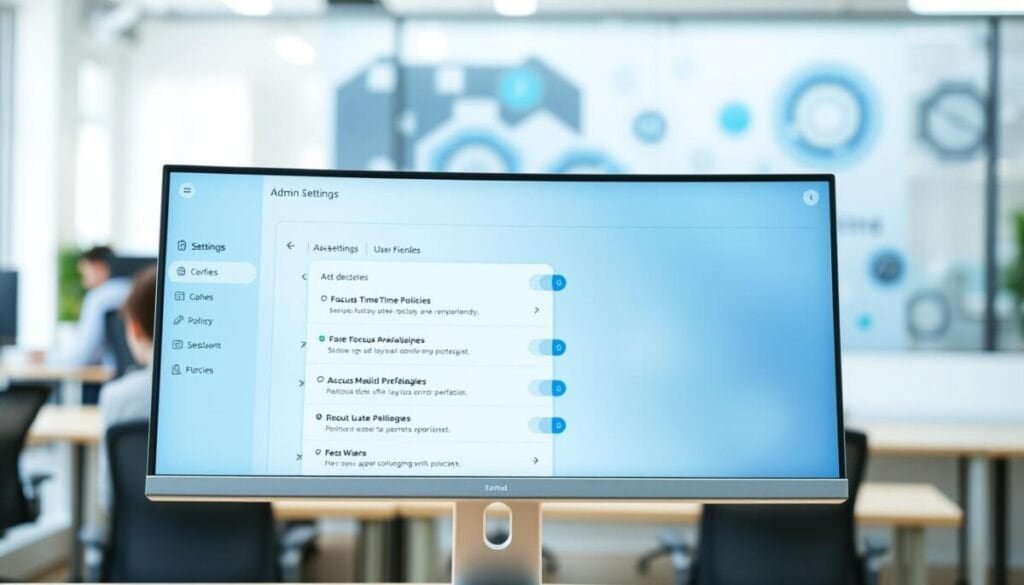
Sign in at the admin console address to reach user settings, passwords, and access controls.
Open admin.google.com with an authorized administrator account. Confirm the admin account has the correct admin roles before proceeding.
The console lists users and accounts on a single page. Use filters to locate user details quickly.
Use the interface to manage passwords, email addresses, and security permissions for the domain.
- Update password policies for multiple accounts at once.
- Assign roles and permissions to match job functions.
- Review device and app access from the same console view.
Access built-in help and information panels to verify settings. Follow those details when applying focus time policies.
| Task | Location | Result |
|---|---|---|
| Reset passwords | Users > Password | Immediate account recovery |
| Change roles | Users > Roles | Scoped permissions |
| Configure apps | Apps > Settings | Controlled access |
Configuring Organization-Wide Focus Time Parameters

Define organization-wide focus windows that match peak business hours and critical service schedules. Create a baseline before changing domain settings. Record expected outcomes and data points.
Set default availability to reflect core hours and on-call rotations. Use short blocks—no more than 90 minutes per window—to preserve concentration.
Setting Default Availability
In the admin console, configure global settings that set free/busy visibility and default calendar blocks. Limit email pings during focus windows; permit only high-priority alerts.
Customizing Calendar Integration
Synchronize calendars across apps and services so focus blocks propagate to devices and apps. Test synchronization on a representative sample of users before full rollout.
- Enable calendar APIs for app-level sync.
- Verify overlap handling for recurring events.
- Log integration errors for rapid fixes.
Applying Policies by Organizational Unit
Apply tailored settings per OU to match roles and responsibilities. Grant elevated permissions only to delegated roles. Monitor access and review role assignments quarterly.
For detailed procedural steps on mastering console deployment, consult mastering the admin console.
Managing User Permissions and Access Privileges
Limit high-level privileges to a small, vetted group to reduce risk and simplify audits.
Establish clear role templates that map job functions to precise permissions. Document each role, its allowed actions, and the approval workflow.
Granting Administrative Access
Grant administrative access only when a verified need exists. Require a secondary approver for every elevated account.
- Use least-privilege role assignments — assign only required permissions.
- Enforce strong password policies and mandatory multi-factor authentication.
- Register devices and tie device status to account access rules.
Audit regularly. Schedule quarterly reviews of roles, passwords, and device lists. Revoke unused privileges promptly.
| Action | Who | Frequency | Outcome |
|---|---|---|---|
| Assign admin roles | Security team | On hire/change | Scoped privileges; traceable changes |
| Password & MFA enforcement | IT operations | Continuous | Reduced account compromise |
| Privilege audit | Compliance officer | Quarterly | Expired roles removed; compliance evidence |
For role templates and procedural steps, consult the guide to assign specific admin roles.
Monitoring Adoption Through Reports and Audit Logs
Leverage logs and reports to translate raw usage into actionable role adjustments.
The admin console provides the primary hub for adoption metrics and audit trails. Pull reports that show how many users use focus time, which apps they open, and when devices sync.
Include the 40% Gemini adoption metric in periodic reports. That figure—daily use by 40% of team members with two hours saved weekly—validates tool impact on productivity.
Analyze audit logs to confirm that all access to sensitive data is tracked. Flag anomalous events. Triage issues to reduce risk to the domain and each account.
- Use reports to measure adoption rates and feature usage.
- Map findings to roles and settings—refine permissions where needed.
- Schedule regular reviews to maintain domain health and security.
For procedural guidance on securing storage and account posture, consult this secure cloud storage guide. Implement changes through the console with an authorized admin account to ensure auditability.
Ensuring Long-Term Success with Your New Productivity Framework
Sustain productivity gains by scheduling regular reviews of roles, settings, and user behavior.
Perform routine checks of the admin console and domain settings. Update role assignments and passwords on a fixed cadence. Record changes and measure adoption with reports.
Review access privileges and security protocols to protect data and reduce risk. Maintain apps and accounts so each business unit adapts to new features and service updates.
Use available help and support resources. See the Troubleshooting guide for email and account issues.
Monitor the domain for threats. Tight, ongoing governance ensures the productivity framework scales with company growth.