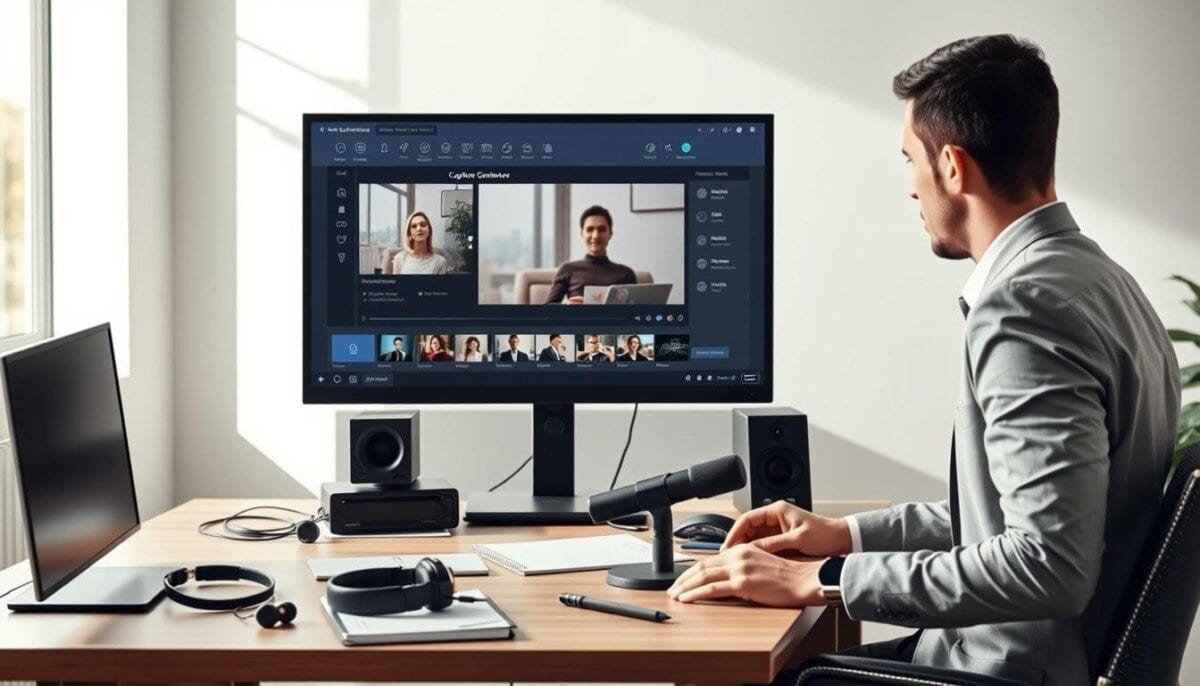
Can a single tool turn a raw clip into accessible, on-brand media in under ten minutes?
Millions of creators trust smart platforms that let you upload an MP4 or MOV file and start instant transcription. These caption generator tools extract audio and text, then generate captions and subtitles video files ready for editing.
Modern subtitle generator tech saves time while keeping your brand voice. You can match fonts and style in the editor, reach more viewers across social media platforms, and support multiple languages without extra fuss.
Every video editor needs a reliable tool that speeds work and lifts engagement. Use the right platform and your content will be clearer, more inclusive, and ready for any audience.
Key Takeaways
- Upload an MP4 or MOV file and start the transcription in minutes.
- Best tools generate captions and subtitles while preserving brand fonts.
- Support for multiple languages boosts reach on social media platforms.
- Editors can tweak words, timing, and layout for better engagement.
- Professional caption generators save time and improve viewer access.
Why Captions Are Essential for Modern Video Content
Silent playback dominates mobile feeds, and on-screen text makes your message clear.
Most mobile viewers watch without sound. Research shows about 85% of mobile video plays occur muted. That means text must carry your message at a glance.
The Impact of Muted Playback
When your video runs in a busy place, captions help people follow along. Subtitles keep viewers engaged in noisy commutes or quiet offices.
Reaching Diverse Viewers
Captions and subtitles make your media accessible to people who are deaf or hard of hearing. They also help nonnative speakers and those in sound-off settings.
- Keep viewers longer by making key points readable.
- Grow reach on social media with content that works without audio.
- Show your brand values by prioritizing accessibility.
Use captions as a bridge between sound and silence. That simple step raises professionalism and expands your audience worldwide.
How to Add Captions to Videos Automatically Using AI

Automatic transcription cuts hours of manual timing and typing from your workflow.
Start by uploading a video file (MP4 or MOV) to the platform. The AI subtitle generator transcribes audio with near-perfect accuracy and syncs text to the film in minutes.
Once the generator completes the transcription, use the built-in editor to refine wording and timing. You can choose style presets so subtitles match your brand and export a subtitles video in common formats.
The tool saves time during editing and improves accessibility for your content. It also lets you generate captions that are timed precisely and ready for social sharing or long-form publishing.
- Upload video file → quick transcription.
- Use the editor for word-by-word fixes.
- Export subtitles or embedded captions for any platform.
Improving Accessibility for Global Audiences

Translation and accurate timing turn local clips into global messages.
Translate your video text and reach viewers across more than 100 languages with modern AI tools.
Offer closed captions as a baseline for accessibility. This ensures people with hearing impairments can follow your content without loss of meaning.
Use a professional caption generator that converts audio into translated subtitles. The right platform lets your team manage subtitle files and original video in one place for fast localization.
- Translate existing videos into dozens of languages to expand your audience.
- Keep subtitle quality high by reviewing machine output for cultural and technical accuracy.
- Export closed captions and subtitle files in formats that match social and streaming platforms.
When your subtitles match viewer expectations, engagement and reach grow. Every tool in the suite is built to make content inclusive, accurate, and ready for a worldwide audience.
Customizing Subtitle Styles to Match Your Brand

A Brand Kit keeps your subtitle styles uniform across every project and platform.
Save your fonts, colors, and logo in the kit so each video reflects your brand instantly. The editor lets you tweak font, size, and layout for clear, on-screen text that fits your visual identity.
When you upload an MP4 file, apply a saved style and watch your captions remain consistent across social and streaming platforms. A subtitle generator gives you the flexibility to set placement and spacing for maximum readability.
You can store favorite subtitles as templates. That saves time on future projects and ensures every exported file carries the same branded look.
- Brand Kit: store fonts, palette, and logo.
- Editor: change font, size, and text layout.
- Export: every file features your custom style.
Use a consistent caption generator and editor to keep content unified. Small style choices build stronger brand recognition and better viewer trust.
Boosting Social Media Engagement with Dynamic Text
Short, animated text can stop a scroll and make a clip feel alive.
Animated word-by-word captions sync each word with the audio so text reads like speech. This effect draws eyes and keeps viewers on your content longer.
Using Animated Word-by-Word Captions
Set subtitles to pop, pulse, or glide and match motion to beats. A word-by-word rhythm boosts engagement across social media platforms and makes complex ideas easy to follow.
Adding Emojis for Emphasis
Mix a few emojis into a caption line for tone and emphasis. Emojis can highlight mood and callouts without cluttering the screen.
Highlighting Key Phrases
Bold or color key phrases so your main point reads at a glance when sound is off. This helps your message land fast on feeds where users scroll quickly.
- Use effects sparingly for clarity.
- Test fonts and timings for each platform.
- Keep brand style consistent across clips.
| Effect | Best Use | Impact |
|---|---|---|
| Pop | Short calls-to-action | Stops scroll, high attention |
| Pulse | Emotional lines | Subtle emphasis |
| Glide | Explainer clips | Smooth readability |
| Emoji | Social posts | Tone and shareability |
Use a reliable tool or platform to experiment with these styles. For social scheduling and workflow tips, see social media scheduling.
Streamlining Your Editing Workflow with Integrated Tools
Combine transcription, styling and final export in one streamlined workflow that saves minutes on every clip.
Upload video files (MP4 or other common formats) straight into a single platform and finish the edit in minutes. The editor keeps subtitles, audio, and text in one lane so you do not bounce between apps.
The transcription engine delivers high accuracy, which means less manual fixing and more time for creative work. You can export a subtitles video with hardcoded captions or download SRT, VTT, and TXT files for other platforms.
- Manage audio and caption generator outputs inside the same editor.
- Support for multiple languages makes repurposing simple.
- Export sizes and formats match social media channels and streaming platforms.
| Feature | Benefit | When to Use |
|---|---|---|
| Hardcoded captions | Perfect playback on any player | Short social clips and ads |
| SRT/VTT/TXT export | Flexible subtitle reuse | Streaming platforms and archives |
| High-accuracy transcription | Less manual editing | Technical or scripted content |
For a quick tool comparison and workflow tips, see our list of best AI tools. If you face upload issues, check this guide on common upload errors.
Ensuring Accuracy for Technical and Industry Terms
For specialist content, human review turns a fast AI transcript into a trusted, publish-ready file.
Upload video files and let the caption generator handle the bulk, then correct specific terms in the editor. Click any line of text and type a fix in seconds.
Adjust font, size, and style so long chemical names, model numbers, or brand terms stay readable on screen. The platform supports multiple languages and closed captions for global audiences.
Fast speech or multiple speakers won’t stop your final quality. Use the editor to answer any questions about terminology and confirm timing before export.
- Quick fix: click a caption line for instant edits.
- Style control: set fonts and effects for clarity.
- Global reach: maintain accuracy across languages.
| Check | Action | Benefit |
|---|---|---|
| Brand names | Manual edit in editor | Consistent on-screen identity |
| Technical terms | Verify phrasing | Trusted, professional content |
| Multiple speakers | Adjust timing and labels | Clear attribution |
When you generate captions, final manual passes build trust and authority. For a tool comparison and editing tips, see our AI-powered editor comparison.
Conclusion
, Letting smart tools handle transcription lets your team focus on storytelling and polish. Automating the caption workflow saves time and helps your content reach a wider, more diverse audience.
Choose a platform that balances speed with high accuracy so each subtitle reads clearly. Keep your brand style saved and apply it across projects for a consistent look.
If you have any questions about which tool fits your needs, test the options listed above and compare outputs. Start integrating these solutions into your daily editing flow and create more accessible, engaging content today.



