
Curious which trick gives your home screen a fresh, familiar look? Elon Musk’s rebrand swapped the blue bird for a black X. You can switch what appears on your device without touching account data.
This guide shows fast, reliable paths. On iPhone, use Apple’s Shortcuts or iOS 18 tinting for a uniform palette. Android users pick icon changer apps or launchers with packs. Windows edits a desktop shortcut via Properties > Change icon.
All edits are visual overrides. They affect only what you see on your home and screen. No posts, settings, or messages move or vanish.
Expect results in minutes. A single app swap takes a few minutes. Launchers speed full-screen consistency if you plan a broader overhaul. Below, we walk each way step by step and point out tradeoffs like ads, extra taps, or shortcut-style limits.
Key Takeaways
- You can replace the X tile on your home screen without touching account data.
- iPhone: Shortcuts or iOS 18 tinting for fast, cohesive icons.
- Android: icon changer apps for swaps or launchers for full themes.
- Windows: edit the desktop shortcut and pick a new .ico file.
- Most swaps take only a few minutes; launchers save time for full redesigns.
What you need before you change the X app icon
Gather your assets and pick a method first. That saves time and keeps your home tidy. On iPhone, the Shortcuts app is preinstalled and can create a custom Home Screen shortcut tile that opens the app.
Android users usually install a third‑party icon changer app or a launcher. Regardless of device, you will need a replacement image saved in your gallery or Files. A square PNG or JPG at 512–1024 px works best for modern screens.
Quick checklist
- Decide the method: Shortcuts on iPhone, an icon changer or a launcher on Android, or a Windows shortcut for desktop.
- Prepare a crisp image of the Twitter bird or another mark and save it to gallery/Files.
- Confirm the Shortcuts app is available on iPhone and that you can name the tile for a tidy home layout.
- Choose between speed (icon changer apps) and flexibility (launchers with packs and themes).
- Back up or note your current home positions and pick a naming convention before you start.
Final tip: Plan a palette if you want a uniform screen look and download icon packs when restyling multiple apps. This way, users avoid extra steps and keep customization fast and consistent.
How to change icon on X on iPhone using Shortcuts and iOS 18
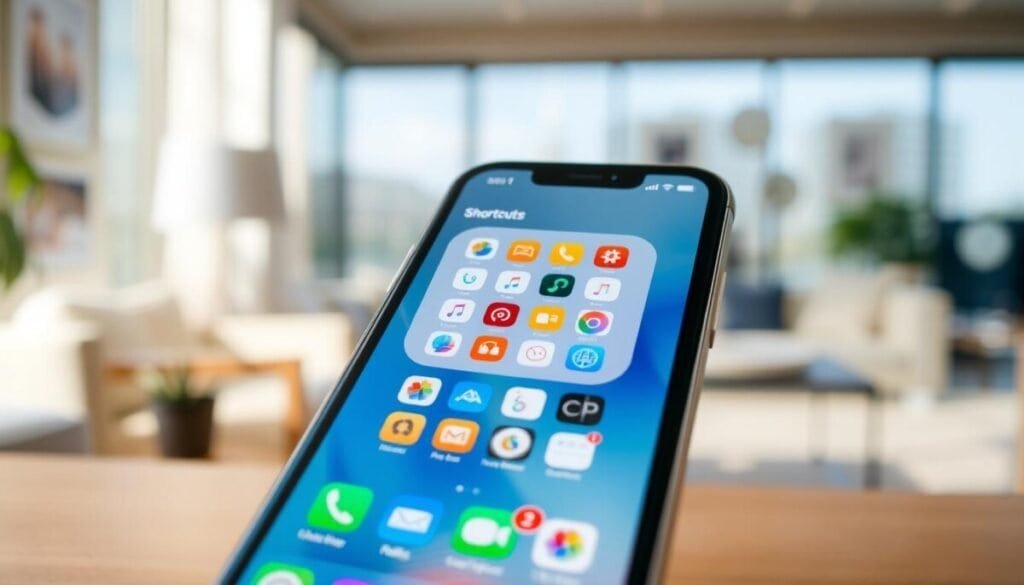
Shortcuts and iOS 18 offer two practical paths for a cohesive home screen look. Use Shortcuts for a single app tile or iOS 18 tinting for a global theme. Both are native, fast, and reversible.
Swap the X app icon with Shortcuts on the Home Screen
Open the Shortcuts app, tap +, then Add Action. Search “Open App” and pick the app. Tap the three dots, choose Add to Home Screen, then tap the icon and Choose Photo.
Pick your photo or PNG, set the name, and tap Add. The shortcut opens the app directly and sits on your home screen like any app tile.
Use iOS 18 to tint app icons for a cohesive home screen theme
Long-press the home screen, tap Edit, then Customize and pick Tinted. Choose a color and adjust intensity. This applies a unified palette across app icons and widgets in one pass.
Best sources for bird images and custom icon packs
- Use high-contrast PNGs: centered bird with padding works best for tiles and widgets.
- Reliable sources: free icon libraries and export a clean PNG from a design app.
- Third-party apps: X Icon Changer offers packs and renaming but may show ads or create shortcuts rather than replacing native app icons.
Android ways to change the X app icon: icon changers, launchers, and themes
Choose a quick swap or a full home overhaul. A dedicated changer app makes a single app swap fast. A launcher applies themes and uniform app icons across the home screen.
Icon changer app flow: Install the changer, pick the app, then select a logo from built‑in icon packs or grab an image from your gallery. Rename the tile if you like and apply. Expect small differences by app; many include ads and some create overlay shortcuts rather than replacing the base app.
Launcher and theme route: Install a launcher, accept the default prompt if asked, then open Themes or long‑press a free space to customize. Download icon packs for consistent weight and padding, apply a pack, and swap the single tile if needed. Launchers also tune grids, gestures, and feeds for deeper customization.
- Fastest path: changer app + gallery image = quick swap.
- Best for consistency: launcher + icon packs across apps and screen.
- Pro tip: prepare a crisp PNG (512–1024 px) for clean results.
Change the X icon on desktop: Windows shortcut properties
Windows users can customize the desktop tile by editing a shortcut’s Properties and picking a new .ico file. This edits only the shortcut’s look; it does not modify the app.
Quick setup: create or locate a desktop shortcut for the app, right‑click and open Properties. Click Change icon, choose a default image or Browse to a downloaded .ico, then Apply and OK.
- Download a reputable .ico from a free icon site if needed, then return and browse for that file.
- Rename the shortcut to “Twitter” before pinning for a tidy home label.
- If the new tile does not update, refresh Explorer or clear the icon cache to force a redraw.
- Pin the shortcut to the taskbar or Start; the custom image follows the pinned shortcut.
| Step | What you need | Result |
|---|---|---|
| Create or find shortcut | Desktop access | Editable tile on the screen |
| Open Properties > Change icon | Built‑in icons or a downloaded .ico | New app icon shown on desktop |
| Apply, OK, then refresh if needed | Administrator access sometimes | Updated display; taskbar reflects pinned tile |
| Backup .ico | Local folder or cloud copy | Easy restore after updates or icon cache resets |
Pro tip: For full instructions and recommended free .ico sources, consult a short guide like customize icons for Windows. Keep the .ico backed up so you can restore it if Windows resets the icons or after an update. The Apply button sits in the lower‑right corner of the Properties dialog; confirm changes before closing the window’s corner X.
Wrap-up: faster customization, consistent themes, and next steps
Wrap-up: Summarize practical next steps for a complete home screen refresh without interrupting app data.
Pick the fastest route: use iPhone Shortcuts for native tiles or an Android changer for a quick swap. For a unified look, apply iOS 18 tinting or a launcher plus icon packs for a full home screen theme.
Keep a high‑quality bird photo/PNG and name tiles consistently. Pin core apps near the lower corner so your thumb reaches them fast. Remember: these edits create a shortcut tile; the app opens normally and your content stays intact.
Next steps: batch a small app set, test visibility with widgets and in dark or light mode, then save a curated set and document your process. See a short practical guide about change app icons for extra tips.