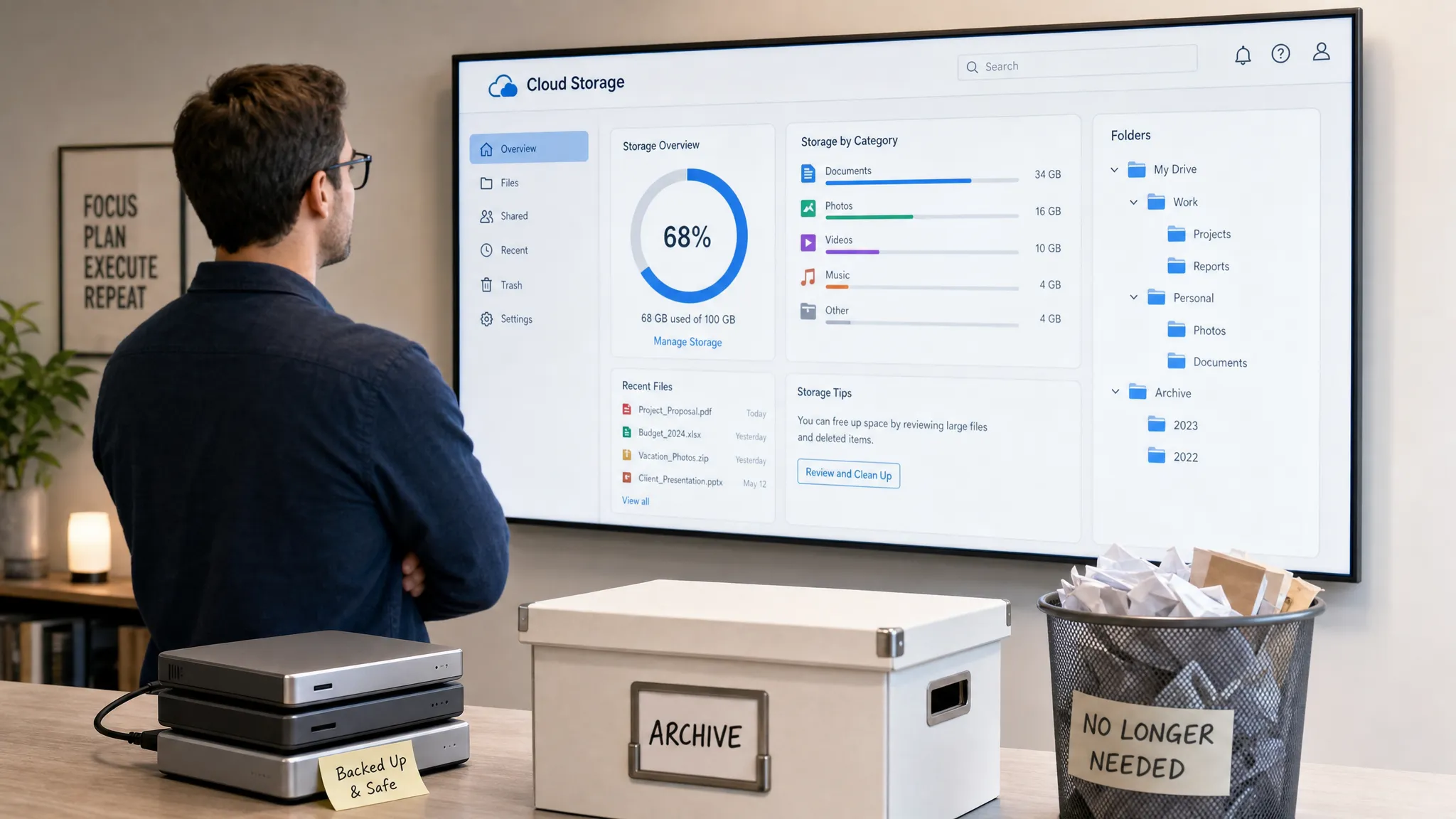
Cloud storage is supposed to make life easier. Then one day Google Drive, OneDrive, Dropbox, iCloud, or another service tells you that you are almost out of space, and suddenly every old screenshot, duplicate PDF, and abandoned project folder feels like a decision you do not have time to make.
The good news is that you do not need a full weekend, a perfect filing system, or an expensive new storage plan to get control back. You need a calm process that reduces risk, starts with the biggest wins, and avoids the panic-delete spiral.
This guide shows you how to clean up your cloud storage without stress, even if your files are spread across multiple apps and devices.
Why cloud storage gets messy so quickly
Cloud clutter rarely happens because people are careless. It happens because modern tools save everything automatically.
Your phone backs up photos. Your email stores attachments. Your project management tools export reports. Your desktop sync client uploads downloads, screenshots, and drafts. Shared folders from old clients or teams stay visible long after the work is done. Over time, your cloud storage becomes less like a filing cabinet and more like a storage unit where everything was tossed in “just in case.”
The stress usually comes from three fears: deleting something important, not knowing where files came from, and not having a clear standard for what deserves to stay. That is why the best cleanup strategy is not “delete more.” It is “decide less at first.”
Instead of opening every file one by one, start with broad categories, safe archives, and obvious space-wasters. You can refine later.
Before you delete anything, create a safety net
The biggest mistake people make when cleaning cloud storage is starting with deletion. That feels productive for about five minutes, then anxiety kicks in. A safer approach is to separate cleanup into review, archive, delete, and confirm.
First, identify which cloud storage account is your main source of truth. If you use several services, choose one primary location for active work. This does not mean everything must move today. It simply gives you a reference point when you find duplicates across platforms.
Second, make sure you understand how your files are actually stored. Some files may exist only online, while others may be mirrored to your laptop or phone. If you are unsure how syncing, remote storage, and online file availability work, our guide on what it means when your data is stored online can help you avoid accidental loss.
Third, create a temporary folder named something like “Cleanup Review” or “Archive Before Delete.” Move uncertain files there instead of deleting them immediately. If you do not need them after 30 to 90 days, you can delete them with more confidence.
Here is a simple way to classify files before taking action:
| File type | Risk level | Best first action | Delete immediately? |
|---|---|---|---|
| Duplicate downloads, installers, exported ZIP files | Low | Move to trash or delete after checking source | Usually safe |
| Screenshots, screen recordings, old drafts | Low to medium | Sort by date and preview in batches | Sometimes |
| Client files, invoices, tax documents, contracts | High | Archive in clearly labeled folders | No |
| Photos and videos | Medium to high | Deduplicate carefully and keep originals | No |
| Shared project files | Medium | Check ownership and sharing settings first | Not yet |
| Password lists or sensitive notes | High | Move to a secure password manager or encrypted vault | Delete only after secure migration |
This table is not about being slow. It is about protecting your attention. When you know which categories are low risk, cleanup becomes much easier.
Step 1: Check where your storage is actually going
Do not begin by browsing folders alphabetically. Start with your provider’s storage usage view. Most cloud storage services have a way to sort files by size, inspect storage categories, or see which apps are using the most space.
Large files create the fastest wins. A single forgotten video export can use more storage than hundreds of documents. Old webinar recordings, raw video clips, design exports, database backups, and duplicated photo libraries are common culprits.
Look for these high-impact categories first:
- Videos, screen recordings, and meeting recordings
- Compressed files such as ZIP, RAR, and backup archives
- Large design files, PSDs, AI files, and exported PDFs
- Duplicate photo folders from phones, cameras, or imports
- Old shared folders from clients, classes, or previous jobs
- Email attachments that were automatically saved to cloud storage
If your cloud provider lets you sort by file size, review the top 50 largest items before touching anything else. You may recover a large amount of space with only a few decisions.
Step 2: Use a three-folder cleanup system
A complicated folder system creates more stress than it solves. For the cleanup phase, you only need three temporary destinations.
Create these folders in your main cloud drive:
| Folder name | Purpose | What belongs here |
|---|---|---|
| Keep Current | Files you use now or expect to use soon | Active projects, current documents, recent templates |
| Archive | Files worth saving but not needed weekly | Finished projects, old records, reference material |
| Review Later | Files you are unsure about | Mystery files, duplicates, old shared documents |
This system works because it removes the pressure to make permanent decisions immediately. “Keep Current” stays lean. “Archive” keeps your history without crowding active work. “Review Later” gives uncertainty a place to go without leaving everything scattered.
After cleanup, you can refine the folders by year, client, project, or file type. But do not start there. The first goal is clarity, not perfection.
Step 3: Clean large files before small files
Tiny files are tempting because they look easy. But deleting 200 small documents may barely move your storage meter. If your goal is to free space and reduce overwhelm, large files come first.
Open your storage usage view and sort by size. For each large file, ask one question: “Could I realistically need this exact file again?”
If the answer is yes, archive it with a meaningful name. If the answer is no, delete it. If the answer is unclear, move it to Review Later.
This is especially useful for video creators, designers, marketers, educators, and remote teams. Final exports often need to be kept, but raw drafts, duplicate exports, and outdated versions can usually be removed after a project closes.
A practical rule is to keep final deliverables and source files for important work, but remove temporary exports once you confirm they are no longer used. For example, a final client presentation may belong in Archive, while “presentation-final-v7-reallyfinal-copy.pdf” probably does not.
Step 4: Handle duplicate files without rushing
Duplicates are one of the biggest sources of cloud clutter, but they are also where people make mistakes. The same file name does not always mean the same file. A duplicate-looking document may contain comments, revisions, or metadata that matter.
Start with obvious duplicates. These often include files with names like “copy,” “conflicted copy,” “final 2,” or “download (1).” Preview them before deleting, especially if they are documents or spreadsheets.
For photos and videos, be more careful. Cloud services may create duplicates when you import from multiple phones, messaging apps, or desktop folders. Similar photos can still have sentimental or professional value. Instead of deleting aggressively, compare file size, date taken, resolution, and folder source.
Third-party duplicate finder tools can help, but use them cautiously. Any tool that scans your cloud files may require broad access permissions. Before connecting one, check its reputation, permissions, privacy policy, and whether it can operate locally on a synced folder instead of directly inside your cloud account.
Step 5: Tame photo and video backups
Photos and videos are usually the emotional part of cloud cleanup. They also tend to consume the most space. A low-stress approach is to clean by source and time period rather than by memory.
Start with obvious technical clutter: accidental screenshots, blurry shots, duplicate burst photos, memes, temporary downloads, and old screen recordings. These are easier to delete than family photos or professional images.
Then review large videos. Many people have forgotten clips from screen recordings, social media drafts, app tutorials, and events. If the video has already been edited, uploaded, or exported, consider whether you need the raw version in cloud storage.
If you use automatic camera uploads, check which folders are included. Messaging apps, downloads, and screenshots can silently fill your cloud if they are part of the backup path. Turning off backup for low-value folders can prevent the mess from returning.
Step 6: Review shared files and permissions
Cloud cleanup is not only about space. It is also about access.
Shared folders can outlive the reason they were created. A freelancer may still have access to an old brand folder. A former classmate may still appear in a shared project. A public link may still expose a document you forgot existed.
Open your cloud provider’s shared files area and review three things: files shared with you, files you shared with others, and public or link-based sharing. Remove access where it is no longer needed. If you are unsure whether a collaborator still needs a file, move slowly and communicate first.
Pay special attention to folders containing personal documents, business records, strategy files, financial information, or client data. Even if the files are not taking much storage, cleaning permissions reduces risk.
This is also a good time to strengthen account security. Use multi-factor authentication, avoid storing plain-text password documents in your cloud drive, and consider a dedicated password manager. If you are evaluating whether that is safe, we explain the tradeoffs in our guide to whether password managers are safe.
Step 7: Stop the clutter from coming back
A cleanup only feels good if it lasts. Once you clear space, update the settings that created the mess.
Check your automatic upload rules, desktop sync settings, email attachment workflows, scanner app destinations, and collaboration tools. Many cloud messes begin because multiple apps are saving to the same place without a naming system.
For example, your scanner app might save every receipt as “Scan.pdf.” Your browser may save downloads to a synced Desktop folder. Your phone may upload screenshots, WhatsApp images, and camera photos into the same library. Your project tools may export reports into a general Downloads folder that syncs automatically.
A few small rules can prevent most future clutter:
- Use one folder for active work and one folder for completed work.
- Rename important files before uploading them.
- Turn off cloud backup for screenshots and temporary downloads if you do not need them.
- Review shared links at the end of every project.
- Schedule a 15-minute storage check once a month.
The goal is not to become a perfect file organizer. The goal is to make the default path cleaner.
Step 8: Empty trash only after a waiting period
Most cloud storage services have a trash, recycle bin, or recently deleted area. Deleted files may remain recoverable for a limited time, depending on the provider, plan, organization settings, and account type.
Use that delay to your advantage. After a cleanup session, let deleted files sit in trash for a short review period unless you urgently need the space. If nothing breaks and nobody asks for the files, empty the trash later.
This waiting period is especially useful for teams. A file that looks unnecessary to you may still be linked in a shared document, task, website, or workflow. Delaying permanent deletion gives you a chance to catch those surprises.
If you are cleaning storage before a major life or work transition, combine digital cleanup with your physical organization. For example, if you are relocating a home office or small business, using a trusted San Francisco and Bay Area moving company while you also sort old drives, paper files, and cloud folders can help you start in the new space with less clutter everywhere.
A stress-free weekly cleanup routine
You do not need to clean everything in one sitting. In fact, shorter sessions are better because file decisions are mentally draining. Use a repeatable routine that gives each session a clear purpose.
| Time available | Best cleanup task | Expected benefit |
|---|---|---|
| 10 minutes | Delete obvious screenshots, downloads, and duplicate exports | Quick visual relief |
| 20 minutes | Sort the largest files by size and archive or delete the top items | Fast storage recovery |
| 30 minutes | Review one old project folder from start to finish | Better organization |
| 45 minutes | Clean shared links and permissions | Better privacy and security |
| 60 minutes | Review photos or videos from one month or event | Large space savings |
A good rhythm is one focused cleanup block per week until your storage is manageable. After that, switch to one monthly maintenance session.
If you already use time-blocking or productivity tools, treat cloud cleanup like any other recurring maintenance task. It pairs well with a weekly review, inbox cleanup, or digital workspace reset.
What to keep, archive, and delete
If you are stuck deciding what belongs where, use practical value as the filter. A file earns its place if it supports current work, legal or financial records, important memories, reusable templates, or completed work you may need to reference.
Keep current files visible only if they are active. Archive records that matter but do not need daily access. Delete files that are temporary, reproducible, outdated, duplicated, or disconnected from any current responsibility.
For teams, define these rules together. One person’s “old file” may be another person’s onboarding asset. Shared standards prevent accidental deletion and make future cleanup easier.
A simple team policy might include project closeout rules, folder naming rules, retention periods, and ownership responsibilities. You do not need a legal-grade records policy for every small team, but you do need enough clarity that people know what should happen when a project ends.
When upgrading storage makes sense
Cleaning up your cloud storage is useful, but there are times when paying for more space is the rational choice. If you work with video, design, photography, data exports, or large client files, a larger plan may cost less than the time you spend constantly fighting your quota.
Upgrade when your storage use is legitimate and recurring. Do not upgrade just to avoid deleting obvious clutter. If 40 percent of your space is old screen recordings and duplicate downloads, clean first. If 90 percent is active client work or an important photo library, a better storage plan may be worth it.
Think of cleanup and upgrading as separate decisions. Cleanup improves clarity. Upgrading increases capacity. Most people need a little of both.
Frequently Asked Questions
How often should I clean up my cloud storage? A quick monthly review is enough for most users. If you create large files such as videos, design exports, or photo libraries, schedule a weekly 20-minute cleanup until your storage is stable.
What is the safest way to delete cloud files? Move uncertain files into a temporary Review Later folder first. Delete only obvious clutter immediately, and wait before emptying trash or recently deleted folders.
Should I use a duplicate file finder for cloud storage? Duplicate finders can help, but review permissions carefully. When possible, scan a local synced copy instead of giving a third-party app full direct access to your cloud account.
Why is my cloud storage still full after deleting files? Deleted files may still be sitting in trash, recently deleted, email attachments, photo storage, or another connected app. Check every storage category and empty trash only when you are confident you no longer need those files.
Is it better to organize by file type or project? Project-based folders are usually easier for work because all related documents, images, and exports stay together. File-type folders can work for personal libraries, templates, and broad archives.
What files should I never delete without a backup? Be careful with tax records, contracts, invoices, legal documents, original creative files, client deliverables, family photos, and anything tied to compliance or account recovery.
Make cloud cleanup part of your digital workflow
Cleaning up cloud storage does not have to be dramatic. Start with the largest files, create a safe review folder, archive before deleting, and fix the settings that created the clutter in the first place.
For more practical tutorials on online tools, productivity systems, storage, automation, and digital workflow optimization, explore more guides on Online Tool Guides. A cleaner cloud drive is not just about saving space. It is about making your digital workspace easier to trust every day.



