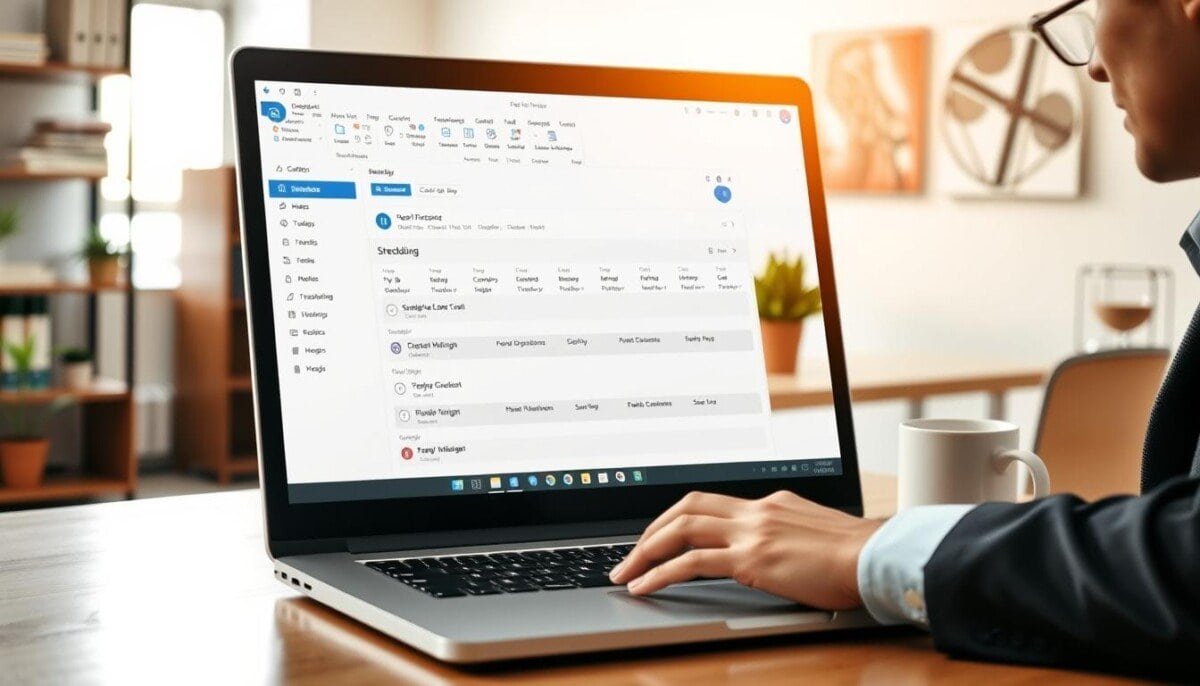
Curious whether your calendar really tells coworkers where and when you work? Many people assume their calendar shows full availability by default. That is not always true.
You will learn how to set clear work time and a visible location in Outlook. This guide covers the new Windows app, the web version, and classic Windows. It also notes mobile and Mac differences.
With a qualifying Microsoft 365 account you can set days, per‑day start and end times, and mark remote or in‑office status. Your working block appears on the calendar so off‑hours invites stand out.
Options include sharing building and desk details or keeping privacy simple. Teams and the Scheduling Assistant respect your work time so meetings fit your week. We keep steps short and practical so you can update settings fast.
Key Takeaways
- Set daily start and end times so coworkers see your work availability.
- Choose remote or in‑office and optionally share building and desk info.
- New Windows and web versions place controls under Settings > Calendar.
- Mobile shows hours but does not let you edit them; Mac supports preferences.
- Microsoft 365 work or school accounts are required for full features.
Why setting office hours and location in Outlook improves your day
When you mark your daily work period and where you’ll be, scheduling conflicts drop and team coordination improves.
Clear work hours cut friction. Colleagues see available blocks in your calendar and pick times that match your week. That reduces back-and-forth and speeds meeting placement.
Location visibility sets expectations. Marking remote or in‑office — and adding a building or desk when relevant — helps teammates plan collaboration and room bookings. The Scheduling Assistant reads that data and shows it when others arrange meetings.
- Working blocks highlight on your calendar so invites outside those times stand out immediately.
- Teams presence aligns with your set work time, giving a consistent availability signal across apps.
- Suggestions and the Work plan icon nudge you to update plans or reserve spaces for in‑person days.
| Benefit | Immediate outcome | Why it matters |
|---|---|---|
| Visible time blocks | Fewer late invites | Protects focus and reduces interruptions |
| Shared location | Better room and desk planning | Eases hybrid coordination across buildings |
| Scheduling Assistant data | Smarter meeting placement | Less rescheduling, clearer team view |
How to schedule office hours in Outlook
Define daily start and end times and pick a location for each day so teammates see when and where you work.
New Outlook (Windows) and Outlook on the web: open Settings > Calendar > Work hours and location. Check the days you work, then use the dropdowns to set a start and end time for each day.
Per-day times and location choices
For every selected day choose remote or in‑office. If your organization provides a building directory, pick a building and seat. Enable Share office location details to show building and desk.
Privacy and classic Windows steps
Turn off the share toggle to expose only “in‑office” or “remote.” Or deselect location to show “No location.” Click Save when finished.
Classic Outlook (Windows): File > Options > Calendar > Work hours and location. Mobile apps display these fields but cannot edit them. Verify your time zone so meeting times align.
| Platform | Path | Can set per-day times | Location options |
|---|---|---|---|
| New Outlook (Windows) | Settings > Calendar > Work hours and location | Yes | Remote, in‑office, building/seat |
| Outlook on the web | Settings > Calendar > Work hours and location | Yes | Remote, in‑office, building/seat |
| Classic Outlook (Windows) | File > Options > Calendar > Work hours and location | Yes | Remote, in‑office (directory support varies) |
Need troubleshooting tips? See our troubleshooting tips for related calendar issues.
Manage changes and collaborate: updates, visibility, and scheduling

Make single-day edits from your calendar when plans change, without altering your recurring work pattern.
Quick edits: From the Calendar in new Outlook or the web, click the Work plan icon to flip a single day between remote and in‑office. If your org provides a buildings directory, select the building for that day and a location badge appears on the date.
Team visibility: The Scheduling Assistant shows colleagues’ location next to availability. Open a profile card to view a coworker’s daily location and availability at a glance.
Smart suggestions: Opt in to Microsoft Places and look for the red dot on the Work plan icon. Accept prompts to update a day, book rooms, or align in‑person meetings with nearby teammates.
- Use the daily location card to see who else plans to be at the same building.
- Teams presence follows your working hours, reducing pings outside your set blocks.
- Small, single‑day changes keep your calendar accurate without managing the full recurrence.
| Action | Where | Outcome |
|---|---|---|
| Flip a day | Calendar Work plan icon | Location badge appears on date |
| Select building | Daily edit (new outlook / web) | Filtered coworker list and room planning |
| Accept suggestion | Work plan suggestions (Microsoft Places) | Book rooms and boost in‑person collaboration |
For full setup tips and workflow ideas see our work hours and location guide or explore online planning tools that help coordinate meetings and shared days.
Requirements, versions, and fixes for common issues

Verify eligibility and the app version before you edit your work time and location.
Eligibility: You must use a work or school account with a qualifying Microsoft 365 plan to set work hours and location. If settings are missing, an admin policy may block the feature; contact IT.
Identify your version and where to edit
Check your client version so you follow the right path. In new outlook, open Settings > General > About. Classic outlook shows version under File > Office Account.
Both new Outlook and outlook web use Settings > Calendar > Work hours and location. Classic Windows uses File > Options > Calendar > Work hours and location.
Time zones, legacy behavior, and device limits
Time zones: Changing legacy working hours often updates the modern time zone so availability stays correct while you travel. Verify the time zone if colleagues see wrong meeting times.
Legacy vs modern: Legacy working hours approximate a week by using the earliest start and latest end across your days. Modern settings are per day and more precise.
Mobile and Mac: iOS and Android show your schedule but cannot set it. Use desktop or outlook web to configure. Outlook for Mac supports edits via Preferences, though features evolve.
Troubleshooting checklist
- Confirm time zone and home time match your current location.
- Check each workday box and set start and end time for the correct day.
- Save changes and verify the calendar view shows the update.
- If settings remain disabled, ask IT about organization policies that may restrict this feature.
| Item | Where | Notes |
|---|---|---|
| Verify account | Microsoft 365 admin / Account profile | Work or school accounts required for full features |
| Find version | New Outlook: Settings > General > About Classic: File > Office Account | Follow the correct path for your client |
| Configure schedule | Settings > Calendar > Work hours and location (web / new) | Set per-day start and end time; mobile view only |
Need detailed steps? Use the Microsoft guide to set your work hours and location for an example of exact menu paths and screenshots.
Put it into practice: a sample weekly plan and smart next steps
A concrete weekly example makes it easy to align calendar view and team expectations.
Sample plan (Mon–Fri): Mon, Tue, Thu 8:00 AM–5:00 PM (in‑office, Building A, 3rd floor); Wed 10:00 AM–7:00 PM (remote); Fri 9:00 AM–3:00 PM (in‑office, Building B).
In new Outlook Windows or Outlook web, open Settings > Calendar > Work hours and location. Check your working days, then set start and end times for each day and pick a location where needed.
Click Save, then open your calendar to view the visual working blocks and location badge on configured days. Use Select Calendar and the Work plan icon to flip a single day—for example, change Wed for a client visit without altering the week.
Ask a teammate to view you in the Scheduling Assistant and confirm your working hours and location outlook appear. Before travel, update your time zone and recheck times across devices. Additionally, familiarize yourself with how to schedule in Outlook to ensure all meetings are organized efficiently. Make use of calendar features that allow you to set reminders and review conflicts with existing appointments. Regularly review your calendar to stay on top of your commitments and make any necessary adjustments ahead of time.
Next steps: set working hours today, share the plan in Teams, and revisit after two weeks to fine‑tune times and locations. For an extra tip on calendar quirks, see this quick guide on related posting limits: why a thread may not post.