Curious whether your iPhone can send a message at the exact right moment without you being awake?
You can. iOS 18 adds Send Later in the Messages app, a clear feature that lets you plan delivery up to 14 days ahead. The app shows a dashed border and a time label so you know a message is set for later.
Scheduled messages stay encrypted and sit on Apple servers only until they send. When delivery happens, the dashed bubble becomes solid. You must be online if you want to edit or cancel a scheduled message, but delivery will occur at the set time even if your devices are offline.
This works for one-on-one chats and groups. Recipients won’t see that a message was planned; it arrives like any other message. Use this for late-night notes, cross‑time-zone reminders, or timely campaign follow-ups.
Key Takeaways
- The Messages app adds Send Later, letting you plan delivery up to 14 days.
- Scheduled items show a dashed border and a time label for clarity.
- Messages are end-to-end encrypted and removed from servers after sending.
- Editing a scheduled message needs an internet connection; delivery still occurs offline.
- Recipients do not know a message was scheduled; it appears normally.
- Supported in individual chats and group conversations, with SMS fallback as needed.
What scheduling texts in iMessage means today
The Messages app now includes a built-in feature that lets you set a future delivery moment for a message. This native send later option runs on iOS 18 and later and works when you use iMessage.
Requirements and limits: You need an iPhone on iOS 18 or newer. The feature lets you pick a date and time up to 14 days ahead. It handles one-on-one chats and groups; recipients can be on any device.
Visual and privacy cues: While composing, the text field shows a dashed border and a send time above the draft. After queuing, the scheduled bubble keeps a dashed outline and a clock icon until the message sent state arrives.
Storage and connectivity: Scheduled messages stay encrypted on Apple servers until delivery, then they are removed. You must be online to edit, reschedule, or delete a scheduled message, but delivery occurs at the set time even if your devices are offline.
What your recipient sees
The recipient simply receives the message—there is no label or banner indicating the item was planned. In practice, a planned delivery arrives like any other message.
How to use Send Later in the Messages app on iPhone
Queue a message right from the compose field and choose when it should reach your recipient. Open the Messages app, enter an existing conversation or start a new conversation. Type your message in the field so the draft is ready.
Reveal Send Later: Tap the plus next to the compose field or tap hold the send icon. That exposes the scheduler control. Tap the displayed time to open the picker and choose a delivery date and time up to 14 days ahead.
Confirm the on-screen indicators before you tap send. The compose field gains a dashed border and the chosen time appears above your draft. When you tap send, the app queues the scheduled message and shows a dashed outline with a clock icon until the message sent state arrives.
- If you don’t see the schedule message immediately, scroll down—queued items can sit below recent sent messages.
- For group conversations, follow the same steps; recipients receive the message without a planning label.
- Use exact date time settings when coordinating across time zones to avoid early or late pings.
Manage your scheduled messages: edit, reschedule, send now, or delete
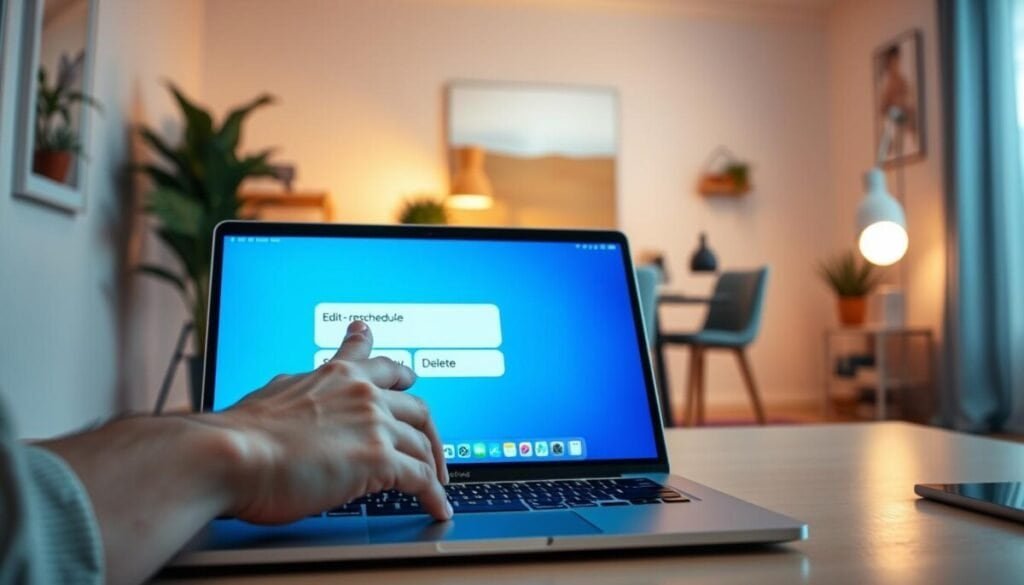
Control queued deliveries with a few taps—edit content, shift time, send now, or delete.
Edit a scheduled text message before it’s sent. Touch and hold the scheduled bubble, tap Edit, update your message, then confirm to resend with changes or revert to the prior draft. This feature allows for greater flexibility in communication, ensuring your message is just right before it reaches the recipient. By understanding how to edit scheduled messages, you can enhance your overall messaging experience, making scheduling text messages effectively a valuable tool for staying organized and timely. Whether it’s for reminders, appointments, or casual chats, having the ability to adjust your messages can save time and prevent miscommunication. This feature allows for greater flexibility, ensuring your message is just right before it reaches the recipient. To learn more about how to schedule text messages effectively, explore the settings in your messaging app for detailed options. It’s a convenient way to manage communication and ensure timely delivery. In addition to text messages, mastering scheduling features can enhance your presence on social media platforms. For those looking to streamline their posts, learning how to schedule tweets on android can help maintain an active online presence without constant monitoring. By integrating these scheduling techniques across various communication channels, you can effectively manage your time and convey your messages when they are most impactful.
Change the date or deliver immediately. Tap Edit beside the scheduled date above the bubble. Choose Edit Time to pick a new time and date, or select Send Message to send immediately.
Delete a scheduled message. If you need to cancel, touch and hold the queued item and tap Delete. The message won’t be delivered after deletion.
Delivery status, offline behavior, and notes
If you can’t see a queued item, scroll to the bottom — scheduled messages can appear below your latest sent messages. You must be online to edit, reschedule, or delete.
At send time, iMessage requires internet. SMS can fall back using cellular service. If delivery fails, look for a failure icon, then tap Try Again or choose Send as Text Message.
- To edit content, touch and hold the scheduled bubble and tap Edit.
- To change timing, tap Edit next to the date and pick Edit Time.
- To send immediately, choose Send Message from the same menu.
- To cancel, touch and hold the item and tap Delete.
Alternatives if you can’t use Send Later
If Send Later is unavailable on your device, practical alternatives can fill the gap. You have three solid options: the Shortcuts app, third‑party apps, and Reminders as a manual nudge. Each path has tradeoffs in privacy, automation, and reliability.
Shortcuts automation for recurring or one‑time messages
Use the Shortcuts app to create a Time of Day automation. Open Shortcuts > Automation > Create Personal Automation, pick the date time and frequency, then Add Action > Send Message. Enter text and recipients, toggle off Ask Before Running for hands‑off delivery, and tap Done. With this automation set up, you can easily keep your friends or followers updated with messages at specific times. Additionally, you can schedule tweets directly from mobile, ensuring your social media presence remains consistent even when you’re busy. This feature allows you to engage with your audience without needing to be actively online at all times.
Third‑party apps and what to expect
Some apps truly queue delivery; others only remind you at the chosen moment. Check reviews, permissions, and whether an app holds message content on its servers before you rely on it.
Reminders as a manual nudge
For a lightweight workaround, draft your message in Notes and create a Reminder with an alert. When notified, copy the draft into Messages and send. It’s manual but private and simple.
| Option | Automation | Privacy | Best use |
|---|---|---|---|
| Shortcuts app | Full automation (recurring/one‑time) | Local, uses system permissions | Recurring reminders and hands‑off sends |
| Third‑party apps | Varies: true queue or reminder | App‑dependent; review policies | Advanced scheduling features, cross‑platform |
| Reminders + Notes | Manual trigger | High (local only) | Simple, private, low risk |
- Set frequency to Daily, Weekly, or Monthly in the Shortcuts app for recurring campaigns.
- For one‑time automations, delete the automation after it runs to avoid repeats.
- Keep recipient lists current; test with a low‑stakes message first.
For deeper technical guides and scheduling strategies, see this Shortcuts primer and an advanced scheduling overview: Shortcuts and scheduling guide and advanced scheduling strategies.
how to schedule text on imessage: best practices and takeaways
A brief pre-send routine saves missed windows and awkward follow-ups.
Before you tap Send, check the dashed border, clock icon, and the chosen send time above the field. Confirm the date and time fall inside the 14‑day window and match the recipient’s time zone.
Keep your device charged and online if you plan to edit or cancel. If a delivery fails, use Try Again or send as a standard SMS for reliable reach.
Use Send Later for single outreach. For recurring flows, prefer Shortcuts or vetted apps. For more advanced tactics, see advanced scheduling strategies.
Takeaway: proofread, verify on-screen cues, and confirm connectivity early. That simple routine keeps scheduled messages predictable and professional.