Can a queued message change the way you manage timing and campaigns?
You’ll get a clear, actionable path. iOS 18 now offers native scheduling up to 14 days, with queued items shown by a dashed border and encrypted on Apple servers until delivery. Android has built-in options too: Google Messages uses a long press on Send, while Samsung supports plans up to a year ahead.
We’ll compare native features against Shortcuts automations on older iPhones and explain what happens behind the scenes. You can edit, reschedule, send immediately, or delete before the set time. That matters for marketing, reminders, and compliance.
Read on for a repeatable framework that helps you pick the fastest app and avoid late-night mistakes. Practical tips will ensure your messages go out at the right moment and stay secure.
Key Takeaways
- iOS 18 offers native scheduling with encryption and a 14-day window.
- Android options vary: Google Messages (long press) and Samsung (up to one year).
- You can edit, cancel, or trigger queued messages before delivery.
- Shortcuts offer a viable workaround on older iPhones; remove automations to stop repeats.
- UI cues—dashed borders and icons—confirm a message is queued and tracked.
Why scheduling texts matters today for iPhone and Android
Deliberate timing turns routine messages into higher‑impact communications. Use of a schedule text message improves opens, avoids night pings, and keeps professional tone across locations. Implementing this strategy can also enhance engagement by ensuring that your audience receives messages when they are most receptive. Learning how to schedule text messages is a valuable skill that can streamline communication efforts and foster stronger connections with your recipients. By optimizing delivery times, you can create a more considerate and effective messaging experience.
Modern platforms made timing a built‑in capability. iOS 18 adds Send Later in the Messages app, while Google Messages and Samsung provide native controls on Android. These options let you pick a date time and lock delivery without manual follow‑ups.
That matters for marketing, support, and daily reminders. Draft once and the system handles delivery. Teams gain consistency across devices and lower error rates. You can edit or cancel a message before the clock ends, which prevents embarrassing mistakes if plans change.
- Work windows: reach people during business time and boost replies.
- Compliance & etiquette: respect local time zones for sensitive texts.
- Operations: reminders and follow‑ups run on autopilot, saving hours per week.
| Platform | How it works | Limit |
|---|---|---|
| iPhone (iOS 18) | Native Send Later in Messages app; encrypted queued message | 14 days |
| Google Messages | Long‑press Send opens scheduling; works on many Android phones | Varies by app |
| Samsung Messages | Built‑in picker for date time; long horizons for planning | Up to 1 year |
how to schedule text send on iPhone with iOS 18 “Send Later”
Send Later in iOS 18 gives precise control over message delivery. Use iMessage inside the Messages app and pick a delivery window up to 14 days out.
Quick steps
- Open the Messages app, enter a conversation, tap the + and choose Send Later.
- Tap the time chip, then select a precise date and time within the 14‑day limit enforced on Apple servers.
- Type your message, review, then tap the arrow so the item queues; the input field shows a dashed border and the scheduled stamp above.
Edit, cancel, or rush delivery
The dashed bubble plus a small clock icon marks a scheduled message. After delivery the bubble turns solid and the outline disappears.
If plans change, tap Edit beside the date to adjust the time or choose send message immediately. Touch and hold the bubble to edit content or tap Delete to cancel the queued item.
Privacy and delivery
Apple encrypts each scheduled message and stores it on servers only until delivery. Delivery happens even when your devices are offline; however, you must be online for edits, rescheduling, or deletion before the queued time.
Schedule text messages on iPhone using Shortcuts (iOS 13–17)
If your iPhone lacks Send Later, Shortcuts app provides a reliable workaround for planned messages.
Open the Shortcuts app, tap Automation, and create a Personal Automation for Time of Day. Pick Daily, Weekly, or Monthly and set the exact time and date.
Create a Personal Automation for Time of Day
Add the Send Message action, type the message, and choose the recipient. Test with a personal contact to confirm timing.
Ask Before Running vs. automatic
Ask Before Running is on by default. Turn it off for fully automatic runs. Keep it on when you want a confirmation prompt.
- For a one‑off, choose Month and pick the specific day.
- Delete or disable the automation after the first run to prevent repeats.
- Use reminders as a cue to remove recurring rules if you only need one delivery.
| Feature | One‑time | Recurring |
|---|---|---|
| Set date time | Month + day pick | Daily / Weekly / Monthly |
| Auto run | Optional (Ask enabled) | Optional (turn Ask off) |
| Edit after creation | Yes | Yes |
| Prevent repeats | Delete after run | Disable when done |
Schedule a text on Android: Google Messages and Samsung Galaxy
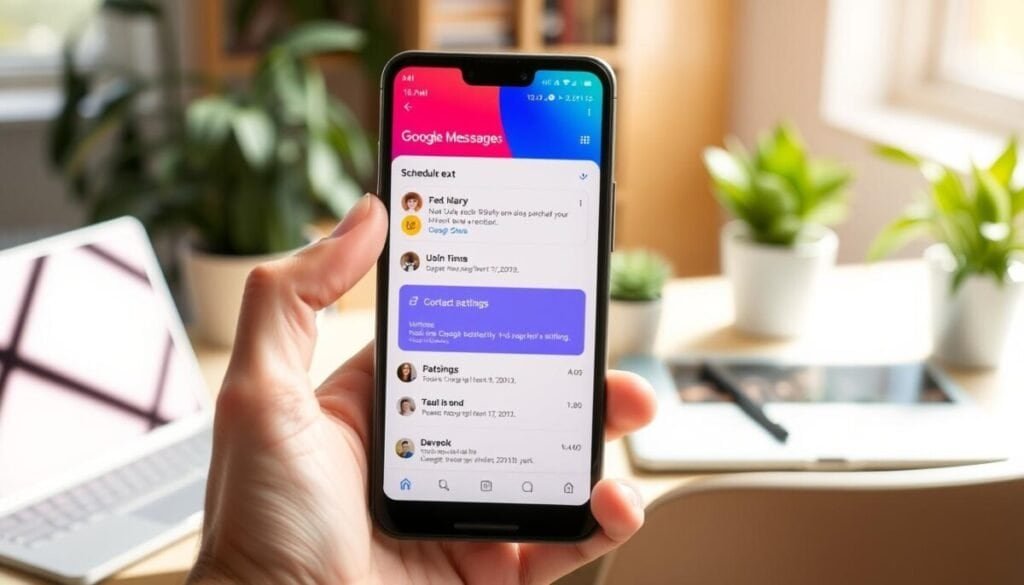
Android gives two reliable paths for queued messages: Google Messages and Samsung’s Messages app. Both make lining up a message simple and let you pick a precise date and time for delivery.
Google Messages: long‑press the Send arrow
Open a chat, type your message, then tap and hold the Send arrow. A Schedule send panel appears.
Choose a suggested slot or select a custom date time for exact delivery. Confirm the preview, then tap Send. An icon marks the scheduled text so you can verify status at a glance on your phone.
Samsung Messages: use the schedule icon
Compose a message and tap the schedule icon inside Samsung Messages. Pick a date and time — Samsung supports up to a one‑year horizon for long plans.
Update, send immediately, or delete a scheduled message
Scheduled items show a banner or icon in the thread. Tap that marker to open options: update the date time, send message immediately, or delete the queued entry.
- Most Android devices support this feature since Android 7, though exact UI varies by app and phone.
- Use Google Messages on non‑Samsung phones for a consistent app experience across devices.
- For critical notifications, finalize content early and confirm the selected date and time to avoid errors.
- Your contact only sees the message at the scheduled moment; final delivery still depends on network conditions.
| Feature | Google Messages | Samsung Messages |
|---|---|---|
| How to set | Long‑press Send arrow, choose preset or custom date time | Tap schedule icon, pick date and time up to one year |
| Visibility | Scheduled icon in thread; preview before queuing | Banner or icon indicates queued item |
| Edit options | Open scheduled preview to edit, cancel, or send now | Tap banner to update, send now, or delete |
| Device support | Most Android phones; app behavior may vary | Samsung Galaxy lineup with native picker |
Pro tips to schedule texts for marketing, reminders, and sales
Use proven timing strategies to make promotional messages and reminders more effective. Map campaign calendars first, then align sends with local time for each audience segment.
Marketing campaigns and promos: plan across dates and time zones
Map launches, promos, and events on a single calendar. Segment by region and set the best send windows per recipient.
Tip: test two time slots for the same offer and compare opens by date time.
Appointment and billing reminders that reduce no‑shows
Schedule reminders 24–48 hours before an appointment or due date. That window cuts no‑shows and speeds payments.
Keep messages brief: state the time, place, and a single next step in one short line.
Follow-ups and deadlines: nudges that convert
Stagger follow‑ups after demos, webinars, or quotes. Each message should add value and a clear CTA.
Measure response windows and refine timing based on real engagement data.
When to use business messaging platforms for bulk or cross‑channel scheduling
For teams, centralize planning in platforms like Twilio Message Scheduling. Use automation and role access to manage SMS, MMS, and WhatsApp without relying on a single phone.
- Coordinate cross‑channel sends and keep audit trails.
- Segment by purchase history or lifecycle stage for relevance.
- Set internal review checkpoints before any large scheduled campaign.
For event-driven timing best practices, see best practices for scheduling tweets.
Troubleshooting and limitations to know

Expect constraints and test before relying on queued delivery. Platforms, carriers, and automations introduce predictable risks. Plan with those limits in mind and keep simple checks in place.
iOS 18 limits
On iOS 18, the scheduled time window stops at 14 days and works only with iMessage. SMS or MMS won’t use Apple’s server‑side queue.
Apple encrypts each scheduled message and removes it after the message sent. You must be online to edit, reschedule, or delete before delivery.
Shortcuts pitfalls
Automations follow the interval you pick. If you forget to delete a Monthly or Weekly rule, you may get unintended repeats.
Ask Before Running cuts accidental sends but requires a tap, so balance safety and automation needs.
Android quirks and network issues
Android behavior varies by app. Samsung supports far longer horizons than Google Messages, which uses a simpler long‑press flow.
Carrier or network delays can shift actual delivery. If a scheduled text is missing on iOS, check the bottom of the thread—Apple may place queued messages below recent items.
- Run a quick test on each app and device before critical sends.
- Keep logs of important scheduled messages for auditing.
| Platform | Common limitation | Recommended check |
|---|---|---|
| iPhone (iOS 18) | 14‑day window; iMessage only; edits need internet | Confirm recipient uses iMessage and test edit flow |
| Shortcuts (iOS 13–17) | Recurring automations may repeat if not disabled | Create one‑off automation or delete after run |
| Android (Google / Samsung) | Feature parity varies; carrier delays possible | Test scheduled time on each app and note device behavior |
| General | Network outages can delay final delivery | Use confirmation logs and a backup alert for time‑sensitive items |
Advanced workflows and helpful extras
When stakes are high, build a checklist that protects drafts, timing, and records. Use simple steps so you keep control over pending items and archive proof for compliance.
Editing and canceling without losing your draft
On iOS 18, touch and hold the dashed bubble to Edit or Delete and preserve the draft in the input field. Tap Edit next to the timestamp to change the date or pick a new time; tap Send Message to dispatch immediately if plans change.
- Keep versions in notes when you edit often; this tracks what changed and when.
- Delete a queued item if the plan is canceled to keep the conversation accurate.
Using calendar or reminders as a manual fallback
Use Reminders on iPhone to store copy in Notes and get a ping at the right moment. On Android, add your copy in a Google Calendar event description and use the alert as the cue to paste and type message in your app.
For team workflows, link an automation guide or an automatic messages reference like automatic messages guide.
Exporting conversations before and after major sends
Export records for audits. Use TouchCopy on iPhone and Droid Transfer for Android to export conversation threads in PDF, CSV, or HTML. Store an archive list so you can pull a conversation quickly when needed.
For event-driven planning and related tips, see event scheduling tips.
| Action | Tool | Best format |
|---|---|---|
| Pre-send snapshot | TouchCopy / Droid Transfer | |
| Structured records | Export CSV | CSV |
| Readable archive | HTML or plain text | HTML |
Next steps: master scheduled messages and streamline your communication
Start with a focused pilot that lets your team confirm timing and delivery behavior. Choose one high‑impact use case — appointment reminders work well — and run a short trial across iPhone and Android phones.
Pick your primary method: use Send Later in the messages app on iOS 18, Shortcuts app automations on older iPhones, or Google/Samsung schedulers on Android. Draft the copy, confirm the recipient, set the date and date time, then tap send and verify the icon or dashed border so the item is queued.
For campaigns at scale, centralize templates and approvals with a platform like Twilio and track outcomes by time. Learn practical setup steps at schedule a text and review event timing tips at event scheduling tips. Review features quarterly and iterate based on measured replies and conversions.