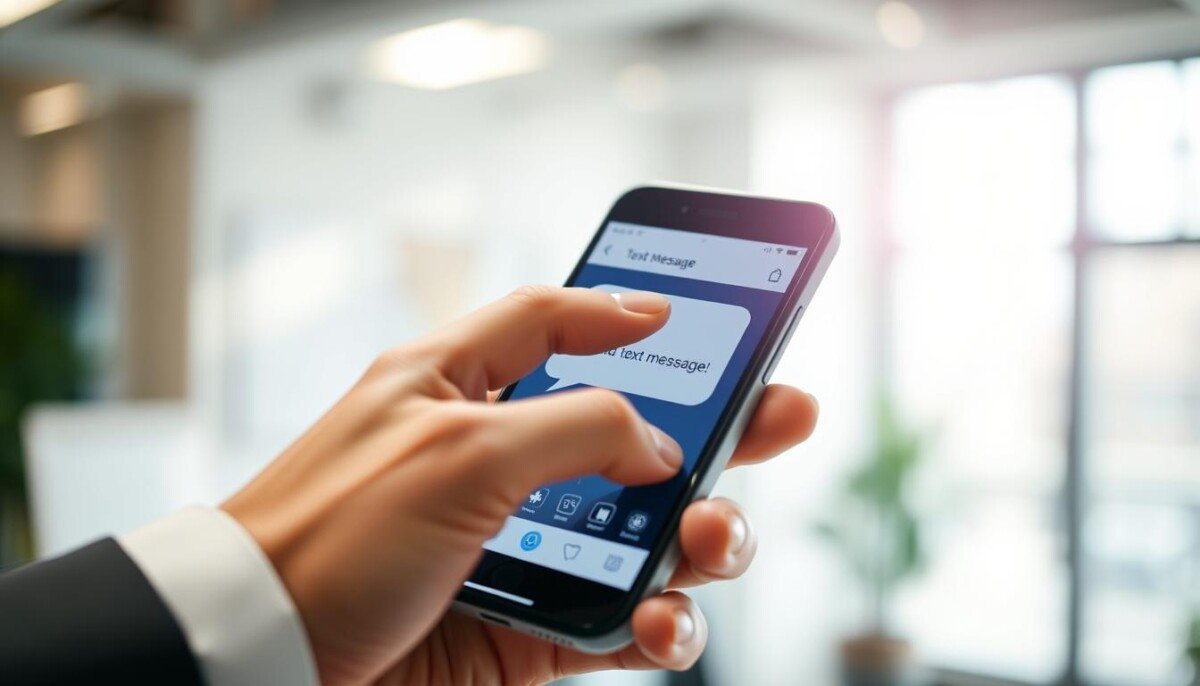
Could sending a single message at the right moment double its impact? This guide gives you a clear, practical path for that exact result.
You’ll learn device-specific steps that save time and raise reply rates. iOS 18 adds a native iMessage Send Later that lets you pick dates up to 14 days. Older iPhones use Shortcuts automation for timed sends. Android users can pick times in Google Messages or set up year-ahead delivery in Samsung Messages.
Along the way, you’ll see limits and fixes: editing, cancelling, and what happens when network hiccups strike. We show when scheduled messaging lifts engagement—work hours, follow-ups, and birthday notes—plus simple backups when an app lacks native tools.
Key Takeaways
- iOS 18’s Send Later supports up to 14 days; Shortcuts work for iOS 13–17.
- Google Messages and Samsung let you pick preset or custom times; Samsung can go up to one year.
- Scheduled texts show a dashed border only for the sender and can be edited or deleted.
- Use timing for business outreach, follow-ups, and personal reminders to boost engagement.
- Have a fallback—reminders or third-party apps—if your messaging app lacks native scheduling.
how to schedule txt: what users mean and the quickest path to success
When people ask about timing a message, they usually want the fastest native way on their device.
Pick the built-in path first. iOS 18 adds Send Later in Messages (up to 14 days). Older iPhones rely on Shortcuts automations for one-time or recurring sends. On Android, Google Messages lets you long-press the Send arrow for presets or a custom time. Samsung’s Messages offers a Schedule message option that can reach up to one year.
Keep setup simple: choose the native way, confirm the time and date, and watch for confirmation prompts. If you want send beyond iOS 18’s 14-day window, Shortcuts or a third-party app bridges the gap.
- Fast iPhone path: Messages > + > Send Later > pick time date > type > send.
- Older iPhone option: Shortcuts automation with Ask Before Running disabled.
- Android: long-press Send in Google Messages; Samsung via +/arrow menu.
| Platform | Built-in method | Horizon | Best use |
|---|---|---|---|
| iOS 18 | Send Later in Messages | Up to 14 days | Quick campaign or personal reminders |
| iOS 13–17 | Shortcuts automation | Custom / recurring | Recurring alerts and long-range planning |
| Android | Google Messages / Samsung | Presets; Samsung up to 1 year | Scheduled messages for teams and clients |
Schedule text messages on iPhone the right way
iPhone users have two clear paths for timed sends: the native Messages feature in iOS 18 and the Shortcuts app on older releases. Each method gives you control over date, time, and the content that will be delivered.
Using iOS 18 Send Later in Messages
Quick steps: open Messages, tap +, choose Send Later, tap the blue time box and pick date and time (up to 14 days), type message, then tap the arrow. A dashed border marks the scheduled message in your thread. The recipient sees a normal bubble when the message sent.
Managing a scheduled iMessage
You can edit the timestamp by tapping Edit next to the scheduled label and choosing Edit Time. To change content, press and hold the bubble and tap Edit. To cancel, press and hold and tap Delete—do this before the scheduled time.
On iOS 13–17 with Shortcuts app
Open Shortcuts > Automation > New Automation > Time of Day. Set the date time and frequency, Add Action > Send Message, type message and set recipients. Review the Ask Before Running toggle and tap Done. For one-time sends, add a reminder to delete the automation after the message is sent to avoid repeats.
- Tip: use Shortcuts for longer horizons than 14 days or for recurring reminders.
- Test your automation once if you use multiple devices or Apple IDs.
Schedule text messages on Android (Google Messages and Samsung)
On Android, both Google Messages and Samsung include built-in tools for queuing texts at a chosen time.
Messages by Google: open a chat, type your message, then long-press the Send arrow. Pick a preset or tap Pick date and time, confirm the preview, tap Save, then Send. A small icon marks the queued item.
Samsung Messages: open a conversation, tap the + or left arrow, and choose Schedule message. Select date and time up to one year ahead, then send. This longer window is ideal for annual reminders like renewals and birthdays.
Both apps let you tap the scheduled message to update, send now, or delete before it leaves. If you switch SIMs or change data modes, verify connectivity near the planned time so the message sent without delay.
| App | Steps | Horizon | Best use |
|---|---|---|---|
| Google Messages | Type → long-press Send arrow → Pick date and time → Save → Send | Presets or custom | Quick campaign and timed follow-ups |
| Samsung Messages | Tap +/arrow → Schedule message → select date & time → Send | Up to 1 year | Annual reminders and long-range planning |
| Both apps | Tap scheduled item → Edit / Send now / Delete | Editable before send | Batch outreach; avoid off-hours sends |
- Use the feature to batch outreach and keep response rates high.
- Always choose date and confirm time zone for accuracy.
- If your default app lacks this feature, install Google Messages and set it as default for schedule send access.
Fast start: step-by-step to schedule text message on your device
Begin with the conversation open so you never lose a draft while setting a delivery time.
Quick checklist:
- Open your default messages app and navigate to the chat or start a new one on your device.
- Type message first so you can focus on the timing without losing your draft.
- iPhone (iOS 18): tap + > Send Later > tap the time box to select date and time, then send message.
- Google Messages: type, long-press the Send arrow, pick a preset or Pick date and time, tap Save, then Send.
- Samsung Messages: open chat, use the +/arrow menu, choose Schedule message, set date/time (up to a year), then send.
Double-check the recipient, time date, and any timezone quirks before confirming. Look for the scheduled icon or a dashed border that shows your item is queued.
If you change your mind, tap the scheduled entry in the thread to edit, send now, or delete before the planned time send. For recurring reminders, consider Shortcuts on older iPhones or calendar nudges instead of rebuilding steps.
Workarounds and apps when native scheduling isn’t enough
For one-off or long-range sends, you can mix device features with lightweight apps.
Shortcuts pro tips on iPhone
Use the Shortcuts app for Time of Day automations that send a message automatically on iOS 13–17. Add a Send Message action and set recipients.
Turn off Ask Before Running for true automation. For one-time runs, create a reminder to delete the automation after it fires. That prevents accidental repeats.
Reminders or Calendar as a nudge
If you prefer manual control, draft your text in Notes, then set an iPhone reminder or a Google Calendar entry with the draft in the notes field.
At the chosen date time, open the reminder, copy the note, and paste into Messages. This method is reliable and avoids extra permissions.
Third-party apps and expectations
iOS apps like Scheduled may auto-send only on paid plans; others prompt you to tap send. Android alternatives such as Pulse SMS and Textra include native sending, templates, and customization, often with ads or subscriptions.
- Tip: weigh privacy, cost, and reliability before adding any app or software.
- For teams, consider business-grade software for cross-platform consistency and analytics.
| Platform | Behavior | Best fit |
|---|---|---|
| Shortcuts (iOS) | Auto-send with Ask disabled | Recurring or long-range single sends |
| Reminders / Calendar | Manual nudge, copy-paste | Drafted reminders, low-permission |
| Third-party apps | Auto or manual; paid tiers | Power features, templates, team use |
Avoid common pitfalls with scheduling text messages

Avoid timing mistakes that turn a helpful message into an annoyance. Small errors around time and platform limits create deliverability issues and hurt response rates.
Respect clocks and limits before you queue a send. Set the scheduled time in the recipient’s local zone and recheck entries near daylight saving switches.
Respecting time zones and daylight saving changes
Always pick the scheduled time based on the recipient’s local time. A message sent at 2 AM local can reduce replies.
Reconfirm date time for messages that land near DST changes; shifting an hour can flip delivery into off-hours.
Understanding platform limits and horizons
Know each platform’s cap: iOS 18 supports up to 14 days; Samsung Messages can extend up to one year. Use Shortcuts for longer windows, but watch Ask Before Running—it may pause the automation and block a message if you miss the prompt.
Connectivity and confirmation caveats
Ensure your device has connectivity when an automation triggers. Google Messages and Samsung let you tap the scheduled icon to edit, send now, or delete before the message sent.
- Keep a reminder 24 hours before high-stakes sends.
- Confirm contact numbers; an incorrect recipient wastes a perfect schedule text.
- Avoid scheduling sensitive content far ahead; facts may change.
For a quick reference on broader timing and tools, see this scheduling guide.
Best practices to increase engagement with scheduled texts
Timing is more than a clock — it’s a conversion tool you can test and refine.
Timing that wins: aim for weekday work hours for business messages. Mid-morning and early afternoon usually get the best reply rates.
Avoid late-night outreach. If a message risks disturbing someone, pick the next morning. Respect quiet hours and Do Not Disturb settings on both iPhone and Android.
Crafting the message for higher response
Keep your message short and focused. Lead with value, use one clear CTA, and stay under 160 characters when possible.
Emojis help but use just one or two. They add tone without hurting clarity. Add a brief opt-out line when required for compliance and trust.
Practical actions and measurement
- Use schedule texts for pre-meeting nudges, payment reminders, and post-event follow-ups.
- Test morning vs afternoon slots over two weeks and compare reply rates.
- Revisit copy before the send date; edit or cancel from your app if context changes.
- Log send windows and responses to refine your timing model over time.
Note: scheduled messages show a dashed or marked state to you only; recipients will receive a normal bubble. Both iOS and Android let you edit or cancel before the send time, so refine content for relevance.
Scaling beyond your phone: scheduling text messages for business

For businesses, moving message timing off phones and into dedicated platforms unlocks scale and compliance.
Use cases are clear: appointment reminders that cut no-shows, billing dates that nudge payments, deadline nudges for registrations, and staged follow-ups for prospects. These patterns reduce manual work and raise response rates.
Why professional software helps
Business-grade platforms like Twilio let you send SMS, MMS, or WhatsApp at fixed future dates. They add compliance controls, delivery reports, and analytics that a phone cannot provide.
Practical benefits: audit trails, opt-out handling, templates, and centralized approvals keep teams consistent and compliant. You can sync CRM fields so a template uses the correct date and local time for each recipient.
Operational checklist
- Automate appointment reminders 24–48 hours ahead to cut no-shows.
- Queue billing reminders on due dates and resend if unpaid.
- Create multi-step follow-ups: day 1 intro, day 3 value, day 7 check-in.
- Pick software with deliverability analytics and opt-out handling.
- Run a pilot: one use case, one segment, then scale once you prove lift.
For practical tips on timing and event-driven sends see a short guide on scheduling best practices. Start small, measure delivery and replies, then expand your message scheduling playbook.
Your next step to smarter messaging today
Start with one audience and a simple checklist for reliable sends.
Pick your native path and schedule texts for your top three recurring use cases this week. On iPhone use Send Later (iOS 18) or Shortcuts for older releases. Android users pick Google Messages or Samsung Messages; Samsung lets you plan up to a year ahead.
Use a quick five-minute checklist: draft, set the time date, verify recipient, confirm, and add a reminder to review. If you want send beyond iOS’s 14-day window, use Shortcuts or a business platform.
Measure and repeat: document best-performing time slots and copy, then reuse winning formats. If plans change, edit or send message now from your app. For details on the iPhone flow see schedule text iphone.