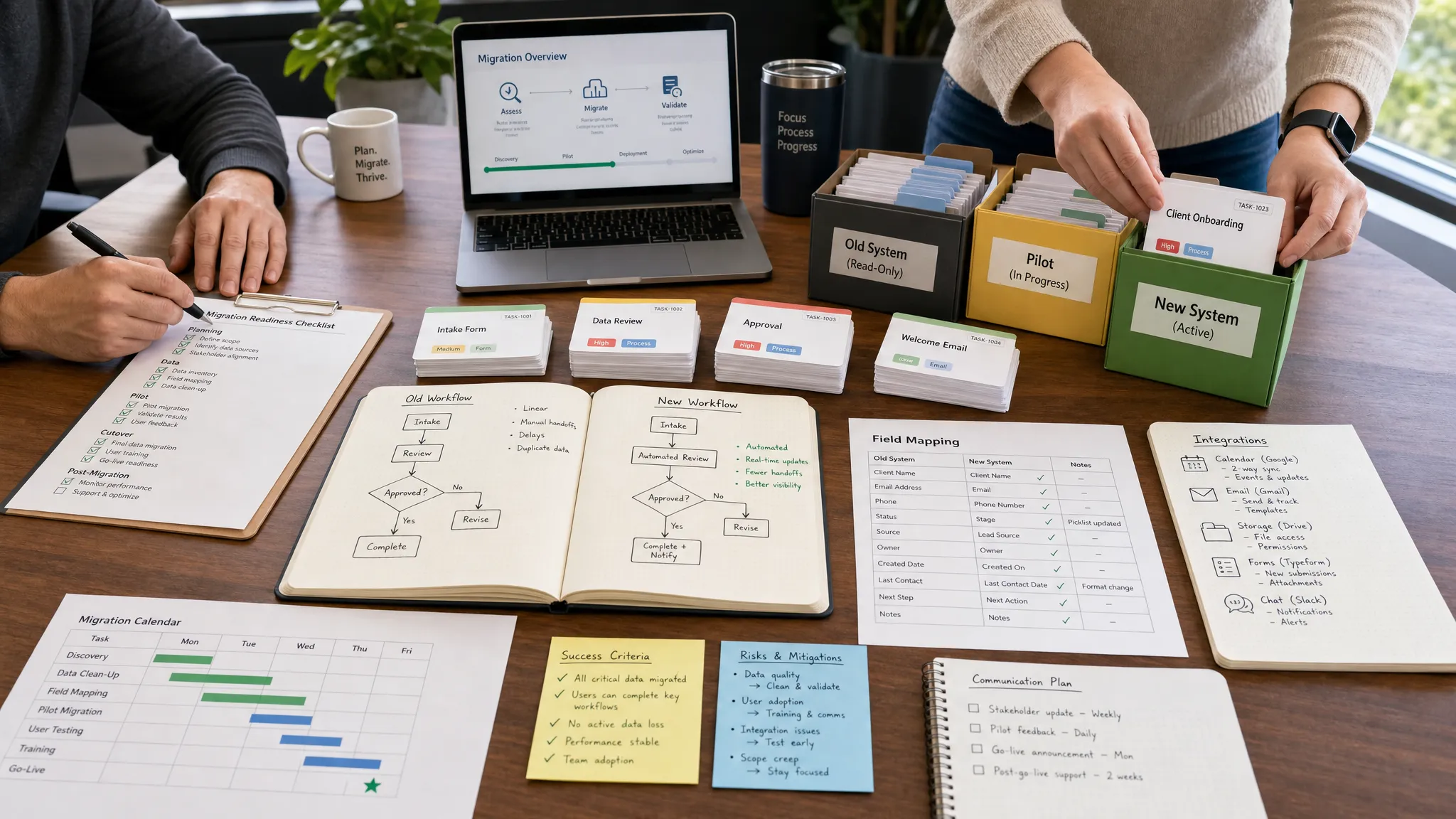
Switching productivity apps sounds simple until you realize how much of your work lives inside the old one. Tasks, comments, due dates, dashboards, automations, templates, permissions, and team habits all have to move without creating confusion.
A smooth switch is not about exporting everything and hoping the new app feels better. It is about protecting the workflow behind the app. Whether you are moving from Trello to Asana, Notion to ClickUp, Todoist to Microsoft To Do, or a patchwork of tools into one platform, the goal is the same: keep work moving while reducing friction.
This guide walks through a practical migration process you can use for personal productivity, freelance work, or team-wide app changes.
Start With the Real Reason You Are Switching
Before you compare features, write down why the current app is no longer working. This step matters because many productivity app switches fail for the same reason: the new tool solves a minor annoyance but ignores the deeper workflow problem.
Common reasons to switch include poor adoption, missing integrations, weak mobile access, confusing project visibility, unreliable notifications, limited reporting, rising cost, or a need to consolidate several apps into one system.
A strong reason sounds specific. For example, our team cannot see task ownership across departments, or my calendar and task list are disconnected, so I overcommit. A weak reason sounds like this app looks cleaner, or everyone on social media recommends it.
If you cannot explain what will improve after switching, pause. You may need better settings, templates, or automation in your current app rather than a full migration.
Audit Your Current Productivity System
Your productivity app is only one layer of your workflow. Before switching, inventory what currently lives inside it and how people use it day to day.
Look beyond tasks. Review saved views, custom fields, recurring tasks, labels, attachments, comments, calendar links, integrations, automations, reports, and permission settings. Also note informal habits, such as which board people check in the morning, where managers leave feedback, and which labels signal urgent work.
Use this quick audit table before making any changes:
| Workflow element | What to document | Why it matters during the switch |
|---|---|---|
| Tasks and projects | Names, owners, due dates, statuses, dependencies | Prevents lost work and unclear accountability |
| Labels and fields | Priority, department, client, stage, effort, revenue | Helps rebuild useful filtering and reporting |
| Comments and files | Key decisions, links, briefs, attachments | Preserves context that is not visible in task titles |
| Automations | Triggers, actions, notifications, status changes | Avoids broken handoffs after migration |
| Integrations | Calendar, Slack, Teams, CRM, email, storage | Keeps the new tool connected to the rest of your stack |
| Permissions | Admins, guests, contractors, private projects | Protects sensitive data and reduces access mistakes |
| Reports and views | Dashboards, boards, calendars, timelines | Maintains visibility for managers and stakeholders |
This audit gives you a migration map. Without it, you may move task titles but lose the system that made those tasks useful.
Choose the New App Based on Workflow Fit
The best productivity app is not the one with the longest feature list. It is the one that matches how you and your team actually work.
For solo users, the biggest factors are speed, capture methods, calendar visibility, recurring task support, and mobile reliability. For teams, the bigger questions are ownership, permissions, reporting, integrations, automation, and onboarding.
When evaluating apps, test the daily workflow instead of browsing the marketing page. Create a real project, add real tasks, invite one or two people, connect your calendar, and simulate a normal week. Notice how many clicks it takes to assign work, update status, find overdue tasks, and review priorities.
If your work depends heavily on structured databases, read our guide on creating Notion databases for project management before deciding whether Notion should remain your source of truth or become a connected workspace alongside another task tool.
Also consider industry-specific details. A marketing team may need campaign stages and approval fields, while an operations team may need inventory, repair status, or customer service tracking. For example, a specialized hardware business such as a provider of crypto mining in UAE might track ASIC models, hosting locations, repair tickets, and consultation follow-ups. Those fields should be mapped carefully before migration, because they carry business context that generic task names cannot replace.
Clean Up Before You Move Anything
Do not migrate clutter. Old tasks, abandoned projects, duplicate labels, and outdated templates make the new app feel messy from day one.
Set aside time for cleanup before export. Archive finished projects, delete obvious duplicates, close stale tasks, merge redundant labels, and rename confusing fields. If you are switching as a team, ask each project owner to review their area before the migration date.
A simple cleanup rule works well: if no one has touched a task or project in the last 90 days and it has no legal, client, financial, or operational value, archive it instead of migrating it.
Keep an export of the old system even if you do not move everything. Most productivity apps offer CSV, JSON, HTML, or workspace export options, though details vary by platform and plan. Save a full backup in secure cloud storage and restrict access to the people who actually need it. If your team uses Google Drive, our guide on organizing Google Drive for team productivity can help you set up a clear archive structure.
Map Old Fields to New Fields
The most common migration mistake is assuming every app uses the same structure. They do not.
A board in Trello is not exactly the same as a project in Asana. A Notion database property is not always the same as a ClickUp custom field. A Todoist section may become a list, tag, folder, or project depending on where you move.
Create a field mapping document before importing data. It does not need to be fancy. A spreadsheet with old field, new field, owner, and notes is enough.
Here is a basic mapping example:
| Old app item | New app destination | Migration note |
|---|---|---|
| Board | Workspace, folder, or project | Choose based on team structure, not old naming habits |
| List or section | Status, list, or category | Avoid creating too many statuses |
| Label | Tag, custom field, or priority | Use custom fields for reporting-critical data |
| Due date | Due date or scheduled date | Confirm how recurring dates are handled |
| Comments | Comments or archived notes | Preserve only useful decision history if import is limited |
| Checklist | Subtasks or checklist | Choose subtasks if ownership and due dates matter |
| Attachment | File upload or cloud link | Prefer cloud links for large or shared files |
This is where you decide what the new app should improve, not merely copy. If the old workflow had eight priority labels that everyone ignored, simplify them. If task statuses were vague, replace them with clearer stages such as Backlog, Ready, In Progress, Waiting, Review, and Done.
Run a Small Pilot Before the Full Switch
A pilot protects you from discovering major problems after everyone has moved.
Choose one representative project, not the easiest one. It should include real tasks, multiple owners, comments, due dates, files, and at least one integration. Import or recreate that project in the new app and run it for one or two weeks.
During the pilot, track practical questions. Can users find their tasks quickly? Do notifications arrive at the right time? Are calendar events showing correctly? Can managers see workload? Are guests or clients able to access only what they should? Are automations triggering correctly?
Ask pilot users to report friction in plain language. The goal is not to prove the new app is perfect. The goal is to identify what must be fixed before the full rollout.
Rebuild Integrations Intentionally
A productivity app rarely works alone. It usually connects to calendars, email, chat, CRMs, cloud storage, forms, time tracking, and automation tools.
Do not reconnect every old integration automatically. Some automations existed only to compensate for weaknesses in the previous app. Others may be redundant in the new tool.
Start with integrations that directly support daily work:
- Calendar sync for deadlines, meetings, and focus blocks
- Chat notifications for urgent updates, not every minor change
- Cloud storage links for briefs, assets, contracts, and deliverables
- Email or form intake for new requests
- CRM connections for sales, support, or client handoffs
- Time tracking if billing, capacity, or profitability depends on it
If you need to keep statuses aligned across several tools, review our tutorial on using Zapier to update status across multiple apps. It explains how to think through triggers, actions, filters, and field mapping so your automation does not create loops or stale updates.
After rebuilding integrations, test them with dummy tasks before using live client or operational data. Confirm what happens when tasks are edited, deleted, reassigned, duplicated, or moved to Done.
Create a Cutover Plan
A smooth switch needs a clear cutover date. Otherwise, people will keep updating both apps, and no one will know which version is current.
For small teams, a weekend or low-volume day often works well. For larger teams, a phased rollout may be safer, with one department switching at a time.
Your cutover plan should answer four questions:
- When does the old app stop accepting new work?
- Who is responsible for the final export and import?
- Where should users report migration issues?
- How long will the old app remain available as read-only reference?
Read-only access is important. It gives people confidence that nothing disappeared, while preventing duplicate updates. Keep it available for a defined period, such as 30, 60, or 90 days, depending on your compliance needs and project cycle.
If you are switching apps personally, use the same principle. Pick a date when you stop adding tasks to the old tool. Keep it installed for reference, but make the new app the only place where new tasks are captured.
Reduce Context Switching After the Migration
Switching productivity apps should reduce tool friction, not create another place to check.
Define the role of each app in your stack. For example, your task manager is for commitments, Slack or Teams is for conversation, Google Drive is for files, Notion is for documentation, and Google Calendar is for time-specific commitments.
When app boundaries are unclear, people post tasks in chat, decisions in comments, deadlines in documents, and files in random threads. The result is constant searching.
Create simple rules such as these:
| Work type | Best home | Reason |
|---|---|---|
| Action items | Task app | Needs owner, due date, and status |
| Meetings | Calendar | Needs time, attendees, and reminders |
| Long-term documentation | Knowledge base or docs app | Needs structure and searchability |
| Quick discussion | Chat app | Needs speed, not permanent tracking |
| Final files | Cloud storage | Needs access control and version history |
| Personal focus blocks | Calendar or focus app | Needs protected time |
If you use multiple accounts or apps for different roles, browser separation can help. Our guide to setting up multiple browser profiles for work and personal use explains how to keep sessions, extensions, and bookmarks from blending together.
Train People on the New Habits, Not Just the New Buttons
Most app-switching guides focus on where to click. That is useful, but adoption depends on habits.
Teach people how work should flow in the new app. Show them where new requests go, how priorities are set, when to update status, how to mention teammates, what Done means, and which views they should check daily.
Short training works better than long documentation. Record a five-minute walkthrough of the exact workflow your team will use. Create a one-page cheat sheet with naming conventions, status definitions, and support contacts. Hold office hours for the first week so users can ask questions without blocking their work.
For teams, appoint one or two tool champions. These are not necessarily admins. They are people who understand the day-to-day workflow and can spot confusion early.
Protect Security and Access During the Switch
Productivity app migrations can expose sensitive information if access is not reviewed carefully. Contractors, former employees, clients, and guests may still have permissions in the old system. The new app may also use different default sharing settings.
Before launch, review admin roles, workspace invitations, guest access, public links, file permissions, and connected third-party apps. Remove access that is no longer needed. Enable two-factor authentication when supported, and use a password manager for shared operational accounts instead of passing credentials through chat or email.
If your team is reevaluating login security during the migration, start with our guide on whether password managers are safe. A tool switch is a good moment to improve account hygiene instead of carrying old risks into the new system.
Measure Whether the Switch Worked
A new app should create measurable improvement. Otherwise, the migration may feel successful because the interface is fresh, while the underlying workflow remains slow.
Choose a few success metrics before the switch. For personal productivity, track overdue tasks, missed deadlines, weekly planning time, and how often you capture tasks outside the system. For teams, track adoption rate, project visibility, time to update status, number of duplicate tasks, and how often work gets lost in chat.
Give the new workflow at least two to four weeks before making major changes, unless there is a serious issue. Early feedback is useful, but constant redesign creates instability.
After the first month, run a short review. Ask what is faster, what is still confusing, which automations are useful, and which views people actually use. Then simplify. The best productivity systems usually become lighter after real usage reveals what matters.
A Practical Switching Checklist
Use this checklist as your final review before switching productivity apps:
| Step | Done? | Notes |
|---|---|---|
| Define the reason for switching | Tie it to a real workflow problem | |
| Audit current data and habits | Include automations, files, and permissions | |
| Choose the new app based on daily workflow tests | Do not rely only on feature comparisons | |
| Clean up old tasks and projects | Archive clutter before migration | |
| Map fields and statuses | Decide what should change, not just what should copy | |
| Run a pilot project | Test with real work and real users | |
| Rebuild critical integrations | Start with calendar, storage, chat, and intake workflows | |
| Set a cutover date | Stop new work in the old app after this date | |
| Keep the old app read-only | Preserve reference access without duplicate updates | |
| Train users on workflow habits | Use short videos, cheat sheets, and office hours | |
| Review security and permissions | Remove stale access and enable 2FA | |
| Measure adoption and results | Review after two to four weeks |
Frequently Asked Questions
What is the easiest way to switch between productivity apps? The easiest way is to audit your current workflow, clean up old data, map fields carefully, run a pilot project, and set a clear cutover date. Avoid moving everything at once without testing.
Should I migrate all old tasks to the new app? Not always. Migrate active work, important reference projects, and data needed for reporting or compliance. Archive stale or completed work so the new app starts clean.
How long should I keep the old productivity app? Keep it as read-only reference for at least one full work cycle. For many teams, 30 to 90 days is enough, but regulated or client-heavy workflows may need longer retention.
How do I avoid confusing my team during an app switch? Define where each type of work belongs, train people on the new workflow, appoint tool champions, and provide one clear place to report problems during the first few weeks.
Is it better to use one all-in-one productivity app or several specialized tools? It depends on your workflow. One app can reduce switching and simplify reporting, while specialized tools may perform better for notes, calendars, design, development, or CRM tasks. The key is to define clear boundaries between tools.
Build a Productivity Stack You Can Actually Maintain
Switching between productivity apps smoothly is less about the migration button and more about planning, cleanup, workflow design, and adoption. The best switch preserves what already works, removes what slowed you down, and gives every task a clear place to live.
If you are comparing tools or rebuilding your digital workflow, explore more Online Tool Guides tutorials on task management, automation, calendar systems, and workflow optimization. A better app helps, but a better system is what keeps you productive after the novelty wears off.



