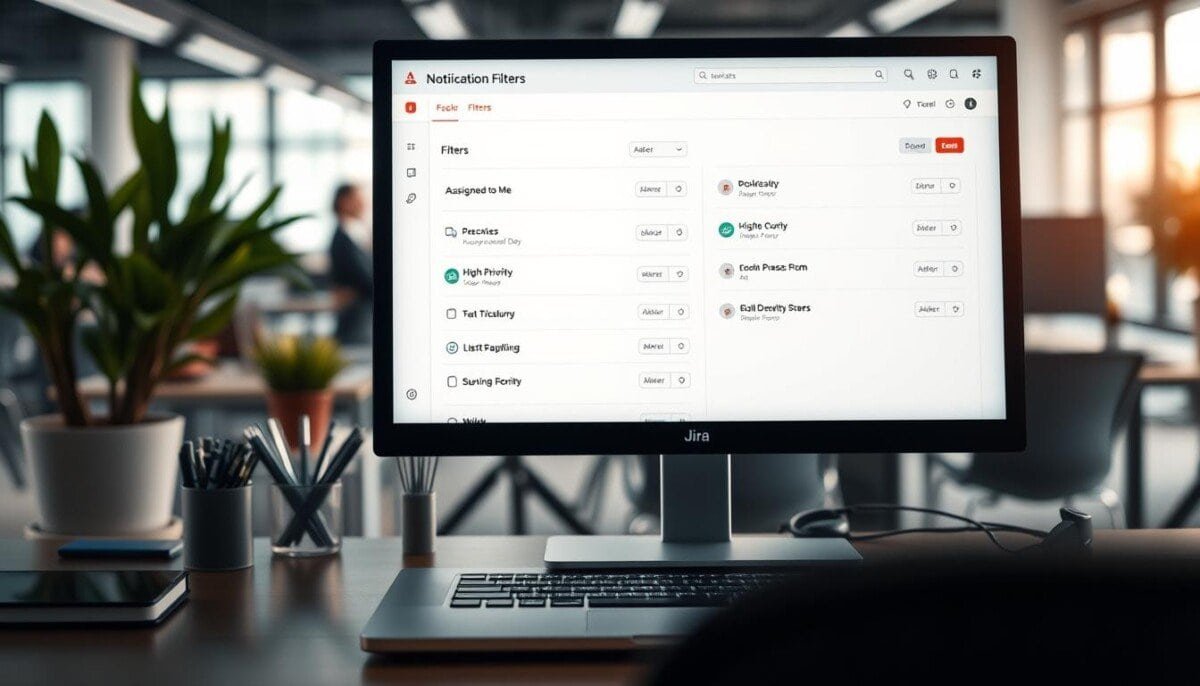
Fact: Teams report up to a 60% drop in task focus when alerts exceed manageable volume.
Suppress needless alerts. Implement a system that routes only critical events to the inbox. Create precise rule sets — each filter defines conditions that permit delivery.
Control email flow. Match sender domains and subject patterns to capture mass alerts. Configure rules to archive, delete, or escalate by priority.
Use admin controls to tune when messages become urgent. Set threshold conditions so high-priority issues trigger immediate alerts and routine updates do not.
Follow a systematic approach. First, reduce frequency at the platform level. Then apply provider-level rules to stop leftover messages. For practical steps on trimming subscription noise in external services, consult this guide on unsubscribing and blocking excess emails: unsubscribe and block tactics. In addition to muting Slack notifications effectively, consider adjusting your status to inform colleagues when you’re unavailable. Implementing these changes can create a more focused work environment, allowing you to better manage your time and productivity. Regularly review your notification settings to ensure they’re aligned with your current workflow needs.
Key Takeaways
- Implement precise filters to limit noise and protect focus.
- Define conditions that route only high-priority alerts to the inbox.
- Use domain and subject-pattern rules to catch bulk messages early.
- Apply provider rules — auto-archive or delete noncritical emails.
- Monitor and refine rules regularly to maintain a controlled alert stream.
Understanding the Impact of Notification Noise
Measure how repetitive alerts fragment a user’s daily work rhythm. Excessive messages reduce deep-focus intervals. That loss slows completion of complex tasks. Teams record measurable drops in throughput when interruptions increase.
The Atlassian Community holds frequent discussions on this subject. Community posts and technical articles document reduced team velocity and disrupted workflows.
Admins must balance visibility against overload. Each admin assigns which events must surface — and which must remain silent. When the platform reaches 100 emails per day on the Free plan, critical alerts pause. That pause can delay urgent events.
- Advise users to review personal settings and mute nonessential streams.
- Consult troubleshooting resources and a messenger notification issues guide for provider-level fixes: messenger notification issues.
- Encourage reading technical articles to learn selective subscription and escalation strategies.
Managing Personal Email Notification Settings
Set precise preferences so only relevant work events generate emails. Configure personal settings to reduce inbox volume and protect focus.
Adjusting Work Item Activity
Every user must open personal settings and uncheck activity types that cause unwanted emails. Disable comments, status changes, or watcher updates not essential to current work.
When a user appears on multiple recipient lists for the same event, the system logs duplicates and sends only the first email. This prevents repeated alerts for identical events.
Setting Email Formats
Admins may set a default email format—text or html. Set the default to match client capabilities. Consistent format improves readability for all users.
- Select the pencil icon to configure the sender address for a space—ensures consistent sender identity across events.
- Configure a personal filter for work items to receive only assigned or watched updates.
- Review personal settings regularly to keep email notifications aligned with active work.
For provider-level troubleshooting or missing messages consult this guide on email notifications not received.
Configuring Jira Notification Filters for Teams

Configure ordered processing so a single action runs per incoming webhook. Define a team-level filter to process integration payloads. Use concise conditions to limit which events become visible to users.
Evaluate rules in priority order. Once an incoming webhook matches a rule, stop further processing. That prevents duplicate emails and reduces alert overload for the team.
- Define a clear list of conditions—status, source, severity.
- Use search terms that capture only the most critical work items.
- Keep default actions, then customize to match operational needs.
For example, set a rule where status = failed to trigger an immediate email, while other types remain silent. Document settings so all users understand routing logic.
| Action Type | Default | Custom Example | Outcome |
|---|---|---|---|
| Escalate | On critical | Status = failed | Immediate emails to on-call |
| Archive | Off | Source = integrationX | No inbox noise |
| Ignore | Off | Type = others | Filtered from team stream |
Advanced Techniques for Customizing Alert Conditions

Advanced condition types let teams discriminate high-value events from background noise.
Defining Condition Match Types
Choose one of three match behaviors. Select All alerts to evaluate every condition. Choose At least one to trigger on any match. Choose All conditions to require every rule to be true.
Utilizing Regex Operations
Use regex within a filter to match complex strings. Ensure each operation completes within the 10 seconds timeout limit. Test patterns against representative values before deployment.
Setting Alert Properties
Define alert properties with exact aliases. The alias must match exactly for the action to run. Use supported operators—equals, contains, greater than—to compare values.
- Use precise match types to avoid false positives.
- Limit regex complexity to stay below the 10s timeout.
- Set aliases and values as immutable identifiers for reliable routing.
Result: Carefully crafted filters reduce automated noise and surface only high-priority events.
Leveraging Subscription Schedules for Better Focus
Schedule subscriptions to deliver curated search results at predictable times.
Mastering Cron Expressions
Use a cron expression to set exact delivery—for example, 8:15 am on the second Friday of every month.
Cron fields include seconds, minutes, hours, day-of-month, month, day-of-week, and year. Special characters—asterisk for all, slash for increments—provide flexible values for complex timing.
- Creating a subscription for a filter lets a user receive periodic email summaries for all work items returned by a specific search.
- Only the first 200 results are sent in a subscription email—make filters specific to avoid missing events.
- Set personal settings to html so subscription emails render correctly in the inbox.
- Cron supports precise timing and special characters—use them to align delivery with team routines in the instance.
Review the search and filter values regularly. Tighten criteria when emails include irrelevant types or others that dilute focus. Consider adjusting the email filtering options in Outlook to better capture essential communications. This will help ensure that important messages are highlighted while reducing distractions from less relevant emails. Regularly revisiting these settings can enhance productivity and maintain an organized inbox.
Best Practices for Sharing and Managing Filters
Standardize sharing policies so teams access only the queries they require.
Set private filter ownership to the owner and admins. That prevents unintended edits and preserves query integrity.
Star key searches to surface them in the Filters menu. Use the star icon for fast access by users and admins.
When sharing a filter with a team or group, verify permissions on the details page. Confirm viewer and editor roles before granting access.
If not the owner, copy the filter to create a modifiable version. Copying preserves original values and prevents unauthorised changes.
The Atlassian Community recommends regular audits of shared filters. Schedule reviews to remove outdated searches and reduce email noise.
- Manage sharing via the filter details page—adjust rights as team composition changes.
- Audit shared queries periodically—remove ones that add unnecessary email volume.
- Favor star-marking for frequently used searches to improve user productivity.
For admin-level procedures and a procedural reference, consult the guide to manage shared filters.
Streamlining Your Workflow for a Quieter Jira Experience
Prioritize incoming events so work-critical items surface first. Define a compact filter set for the team. Use precise search terms. Reduce duplicate emails by stopping rule processing after a match.
Review settings on a schedule. Keep each filter tight. Remove obsolete entries that cause excess email volume.
Engage the Atlassian Community—read articles and join discussions. Share effective patterns for managing notifications. Adopt proven tactics and update settings as projects evolve.
Result: A maintained set of filters and disciplined settings yields fewer interruptions. Focus improves. Work flow becomes measurable and calmer.



