Can a single recorded update replace a recurring meeting and save hours each week?
Implement a systematic method to convert redundant stand-ups into concise asynchronous updates. Use this guide to standardize content, length, and context for every message.
Integrate one short clip into an introductory email—data shows this can increase click-through rates by up to 96%. Apply time-boxing and a clear call to action in each update.
Adopt a structured way of recording—state objective, show evidence, assign next steps. Preserve the personal context that text often omits; maintain audit trails for stakeholders.
Execute with precision—measure open rates, completion rates, and action compliance. Reduce meeting load; increase clarity and speed of decision-making.
Key Takeaways
- Replace repetitive meetings with short, standardized asynchronous updates.
- Embed a clip in an email to boost engagement—results show major CTR gains.
- Follow a strict template: objective—evidence—action.
- Track metrics: opens, views, and task completion.
- Maintain personal context to preserve team cohesion.
The Shift Toward Asynchronous Communication
Move coordination into recorded exchanges to solve time-zone friction and lost context.
Modern workplaces require a robust tool for scalable, reliable asynchronous communication. Reduce calendar conflicts—preserve decision history. Standardize update length and intent.
Remote teams adopt video messaging to maintain alignment without synchronous overhead. Record once—share broadly. Create searchable assets that replace repeat explanations.
When teams use loom to document processes, they build a permanent knowledge base. That base accelerates onboarding—cuts redundant queries. It also preserves institutional memory.
- Empower schedules—individuals manage deep work windows.
- Ensure accuracy—critical info travels with context and evidence.
- Reduce cognitive load—fewer interruptions; higher focus.
Adopt standards for recorded exchanges—titles, timestamps, and action items. For platform comparisons and recommended integrations consult the recommended collaboration platforms.
Understanding the Benefits of Loom Video Messages
Transform standing meetings into focused recorded summaries that stakeholders can consume on demand. Use recorded clips to preserve context and document decisions.
Boosting Team Engagement
Adding loom videos to internal updates increases engagement. Faces and tone provide a personal touch. The audience processes complex ideas faster than with plain text.
Saving Valuable Time
Record once—share broadly. This method reduces repetitive meetings and opens asynchronous feedback loops. Use short clips for product demos and tutorials to cut review cycles.
- Adding loom improves clarity—same product insight for all team members.
- Provides consistent instruction—better onboarding and fewer follow-ups.
- Saves time—fewer status meetings; faster decision execution.
| Benefit | Result | Use Case |
|---|---|---|
| Engagement | Higher attention and retention | Team updates, demos |
| Efficiency | Reduced meeting load | Weekly stand-up replacement |
| Consistency | Uniform product instruction | Email embeds and onboarding |
Getting Started with Your Loom Account
Set up an account in under two minutes and configure screen and webcam settings to produce consistent asynchronous briefings.
Register and verify. Visit the official site, complete the sign-up form, and confirm the email address. Account activation typically takes less than 2 minutes.
Choose a plan. The Starter plan is free and allows creation of up to 25 entries. The Business plan costs $12 per month for expanded controls and user management.
Set inputs. Select the preferred screen and webcam sources in the platform. This tool captures desktop activity with frame-accurate precision once you start recording.
- Register and verify email to get access.
- Configure screen and webcam settings.
- Press record to start recording; finish to generate a unique link for sharing.
Follow this step-by-step guide to create content. New users can get loom functionality and begin sharing within a few minutes—give it a try to reduce meeting load and scale asynchronous updates.
Recording Effective Video Updates
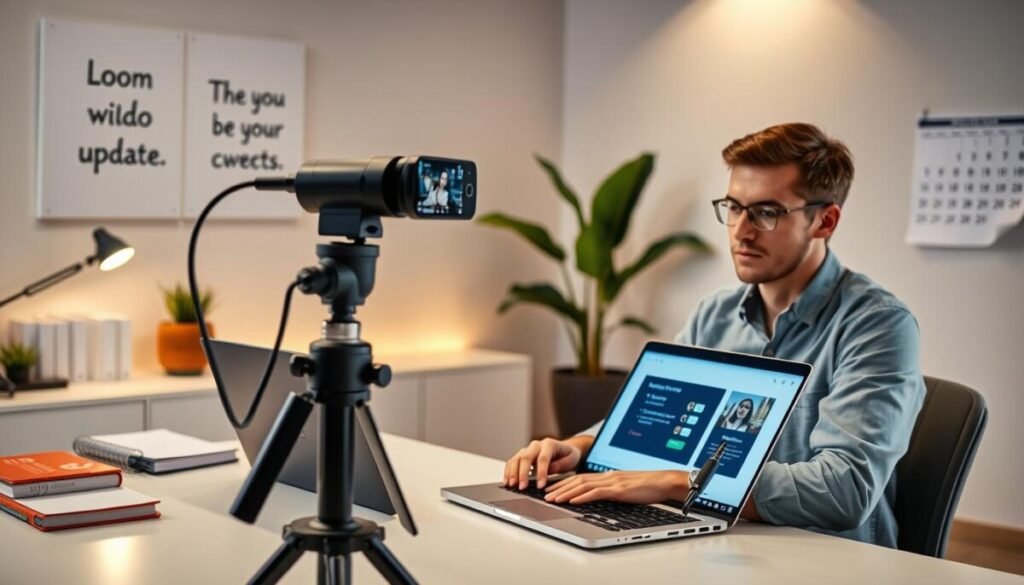
Create structured updates that keep teams aligned while freeing shared calendar time.
Standardize length, objective, and the required next step. Keep each update concise. Aim for actionable clarity.
Setting Up Your Camera
Position the camera at eye level. Use a neutral background. Verify webcam exposure and audio levels before starting.
Run a one-minute test. Then press the start recording button and speak the objective in the first 15 seconds.
Managing Screen Recording Settings
Select dual input—screen plus webcam—when demonstrating workflows. This provides visual context for users and retains facial cues.
Optimize resolution for clarity; lower frame rate reduces file size. Include call-to buttons that link to docs or tickets.
Using the Pause Feature
Use the pause button to regroup thoughts. Pause to remove filler words and restart at a steady pace.
- Edit silences and trim repeats to keep updates under 5 minutes.
- Use built-in tools to remove ums and extra words—improve retention and feedback.
- Confirm the final message contains a clear call-to action and assigned owner.
Best Practices for Professional Screen Captures
Deliver clean, professional screen captures by controlling light, framing, and pacing before pressing record. Follow a short checklist to reduce rework and cut viewer confusion.
Prepare the environment. Make sure the room is well-lit. Position the camera at eye level. Remove background clutter.
Script the intent. Define a single purpose—status update, design feedback, or documentation. State the purpose in the first 10 seconds.
- Maintain steady pacing—avoid rapid cuts; keep walkthroughs efficient.
- Use plain language—avoid jargon that will confuse the audience.
- Confirm screen resolution and test audio before recording.
Embed thoughtfully. Attach the capture to an email with a clear subject and CTA. This increases engagement and reduces follow-up queries.
For platform comparisons and integration tips consult online meeting tools. Apply standards consistently—professional captures lead to higher view rates and faster outcomes.
Embedding Videos into Your Email Workflow
Optimize the email experience by surfacing rich previews that prompt action.
Start with a clear subject line. Use the word “video” to increase opens—data shows about a 19% lift. Lead with relevance. State the desired action in the first line.
Choose a thumbnail that conveys context. Use a responsive GIF thumbnail to ensure compatibility across common email clients. The thumbnail must display the outcome and invite a click.
Selecting the Right Thumbnail
Test thumbnails for contrast, facial expression, and readable text. Use a single focal point. Add a visible play-style button overlay to signal interactivity.
- Include a concise caption that previews the action.
- Attach a short link to the related doc or ticket for immediate follow-up.
- Place a prominent CTA button beneath the preview to capture next steps.
Introductory emails that include media show strong performance—Implix reports a 96% increase in click-throughs for emails with embedded clips. Convert passive readers into recipients who act.
| Element | Recommendation | Metric Impact |
|---|---|---|
| Subject line | Include the word “video” | +19% open rate |
| Thumbnail type | Responsive GIF with overlay | Higher click compatibility |
| CTA placement | Visible button under preview | Increased action completion |
Leveraging Analytics to Track Engagement
Measure who watched, when they stopped, and which segments drove action. Capture play depth and click behavior to prioritize follow-up.
Collect these core metrics:
- Viewer identity—who opened the email and played the clip.
- Watch-time—percent viewed and drop-off points.
- CTA clicks—how many users pressed the embedded button to open linked resources.
Use this data to segment recipients. Flag low-attention people for targeted follow-up. Flag high-engagement recipients for sales or product outreach.
Run this step each campaign. Track trends across weeks. Adjust length, CTA wording, and placement based on results.
For advanced use cases and deployment patterns consult the Atlassian write-up on use cases for customer success. For troubleshooting analytics feeds consult the guide on analytics update troubleshooting.
| Metric | Action | Outcome |
|---|---|---|
| Watch-time | Trim or split long clips | Higher completion rate |
| CTA clicks | Change button label or position | Increased resource access |
| Viewer identity | Prioritize outreach | Improved conversion |
Troubleshooting Common Technical Hurdles
Diagnose playback stalls quickly to restore access and preserve recipient trust.
Start with the simplest checks. Confirm the recipient can reach the link. Verify hosting platform status. Test playback on a different network.
Resolving Loading Issues
If a clip takes too long to load, compress the file. Use a modern encoder and reduce bitrate.
Alternatively, move the asset to a faster host. Regenerate the share link and retest in an email client.
Improving Audio and Video Quality
Use a high-quality mic and quiet environment to cut background noise. Check the webcam and camera settings before recording.
When recording loom content, make sure screen resolution matches target playback size. Trim filler words and silences to keep content under 5 min.
- Confirm file compression settings—preserve speech clarity.
- Test on mobile and desktop clients—validate cross-platform playback.
- Use built-in editing tools to remove dead time and improve focus.
| Issue | Immediate Action | Expected Result |
|---|---|---|
| Slow loading | Compress file or change host | Faster start-up and fewer drop-offs |
| Poor audio | Swap to quality mic; record in quiet room | Clearer speech; higher engagement |
| Blurry playback | Match screen resolution; lower bitrate | Readable text and UI; stable playback |
Scaling Your Outreach with Mail Merge Tools
Embed unique clip links into bulk campaigns to reach thousands while keeping messages personal.
Use Mailmeteor—the top platform for Gmail and Outlook—to send up to 2,000 personalized emails per campaign.
Record once. Insert a variable into the template to include the unique link for each recipient. Send a single batch that feels individualized.
Benefits:
- Reduce manual sends—create one asset and scale distribution.
- Integrate product demos and tutorials to provide immediate value.
- Include a clickable button that directs recipients to the next action.
Measure engagement by tracking opens, link clicks, and replies. Use that data to prioritize follow-up and refine content.
Scale outreach with a mail merge to convert one recording into targeted outreach that drives measurable outcomes.
| Capability | Effect | Recommended use |
|---|---|---|
| Personalized link insertion | High open and click rates | Product demos; tutorials |
| 2,000-send batch | Large-scale outreach | Onboarding; re-engagement |
| Clickable CTA button | Improved conversion to action | Request feedback; open ticket |
Embracing a More Productive Way to Collaborate
Shift team coordination to on-demand recorded briefings to preserve focus and context. Keep each update short and purpose-driven.
Adopt asynchronous communication as the superior way to collaborate. This method aligns the entire audience without calendar overhead.
The guide explained how to use loom to improve workflows and reduce meeting time. Integrate these videos into the daily routine to increase clarity and transparency.
Execute one clear step per message. Attach an actionable email and assign owners to close the loop.
Give try to this approach today. For platform options and integrations consult the recommended collaboration platforms.