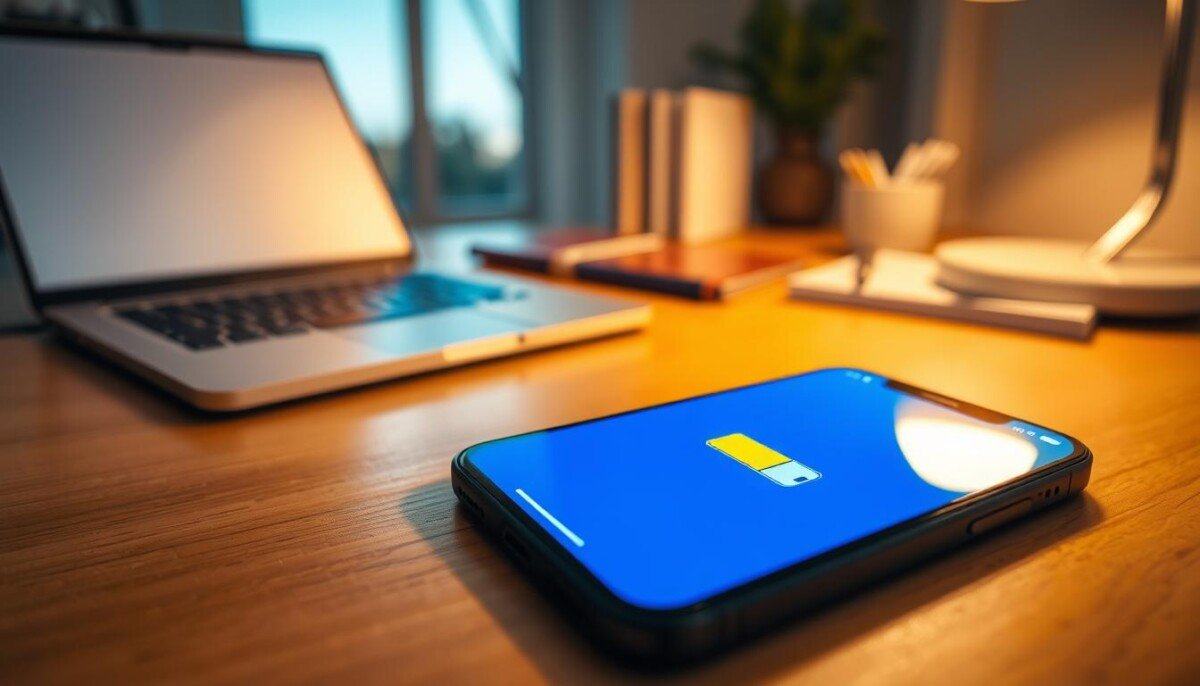
Can a single switch really keep your phone alive through a long day?
You use a device that must last from morning meetings to evening calls. This section shows what happens when you enable the energy-saving setting on iPhone and Android phones and why the battery icon changes when the system starts conserving energy.
When you turn this setting on, the system limits background tasks, reduces visual effects, and delays some updates so your phone stays available for calls and messages.
You can toggle the feature quickly from the control center, or ask Siri to turn it on or off. The guide also links to a practical resource about related device behavior and heat management at smartphone overheating fixes.
Key Takeaways
- Turning this setting on extends battery life by limiting nonessential tasks.
- The battery icon turns yellow to show the saving state is active.
- Use the Control Center for a fast toggle without deep menus.
- Voice commands like Siri can enable or disable the setting instantly.
- Saving energy prioritizes calls and messages when charge is low.
Understanding Low Power Mode Explained
Your phone shifts focus to active tasks and trims background work. This energy-saving setting reduces system activity so the battery lasts longer when charging is not available.
It does not shut your device down. Instead, it slows nonessential services and visual effects. The goal is to keep core functions like calls, messages, and navigation running smoothly.
You can rely on this feature during heavy days. It prioritizes what you use now over hidden updates and background syncing.
- Smartly limits apps that drain charge.
- Keeps critical communication active.
- Adjusts automatically as battery levels change.
| System Area | What is Reduced | Benefit |
|---|---|---|
| Background Apps | Sync and refresh | Longer battery life |
| Visual Effects | Animations and brightness | Smoother runtime for key tasks |
| Updates | Automatic downloads | Less unexpected drain |
| Connectivity | Noncritical checks | Prioritized calls and messages |
How to Activate Power Saving Settings
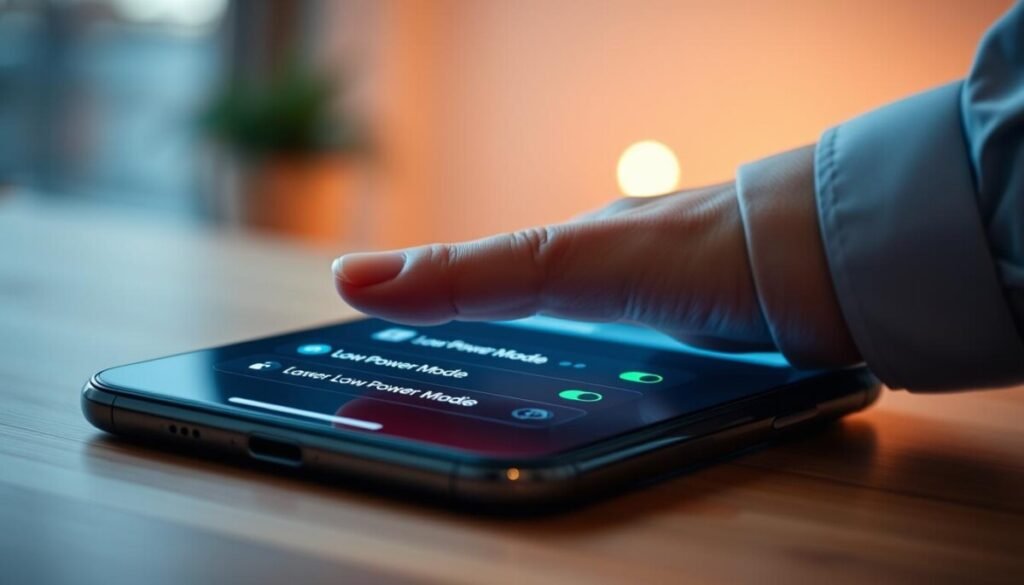
A few taps or an adaptive setting will keep essential apps running while trimming extras.
Manual Activation Methods
Open Settings, then Battery. On iPhone 14 and earlier, flip the Low Power switch to save battery immediately.
On iPhone 15 and later, tap Power Mode and select the preferred level. Add the battery icon to your control center for fast access.
Using Adaptive Power
Enable Adaptive Power on supported devices to let the phone learn your usage and trigger savings automatically.
The system can turn low power mode on near 20% battery and off once charging reaches 80% or more. This reduces manual toggles and helps preserve remaining charge.
- Two main ways to activate: manual toggling or Adaptive Power.
- Manual control keeps full oversight of usage and performance.
- Adaptive choice automates mode save based on your routine.
| Device | How to Activate | Auto Rules |
|---|---|---|
| iPhone 14 & earlier | Settings > Battery > toggle switch | No adaptive auto; manual only |
| iPhone 15 | Settings > Battery > Power Mode | Manual toggle; can add to Control Center |
| iPhone 15 Pro+ | Settings > Battery > Adaptive Power | Auto-on at ~20%; off at ≥80% |
System Changes and Performance Adjustments
The operating system trims nonessential jobs to keep core features responsive as charge drops.
Display and Refresh Rate Impacts
Screen refresh is capped on ProMotion displays. On supported iPhone and iPad models, the refresh rate drops to 60 Hz to save battery and stabilize performance.
Brightness is reduced and Auto-Lock defaults to 30 seconds to cut display draw during idle time.
Background Activity Restrictions
Background app refresh and syncing pause. Apps do not update unless you open them, and iCloud Photos and automatic downloads are temporarily halted.
Email fetch is turned off, so you’ll check messages manually until normal settings resume.
Wireless and Connectivity Limitations
Wireless features are limited to save battery. Most models drop 5G during idle time, though iPhone 12 and 13 may use 5G for big downloads or video streaming.
| Area | What Changes | Benefit |
|---|---|---|
| Display | 60 Hz cap on ProMotion; lower brightness; 30s Auto-Lock | Less screen drain; longer battery life |
| Background | App Refresh off; iCloud Photos and downloads paused; Email fetch off | Reduces unseen data use and CPU load |
| Connectivity | 5G limited; selective use for streaming/downloads | Saved wireless energy with on-demand performance |
These adjustments prioritize calls, navigation, and other essential tasks while extending battery life. For tips on keeping a device in a permanent low power setup, see this guide.
Differences Between iPhone and Apple Watch Functionality
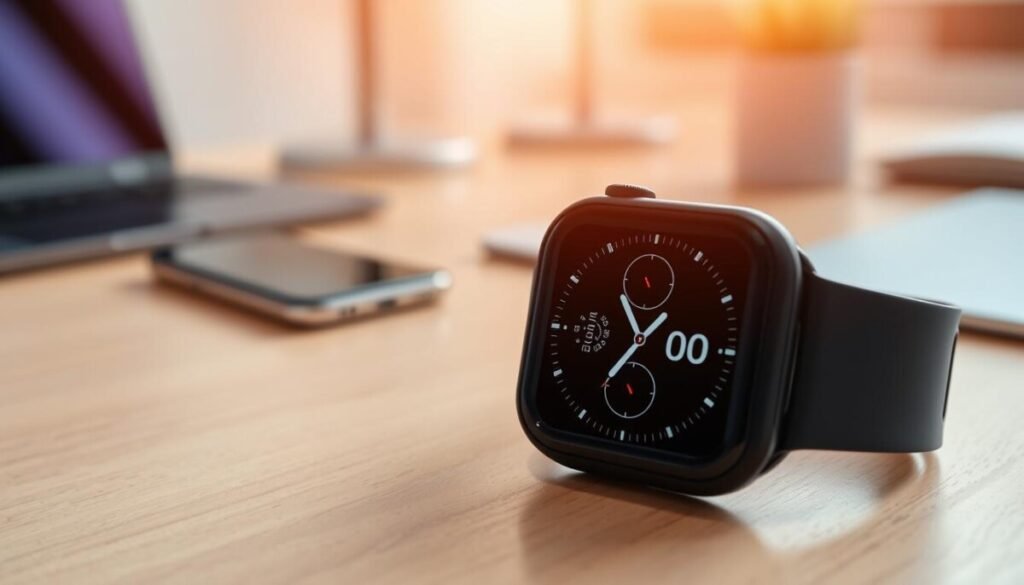
The watch manages energy with health-first choices that differ from ipones. It favors essential tracking so you keep key readings without draining the battery.
The always-on display turns off on the watch, so the screen wakes only when you tap it. Background heart rate checks are reduced and blood oxygen sampling pauses when the watch is idle.
Optimizing Watch Performance During Workouts
Turn off GPS or heart rate tracking during long sessions to extend battery life significantly. You can choose these settings per workout in the Workout app.
- The watch limits app refresh and wireless checks when not in active use.
- Brightness and refresh rate are lowered to save energy while still tracking time and steps.
- iCloud photos and automatic downloads are handled differently than on ipones to avoid surprise drains.
| Feature | Watch Behavior | Benefit |
|---|---|---|
| Always-on display | Disabled when saving energy | Less screen draw, longer battery life |
| Background heart rate | Checked less frequently | Preserves charge while keeping core metrics |
| Workout sensors | Optional GPS/HR off | Extend tracking time for long activities |
| Wireless checks | Reduced frequency | Fewer wake cycles and lower drain |
Conclusion
This setting is your quick way to stretch a day’s battery when a charger is out of reach. It helps save battery and extend life by limiting background apps, dimming the screen, and pausing automatic downloads.
You can turn low power on or off from the Control Center or in Settings. Managing your power mode iphone options keeps calls and messages active when time matters most.
Use the feature strategically during long days to keep your iphone battery functional for essential tasks. For extra tips and a useful guide on managing this setting, see low power mode tips.



