
Surprising fact: knowledge workers lose an average of 2 hours per day to interruptions—equivalent to 25% of the work day.
Set a structured calendar to reclaim focus. Implement block time to protect core work hours from constant phone rings and ad hoc meetings. Use the Outlook web tools and scheduling features to define recurring focus slots that align with business goals.
Apply a stepwise method—define work hours, create recurring slots, publish availability—so the team sees consistent access windows. Use the web calendar and Outlook settings to mirror work hours across apps. Add short agendas to invites to keep interactions concise. This approach enhances coordination and minimizes scheduling conflicts. Additionally, ensure to schedule team availability with Microsoft Bookings to streamline the booking process. Regular updates to the availability will help maintain an organized workflow and improve team collaboration.
Action: start by creating predictable office hours and pinning them where the team can find them. For a practical walkthrough on setting recurring office hours and protecting focus time, reference the guide to schedule office hours in Teams.
Key Takeaways
- Define and publish daily work hours in the calendar to create predictable access.
- Create recurring focus slots to block time for deep work and priority projects.
- Mirror settings in Outlook and the web calendar to avoid conflicts.
- Use brief agendas and strict durations to keep meetings efficient.
- Monitor utilization and adjust slots weekly to maintain optimal flow.
Understanding the Productivity Benefits of Block Scheduling
Partition the day into defined segments to control work expansion and boost output.
The Science of Parkinson’s Law
Cyril Northcote Parkinson observed that work expands to fill available time. Apply this principle to prevent tasks from swelling across the day.
Create finite windows—assign clear start and end times so a single task cannot absorb multiple hours by default. personal dashboard setup in Notion can help you visualize your tasks and prioritize effectively. By organizing your workload within this platform, you can easily track deadlines and ensure that your focus remains sharp. This method not only enhances your productivity but also contributes to a clearer understanding of your progress over time.
Improving Focus Through Boundaries
Adopt block time for concentrated effort. Blocking time for single tasks improves focus and reduces reactive switches to phone calls and emails.
Assign one interval for emails and another for short meetings. Whether you’re in an office or remote, this method preserves deep work.
- Combat Parkinson’s Law: set strict limits per task.
- Protect focus: group similar tasks into one block.
- Include breaks: schedule short rests to sustain productivity.
Preparing Your Calendar for Microsoft 365 Meeting Blocks
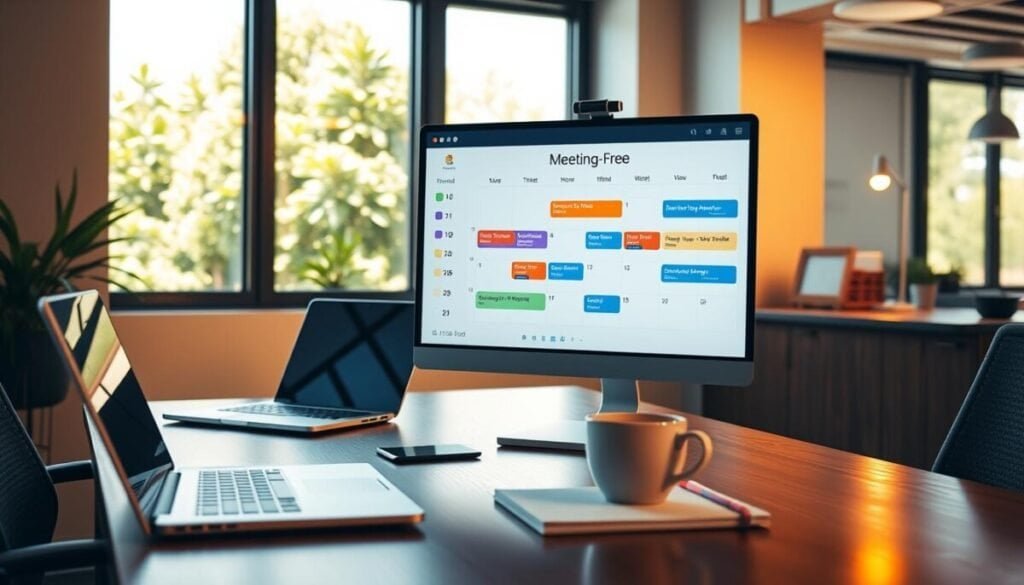
Organize the calendar to present clear, enforceable focus time to colleagues.
Open Outlook and click new to begin creating a dedicated block of time for work. Select New Appointment or navigate to New Items and choose All Day Event for multi-day visibility.
Enter a concise subject. Optionally add a location to give context to others. Assign a start time for each appointment when using the outlook web interface.
Consider how the calendar appears to others. Mark events correctly so colleagues respect focus sessions. Use descriptive subjects to reduce queries and interruptions.
- Use an All Day Event for visible multi-day blocks.
- Assign exact start times for task sequencing.
- Keep subject lines focused and informative.
| Action | Location in UI | Purpose |
|---|---|---|
| New Appointment | Calendar > Click New | Create timed focus sessions |
| All Day Event | New Items > All Day Event | Show full-day availability to others |
| Set Subject & Location | Event form — Subject box | Provide context and reduce interruptions |
For a practical guide to publish office hours and refine scheduling, reference the walkthrough to schedule office hours in Outlook.
How to Create Dedicated Time Blocks in Outlook
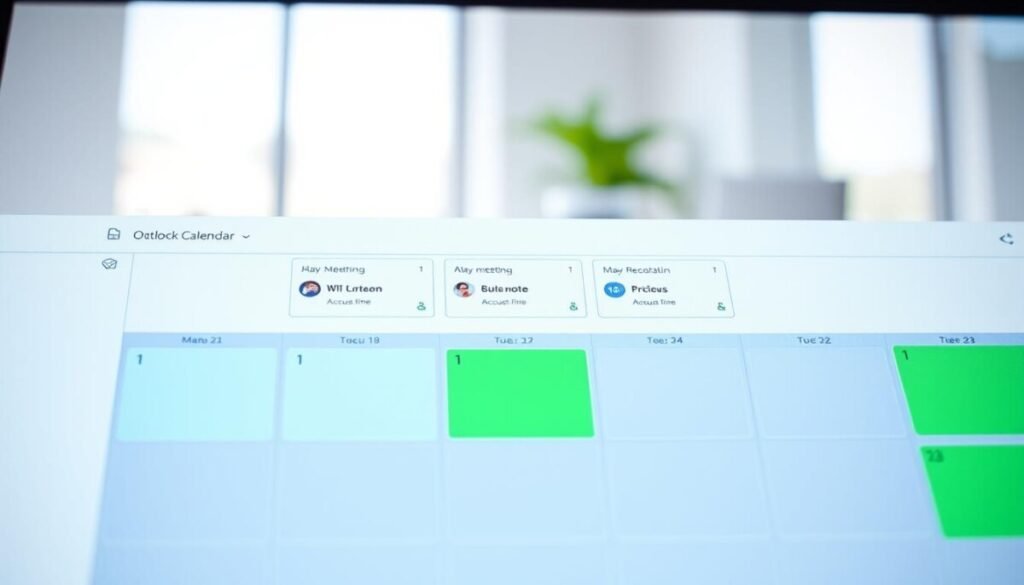
Create precise timed sessions in Outlook to ensure predictable, uninterrupted work time.
Open Outlook and click new to create an appointment. Set the start and end time to define the duration of the focus session. Add a concise subject that identifies the task — for example, “Deep Work: report.”
Setting Start and End Times
Select exact start and end times to prevent the task from expanding across the day. Use recurring options for repeated sessions. Make sure the end time matches the planned work interval.
Adjusting Reminder Options
By default, all-day events include a reminder set to 0.5 days. Change the reminder option to None when silence is required. Adjust reminder timing in the event options menu to avoid phone and email interruptions.
Marking Time as Busy
Mark time as busy so others see unavailable slots on shared calendars. When inviting attendees, use response settings to limit notifications. Click busy in the event form to enforce availability control.
| Action | Location | Purpose |
|---|---|---|
| Open Outlook & Click New | Calendar toolbar | Create appointment or event |
| Set Start / End Time | Event form | Define focused work duration |
| Reminder & Show As | Options / Status | Suppress alerts — mark busy |
For guidance on aligning calendar practice across apps, see how to schedule focus time in Teams.
Managing Recurring Focus Sessions for Consistent Workflow
Automate repeated focus sessions so the calendar enforces priority work automatically.
Open the event. Click Recurrence in the ribbon. Select daily, weekly, or a custom frequency to repeat the event.
Use outlook web or the desktop client to set recurrence. Mark the event as busy to prevent double-booking across shared calendars.
Establish a daily block time for high-priority tasks. Reserve consistent hours each day to reduce context switches and raise productivity.
- Automate scheduling via recurrence — saves manual edits.
- Combine task-specific blocks with short breaks to sustain focus.
- Review and adjust the schedule weekly to keep cadence aligned with office demands.
Tip: For complementary tools and planning methods, review online planning tools to integrate task lists and calendar events.
Utilizing All Day Events for Out of Office Notifications
Use an all-day event to flag absence and prevent last-minute scheduling conflicts. Create the event on the calendar for each day away. This acts as a visible digital sticky note for others.
Configure the event so the subject states the office status. Mark time as busy to block phone calls and meetings. Make sure the end time covers the full day—set it to midnight for clarity.
Configuring Response Options for Attendees
Turn off reminders for vacation or travel events. This avoids unnecessary alerts while away from the desk.
Change attendee response options so recipients do not need to RSVP. This prevents inboxes from filling with emails and reduces administrative noise.
- All-day event—notify team and others without granular slots.
- Mark time as busy—stop new scheduling on shared calendars.
- Disable reminder—avoid interruptive notifications during absence.
- Attendee options—turn off responses when tracking attendance is unnecessary.
| Action | Location | Effect |
|---|---|---|
| Create All Day Event | Calendar › New Event | Shows day-long absence to others |
| Set Show As to Busy | Event options › Show As | Prevents new calls or meetings |
| Disable Reminder | Reminder option | Suppresses alerts during the day |
| Change Response Options | Event form › Response Options | Stops attendee emails and RSVPs |
For procedures to add your out of office notice to another user’s calendar, see the guide to add your out of office event to the Outlook calendar of.
Protecting Your Privacy and Calendar Details
Use privacy controls to hide event specifics while showing free/busy status.
Mark the appointment Private when an event contains sensitive information. This ensures viewers see only that time is taken, not the subject or notes.
Limit read permissions on shared calendars. Grant access only to accounts that require visibility. Restricting permissions adds a layer of security for block time and focus sessions.
Manage reminder settings for private events. Turn off or delay reminders so notifications do not appear on shared screens or in public office areas.
- Private option: hides details from most viewers while showing busy/free.
- Permissions: reduce read rights to protect confidential appointments.
- Reminders: adjust or disable to avoid exposing private event texts.
| Permission Type | Effect | Action |
|---|---|---|
| Default Viewer | Sees free/busy only | Use Private option |
| Delegate | May view details | Limit delegate rights |
| Programmatic Access | Can bypass Private flag | Audit app permissions |
Note: do not rely solely on the private flag. Individuals with delegate or programmatic access can view event details. For step-by-step guidance on hiding calendar details in Office, follow the guide to hide calendar in Office 365.
Mastering Your Schedule for Long Term Success
Treat the calendar as a control system—schedule deliberately to preserve capacity for priority work. Use block time to protect focus and sustain productivity across the day. Apply one consistent toolset—include one Microsoft 365 routine—and commit to it.
Set a clear start and end time for every event. Review events and tasks weekly. Adjust recurring block time to match evolving business demands. Add breaks and use the online meeting tools guide when integrating web-based coordination tools.
Result: a dependable schedule that aligns priorities, limits overcommitment, and preserves capacity for meaningful work and office responsibilities.



