Can one configuration change stop back-to-back meetings and guarantee a 30‑minute gap for every staff member?
Implement a controlled setup that enforces a clear start and end for each calendar event. Configure service duration and add a gap after each appointment to prevent overlapping bookings.
Apply precise settings in the 365 office environment — adjust slot duration, set the ‑minute buffer, and publish changes to the booking page. Verify availability across calendars and confirm that staff schedules mirror the booking system.
Follow this guide to resolve scheduling issues, protect reputation points, and ensure every appointment slot respects the intended minutes between events. For related scheduling controls and office hours synchronization, see the linked walkthrough on office hours.
Key Takeaways
- Set service duration and a post‑service gap to stop back‑to‑back meetings.
- Sync calendar settings across apps to preserve buffer slots.
- Publish changes so the booking page reflects updated availability.
- Validate staff schedules and slot durations to avoid double booking.
- Use the provided office hours guide for recurring slot strategies: schedule office hours.
Understanding How Microsoft Bookings Buffer Time Functions
Clarify the mechanism that converts short services plus buffers into longer busy blocks.
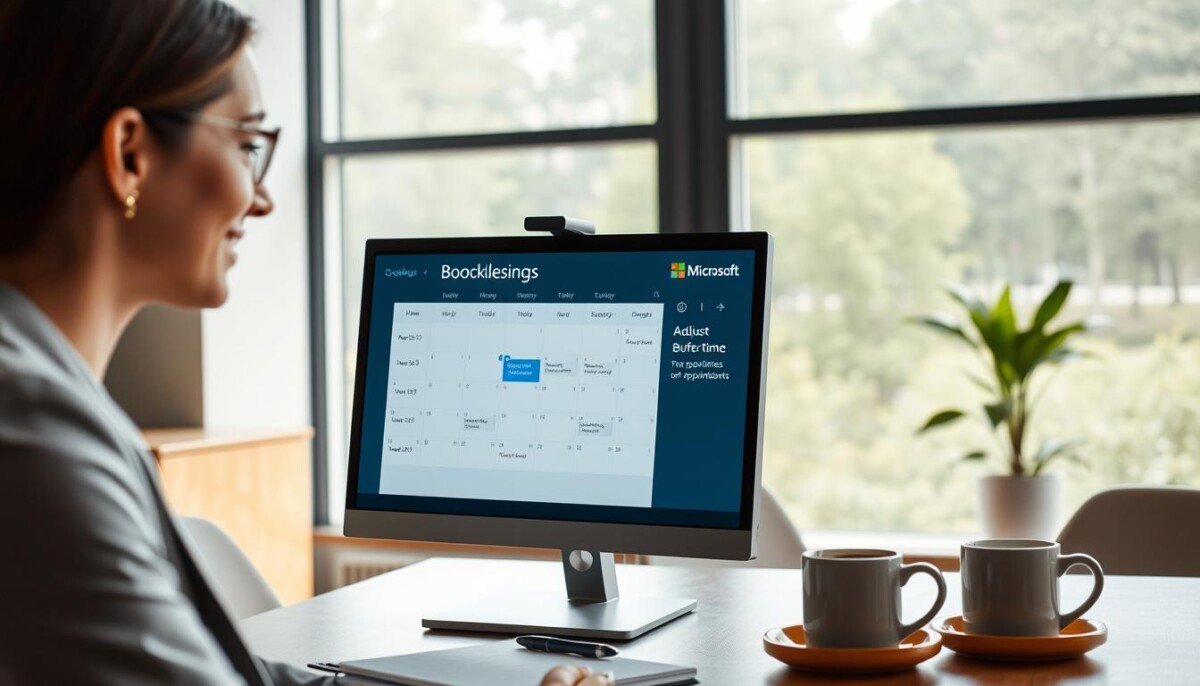
System logic embeds pre‑ and post‑service buffers into the calendar event. This design expands the busy window on the staff calendar and prevents adjacent slots from being booked.
For example, a 30‑minute appointment with 15‑minute buffers before and after will block a full 60‑minute slot. That slot shows as busy to other users and on the booking page—preventing back‑to‑back meetings.
Configure the service to reflect total duration—service minutes plus buffer minutes. Doing so preserves reputation points by avoiding double bookings and scheduling errors.
- Result: A 30‑minute break between meetings creates a one‑hour gap of availability.
- Effect: The calendar event mirrors the buffer appointment and the slot duration used for availability calculations.
If the system answer differs from expectations, verify service settings and the bookings page availability logic. For related scheduling workflows, review the guide on social media scheduling and the tutorial on scheduling focus blocks.
Configuring Your Service Settings for Optimal Scheduling

Define service defaults so each booking reserves preparation and cleanup minutes around the scheduled slot.
Begin with concise service settings. Set the core duration for the service. Then add a before interval and an after interval. This guarantees a protected window on the staff calendar.
Setting Up Before and After Buffers
Enter buffer minutes in both fields. Use a 15‑minute lead and a 15‑minute follow as an example. The system will convert the service plus buffers into a single calendar event. That creates a 30‑minute break between meetings on the bookings page.
Adjusting Staff Availability
Map staff availability to the adjusted slot durations. Lock the slot so the duration and buffers cannot be booked by adjacent appointments. Verify each staff profile shows the protected start and end times.
- Confirm buffers apply to the service profile.
- Test in a sandbox environment to validate slot generation.
- Monitor reputation points—accurate availability reduces no-shows and booking errors.
Troubleshooting Common Availability and Slot Generation Issues

Detect irregular slot sequences immediately to prevent cascading availability errors.
Confirm whether the booking grid shows nonstandard intervals—examples include 3:10, 3:40, 4:10 instead of expected 3:10, 3:50, 4:30. Such patterns often indicate a system glitch where the bookings page fails to recalculate availability.
Identifying System Glitches and Recalculation Errors
Noel documented a case where a 9:15 slot produced a 9:15–10:15 event while the intended block was 9:30–10:30. Verify service settings and duration fields first.
- Check service setup: Confirm duration and pre/post minutes match policy.
- Enable email notifications: Use change alerts to trace configuration edits and audits.
- Review slot logic: Ensure the system applies any buffer appointment to the slot generation algorithm.
- Log incidents: Maintain records to protect reputation points and to provide a clear answer on repeat issues.
If incorrect availability persists, perform a controlled test and consult troubleshooting resources—use the guide for resolving “no times” errors and the API error walkthrough for similar recalculation diagnostics: no-times troubleshooting and API error diagnostics.
Finalizing Your Scheduling Strategy for Better Time Management
Consolidate settings so the calendar shows a single busy block for service plus prep and cleanup minutes.
Set the service duration to 90 minutes when buffers are insufficient. This forces the calendar event to block the full operational window and protect the slot.
Use Power Automate to catch new bookings and update the Outlook event. Add 15 minutes before and after each appointment so the system enforces the required buffer time.
These steps protect staff availability, reduce double-booking issues, and preserve reputation points. Manage commentsno comments and sign comment features to keep the 365 office workflow professional.
Result: each slot remains reserved; availability recalculates accurately; scheduling runs predictably.