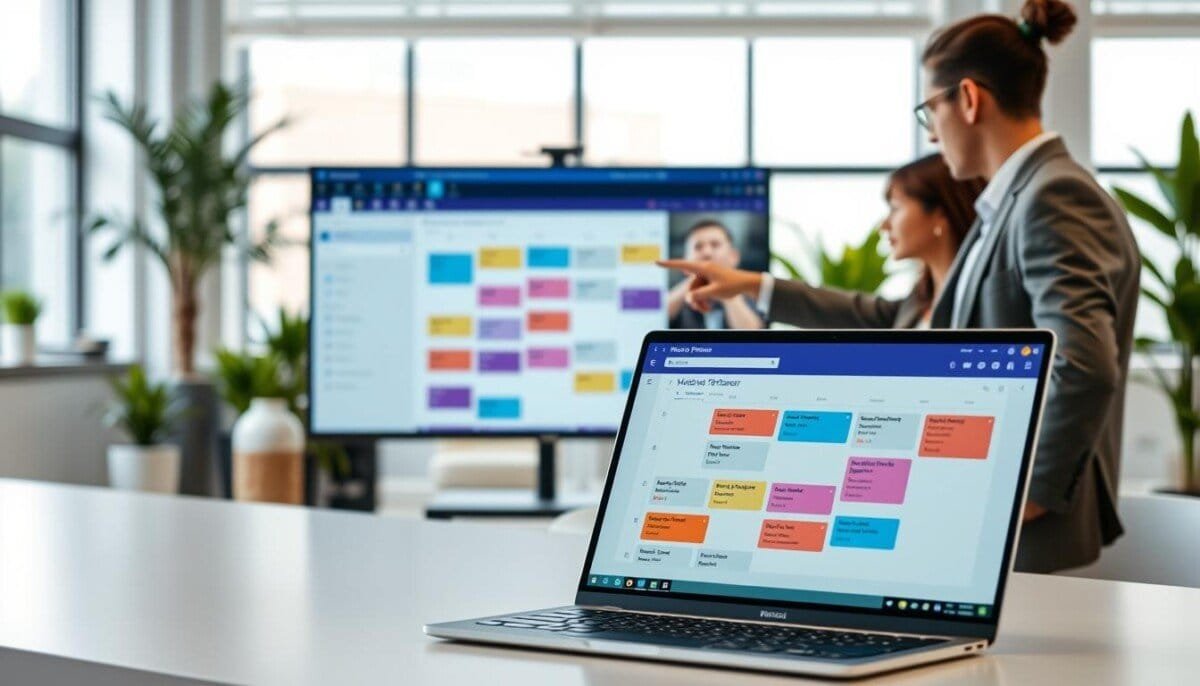
Can a single app really replace scattered to‑dos, missed updates, and unclear ownership on your projects? This guide shows how to centralize work and keep progress visible without adding overhead.
Implementing microsoft planner inside teams brings tasks, plans, and members into one place. You get a unified view of task status, schedule options, and notes tied to each plan. Integrate Microsoft To Do with Teams to enhance your task management capabilities. This allows individual and team tasks to be easily tracked and organized within your existing workflow. With features like reminders and due dates, you can ensure that everyone stays aligned on project goals and deadlines.
Use the planner app to assign task owners, track progress, and surface notifications so nothing slips through. Basic plans cover daily needs, while premium plans add advanced capabilities like schedule views and expanded project details.
The platform’s navigation makes it easy to select any option and view task details. With a valid license, you unlock web features that improve collaboration and help your team deliver predictable results.
Key Takeaways
- Centralize project work to reduce context switching.
- Use the planner app to track progress and keep members aligned.
- Basic plans suit simple projects; premium plans add richer capabilities.
- Navigation and task views ensure important notes and details are visible.
- A proper license unlocks web features and better notifications.
Getting Started with Microsoft Planner inside Teams
Quick setup keeps everyone focused. First, add the app to your workspace so tasks and plans appear where your team works. This reduces searching and makes task ownership clear.
Adding the App
Open the App launcher and select View more apps. Search for the planner app and choose Add to install it. This selection integrates the app with your microsoft 365 account so members can see plans tied to your organization.
Pinning for Access
Right-click the new icon in the sidebar and select Pin. Pinning keeps your most important plans and tasks one click away. It also helps new members find assigned work fast.
- When you create a new plan, give it a unique name to avoid confusion.
- If the app is missing, ask your administrator to enable access — app availability depends on your org configuration.
Configuring Your Daily Workflow with My Day
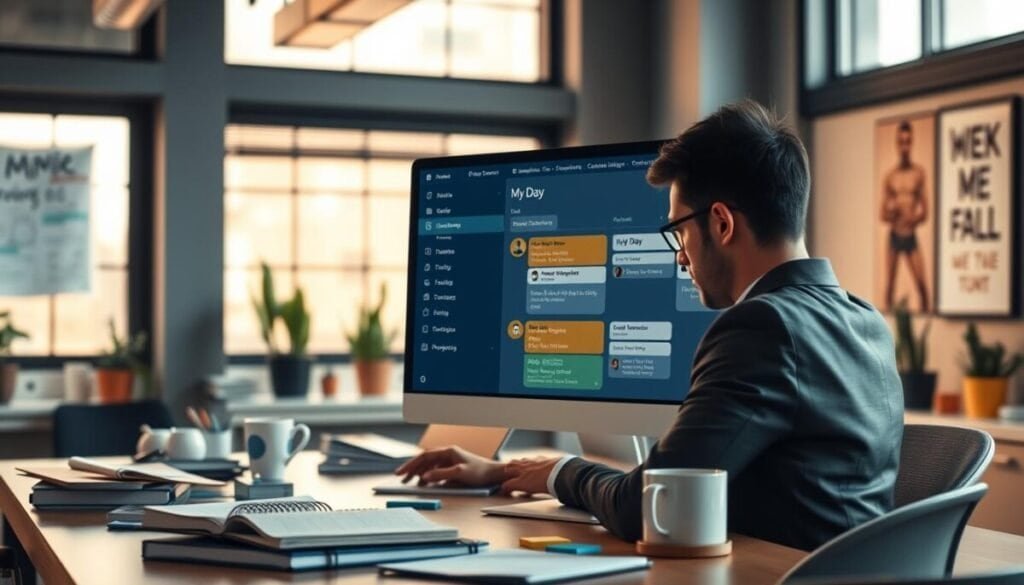
Start your day in a focused workspace that shows only what matters now. My Day collects tasks that are due today from My Tasks and from your personal plans. It keeps your work list short and actionable.
Use My Day as your daily schedule hub. The planner app pulls tasks automatically, so you don’t waste time hunting for priorities. You can also add any task manually to shape the day around urgent work.
The space clears itself each night. That means you wake up to a fresh list tailored to current plans. This nightly reset reduces clutter and refocuses you on what matters now.
- Organize urgent tasks in one place to prevent missed deadlines.
- Rely on automatic pulls from personal plans for an accurate morning list.
- Manually add high-priority items to align your schedule with team demands.
Use My Day daily to keep a clear view of commitments. When you prioritize consistently, you reduce context switching and deliver steady progress on tasks and plans.
Centralizing Individual Responsibilities in My Tasks
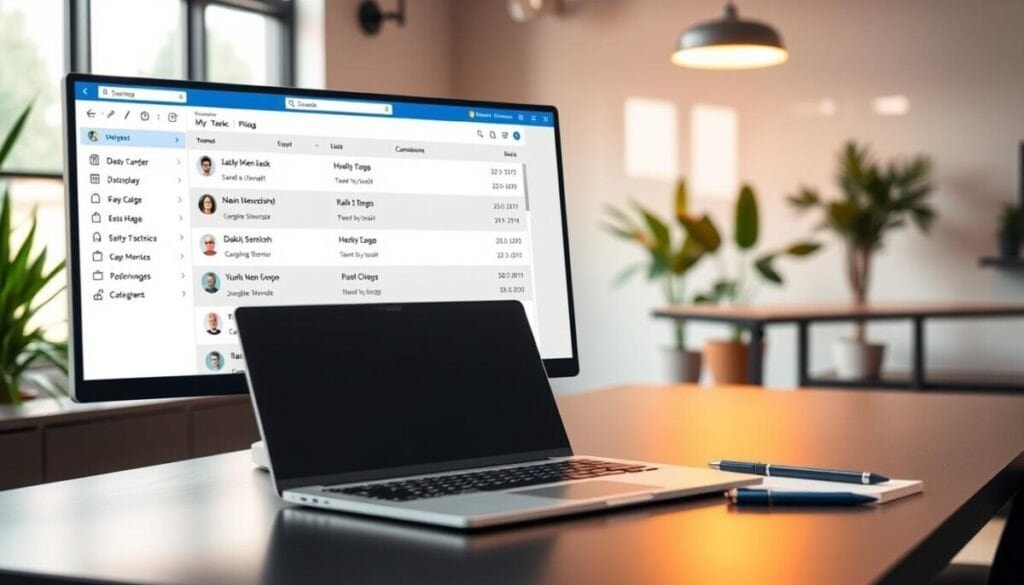
My Tasks gathers every personal responsibility into a single, searchable list so you never lose track.
Private Tasks
Capture ideas fast. Create private tasks to jot down notes and rough ideas at the speed of thought.
When a note becomes work, move it into a shared plan for collaboration. Private tasks keep your workflow flexible without cluttering shared plans.
Assigned to Me
See every task assigned to you. The Assigned to me section aggregates tasks from multiple plans, meeting notes, and loop components.
This view helps you track who needs input and what deadlines matter. Use it to prioritize and update status without hunting across apps.
Flagged Emails
Flagged emails from Outlook appear automatically in My Tasks. That lets you manage inbox follow-ups and project tasks in one place.
By organizing work here you ensure each task assigned to you is tracked, whether it started in teams or elsewhere.
- The My Tasks view is the central place to see tasks from basic plans and premium plans.
- Create private tasks, then move them into shared plans when ready to collaborate.
- The Assigned to me section displays tasks assigned from meetings and notes.
- Flagged emails appear automatically so you can manage your inbox and task list together.
For workflow tips and cross-app scheduling, see a short guide on how to schedule in Excel to sync timelines and keep your list aligned with project dates.
Managing Shared Plans and Team Workloads
Start by building a new plan to centralize your team’s tasks and responsibilities. Select New in the left navigation to create a new plan, either blank or from a template. To enhance your workflow, consider incorporating project management tips in Notion as a part of your planning process. Utilizing these strategies will help streamline communication and ensure that all team members are aligned on their tasks. This approach not only increases efficiency but also fosters accountability and transparency within the team.
Use buckets to group work by category, priority, or progress. Buckets make it simple for members to see status at a glance.
Adding Buckets and Tasks
Create buckets with clear names so everyone knows what each list represents. Then add tasks and assign owners, due dates, and labels.
- Select New plan in the left navigation to establish a shared space for your project work.
- Add buckets to organize tasks and make it easier for the team to track progress and status updates.
- When you add a task, include notes, attachments, and comments so everyone has the necessary details.
| Action | Why it helps | Where to find it |
|---|---|---|
| Create New plan | Centralizes work and ownership for the group | Left navigation → New |
| Add buckets | Organizes tasks by phase, priority, or type | Open plan → Add bucket |
| Add task details | Keeps members informed with notes, files, and comments | Task card → Details |
| Use premium license features | Enables timeline and web views for complex schedules | Upgrade via admin or license settings |
Group tasks by bucket or assignment so you can quickly see plans and ensure every member knows their role. This reduces overlap and improves measurable progress.
Utilizing Advanced Capabilities with Premium Plans
When projects grow, advanced views in premium plans make dependencies and resource load visible at a glance.
Upgrade to a premium license to unlock Timeline, People, and Goals views. These views convert scattered tasks into a clear schedule and show how work links across the project web.
The People view helps you spot uneven workloads among team members. You can reassign task owners and balance effort without guessing.
The Timeline view shows a Gantt-style layout so you see dependencies and adjust the schedule quickly. Use Goals to keep status tasks tied to measurable outcomes.
- Timeline: visualize task dependencies and overall schedule.
- People: monitor team members and reallocate tasks to prevent bottlenecks.
- Goals: track objectives and measure progress across plans.
Create a new plan with premium features when work becomes complex. The extra charts and web views give you the insights needed to manage members, meet deadlines, and keep progress visible.
Staying Informed with Task Notifications
Notifications keep you aligned without constant manual checks. Enable alerts so updates land where you already work. You will see when someone assigns a task or changes its status.
Instant alerts appear in your activity feed whenever a new task assigned to you is created or updated. Desktop and mobile versions of the app both send these alerts.
If a colleague marks a task assigned to you as urgent, you get an immediate notification. That prompt helps you respond fast and maintain steady progress on shared plans.
- You receive instant notifications in your teams activity feed for new or changed tasks.
- The planner app alerts you to due date or status changes so you can update priorities.
- Urgent flags trigger immediate desktop and mobile notices so critical work is handled quickly.
- These alerts make managing planner tasks easier and reduce missed handoffs in your team.
| Event | What you see | Where |
|---|---|---|
| New task assigned | Activity feed notification with task link | Teams activity → mobile & desktop |
| Due date or status change | Alert noting the change and updated progress | App notifications → email summary (optional) |
| Task marked urgent | High-priority push notification | Desktop pop-up & mobile push |
Maximizing Project Efficiency and Team Productivity
Drive predictable delivery by aligning members around shared plans and visible progress.
Centralize work in the planner app so every team member can see tasks, deadlines, and status at a glance. This reduces duplication and keeps priorities clear.
Review status tasks weekly to spot bottlenecks early. Small course corrections prevent missed deadlines and keep overall progress steady.
Use premium capabilities and an upgraded license for timeline views and workload insights. These features reveal dependencies and help balance effort across members.
Turn on automated notifications and in-app alerts so the right people get updates without extra meetings. For prioritization tips, see a short guide to prioritize projects efficiently, or compare leading project management platforms to pick the right tools.
Make this a daily habit—centralize, review, use premium views, and automate alerts—to keep your project on track and your team focused on delivery.



