
Integrate Microsoft To Do with Outlook Calendar
Trying to integrate Microsoft To Do with Outlook Calendar but tasks won’t show up? You’re not alone. The truth: both apps already share one task list. Tasks sync on their own. You just view them and drag them onto your calendar. Here’s how.
The Direct Answer in One Minute
Microsoft To Do and Outlook are joined at the hip. Both read the same task list in your mailbox. Add a task in one app, and it shows in the other. That part is automatic.
But tasks do not draw blocks on your calendar by themselves. Many people expect that. It does not happen. Instead, you see tasks in a side pane. To give a task real time, you drag it onto the calendar. That single drag turns the task into an appointment.
So “integrate” means three easy moves:
- Connect both apps with one account.
- Display tasks next to your calendar.
- Schedule tasks by dragging them in.
Why People Think It’s “Broken”
Here is the most common story online. Someone makes tasks in To Do. They open Outlook Calendar. They see no tasks. They think the sync failed.
It did not fail. Tasks and calendar events are two different things. A task is a to-do item. An event is a time slot. The calendar grid only shows events. So tasks stay in the Tasks pane until you move them.
Once you know this, the frustration ends. You stop hunting for a setting that does not exist.
What You Need Before You Start
| You Need | Note |
|---|---|
| Microsoft account | The glue for both apps |
| Microsoft To Do | Free on every device |
| Outlook | New or classic version |
| Same sign-in | Used in both apps |
No extra cost. No plugins. Just one login used everywhere.
Watch: How to Integrate Microsoft To Do with Outlook Calendar (Step by Step)
Method 1: Use the Same Account (Automatic Sync)
This is the magic step.
- Open Microsoft To Do. Sign in.
- Open Outlook. Use the same login.
- Make a test task in To Do.
- Check Outlook Tasks. The task is there.
The two apps now share one list. Changes show up in seconds, across web, Windows, Mac, iOS, and Android.
Method 2: See Tasks in the Outlook Tasks Pane
New Outlook: Click the To Do / My Day icon in the side bar. A panel opens with your lists and your day.
Classic Outlook: Go to View > To-Do Bar > Tasks. Tasks dock on the right.
Now your tasks sit right beside your meetings.
Method 3: Drag a Task onto the Calendar (Time-Blocking)
- Open Outlook Calendar view.
- Keep the Tasks pane open.
- Drag a task onto a time slot.
- Outlook creates an appointment.
- Set the length. Save.
Now your task owns a block of your day. You guard it like a meeting. This is time-blocking, and it sticks.
Method 4: Flag Emails to Create Tasks
- Find an email you must act on.
- Click the flag icon.
- Open Microsoft To Do.
- Look at the “Flagged Email” list.
This is huge for busy inboxes. Workers get 120+ emails a day on average.
Method 5: Use “My Day” for Daily Planning
- Open To Do. Tap My Day.
- Add today’s must-dos.
- Accept smart suggestions.
- Drag them into your calendar.
Plan the day. Then guard the time.
The Full Productivity System
Here is one daily loop that ties it all together.
| Time of Day | Action | Tool |
|---|---|---|
| Morning | Plan today | My Day |
| All day | Flag emails | Outlook |
| Mid-morning | Block top tasks | Drag to Calendar |
| Work hours | Do the blocks | Calendar |
| Evening | Check off, reschedule | To Do |
This loop keeps tasks and time in sync. You always know what is next.
Integration Methods Compared
How each way to integrate Microsoft To Do with Outlook Calendar scores across five real-world factors (0–10 scale).
- Same-Account Sync
- Drag-to-Calendar (Time-Block)
- Flag Email → Task
Scores are editorial estimates based on Microsoft Support docs, YouTube tutorials, and community feedback. Higher = better for that factor.
New Outlook vs Classic Outlook
| Feature | New Outlook | Classic Outlook |
|---|---|---|
| Task panel | Built-in sidebar | To-Do Bar |
| Drag to calendar | Yes | Yes |
| Flag email to task | Yes | Yes |
| My Day | In To Do | In To Do |
| Look and feel | Modern | Classic menus |
Both versions work. New Outlook makes the task panel easier to find.
Troubleshooting: Tasks Not Showing in Calendar
This is the number one complaint online. The biggest myth: “My tasks should appear on my calendar by themselves.” They will not. That is by design.
| Problem | Likely Cause | The Fix |
|---|---|---|
| No tasks on calendar grid | Tasks aren’t events | Drag tasks onto the calendar |
| Tasks not syncing | Two accounts | Use one Microsoft account |
| Reminders not firing | Notifications off | Enable in app settings |
| Tasks pane missing | Hidden view | New: side icon. Classic: View menu |
| Sync is slow | Refresh lag | Refresh or restart the app |
| Planner tasks absent | Different system | Planner needs its own setup |
Reminders Not Firing? Do This
- Open To Do settings.
- Turn on notifications.
- Add a due date to the task.
- Check your phone’s app permissions.
Sync Feels Slow? Try This
- Check your internet.
- Pull down to refresh.
- Sign out and back in if needed.
- Wait a minute; sync runs in the background.
Best Practices for a Clean Workflow
- Plan in My Day each morning.
- Flag key emails all day.
- Drag top tasks to the calendar.
- Protect those blocks like meetings.
- Review and clear at night.
Helpful habits:
- Keep one main list.
- Use due dates to trigger reminders.
- Sync your phone for on-the-go edits.
- Do a weekly review every Friday.
Why This Setup Wins: The Data
| Stat | Value | Meaning |
|---|---|---|
| Microsoft 365 seats | 400M+ | A giant shared base |
| Refocus after a switch | ~23 min | Each switch hurts |
| “Work about work” | ~60% of day | Time lost coordinating |
| Users with 2+ task apps | ~60% | One list cuts clutter |
| To Do app rating | 4.7★ iOS | Users approve |
Studies link each app switch to about 23 minutes to refocus. Keep tasks and calendar in one view, and you switch less. You reclaim real hours.
Real User Experiences
“Flagging an email and seeing it pop into My Day changed how I run my mornings.” — productivity forum user
“Dragging tasks onto my Outlook calendar finally made time-blocking stick.” — project manager, Reddit r/productivity
“Same task list on my phone and desktop — I stopped forgetting follow-ups.” — small business owner, app review
Cross-Device Tips
- Install To Do on your phone.
- Sign in with the same account.
- Edits sync in seconds.
- Reminders ring on every device.
Frequently Asked Questions
Does To Do show on the calendar automatically?
No. Tasks show in the Tasks pane or My Day. Drag them to the calendar to make blocks.
To Do vs Outlook Tasks vs Planner — what’s the difference?
To Do and Outlook Tasks share one list. Planner is for team projects.
Does it sync on mobile?
Yes. Sign in with the same account. Tasks sync in seconds.
Do reminders work in both apps?
Yes. A due date in To Do shows in Outlook too.
Is it free?
Yes. To Do is free with a Microsoft account.
Conclusion: Key Takeaways
You can integrate Microsoft To Do with Outlook Calendar in minutes. The apps already share one task list. You just view it and block time.
Do these three things today:
- Sign in to To Do and Outlook with the same account.
- Open the Tasks pane beside your Outlook calendar.
- Drag your top tasks onto the calendar to block focus time.
Start now. Your tasks and your time will finally live in one place.
60% of professionals report clearer schedules after linking task systems with calendars—a measurable shift in weekly delivery rates. This guide presents a precise method for pairing a task list with a calendar view.
Enable synchronization by using the same account across both services. Confirm permissions; verify active item sync. Follow a systematic sequence—authenticate, link, validate.
Aligning tasks and calendar items lets users assign each day a focused agenda. Visualize deadlines. Reduce context switching. Maintain an overview of project commitments in one pane.
Use this integration as a foundational step for professionals requiring a robust digital environment. Reference the April 28, 2023 guidance and the August 27, 2024 update for policy and feature changes.
Key Takeaways
- Use a single account to enable seamless sync.
- Link the task app and calendar for centralized management.
- Assign calendar slots for priority tasks each day.
- Validate permissions after setup—prevent missed items.
- Review updates dated April 2023 and August 2024 for changes.
Getting Started with Microsoft To Do Outlook Integration
Verify that the main account is active and configured for automatic synchronization before altering any settings. Confirm sign-in on every device. Validate permission scope for calendar and task access.
Syncing your account
Authenticate the account—use the same credentials across mail and calendar panes. Right-click the ribbon to begin customizing the top navigation bar. Add the To-Do Bar for quicker access.
Enable automatic sync in account settings. This prevents data fragmentation. Check dates and lists after initial sync to ensure accuracy.
Linking tasks to your calendar
Link each task list to the calendar so the daily view reflects active items. When the To-Do Bar is present, view tasks alongside scheduled events.
- Open Outlook and confirm primary account configuration.
- Right-click the ribbon to add task-related commands.
- Organize lists and dates for consistent daily planning.
For step-by-step scheduling workflows, reference the guide on how to schedule office hours—use as a template for calendar planning.
Accessing Your Tasks and Lists within the Outlook Interface
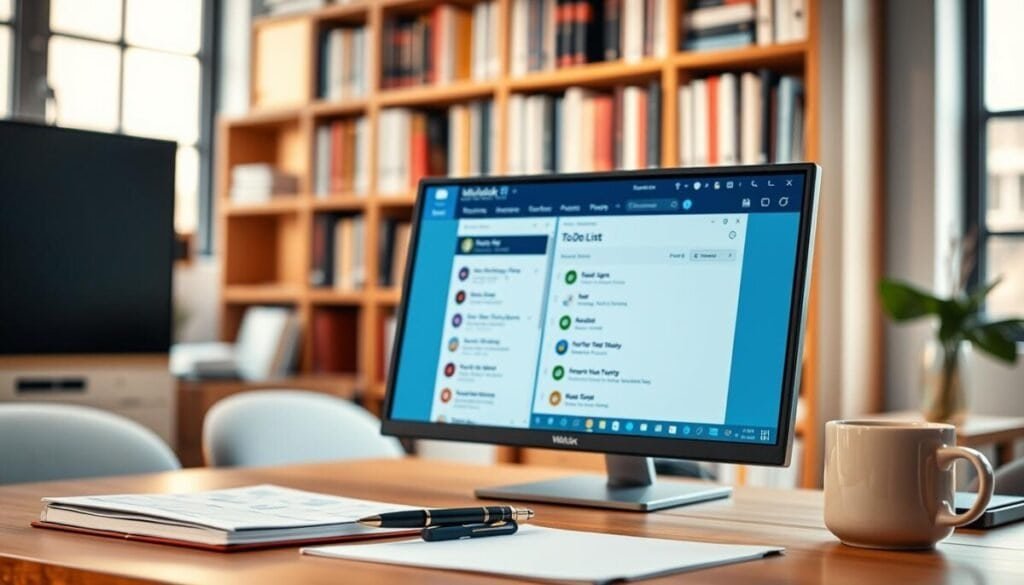
From the main interface, click the ellipsis in the lower-left corner to surface task and list tools. This action opens the panel used to manage daily items.
Flagging an email converts that message into a task entry. Use the flag icon in the message list. The flagged item appears in the task pane and on relevant dates.
Pin critical lists at the top of the task pane. Pinned lists remain visible across the day—reducing search time and preventing missed priorities.
- Drag an email into the Tasks icon to create a new task from a message.
- View tasks alongside the calendar to align scheduled events and work items.
- Keep lists clean—archive completed items and merge duplicates for better focus.
| Action | Result | Shortcut / Tip |
|---|---|---|
| Click lower-left three dots | Open task management pane | Use ellipsis for hidden features |
| Flag an email | Creates a trackable task | Flag icon in message list |
| Pin a list | Keeps items at top | Right-click list > Pin |
| Drag email to Tasks | Manual task from message | Use for follow-ups and deadlines |
For scheduling patterns that align tasks with blocked calendar slots, follow the guide to schedule focus time. Implement that workflow to protect uninterrupted work periods each day.
Advanced Strategies for Managing Due Dates and Categories

Apply a consistent rule set for due dates, categories, and reminders to maintain schedule integrity.
Setting priority levels for urgent items
Assign a priority for each task when a date is set. Use high, medium, low as discrete labels.
Enter a numeric percent for progress. Update that percentage as work advances. The metric gives a clear project status in the list and calendar view.
Utilizing categories for project separation
Use categories and tags to separate work projects from personal items. Assign a category when flagging an email; the inbox and task list remain aligned.
- Assign specific categories for clear separation—improves productivity.
- Use tags to filter the list when the day is busy.
Configuring reminders for upcoming deadlines
Double-click any task to set a reminder. Configure alerts hours or days before the date.
Verify reminders appear on the calendar so no due dates are missed.
| Action | Effect | How |
|---|---|---|
| Set priority | Highlights urgent items | Select priority field |
| Assign category | Separates projects | Right-click item > Category |
| Add tags | Filters list quickly | Apply tag labels |
| Configure reminder | Prevents missed dates | Double-click task > Reminder |
For a structured approach to task management, consult the task management guide. For scheduling message workflows, see the schedule messages reference.
Streamlining Your Daily Workflow for Maximum Productivity
Consolidate daily workflows by placing scheduled tasks and calendar events in a single, visible pane.
Perform a weekly review of completed items. Delete old entries. Keep the list clean for faster scanning.
Assign a specific date to each task. Block calendar slots for priority work each day. This enforces focus and reduces context switching.
Pin important lists at the top of the interface. That provides a constant view of progress during the work day.
Finalize synchronization between your task system and microsoft outlook. Review compatible productivity apps for broader calendar sync and increased productivity. To streamline your workflow, consider how to sync outlook calendar with teams status to ensure that your schedules are aligned across platforms. This integration can improve communication within your team and keep everyone updated on availability. Additionally, using tools that support this sync can help maximize efficiency and facilitate better collaboration. One effective way to enhance your scheduling is to share calendar availability in Outlook, allowing team members to see when you are free for meetings. By incorporating this feature, you can reduce the back-and-forth communication often associated with scheduling conflicts. This will ultimately lead to a more synchronized approach to planning and executing tasks collaboratively.



