
Fact: More than 70% of professionals report lost focus due to excessive digital alerts — a measurable drag on productivity.
Control the flow of work. Identify which threads require silencing. Apply precise settings in Microsoft Teams to reduce interruption.
Explain why this matters. Constant notifications fragment attention. Interruptions increase task completion time and error rates.
Provide a clear result. Learn how to mute selected chat threads and preserve attention for high-value tasks. Prioritize messages from key contacts. Filter non-essential chatter and lower cognitive load.
Use this guide for step-by-step configuration, troubleshooting, and policy alignment. Consult official documentation for advanced scenarios and related topics.
Key Takeaways
- Silence specific threads to regain uninterrupted focus.
- Adjust notification rules to prioritize critical messages.
- Use contact-level controls for targeted suppression of alerts.
- Apply settings consistent with company communication policies.
- Reference official resources for advanced configuration and related topics.
Understanding the Impact of Constant Teams Notifications
Unfiltered notifications create attention debt across the workday. Geoff Prior observed on 31 Mar 2023 that the volume of alerts in microsoft teams directly reduces employee focus. This creates measurable losses in task completion and accuracy.
Every meeting chat alert, channel post, reaction, or call notification forces a context switch. Context switching increases time-to-complete and lowers effective output. Meeting chat notifications often persist after a meeting—adding noise that has no operational value.
Implement strategic controls to protect deep work. Limit the frequency of alerts from a specific meeting or channel. Prioritize contacts and channels that deliver high-value information.
- Audit notification sources—identify repeat offenders.
- Set rules to suppress low-value alerts during focused blocks.
- Use contact-level filters to surface critical messages only.
This article provides stepwise methods to reduce interruptive alerts and preserve attention. For scheduling focused work periods, consult the guide on scheduling focus time in Teams.
How to Mute Teams Chats on Desktop
Silence a single meeting thread from the desktop interface in two clicks. Open the microsoft teams app. Locate the meeting entry in the chat list. Right-click the meeting name to reveal contextual options.
Using the Right-Click Menu
Right-click the target meeting in the chat list. From the menu, select the mute option to stop notifications for that conversation.
A red dot often appears on the chat icon when a new message arrives—this signals unread content for meeting participants. Use the more options menu to hide chat bubbles or an entire thread. That action grants granular control over how people interact with the workspace.
Unmuting Conversations Later
To restore alerts, return to the same chat list. Select the meeting and choose unmute to re-enable notifications.
Tip: Keep desktop apps updated to maintain access to the latest notification management features and settings. Confirm access to channels and apps after updates to avoid missing critical meeting messages.
Managing Alerts on the Mobile App
Take command of phone alerts to avoid duplicate notifications while away from the desk. Open the microsoft teams mobile app. Locate the meeting entry in the conversation list.
Select and hold the meeting chat to reveal the select options menu. Choose select mute to silence meeting chat notifications with minimal taps.
Apply these settings across mobile apps to prevent message interruptions while away from the desktop. Consistent control reduces repeated alerts and preserves focus.
- Confirm the active conversation list is current.
- Use the same options on phone and desktop for parity.
- Verify that notification preferences sync after updates.
| Action | Steps | Outcome |
|---|---|---|
| Select & Hold | Press meeting entry in the list | Open contextual options |
| Choose Option | Tap select mute or equivalent | Stop meeting chat notifications |
| Verify Sync | Check desktop and phone after change | Consistent alert state across devices |
Adjusting Meeting Chat Notification Settings
Configure per-meeting preferences to control which meeting messages generate alerts.
Navigate to the settings menu in Microsoft Teams. Open Notifications and select the activity category for meetings. Use drop-down controls to assign different behaviors for accepted, tentative, and no-response items.
Customizing Preferences via Settings
Choose the option that maps meeting RSVP states to notification levels. Set accepted meetings to show in the top of the chat list and tentative items to a lower priority.
- Open Settings → Notifications → Meetings.
- Select the appropriate options for accepted vs. tentative events.
- Adjust visibility so only critical meeting chats appear in the primary list.
- Use dropdowns to mute chat entries that are not relevant to current content.
Note: Changes apply immediately and sync across desktop and mobile apps when access permissions allow.
| Setting | Action | Result |
|---|---|---|
| Accepted | Set to Banner & Feed | Visible in top list |
| Tentative | Set to Only Feed | Lower priority in list |
| No response | Set to Off | Hidden from primary view |
The Role of RSVP Status in Chat Visibility
RSVP responses determine whether a meeting conversation appears in the primary chat list.
Declining a meeting commonly hides the related conversation. That action removes the thread from the main feed and reduces notifications tied to that meeting.
Accepting keeps the conversation active. Use select options in the interface to hide chat threads manually when message volume spikes during a call.
- The calendar icon flags meeting chats—use it to search by name or date.
- Enable the show declined events setting to restore hidden items and regain access to past meetings.
- Search the meeting name to locate a conversation or missed message quickly.
- Understand RSVP effects—avoid accidental exclusion from critical meetings or inclusion in low-value conversations.
Handling Recurring Meeting Conversations

Conversations in recurring meetings remain accessible to participants across sessions. That design preserves context for follow-ups and action items.
Manage single instances when privacy is required. Forward the invite for the specific occurrence rather than the full series. This limits new participants’ access to past messages.
Managing Single Instances
Remove or add attendees for one meeting occurrence. Forward only that invite. Confirm the participant list before sending. That step prevents external access to the conversation box tied to earlier meetings.
Privacy for Recurring Series
Mute individual meeting chat threads within a series to suppress notifications while retaining message access. Use select options in the conversation list to apply changes per instance.
Tip: Use the search bar to find a meeting by name. That method locates past messages quickly and helps manage the active list of meeting chats.
- Confirm participants before forwarding an occurrence.
- Limit new attendees to single occurrences when privacy matters.
- Use select options to change visibility and notification state per meeting.
| Scenario | Action | Result |
|---|---|---|
| New attendee for one date | Forward single occurrence invite | No access to prior messages |
| Recurring series participant change | Modify series attendance settings | Access persists unless removed |
| Suppress alerts for a series | Apply per-thread control via select options | Notifications stop; conversation kept |
For broader coordination and tool guidance, consult resources on online meeting tools. Follow organizational policy when changing access or archiving meeting messages.
Utilizing Advanced Meeting Options for Organizers
Apply advanced meeting options to lock down interactive features when large groups convene.
Prepare attendee lists before sending invites. Expand any contact list that contains more than 150 members to ensure intended recipients receive the invitation.
If a contact list exceeds 1,000 entries, the system will block its addition. Plan alternative distribution—use distribution groups, channels, or external communication tools to reach oversized audiences.
Organizers may restrict or turn off meeting chat access from the meeting options. Use this setting to control the flow of content and reduce parallel conversations during a meeting.
- Validate contact lists—expand when >150 members.
- Use alternative channels for lists >1,000 members.
- Disable chat access via meeting options to limit in-call messaging.
- Configure options to keep meetings focused and reduce excess content.
These controls preserve access hierarchy and streamline participant interaction in large meetings. Review the official guidance on meeting options for stepwise configuration.
| Scenario | Organizer Action | Result |
|---|---|---|
| Contact list 150–1,000 | Expand list before invite | Invite delivered to all recipients |
| Contact list >1,000 | Use alternate distribution | Invite accepted via channel or external message |
| High-participant meeting | Disable chat access | Reduced in-meeting content and interruptions |
Differences Between Channel and Direct Message Alerts
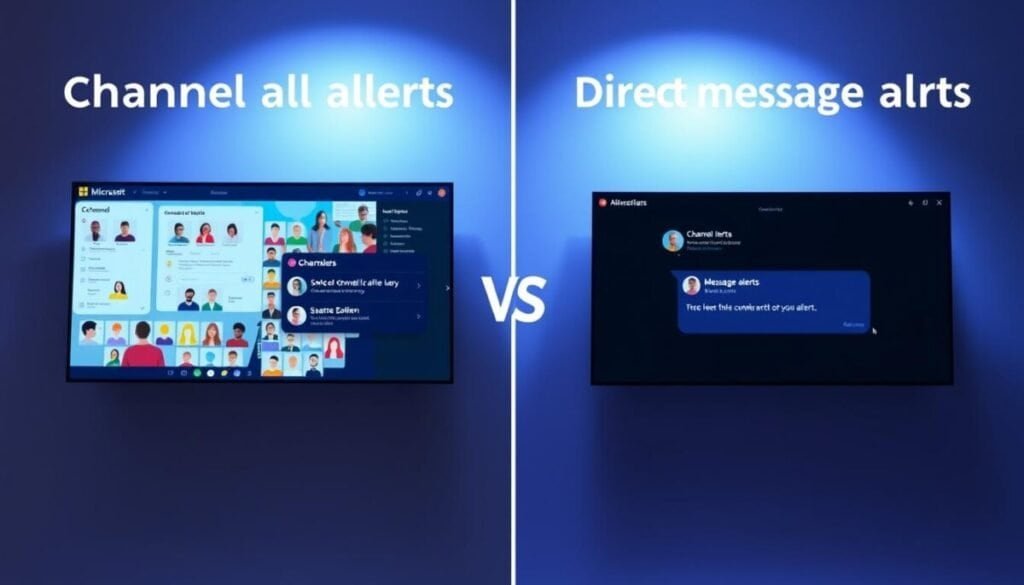
Alert routing differs between a channel post and a private conversation. Channel-based notifications surface to all channel members. Direct messages target only listed participants.
Channel meeting threads appear in the channel feed. That feed shows threaded content and related files. Direct meeting chat stays private to attendees and invited users.
Navigating Threaded Conversations
- Channel meetings differ from direct messages—any channel member can view and contribute even if not present at the meeting.
- Threading keeps posts organized—each reply nests beneath the original topic for clear context.
- Channel discussions integrate with the broader workspace—files and topics live in one location for referenced access.
- External invitees not in the channel will not gain channel access—monitor permissions before sharing meeting links.
- Manage notifications by watching channel activity rather than a single meeting chat window; apply select options and global options as needed.
| Scope | Channel | Direct Message |
|---|---|---|
| Visibility | All channel members | Listed participants only |
| Threading | Threaded posts in channel feed | Linear chat per meeting |
| Access control | Restricted by channel membership | Controlled by invite and participant list |
Troubleshooting Hidden or Persistent Notifications
Verify the alert origin—identify whether the conversation, channel, or account-level rule triggers the notification.
Confirm that the correct option was applied to the specific chat thread. If still receiving notifications for a meeting, reopen the conversation and review the applied select options.
Check global notification settings next. Global rules can override per-conversation controls. Inspect account-level options and activity rules that affect all meetings.
Locate hidden threads with the search box. Enter the meeting name to find a removed or declined item. Also enable the show declined events setting to reveal concealed meeting conversations.
Restart the apps after changes. A session restart often forces the client to apply new preferences and stops persistent alerts.
- Confirm per-thread setting—target the correct chat entry.
- Audit account notifications—look for conflicting rules.
- Use search or show-declined to surface hidden meeting threads.
- Restart the client when persistent alerts continue.
| Cause | Action | Result |
|---|---|---|
| Per-thread setting incorrect | Open conversation → apply correct option | Meeting chat notifications stop |
| Global rule conflict | Review account notification settings | Resolve receiving notifications override |
| Hidden thread | Search by name or show declined events | Hidden chat restored to top of feed |
Tip: Validate channel and meeting notification settings to avoid unwanted alerts at the top of the feed.
Mastering Your Focus for a More Productive Workday
Reduce alert surface area by prioritizing only critical message sources.
Apply notification rules in Microsoft Teams to limit interruptions. Prioritize direct message and channel sources that require immediate action. Use the list to surface high-value topics; send low-priority items to Only show in feed or off. To enhance productivity, consider adjusting status settings in Microsoft Teams based on your current tasks or availability. This can help your colleagues know when you’re busy or open to collaboration, thereby improving communication. Additionally, regularly review and update these settings to align with your schedule and workload.
Review options weekly. Audit the channel and message settings. Adjust privacy and priority access to preserve deep work windows.
For a stepwise checklist and advanced tactics, consult this guide on silencing Microsoft Teams notifications.



