
65% of teams report missed deadlines before a reliable workspace-to-schedule connection exists — this single metric highlights the impact of poor event management on productivity.
Establish a robust notion google calendar sync by first mapping data flows. Identify event fields, timestamps, and unique IDs.
Document API limits — rate caps and property types. Design a repeatable method to push and pull entries.
Implement automation in stages — test authentication, field mapping, and conflict resolution. Validate updates with sample events.
Ensure a single source of truth by centralizing event status and timestamps. Monitor logs for dropped or duplicated items.
Key Takeaways
- Map database fields to event properties before any integration work.
- Account for API constraints — design retries and rate handling.
- Implement staged testing — authentication, mapping, then live runs.
- Centralize event status to maintain one authoritative dataset.
- Automate monitoring to detect and resolve conflicts early.
Understanding Notion Calendar Capabilities
Assess the platform’s calendar features to align workflows with supported integrations. Identify which providers connect natively and which require external workarounds.
Core capability: the interface functions as a centralized hub. It aggregates Apple and Google accounts into one unified view. This consolidation simplifies complex schedules.
Limitations: the system currently lacks native Microsoft Outlook support. Monitor official release notes for updates and planned expansions.
- Adjust notifications, appearance, and language via built-in tools to suit team preferences.
- Collapse accounts and reorder sources in the left sidebar for focused visibility.
- Use the platform’s integration with google calendar to display events seamlessly inside the workspace.
Leverage these capabilities to centralize professional and personal time. Document provider connections and interface settings before automating workflows.
Setting Up Your Native Notion Calendar Integration
Initialize the native connection by navigating to Settings and choosing Add Calendar Account. Confirm account scopes and tokens before proceeding. This step prevents permission errors during import.
Connecting Your Google Account
Open account settings. Select the add calendar account option in the sidebar. Authenticate using the provider flow. Grant read and write scopes for events and pages.
Make sure to follow platform security rules — Apple requires an app-specific password when linking an iCloud account. Validate credentials on each device.
Adding Databases to View
Identify any database that contains a date property. Add that database to the calendar view. Select specific pages or databases to keep the view focused.
The notion integration allows direct management of database items inside the calendar interface. This creates a unified workflow between tasks and schedule. Test with sample entries to confirm that events reflect across devices.
Automating Workflows with Third Party Tools
Use third-party automation platforms to convert event updates into structured database records.
Deploy enterprise tools — choose a provider that supports wide app connectivity and AI tools. Zapier fits this requirement: it supports 8,000+ apps and 450+ AI tools. The average user sets up a Zap in under six minutes.
- Add new google calendar events to a notion database automatically to capture every project milestone.
- Use a pre-built template to connect google calendar to notion and start in minutes.
- Trigger new events when items are added to a notion database — maintain parity between pages and schedule.
- Leverage free notion templates and enterprise-grade connectors to scale workflows across databases and pages.
Result: reduced manual entry, fewer missed dates, and consistent project records.
| Attribute | Benefit | Typical Use |
|---|---|---|
| Connector Reach | 8,000+ apps; 450+ AI tools | Cross-platform project automations |
| Time-to-deploy | Under 6 minutes with templates | Fast pilot for new workflows |
| Enterprise Adoption | Trusted by 87% of Forbes Cloud 100 | Reliable for mission-critical projects |
Next step: select triggers and templates, then test with a small set of pages and events to validate accuracy.
Achieving Seamless Notion Google Calendar Sync
Begin by specifying which change in a database will cause an automated write to the linked schedule.
Choosing Your Trigger Events
Select triggers that match business rules — new page creation, date-property updates, or status changes.
Make sure to point each trigger at the correct notion database and date field. This prevents duplicate entries and missed google calendar events.
Defining Action Steps
Map page fields to the target event properties. Include title, start time, end time, and description.
Use conditional steps to handle conflicts. Set retries and rate limits to conserve Pipedream credits — a 1-hour poll maintains 100 credits per day.
Testing Your Automation
Run staged tests with sample pages and verify that new events appear in the target calendar. Check timestamps and attendee data.
Validate updates by simulating edits, deletes, and repeated creates. Confirm that the workflow handles every update reliably before production.
Managing Multiple Calendars in One Workspace
Limit active calendars to five to preserve workspace performance and prevent index bloat. Enforce the cap before adding additional accounts.
Connect accounts directly via the Notion Calendar settings menu. Authenticate each account. Grant event access scopes only when required.
Reordering and Organizing Accounts
Collapse unused accounts to reduce visual noise. Drag accounts in the left sidebar to set priority order. Place project-critical feeds at the top for immediate visibility.
- Connect google calendar accounts through the settings menu — add one at a time.
- Drag-and-drop to reorder accounts and prioritize project schedules.
- Keep total linked feeds under five to maintain responsive performance.
- Use the calendar sync feature sparingly — consolidate events into a single unified view.
Result: a clean workspace view, fewer duplicates, and consistent event tracking across teams. Implement these steps to sustain an efficient workflow for all projects.
Handling Event Details and RSVP Statuses
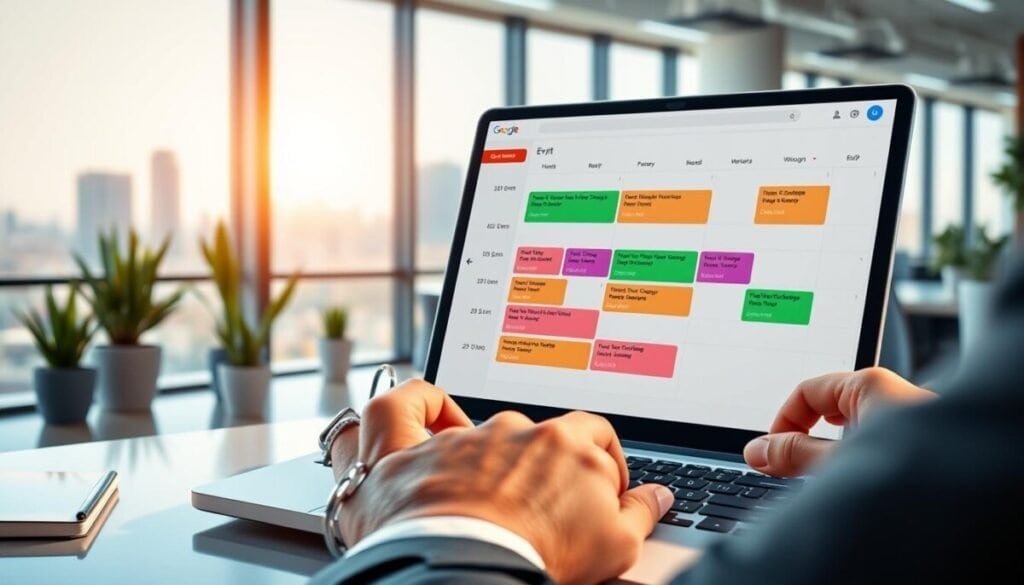
Validate every event record against the source page before publishing updates to external schedules.
Confirm start times and locations for each event. Make sure the time zone is explicit.
When adding new events, set RSVP fields and attach notes. Share notes with participants so context travels with the invite.
Use the event details panel to change location, privacy, and to email attendees directly. This central panel is the control point for edits.
The system auto-merges entries that share an ID. Hide other feeds when responding to avoid duplicate replies.
- Map pages to matching event properties to prevent data drift.
- Track updates centrally to maintain authoritative records.
- Include clear start and end times to reduce scheduling conflicts.
Result: accurate event representation across notion google calendar integrations and reliable RSVP tracking for teams.
Advanced Customization for Power Users
Apply AI-driven summaries to transform raw schedule data into concise operational insights. Deploy language models to extract patterns from event descriptions and date fields. Produce short, actionable summaries for daily planning.
Using AI for Data Summarization
Automate extraction. Use OpenAI or Anthropic models to parse title, location, and attendee lists. Generate one-line summaries for each event. Feed results into a linked database for reporting.
Benefit: rapid visibility into workload distribution and repeat task frequency.
Creating Custom Event Types
Define types. Add Focus time, Out of office, and Birthday categories to the calendar view. Map types to fields on each page. Configure automatic repeats for birthdays based on name matching.
- Use advanced database queries to trigger complex automation and conditional updates.
- Leverage free notion templates to provision structure for pages and events fast.
- Pair AI summaries with custom types to optimize workflow and reduce manual tagging.
Troubleshooting Common Integration Issues

Start diagnostics by validating trigger definitions and permission scopes in the automation app.
Verify trigger configuration. Confirm the trigger targets the correct database and date property. Misconfigured triggers cause most dropped events and errant updates.
Check database permissions. Ensure the app has write and read scopes for the source database. Denied permissions prevent the transfer and block event creation.
Confirm active connections. If an event fails to appear, inspect logs for connection errors and re-authenticate the account if required.
- Map all event fields — title, start time, end time, and description — to avoid mapping errors.
- Limit active feeds to five to prevent performance degradation and indexing delays.
- Subscribe to new feeds directly within the external calendar provider when required; the workspace cannot subscribe on its own.
Maintain the automation workflow. Schedule periodic checks of triggers, retries, and rate limits. Regular testing reduces silent failures and preserves workflow stability.
For deep troubleshooting of transfer issues and cloud errors, follow an advanced diagnostic checklist at the troubleshooting guide.
Optimizing Your Productivity System for the Future
Prioritize high-impact automations that convert task state changes into authoritative schedule entries.
Standardize event rules across the workspace. Define which fields map to title, start, end, and attendees. This reduces duplicates and preserves data integrity.
Integrate the notion google calendar workflow with enterprise tools and templates. Use free notion templates that adapt as APIs evolve. Review automation logs weekly to catch failures early.
Commit to routine audits of calendar sync settings. Connect google calendar only when scopes and rate limits are validated. Maintain a single source of truth for project timelines and time blocking.
Result: a resilient system that scales with new automation capabilities and keeps work aligned to schedule.



