
40% — the typical productivity loss from context switching. 61% — the share of the day many employees spend on nonessential busywork.
Act decisively. Implement a system that reserves uninterrupted work intervals on the calendar. Use the microsoft outlook feature to protect critical tasks and reduce reactive interruptions.
Configure calendar settings to mute notifications across desktop and outlook web. Add protected blocks via viva insights and sync them with microsoft teams for consistent status and availability.
Follow a repeatable scheduling method — set daily windows, mark priority contacts, and confirm blocks so colleagues cannot rebook those events.
Key Takeaways
- Context switching costs 40% of productivity; protect work with scheduled blocks.
- Use microsoft 365 tools — Viva Insights, Outlook, and Teams — to reserve uninterrupted hours.
- Mute nonessential notifications on desktop and outlook web during protected sessions.
- Sync calendar blocks to prevent double-booking and maintain consistent status.
- Learn a step-by-step approach to reserve sessions: see the guide on scheduling focus sessions in Teams.
The Importance of Deep Work in a Distracted World
Create dedicated windows for sustained concentration to minimize cognitive switching. Short spans of attention degrade complex problem solving. Quantify losses; then act.
The Cost of Context Switching
Research shows an employee experiences interruptions every 11 minutes. Interruptions fragment workflows and drain mental resources.
Context switching reduces productivity by 40% during a standard eight-hour day. Restore capacity by reducing reactive tasks.
Benefits of Uninterrupted Work
Long, uninterrupted segments enable cognitive flow. Focused work yields higher accuracy and faster completion of complex tasks.
- Reduce the number of meetings and ad-hoc messages.
- Use tools like dedicated scheduling to protect critical periods.
- Design a structured day so high-impact tasks get priority.
| Metric | Baseline | After Protection |
|---|---|---|
| Average interval between interruptions | 11 minutes | 60+ minutes |
| Productivity loss (context switching) | 40% | 10–15% |
| Meetings per day | 6–8 | 2–4 |
Implement scheduling protocols and adopt specialized software. For operational guidance on reserving office hours, follow the procedural guide to schedule office hours.
Understanding the Outlook Block Focus Time Feature
Reserve recurring intervals on the calendar to protect concentrated work.
The microsoft outlook focus time tool automates calendar management by creating designated focus time events. The system analyzes availability and prevents conflicts with existing meetings or appointments. Another effective method to enhance productivity is to create focus time in Google Calendar, allowing users to block out uninterrupted periods for deep work. This feature seamlessly integrates with other scheduling tools, helping to maintain a structured workflow. Additionally, data from previous focus sessions can be analyzed to optimize future time allocations.
Viva Insights can schedule these sessions up to two weeks in advance. Users may choose one-, two-, or four-hour presets. Custom durations range from 30 minutes to four hours per session.
Mark events as focus time to signal unavailability for nonurgent communication. The feature flags your status and preserves calendar availability for high-value tasks.
- Automatic conflict checks — aligns blocks with existing events.
- Custom durations — 30–240 minutes per session.
- Predictable rhythm — Viva schedules ahead for routine structure.
Adopt this tool for disciplined calendar management. For procedural setup and operational guidance, follow the guide to schedule office hours in Outlook.
Setting Up Your Personal Focus Plan via Viva Insights
Define a repeatable personal plan that turns calendar signals into protected work intervals. Use the Viva Insights app to convert scheduling intent into enforceable events.
Availability: Open the Viva Insights app in Microsoft Teams or on the outlook web interface to access the personal plan tab.
Using the Viva Insights App
Launch the app. Select the personal plan or protect time option. Follow the guided steps to allow permission to update the calendar.
Configuring Daily Preferences
Set the number of hours per day dedicated to focused work. Choose recurring slots to have the calendar automatically added with no conflicting meeting requests.
Adjusting Plan Settings
Toggle notification suppression to mute email alerts and desktop interruptions during designated sessions. Use the insights tab to track productivity metrics and manage tasks.
- Schedule recurring events — enforce availability on the calendar.
- Invite coworkers to shared plans via the app when team alignment is required.
- Modify settings anytime from the Viva Insights tab in microsoft 365.
Creating Ad Hoc Focus Sessions for Unexpected Tasks

Book a rapid, ad hoc session to handle unexpected high-priority tasks with minimal disruption.
When urgent tasks surface, users may schedule an on-demand focus time directly in the microsoft outlook calendar or via the outlook web interface. The tool analyzes calendar availability and suggests optimal slots.
Suggested slots often include 30-minute blocks. Select a suggested slot to secure a short period for deep work. This prevents schedule fragmentation and preserves availability for higher-priority events.
- Use suggested slots to avoid manual conflict checks.
- Choose 30–60 minute sessions for rapid task resolution.
- Mark each ad hoc event clearly to track protected periods.
Result: Rapid scheduling keeps the day predictable. Users complete urgent tasks with minimal context switching. Apply this method when the schedule changes and preserve overall productivity.
Managing Shared Focus Plans for Team Productivity
Deploy synchronized routines that reduce meeting overlap and preserve deep work. Standardize a shared plan so team members know when to avoid interruptions.
Invite coworkers via the Viva Insights tab. Follow the configuration steps to add specific users and set shared preferences.
Inviting Coworkers to Shared Plans
Open the management tab in Viva Insights. Select collaborators. Define the number of hours and choose morning or afternoon slots.
Adjust notification settings so the team stays reachable for urgent tasks while protected periods remain quiet. Use clear labels for shared events to prevent accidental scheduling of meetings during protected intervals.
- Synchronize schedules to increase collective productivity.
- Set preferences for hours and parts of the day to make sure meetings do not overlap with protected blocks.
- Regularly review shared settings to keep adherence and improve management.
Customizing Notification Settings for Maximum Concentration
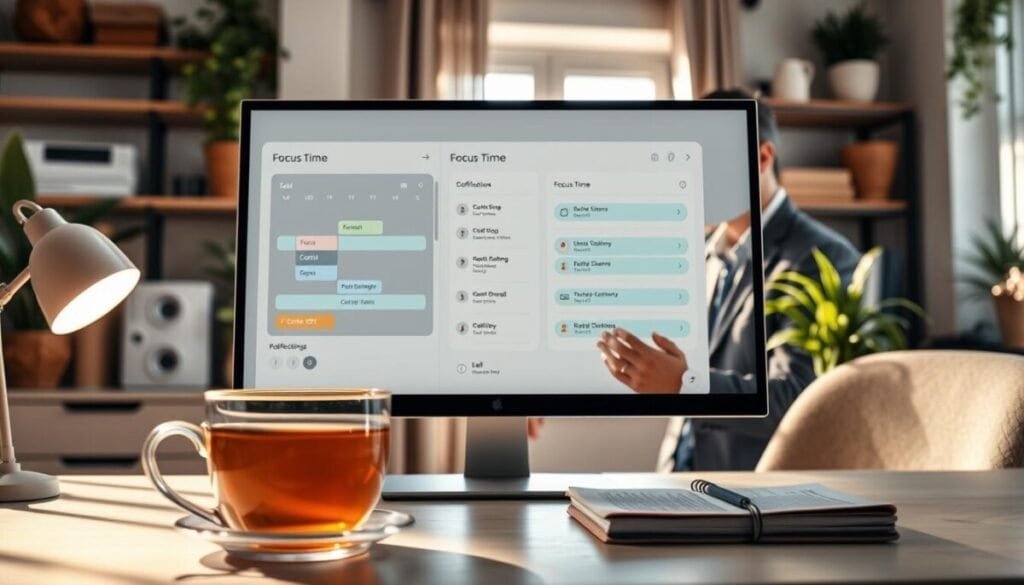
Configure notification rules so only urgent signals penetrate protected sessions. Apply rules that silence nonessential alerts across the desktop and collaboration apps.
Enable system-wide suppression—activate the mode that mutes alerts from both microsoft outlook and Teams. This ensures calendar events marked as protected do not trigger pop-ups or sound cues. Additionally, team members should review how to share outlook calendar privacy settings to maintain confidentiality where needed. It’s important to adjust these settings so that sensitive events remain visible only to authorized users. By managing these features effectively, teams can enhance their overall productivity while respecting individual privacy.
Grant exceptions for priority contacts. Define a short list of colleagues who bypass suppression for critical messages. Keep that list minimal to reduce interruptions.
- Audit notification settings weekly to confirm rules apply to new devices and apps.
- Label protected events clearly so users see availability status at a glance.
- Use targeted rules for desktop and mobile to maintain consistency across platforms.
| Action | Effect | Recommended Frequency |
|---|---|---|
| Enable suppression in calendar settings | Silences nonurgent alerts from mail and collaboration apps | Once; verify monthly |
| Configure priority contacts | Allows critical messages during focused intervals | When role or team changes |
| Review device notification profiles | Prevents duplicate interruptions from mobile and desktop | Weekly |
For procedural guidance on aligning availability across apps, follow the steps to schedule offline status on Teams. Implement these settings to protect deep work and preserve calendar integrity.
Integrating Focus Time with Microsoft Teams Status
Tie protected events to presence so the team can respect uninterrupted work windows.
Enable automatic status updates to reflect scheduled sessions. Microsoft Teams switches presence to Focusing when a protected slot is active. This signals unavailability across chat and meeting invites.
Manage priority access in the desktop or web profile. Permit selected coworkers and stakeholders to bypass suppression for urgent emails or messages. Keep the list minimal—limit interruptions to critical contacts.
Automatic Status Updates
Viva Insights and the calendar sync send status signals to the Teams app. Users see the Focusing status in contact lists and channel mentions. This reduces ad-hoc messages and lowers interruptions.
Setting Priority Access
Adjust settings in Teams → Profile → Settings → Privacy. Add priority contacts. Define allowed channels—chat or email. Verify changes on both desktop and web to ensure consistency.
- Synchronize calendar and Teams to align presence and schedule.
- Use Viva Insights tab to audit status updates and adherence.
- Allow selective overrides so urgent workflows remain supported.
| Feature | Effect | Recommended Action |
|---|---|---|
| Automatic presence update | Shows Focusing in Teams | Enable calendar sync and Viva Insights |
| Priority access list | Allows urgent contact during protected slots | Configure in Teams privacy settings |
| Monitoring and audit | Confirms status matches schedule | Review Viva Insights tab weekly |
Follow the operational steps to set focus windows and priority rules. For a guided setup, see set focus time in Outlook and. to learn how to manage outlook focused inbox effectively, ensure you customize your settings according to your workflow. Additionally, staying on top of your email organization will help minimize distractions and improve productivity. Explore various tips to prioritize your messages and streamline your communication process.
Comparing Built-in Tools with AI-Powered Alternatives
Evaluate built-in calendar controls against AI platforms to determine the best match for organizational cadence.
Native features—such as Viva Insights—offer predictable scheduling and simple calendar management. These tools mark events as protected and sync presence with Teams.
AI-powered platforms analyze entire team schedules. Clockwise and similar services dynamically place focus time and relocate meetings to preserve peak work periods.
Data: 15,000 organizations adopt AI alternatives to maximize scheduling efficiency. AI tools adapt to changing availability and reschedule conflicts automatically.
- Built-in tools—stable; low setup; integrated with microsoft outlook and Teams.
- AI tools—dynamic; team-aware; optimize meeting placement and focus windows.
- Decision criteria—scale, calendar complexity, and desired automation level.
| Aspect | Built-in (Viva Insights) | AI Alternatives (Clockwise) |
|---|---|---|
| Scheduling method | Rule-based presets | Adaptive, analytics-driven |
| Conflict resolution | Manual or simple rules | Automated rescheduling of meetings |
| Best for | Small teams; low complexity | Large teams; dynamic calendars |
| Impact on productivity | Moderate improvement | Higher gains via optimized events |
Maximizing Your Daily Output Through Intentional Scheduling
Design a predictable daily rhythm so high-value tasks receive consistent attention. Reserve the most critical sessions as focus time and mark those events clearly on the calendar.
Use the microsoft outlook calendar to create recurring events. Review notification settings and team availability before each day. Permit a minimal list of priority contacts to avoid needless interruptions.
Choose the right tool for each workflow—native features for simple schedules; AI tools for dynamic, large-team calendars. Apply these management practices consistently.
Result: Fewer reactive meetings, clearer task ownership, and measurable gains in productivity. Every protected slot is an investment in long-term calendar management and better professional outcomes.



