
60% of professionals report spending over an hour daily sorting incoming messages. Establish automated sorting to reclaim time and enforce consistency across accounts. Configure criteria that route mail to folders—no manual sorting required.
Microsoft provides robust tools for systematic management. Establish a concise rule set that matches sender, subject, or keywords. Apply rules consistently to maintain a clean inbox and reduce interruptions.
Configure a single rule template—then replicate it for all folders. Prioritize important senders and whitelist essential domains; see guidance on ensuring Facebook notifications reach the main folder via the linked guide. Whitelist Facebook senders for reliable delivery.
Key Takeaways
- Establish a core rule set to auto-sort high volumes of messages.
- Define criteria by sender, subject, or keyword for precision routing.
- Whitelist trusted domains to prevent false positives.
- Apply rules uniformly—maintain a professional standard.
- Automated sorting reduces manual work and improves focus.
Understanding the Power of Outlook Email Filters
Rules act as programmable gatekeepers. A rule inspects headers, sender identity, subject lines, and body content. When a match occurs, the system executes a predetermined action—move, tag, or delete the message.
Create precise conditions to separate high-priority messages from routine mail. Define sender lists, subject keywords, and logical operators. Chain rules to build layered workflows that process thousands of items consistently.
Consistency is the objective. Each rule runs independently. Combine rules to handle complex streams. The result: reduced manual triage and a structured inbox that surfaces important communications.
Implement rule hierarchies to ensure no vital email is overlooked. Test rules against sample messages. Monitor performance and adjust conditions to maintain accuracy and reliability.
- Deterministic processing—rules apply the same logic to every incoming message.
- Scalable workflows—chain conditions to automate large volumes of emails.
- Precision targeting—use exact matches and exceptions to protect the inbox.
Getting Started with Inbox Rules in Modern Outlook
Begin rule creation by opening the settings menu and selecting the rules tab. Configure clear criteria and a target folder before saving. Every rule requires a name, a condition, and an action to operate predictably.
Creating rules from messages
Right-click any message in the inbox and choose create rule. The dialog pre-fills sender and subject fields. Select the destination folder. Add multiple conditions and actions when patterns vary. Check the box for “Stop processing more rules” to secure execution order.
Editing and deleting rules
Open the manage rules alerts section to view the list. Change the order of rules to control precedence. Edit a rule to update conditions or rename it. Delete obsolete rules to reduce conflicts. Test changes by sending a sample message from the same address.
Configuring Automated Sorting in Classic Outlook
Use the built-in wizard to convert common sorting scenarios into automated rules.
Open File > Manage Rules & Alerts to create new logic. Select a template in the wizard to speed setup. Follow the prompts to define conditions and choose a target folder.
Define a clear name for each rule. Use the subject or sender’s email address as conditions for precise routing. Add multiple actions—for example, move to a folder and mark as read.
Using rule templates
The wizard provides templates for common tasks—move, flag, or categorize messages. Select the check box to run this new rule now on messages already in the current folder. This processes existing items immediately.
- Place rules in the correct order—the list is processed sequentially.
- Test a rule with one sample message before wide deployment.
- Use descriptive names to keep the rules list manageable.
Managing Rules for Web-Based Email Accounts

Access the settings menu and create rule definitions that run on the server for all devices.
Navigate to the mail tab. Choose add new to start a new rule. Give the rule a clear name. Select the sender or keyword criteria that trigger the desired action. Choose the target folder. Save the rule.
Note: The new outlook interface does not support server-side rules for third-party accounts such as Gmail, Yahoo, or iCloud. Configure rules for those accounts at the provider—Gmail settings, Yahoo mail settings, or iCloud preferences.
Manage existing rules from the settings menu list. Edit order, update conditions, or delete obsolete rules. For work or school accounts, expect consistent behavior across devices.
| Account Type | Rule Location | Action Scope | Notes |
|---|---|---|---|
| Web-based Outlook | Settings > Mail tab | Server-side; all devices | Supports create rule and add new rule |
| Gmail / Yahoo / iCloud | Provider settings | Provider-side; varies by account | Configure rules at provider; not in new Outlook |
| Work / School | Settings > Mail tab | Server-side; consistent across clients | Manage list centrally; apply policies |
Advanced Techniques for Customizing Filter Criteria
Define layered criteria to target specific message patterns across senders and subjects.
Add multiple conditions—create rule entries that require two or more matches. Combine sender and subject tests. Add body words for tighter scope. Use logical operators to require all conditions or any condition.
Adding multiple conditions
Open the settings menu and choose to create rule or start a new rule. Add conditions sequentially. Verify each condition with a sample message.
Setting rule exceptions
Specify exceptions to protect critical messages. Add an exception that uses an email address or domain. Use exceptions to prevent broad actions from moving or deleting important items.
Applying rules to existing messages
When saving a new rule, select the option to run the rule now on messages in the current folder. This applies actions retroactively to existing inbox items.
Stop processing more rules—enable the check box to halt downstream rules for matched messages. Use this to control order and prevent conflicting actions.
| Technique | When to use | Result |
|---|---|---|
| Multiple conditions | High false positives | Higher precision; fewer incorrect matches |
| Exceptions | Protect VIP senders | Prevents unwanted moves or deletions |
| Run on existing messages | Cleanup after rule changes | Applies actions retroactively to folders |
Provide a clear name for each rule. List the primary action and any secondary actions in the name. This creates a manageable rules list in the settings tab.
For complex criteria, review Microsoft guidance on advanced criteria to refine conditions and ensure deterministic behavior.
Handling Blocked and Safe Senders
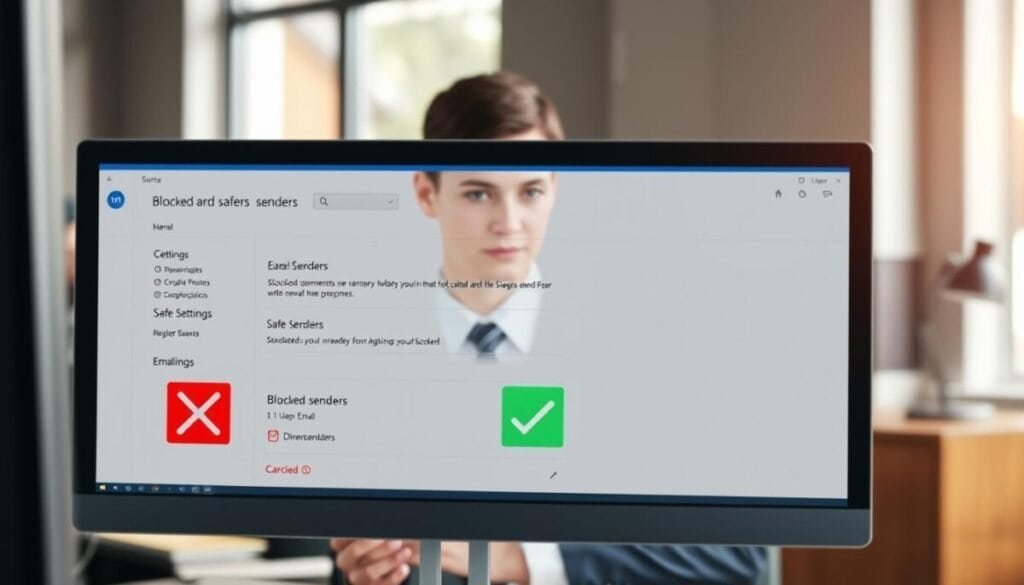
Establish sender lists that act as a primary gate—blocking unwanted addresses and preserving trusted senders.
Add a sender to the blocked list from the contextual menu on any message. Right-click the message; select the block option. This places the address on the blocked list and reduces nuisance messages.
Mark a sender as safe to guarantee delivery to the inbox. Safe senders bypass aggressive rules and prevent legitimate emails from routing to Junk. Periodically review both lists to correct mistakes and restore legitimate addresses removed by an overbroad rule.
- Maintenance—inspect the list monthly for false positives.
- Scope—use the settings tab to add or remove entries manually.
- Complement—combine sender lists with rule conditions for layered control.
| List | Typical Action | Location |
|---|---|---|
| Blocked senders | Move to Junk; suppress messages | Settings > Junk > tab |
| Safe senders | Always deliver to inbox | Settings > Safe senders list |
| Review cadence | Monthly audit | Settings > menu > list |
Implement sender-based controls as the first line of defense. This reduces spam volume and improves the accuracy of subsequent rules.
Troubleshooting Common Rule Conflicts
Verify local-run rules first — they often cause inconsistent behavior across devices.
Confirm whether the classic outlook client is the origin of a failing rule. Client-side rules run only when the host computer is active. If the machine is offline, the rule will not execute and messages will not route as expected.
Identifying client-side rule limitations
Prioritize server-side rules for consistent processing across platforms. IT administrators recommend server rules to maintain uniform sorting when users access the inbox from multiple devices.
- Open the manage rules alerts section to view conflicts and broken entries.
- Delete and recreate rules that rely on local resources — the system may flag them as broken.
- Review the settings tab to adjust order; precedence prevents unexpected actions.
- Limit total rules to reduce interaction complexity and failure points.
| Symptom | Likely Cause | Action |
|---|---|---|
| Rule not firing on mobile | Client-side only | Create server-side rule; test on web client |
| Conflicting moves | Order precedence | Reorder rules in settings tab; enable “stop processing” |
| Rule marked broken | Local resource dependency | Delete; recreate as server-compatible rule |
| Lost messages | Multiple overlapping actions | Streamline conditions; reduce rule count |
Check the rule list regularly. This ensures all incoming messages are processed correctly. Maintain minimal, well-named rules to preserve system reliability.
For a related issue with social notifications, consult the guide on Facebook unsubscribe problems.
Maintaining an Organized Inbox for Long-Term Efficiency
Treat the rule set as documentation—record the name, criteria, and order for each entry.
Open settings menu and run a monthly audit. Use create rule when a new sender pattern appears. Use add new rule to capture novel incoming messages.
Keep entries concise. Use clear name fields and note the target folders. Test one example message after any change.
For classic outlook accounts, maintain the list via the manage rules alerts view. Remove obsolete entries. Reorder rules and enable the check box that stops processing when required.
Document actions and the account address mapping. This preserves long-term efficiency and reduces misrouted messages.



