
Question: Can a structured calendar strategy end constant interruptions and restore deep work for knowledge teams?
Implement a systematic method to reclaim daily hours and protect priority work. Define clear blocks in the calendar—then enforce them with platform settings. Use Microsoft 365 tools to automate status updates and mute notifications.
Start with intent—choose blocks that align with peak productivity. Configure the focus plan in viva insights and mirror availability in microsoft teams so status and meeting behavior match.
Benefits: reduced distractions; consistent high-priority task completion; improved productivity metrics. Over 15,000 organizations use AI-driven tools to prevent burnout and optimize work patterns.
Follow technical setup steps to set focus time and create focus time events. For scheduling office hours and syncing availability across apps, consult the practical guide on scheduling office hours in Teams.
Key Takeaways
- Implement calendar blocks to protect deep work and reduce interruptions.
- Use viva insights to automate status and mute notifications during blocks.
- Mirror availability across Outlook and microsoft teams for consistent presence.
- Configure the focus time feature in microsoft 365 to align events and tasks.
- Monitor utilization and adjust blocks to maintain productivity and prevent burnout.
The Importance of Protecting Your Deep Work
Reserve uninterrupted spans within the calendar to shield complex tasks from constant disruption. Establish clear boundaries that reduce context switching and preserve cognitive capacity.
The Cost of Context Switching
Data-driven risks: studies show context switching cuts individual productivity by 40%. The average employee faces an interruption every 11 minutes. These patterns fragment the work day and erode task momentum.
- The typical professional needs 19.6 hours/week of focus time but often secures only 10.6 hours.
- Managing calendar events costs about 4.2 hours/week — administrative overhead that reduces productive hours.
- Approximately 4.7 meetings/week are rescheduled — further destabilizing schedules for people and teams.
Benefits of Uninterrupted Time
Protecting deep work delivers measurable gains. Use viva insights to defend critical blocks and mute notifications via integrated tools.
| Metric | Before Protected Blocks | After Protected Blocks |
|---|---|---|
| Average weekly focused work | 10.6 hours | 19.6 hours |
| Productivity loss from switching | 40% | Reduced by policy and process |
| Hours lost to calendar management | 4.2 hours/week | Less than 1.0 hour/week |
Directive: Block the calendar, apply viva insights settings, and enforce status in teams to protect tasks and restore sustained productivity.
Understanding the Outlook Recurring Focus Time Feature
Set system-managed blocks that secure your day for high-value, uninterrupted tasks. The built-in time feature in Microsoft 365 reserves calendar slots to protect focused work.
Operational rules: Viva Insights schedules events on a rolling two-week basis. The system analyzes availability and inserts protected hours automatically.
The platform defaults to protecting noon–1 p.m. to preserve lunch. Users may customize the focus plan within the viva insights app to match energy peaks and daily needs.
- Automatic reservation of blocks prevents double-booking during designated work periods.
- Two-week advance scheduling provides predictable structure for upcoming days and commitments.
- Customizable parameters let the system align events with preferred work hours and availability.
| Behavior | Default | Customizable |
|---|---|---|
| Advance scheduling | 2 weeks rolling | Yes — adjust window |
| Protected lunch | Noon–1 p.m. | Can be changed |
| Calendar sync | Blocks appear on outlook calendar | Integrates with teams status |
Action: Review and customize the focus plan. To extend protection into collaboration tools, schedule focus blocks in Teams.
Setting Up Your Focus Plan via Viva Insights
Use Viva Insights to declare protected hours that align with daily energy peaks and task priorities. Configure the plan inside Microsoft 365 to block predictable segments and avoid meeting conflicts.
Using the Viva Insights app
Open the Viva Insights app and navigate to the Protect Time tab. Select preferred hours and availability windows. Create focus time events that set your status in teams and mark calendar slots as busy.
Creating shared focus plans
Create a shared plan to synchronize blocks across coworkers. Shared plans reduce overlap for high-priority tasks and keep meetings from eroding deep work hours.
- Set duration and cadence for each block.
- Enable automatic status updates in teams.
- Allow priority messages while muting other notifications.
| Action | Effect | Settings |
|---|---|---|
| Set focus time events | Blocks calendar and updates status | Protect Time tab — duration, days |
| Create shared plan | Team alignment on availability | Share with group — sync to calendar |
| Adjust preferences | Change block length or leave plan | Tab controls — notifications, exceptions |
Configuring Manual Focus Blocks in Your Calendar
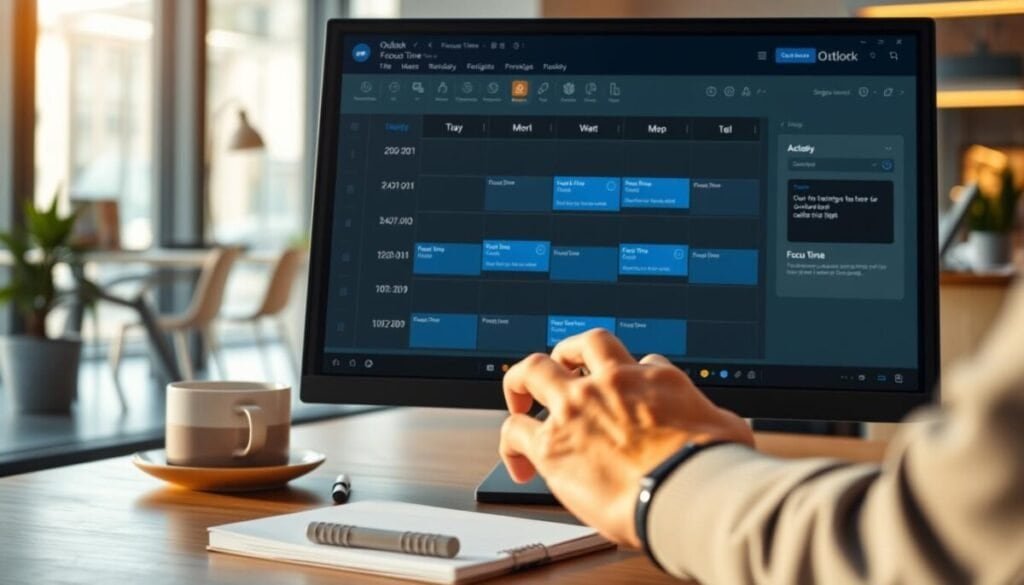
Directly schedule busy blocks in the calendar to secure large tasks against interruptions. Create an event and label it as a focus block. Set its status to Busy so coworkers cannot double-book meetings.
Assign a category color to make blocks visible at a glance. Use Do Not Disturb status when deep work must be protected. Manually created events can adapt to urgent tasks during the day.
Keep the Viva Insights tab active to track progress even when entries are manual. Ensure the focus time feature settings align with manual entries to avoid conflicts with automated scheduling.
- Create recurring blocks for consistent protection—use weekly cadence if appropriate.
- Mark essential contacts as priority so critical messages still get through.
- Review availability before finalizing events to prevent clashes with teams or meetings.
For a practical scheduling reference, consult the guide to schedule office hours in Outlook.
Managing Notifications and Teams Status
Configure notification rules and status policies to preserve uninterrupted blocks for critical work. Set clear rules that mute non-essential alerts and reflect availability across apps.
Setting Priority Access for Important Contacts
Open the settings pane in Teams and the productivity app. Create a priority access list that allows select people to bypass silence.
Enforce a disciplined mode. During protected hours the system updates status to “focusing” and mutes routine notifications. Calendar events remain marked busy and communicate availability to coworkers.
- Allow only essential messages from priority people.
- Use viva insights to automate status updates and notification rules.
- Document the focus plan so coworkers understand exceptions and expected response windows.
| Setting | Effect | Bypass |
|---|---|---|
| Priority access list | Selective alerts allowed | Team leads, direct reports |
| Status—focusing | Suppresses non-essential notifications | Configured people |
| Calendar busy events | Protects scheduled work blocks | Invitation owners |
| Viva insights rules | Automates hours and alerts | Admin-defined exceptions |
Troubleshooting Common Setup Issues

Diagnose common setup failures that block protected work periods and restore correct scheduling quickly.
Check add-in availability. If the Viva Insights add-in is missing, make sure the IT administrator enabled the feature for the mailbox. Confirm license entitlements for full Viva Insights access.
Verify account sign-in. If the “book focus” button is greyed out, sign in with a valid work or school account. Reauthenticate and retry the action.
- If the focus plan adds unwanted blocks — open the settings tab and adjust preferences or leave the plan.
- If Teams does not show the focusing status — confirm the event was created with the official focus time feature in the outlook calendar.
- For calendar conflicts — search for protected events and manually align them with actual availability.
- If issues persist — contact IT to verify Microsoft 365 license and Viva Insights provisioning.
Ensure synchronization. Proper configuration of the focus time settings is essential to keep calendar and teams status synchronized. Follow these steps to remove distractions and restore productive work blocks within the day.
Leveraging AI for Advanced Schedule Optimization
Apply algorithmic scheduling to increase available slots and preserve high-value work periods.
AI platforms deliver measurable gains. Reclaim.ai expands open slots by 524% versus manual methods. Use AI to optimize calendar density and protect designated focus time without manual adjustments.
Adaptation and resilience matter. AI-driven tools will reschedule a protected block when conflicts appear. This prevents loss of deep work and preserves productivity across the day.
- Analyze work patterns to suggest an ideal focus plan.
- Auto-adjust blocks when meetings shift—reduce manual edits.
- Coordinate teams availability so collaborative windows stay intact.
| Capability | Benefit | Example |
|---|---|---|
| Dynamic scheduling | More uninterrupted work | Reclaim.ai — 524% more open slots |
| Conflict resolution | Preserve protected blocks | Auto-reschedule focus time |
| Team coordination | Balanced meetings and deep work | Sync availability across teams |
Plan migration from sunset services. Clockwise will end service on March 27, 2026—migrate data to robust AI tools to maintain scheduling continuity and defend the focus time feature in daily workflows.
Mastering Your Daily Workflow for Better Productivity
Declare protected work segments each morning to preserve high-value output and limit calendar drift.
Use viva insights to manage the outlook calendar and lock essential blocks. Review settings weekly and adjust the focus plan to match team demands.
Signal clear status to coworkers and teams—this reduces needless meetings and shields critical tasks. Combine these practices with productivity apps; see the guide to master Outlook productivity and explore recommended productivity apps.
Maintain the ritual. Enforce blocks. Measure hours and outcomes—then iterate.



![GetResponse Autofunnel [Funnel Feature Explained]](https://onlinetoolguides.com/wp-content/uploads/2021/10/GetResponse-Auto-Funnel.jpg)