
Can a virtual folder system cut inbox chaos in half and speed retrieval to seconds?
Implement a systematic method for handling high volumes of mail. Establish automated search folder structures to route critical messages. Reduce manual sorting and regain control of daily workflows.
Configure a search folder to surface priority mail—rules drive results. Match criteria to sender, subject, or keywords. Save time by maintaining a minimal main inbox while ensuring key items remain accessible.
Adopt a folder outlook strategy that emphasizes precision—index rules, test queries, and iterate. Log metrics—retrieval time, hit rate, and maintenance effort—to validate effectiveness.
Outcome: A reproducible system that makes important messages discoverable instantly and removes friction from daily operations.
Key Takeaways
- Deploy virtual search folders to reduce manual sorting and speed retrieval.
- Define clear criteria—sender, subject, keywords—for each search folder.
- Measure retrieval time and adjust rules for precision and low latency.
- Keep the main inbox lean; rely on automated folders for critical mail.
- Iterate rules regularly to maintain relevance and minimize noise.
Understanding the Benefits of Outlook Search Folders
Leverage predefined virtual views to surface high‑priority and oversized email without moving messages.
Use the large mail folder to flag items that exceed 100 KB. This predefined container isolates heavy messages for storage management. The rule runs continuously—no manual relocation required.
Default virtual lists appear on the left side of the mail navigation pane. Access to unread mail and categorized items is immediate. This reduces time spent navigating a crowded inbox.
Maintain original message locations. A search folder acts as a virtual container that aggregates messages by criteria. This preserves folder integrity while enabling fast review.
- The large mail folder identifies messages over 100 KB—prioritize attachments and archives.
- Left side placement ensures instant entry to a folder list of high‑priority items.
- Folder search folder functionality delivers rapid identification of categorized mail.
Monitor important items without disruption. Track messages in one view while leaving storage structure intact. For related troubleshooting and advanced tips, consult troubleshooting G Suite email problems.
How to Create Predefined Outlook Search Folders
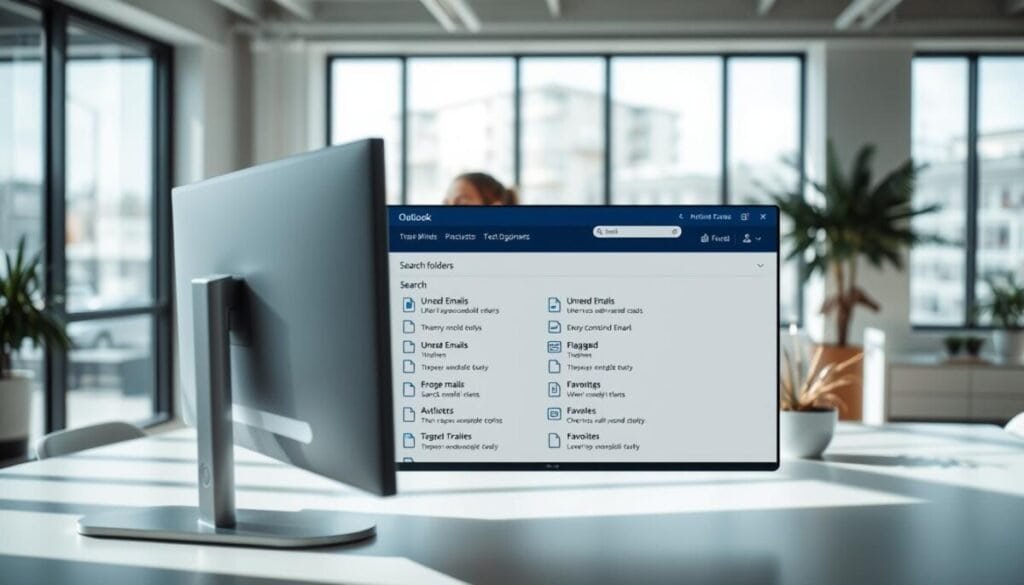
Create predefined virtual containers to surface critical mail without moving messages.
Classic setup—open the Folder tab. Select the New Search Folder option to display a list of predefined search folders. Choose templates such as unread mail or mail flagged for follow-up. These templates require no extra criteria and appear immediately in the navigation list.
To create a new search folder for specific words, select the predefined search that prompts user input. Type the target terms into the designated window. Confirm the name and click to create.
Use the Ctrl+Shift+P keyboard shortcut to open the creation window quickly. When multiple accounts exist, select the specific account scope so the new search targets the intended mailbox.
New Outlook and Web Setup
In the new interface, choose Create new then pick a predefined search. Use the options pane to adjust criteria and save the list. Result: consistent, fast access to prioritized items across mail streams.
Designing a Customized Search Folder for Specific Needs
Define precise filter rules to surface the exact messages that matter.
Choose the Create a Custom Search Folder option. Assign a unique name to the new search folder so it appears clearly in the navigation list.
Click the Criteria button to set sender, subject, or specific words. Use advanced tabs to include date ranges, unread mail, or mail flagged for follow-up.
Select the folders to include in the scope. Limit the scope to relevant mail folders—this improves accuracy and reduces noise.
- Use Ctrl+Shift+P on the keyboard to open the configuration window directly.
- Type precise terms and test the query before saving the list.
- Save the custom search with a descriptive name for rapid identification.
Result: A tailored virtual view that aggregates only relevant items and speeds retrieval.
Managing and Deleting Your Search Folders

Remove unused virtual views to reduce navigation clutter and improve retrieval performance. Maintain a concise list so the system returns results faster and remains auditable.
Removing Unwanted Folders
To remove a virtual container: right‑click the target in the folder list. Select the Delete Folder option. The action removes the virtual container only. It does not remove the original items from their storage locations.
Handling Messages Within Folders
Exercise caution when selecting messages inside a search folder. If a message is selected and the user issues a delete command, the message is permanently removed from its original mail folder.
Understanding Virtual Folder Behavior
Recognize the difference—deleting the virtual view is safe. Deleting a message in the view is permanent. Audit criteria and test before bulk actions.
| Action | Effect on Virtual View | Effect on Original Messages |
|---|---|---|
| Delete folder from list | Removes virtual container | No change to stored messages |
| Select message → Delete | Removes item from view | Permanently deletes item from original folder |
| Modify criteria | Updates item set instantly | No deletion; only filtering |
For procedural guidance and troubleshooting, consult the official guide to use search folders.
Streamlining Your Email Workflow for Better Productivity
Standardize naming and criteria so essential items are discoverable in seconds. Assign a clear name to each folder and set precise filters. Limit criteria to two or three attributes to keep retrieval fast and accurate.
Use a mix of predefined search and custom search rules. Create new search folder items for recurring workflows. Test queries with specific words and refine the list. Use create new and create new search patterns for mail specific needs — include custom search criteria where required.
Review the options in the search folders window regularly. Track hit rates and adjust names and rules quarterly. Result: less time triaging messages, more time acting on priority email — measurable productivity gains in any outlook environment.