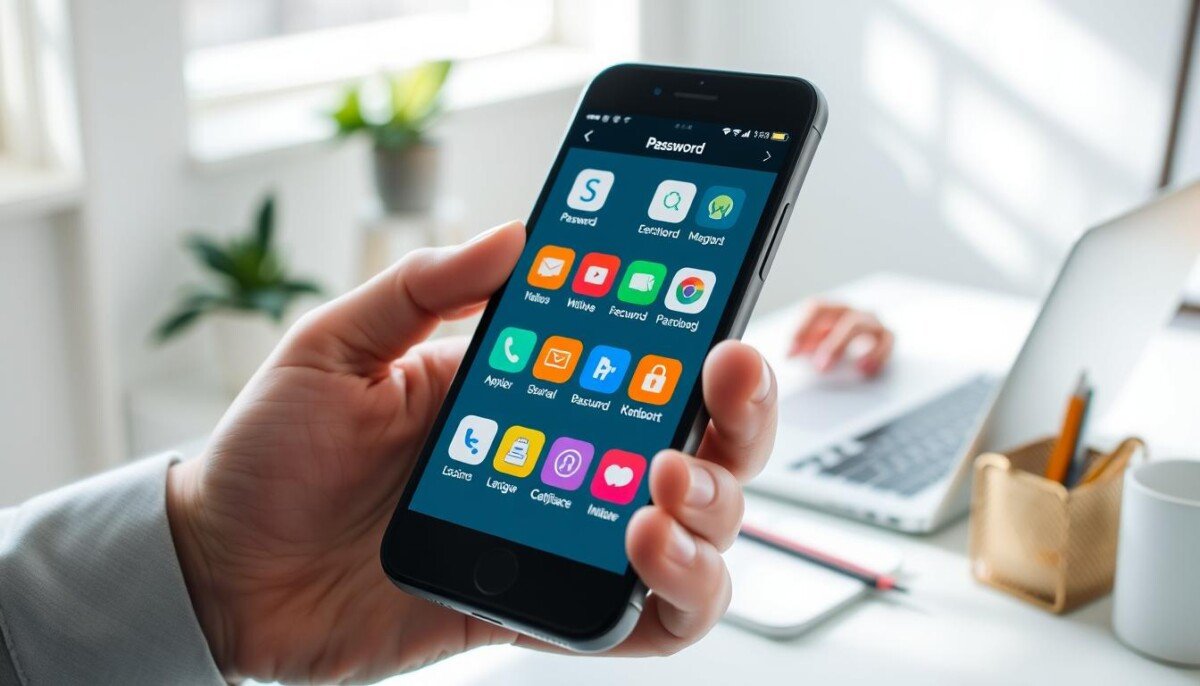
Can a single app replace the office monitor and let users run Windows apps from their phone?
Install the official Microsoft Remote Desktop client from Google Play to get started. The app enables secure access to a work computer and published apps. It supports Windows sessions and lets the user manage multiple connections from a single device.
Require the IP address or computer name to establish the connection. Configure account credentials and the remote address before the first session. Ensure the phone matches the monitor resolution and screen settings for a productive experience.
The client supports various devices — including those running Windows — and consolidates resources, apps, and connections into one interface. Follow the setup steps to access office PCs, monitor session status, and use professional resources on the go.
Key Takeaways
- Download the Microsoft Remote Desktop app from Google Play to begin.
- Collect the IP address or computer name and user credentials first.
- Adjust phone monitor and screen resolution for reliable sessions.
- Manage multiple connections and published apps from one interface.
- Use the app to access Windows resources and maintain productive workflows.
Understanding Remote Desktop Mobile Capabilities
Advanced client software mirrors an office PC environment onto a handheld device for productive work. The system replicates windowed applications, file access, and peripheral use — preserving workflow continuity.
Key capabilities include high-fidelity audio and video streaming. Protocol optimization reduces latency and maintains frame rates for graphically intensive apps. Redirect features forward local storage, microphones, and cameras into the session.
Security and reliability are mandatory. Encryption protects data in transit. Authentication layers enforce session access. Bandwidth adaptation preserves interactivity when network conditions change.
- Session mirroring — full workstation feature parity.
- Media streaming — synchronized audio/video with low latency.
- Peripheral redirection — local devices mapped to the session.
| Capability | Primary Benefit | Minimum Requirement |
|---|---|---|
| Graphical rendering | Smooth UI for CAD and editors | GPU acceleration on host |
| Audio/video streaming | Consistent media playback | Adaptive codec and sufficient bandwidth |
| Peripheral redirection | Use of local camera and mic | Client supports device passthrough |
| Encryption | Data confidentiality | TLS or VPN enabled |
Preparing Your Work Computer for Remote Access
Confirm that the host PC allows incoming connections and that firewall rules permit the service port. Perform these steps before initiating any session from an endpoint. Validate host reachability on the local network. Document the target IP or hostname and test basic ping and port response.
Network Requirements
Open the standard service port—typically 3389—on the edge firewall and host firewall. Map NAT or port forwarding for external access when required.
Ensure stable upstream bandwidth on the office connection. Schedule maintenance windows for any router or switch updates. If on a corporate LAN, coordinate changes with the administrator.
Security Settings
Enable strong authentication in the Windows host settings. Require network-level authentication to reduce attack surface.
- Enforce complex passwords and account lockout policies.
- Keep the OS and remote access client updated to patch vulnerabilities.
- Audit active connections and review logs regularly.
| Item | Action | Impact |
|---|---|---|
| Firewall port | Allow TCP 3389; configure NAT if needed | Enables inbound connection establishment |
| Windows settings | Permit remote desktop connections; enable NLA | Secures authentication; allows access control |
| Authentication | Apply strong credentials and MFA where possible | Reduces unauthorized control attempts |
| Network monitoring | Regularly verify routing and bandwidth | Prevents unexpected connection failures |
Choosing the Right Remote Desktop Mobile Software
Prioritize compatibility with the host windows build and the client app. Run a quick compatibility test before deployment.
Evaluate security capabilities — encryption, network-level authentication, and multi-factor support. Verify file redirection, multi-monitor handling, and clipboard sync.
Compare performance metrics: average latency, frame-rate stability, and session reconnection behavior. Prefer solutions with vendor updates and enterprise-grade support.
- Functionality — required features: file redirect, printer mapping, multi-monitor.
- Security — TLS, NLA, MFA, and audit logging.
- Support — documentation, update cadence, vendor reputation.
| Criterion | Why it matters | Minimum requirement |
|---|---|---|
| Compatibility | Ensures stable sessions with work computer | Supports current Windows build and client app |
| Security | Protects credentials and data in transit | TLS + NLA and multi-factor capability |
| Performance | Reduces latency; improves responsiveness | Low-latency codec and adaptive bandwidth |
| Support | Enables fast issue resolution | Comprehensive docs and timely patches |
Decision rule: Select the solution that balances ease of use with enterprise security and proven performance for uninterrupted remote access to the work computer.
Installing the Remote Desktop Client on Your Device
Open Google Play, locate the Microsoft Remote Desktop app, and begin installation after confirming compatibility.
Platform Compatibility
Confirm operating system version on the android device before downloading. Install only if the device meets the required version to support the latest features.
Download and launch the client from Google Play. Launch the app immediately after installation to start configuration.
Add resources and desktop connections within the app. Configure account credentials and saved profiles to streamline future sessions.
Verify hardware requirements for optimal performance. Check CPU, memory, and network recommendations for supported devices.
- Keep the app up to date via Google Play for security patches and performance fixes.
- Consult platform compatibility documentation for edge cases and enterprise images.
- Customize settings to match workflow—display, sound, and resource redirection.
| Item | Requirement | Purpose |
|---|---|---|
| OS version | Supported build or later | Enable full feature set |
| Hardware | 2GB RAM minimum | Maintain session responsiveness |
| App version | Latest release | Receive security and bug fixes |
Result: The client provides controlled access to work resources and desktop sessions. Proceed to configure a connection profile in the next section.
Configuring Your First Remote Desktop Mobile Connection
Begin configuration by entering the host address into the PC name field. Use a Windows computer name, fully qualified domain name, or an IP address. Append :3389 if a specific port is required.
Adding a New PC
Open the connection center. Tap the plus icon to add a new PC.
Enter the address of the computer. Include port 3389 when the network uses a custom mapping.
Add multiple PCs to switch between work resources quickly.
Entering Credentials
Provide the correct user account credentials to establish a secure connection from the phone. Save credentials only when policy and security permit.
Use strong passwords and enable multi-factor support where available to protect the session.
Saving Connection Profiles
Save connection profiles to avoid re-entering information each time. Profiles store address, account, and display settings for each connection.
Configure the connection bar controls — keyboard, mouse mode, and touch gestures — to match input preferences. Adjust monitor and screen settings so the window displays correctly on the android device.
- Toggle input mode between touch and mouse pointer for precise control.
- Use pan control to navigate large windows when touch mode is active.
- Securely save account information to streamline future connections.
Managing User Accounts and Security Credentials
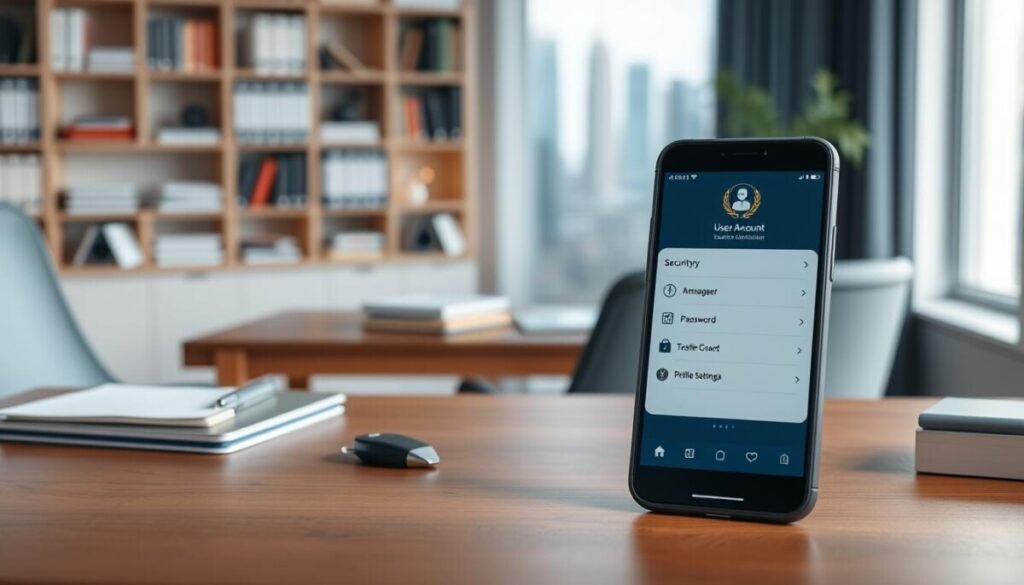
Centralize authentication and account hygiene to secure access to corporate systems.
Save multiple user accounts only when policy permits. Store profiles to speed login. Encrypt saved credentials and restrict export functions.
Require strong, unique passwords for each user account. Enforce password rotation and multi-factor authentication where available.
- Regularly audit saved accounts — remove unused entries to reduce attack surface.
- Verify credentials on failure — check username, expiration, and policy locks.
- Protect privacy settings — disable telemetry and sharing of account metadata.
If suspicious activity occurs, revoke sessions and reauthenticate affected accounts. Use tools to log out other devices via the account console or follow the vendor guide for session termination: log out other devices.
| Action | Benefit | Recommended Setting |
|---|---|---|
| Save account profiles | Simplified sign-on | Encrypted storage; MFA |
| Audit accounts | Reduced exposure | Quarterly review; revoke stale |
| Privacy controls | Data protection | Disable sharing; limit logs |
Proper credential management protects the computer and sensitive data. Maintain strict controls to preserve user privacy and secure access to the remote desktop environment.
Utilizing Remote Resources and Virtual Desktops
Use the administrator-provided feed URL to surface published apps and virtual desktops in the client.
Accessing Published Apps
Enter the feed URL into the resource configuration panel. The client will authenticate and list available resources.
Published apps appear in the connection center as individual entries. Launch an app directly without initiating a full desktop session.
Virtual desktops provide a consistent Windows environment. Switch between multiple apps inside a single session to streamline tasks.
- Efficiency — access specific apps without loading the entire desktop.
- Consistency — virtual desktops mirror the office computer environment.
- Stability — ensure a reliable network to avoid session interruptions.
| Resource Type | Primary Use | Connection Behavior |
|---|---|---|
| Published App | Single application access | Launched individually; minimal resource overhead |
| Virtual Desktop | Full Windows workspace | Persistent session; multi-app switching |
| Full Desktop Session | Direct control of office computer | Highest fidelity; uses host resources |
Mastering Touch Gestures and Input Modes
Optimize input modes to match task requirements—fast gestures for navigation, pointer mode for precision.
Direct Touch Mode
Enable direct touch to make the screen act as a touch-sensitive interface for the work computer.
Tap to select. Hold to open context menus. Drag to move windows and objects.
Use two-finger pinch to zoom the screen and adjust the monitor view.
Mouse Pointer Mode
Switch to mouse pointer mode for tasks that need fine control of a cursor inside a window.
Move the virtual mouse for pixel-accurate clicks. Use the connection bar to toggle pointer and keyboard.
Practice tapping, holding, and dragging to replicate standard mouse actions during each session.
Best practices
- Switch input mode from the connection bar based on task precision.
- Toggle the virtual keyboard when text entry is required.
- Check app input settings if gestures do not map correctly to the remote device.
| Mode | Primary Use | Precision |
|---|---|---|
| Direct Touch | Quick navigation and gestures | Low — intuitive taps and swipes |
| Mouse Pointer | Editing, selection, fine control | High — precise cursor placement |
| Hybrid | Mixed tasks; text and graphics | Medium — switch as needed |
Master gestures to navigate the remote desktop session as efficiently as at the physical computer. Consult the touch control guide for advanced tips.
Optimizing Display Settings for Mobile Screens
Match resolution and scaling to the actual screen to avoid blurry text and mis-sized windows.
Adjust resolution in the client to match the device and the external monitor. Select native resolution when available. Reduce resolution only to improve frame-rate under constrained bandwidth.
Use the connection bar to control orientation, scaling, and display mode. Switch between full-screen and scaled modes to test layout and input mapping. Toggle touch input and pointer mode to verify precise control of UI elements.
Configure per-connection settings for different workstations. Save profiles for each computer and monitor combination. Reapply profiles when switching devices to maintain consistent session behavior.
- Set scaling to 100% for legible text on small screens.
- Enable full-screen for external monitors to use the entire display area.
- Test window sizing after each change to prevent clipped UI elements.
| Setting | Effect | Recommended value |
|---|---|---|
| Resolution | Clarity and CPU/GPU load | Native or 1920×1080 |
| Scaling | Text size and layout | 100%–125% based on screen DPI |
| Input mode | Touch vs pointer precision | Touch for gestures; pointer for editing |
Validate display after configuration. Repeat checks when switching connection types or monitors. Optimized displays preserve productivity during every session.
Troubleshooting Common Connection Issues
Start troubleshooting by confirming the device has a stable internet link and the work computer is powered and reachable. Validate basic network health before adjusting client settings.
Resolve authentication failures. Error 0xf07 indicates the account password has expired. Update the account password on the host computer and re-enter credentials in the app.
Quick diagnostic checklist
- Verify the network and that the computer is online.
- Confirm address and port information in the connection settings.
- Restart the app or the device to clear temporary software glitches.
- Check logs in the client for precise error codes and timing.
Some software requires specific ports. For example, Chrome Remote Desktop needs TCP 443 and UDP 3478 open through firewalls and NAT gateways.
| Error | Likely cause | Action |
|---|---|---|
| 0xf07 | Password expired | Reset password; update saved account info |
| Connection timeout | Network or host offline | Verify network, ping host, check firewall |
| Authentication failed | Wrong credentials or policy lock | Re-enter account; verify account status |
If problems persist, remove and re-add the profile in the app. Consult the connectivity guide for advanced remediation steps.
Enhancing Your Workflow with Advanced Features
Tune input profiles to improve control—adjust mouse acceleration, keyboard layout, and touch sensitivity for specific tasks.
Enable folder redirection and clipboard sharing to move files and text between the work computer and the device without interrupting the session.
Activate multi-monitor support to expand the screen area. Use the connection bar to switch display mode and keep toolbars accessible.
Apply advanced security settings—multi-factor authentication and encrypted credential storage—to protect data and preserve user privacy.
- Keep software at the latest version for performance and stability.
- Customize per-session settings to match windows and app behavior.
- Use touch gestures and pointer mode interchangeably to optimize input.
| Feature | Benefit | When to enable |
|---|---|---|
| Folder redirection | Fast file transfer | Frequent file edits |
| Multi-factor auth | Improved privacy | Sensitive data access |
| Connection bar tools | Quick controls | Active sessions |
Review vendor docs regularly. Consult a curated list of productivity enhancement apps to get started and to discover new efficiencies.
Finalizing Your Secure Remote Access Setup
Finalize configuration by verifying each connection entry uses the correct address and secure account credentials. Confirm credential encryption and MFA where available.
Organize the home list with pinned connections to speed access to primary resources and pcs. Test a full session: connect remote, authenticate, and interact with the screen and keyboard bar to validate touch and gestures.
Run one last audit of account settings and update the app and device to the latest build. Monitor connection logs for unusual activity and keep support information handy.
Result: A verified, secure setup that enables reliable access to the work computer and sustained productivity from any location.