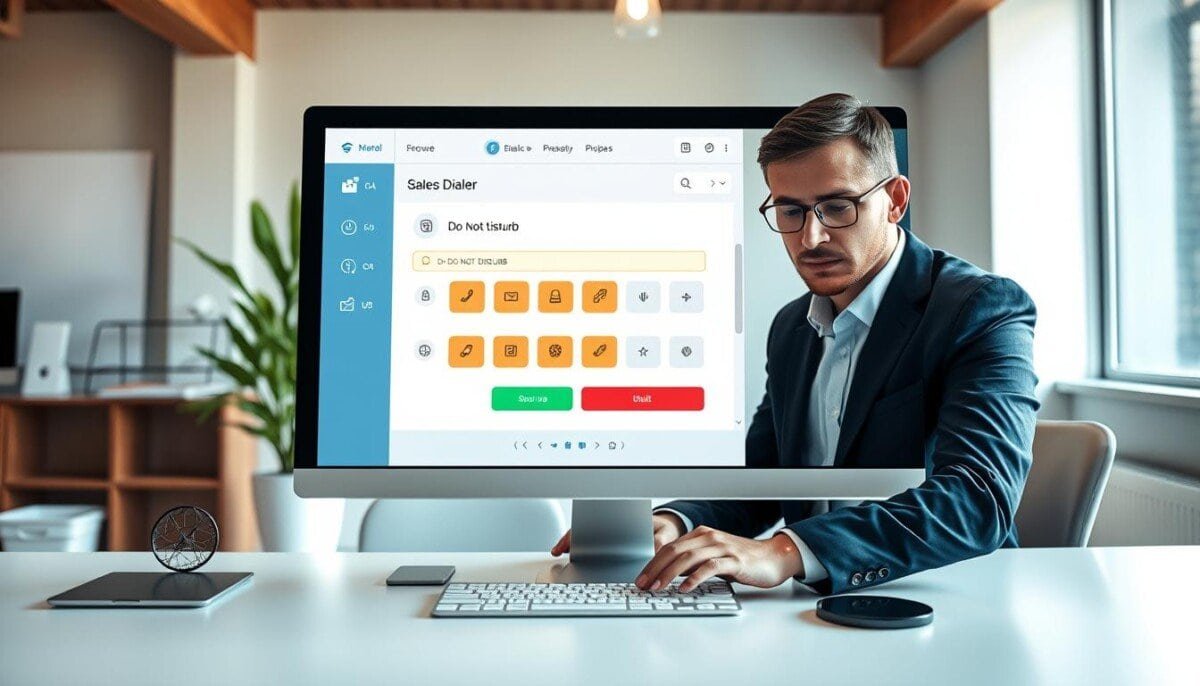
65% of modern outreach failures trace to interruption and misconfigured dialing workflows. RingCentral RingCX offers four dialing modes—preview, predictive, progressive, and voice broadcast—to scale outreach and reduce friction.
Implement a clear sales dialer do not disturb protocol to protect focus during critical outreach windows. Configure modes to match task intent—preview for curated calls; predictive for volume; progressive for steady pacing.
Protect phone numbers from carrier filters by applying caller ID reputation controls. Integrate CRM tools and automation to keep leads flowing while limiting manual interruptions. Use workflows to route important calls and preserve reps’ attention for high-value conversations.
For step-by-step focus scheduling and calendar controls that complement these settings, review the guide on scheduling focus time in Teams.
Key Takeaways
- Configure dialing modes to match outreach goals—preview, predictive, progressive, voice broadcast.
- Apply a do not disturb protocol to reduce interruptions and protect calling performance.
- Integrate CRM and automation to preserve lead flow without manual overload.
- Protect caller ID to avoid carrier filtering and lost connections.
- Use calendar-based focus blocks to align team workflows and maximize productive calling windows.
Understanding the Impact of Interruptions on Sales Performance
Every unexpected ring or alert reduces momentum and corrodes conversion rates. A Salesforce study found reps spend only 30% of their time on direct selling; the rest is administrative overhead.
Interruptions during outbound calls break flow state. Flow loss lowers the quality of conversations with prospects and customers. That degradation hits team performance and contact center metrics.
Quantify the effect — use call metrics to measure frequency and duration of interruptions. Identify patterns by hour, number, and calling mode.
- Administrative interruptions consume productive time and reduce conversion potential.
- Unoptimized dialer settings create manual friction for reps and inflate handling time.
- Power dialer or preview modes preserve pacing and limit inbound noise during sessions.
- Consistent focus improves customer experience and raises lead-to-opportunity rates.
Action: Analyze interruptions, set focused windows, and tune dialing modes to protect high-value conversations.
Why You Need a Sales Dialer Do Not Disturb Feature
Maintain uninterrupted calling blocks to protect rep concentration and throughput.
Benefits of uninterrupted flow
Reduce manual dialing errors. Eliminate repeated misdials. Free reps to focus on high-value conversations.
Fewer interruptions increase completed call ratios. Teams finish more leads in less time. That improves conversion and revenue.
Protecting your caller ID reputation
Implement advanced caller ID controls in sales dialer software to prevent carrier spam classification. Carriers use reputation signals in 2026; poor control blocks legitimate calls.
Combine a power dialer configuration with focused status rules to sustain contact center performance while preserving agent well-being.
| Risk | Mitigation | Impact |
|---|---|---|
| Manual dialing fatigue | Enable automated pacing and protected sessions | Higher rep throughput; fewer misdials |
| Carrier spam flagging | Use caller ID reputation controls | Improved reach rates; fewer blocked numbers |
| Agent burnout | Combine power mode with focused blocks | Better performance; sustained revenue |
Preparing Your Sales Dialer Software for Configuration
Initiate a systems audit that maps dialing modes, call flow rules, and agent statuses.
Audit scope: inventory active dialing modes. Record preview, predictive, and progressive settings. Note which teams run each mode and when.
Verify phone numbers in the CRM. Ensure consistent formatting for all phone numbers. Correct country codes and extensions to prevent failed calls.
Eliminate manual dialing where possible. Configure automated pacing to reduce human error—incorrect number entry and skipped leads decline.
Auditing your current dialing modes
Review how the software ingests contact information. Confirm lead data fields populate agent screens before each call. Adjust mappings to provide context for every call.
- Check logging — ensure call information saves automatically to the CRM.
- Validate lead lists — remove disconnected numbers and duplicates.
- Align preview and predictive modes with focus windows to limit interruptions.
| Audit Item | Action | Outcome |
|---|---|---|
| Dialing modes | Inventory and schedule per team | Aligned calling cadence; fewer unexpected inbound rings |
| Phone numbers | Normalize format; remove invalid entries | Higher connect rates; fewer wasted calls |
| Lead data | Map fields to agent view; enable auto-logging | Faster workflows; reduced manual tasks |
Configuring Do Not Disturb Settings for Optimal Call Management

Control presence settings at the profile level to enforce focused work windows for outbound teams.
Accessing user profile settings
Open the user profile in the sales dialer software. Enable the protected availability flag per rep. Save changes to apply immediately.
Setting automated status triggers
Define triggers that switch a rep into a protected state after specific tasks. Examples — post-call logging, CRM updates, internal meetings. Use triggers to prevent routing calls to engaged reps.
Customizing notification preferences
Tier notifications by priority. Allow urgent numbers or supervisor overrides while blocking routine calls during focus time. Test notification rules across teams and preview dialing modes.
Outcome: Consistent configuration reduces interruptions for reps and preserves customer contact quality.
| Setting | Action | Effect |
|---|---|---|
| User profile | Enable protected availability | Prevents routing during admin tasks |
| Automated triggers | Map tasks to status changes | Automatically blocks inbound calls post-call |
| Notification tiers | Whitelist urgent numbers | Alerts only high-priority calls |
Managing Incoming Call Routing During Focused Work Blocks
Assign an alternate path for inbound calls to prevent interruptions during concentrated dialing windows.
Configure overflow targets. Route incoming calls to a secondary queue or voicemail while reps are working uninterrupted. Use timed rules to return calls when focus periods end.
Preserve service levels. Redirecting inbound traffic keeps the contact center responsive. Queue metrics—wait time and abandonment—remain measurable and within SLA.
Enable status-aware routing. The system must recognize when a rep is in a protected state and switch routing logic for every phone number automatically.
- Provide automated messages when customers call during focus windows.
- Route urgent inquiries to available team members—prevent dropped calls.
- Log redirected interactions to maintain context for follow-up conversations.
| Action | Behavior | Outcome |
|---|---|---|
| Secondary queue | Hold incoming calls during focus time | Reduced interruptions; preserved throughput |
| Voicemail with callback | Capture lead info and promised callback window | No missed leads; clear follow-up ownership |
| Overflow to team | Send calls to available reps | Maintained service levels; fewer dropped contacts |
Integrating DND Status with Your CRM and Communication Tools

Ensure presence states flow across systems so availability reflects real activity instantly.
Sync status to core platforms. Push protected-state events to the CRM to mark reps unavailable for incoming calls and avoid duplicate outreach.
Connect collaboration tools. Forward status updates to Slack or Microsoft Teams to stop internal pings during focused dialing sessions.
- Automate logging of engagement—create records when status changes.
- Use integrations to trigger CRM workflows—assign callbacks, set reminders.
- Maintain contact center performance—route urgent numbers to backup queues.
Result: Unified status reduces interruptions, preserves rep throughput, and ensures every interaction is captured for analytics.
| Integration | Primary Benefit | Action |
|---|---|---|
| CRM | Single source of truth for availability | Auto-update lead records on status change |
| Collaboration tools | Prevents internal interruptions | Broadcast status to channels and DMs |
| Contact center routing | Maintains SLAs during focus time | Route urgent numbers to overflow queue |
For configuration steps and product settings, review call routing controls and consult a CRM tools comparison for integration options.
Best Practices for Maintaining Focus During High-Volume Outreach
Structure calling blocks so reps enter long, uninterrupted stretches of outbound work.
Enable power mode during peak windows and enforce scheduled protected sessions. Limit internal alerts. Route routine inbound traffic away from focused teams.
Prepare lead records before each session. Verify contact fields, recent activity, and call notes. Preloaded context extends flow time and reduces cognitive load.
Use preview mode for high-value accounts. Allow short prep between connections to personalize conversations and increase win probability.
- Minimize distractions—mute nonessential channels.
- Train reps on pacing and objection handling.
- Match dialing rates to human rhythm—avoid burst patterns that cause fatigue.
| Practice | Action | Benefit |
|---|---|---|
| Session prep | Preload leads and notes | Longer flow; higher-quality calls |
| Mode selection | Power for volume; preview for priority | Better connect rates; personalized conversations |
| Training | Regular skill refresh | Consistent execution; sustained team performance |
Result: Consistent practices increase reps’ throughput, improve lead handling, and raise contact rates with customers.
Troubleshooting Common Issues with Dialer Availability
Validate presence propagation with a controlled user: toggle status, record timestamps, and compare system logs. This confirms whether status updates reach the CRM and routing engines.
Resolving status sync delays
Verify integrations. Check the connection between the sales dialer and CRM. Confirm webhooks and API tokens. Re-authenticate credentials if time stamps fail to match.
Check locally: clear browser cache. Restart the dialer client. Confirm internet stability. If availability still fails, collect logs and contact RingCentral support at (800) 574 5290 for account-permission verification.
Handling override permissions
Define override rules for managers and compliance contacts. Ensure permissions follow TCPA requirements for emergency or high-priority internal communication.
- Limit override roles to specific phone numbers and supervisors.
- Document each override event—time, user, reason—to satisfy audits.
- Maintain strict rules to prevent unauthorized interruptions while allowing critical contact.
| Issue | Quick Check | Action |
|---|---|---|
| Status sync delay | Compare status timestamps | Re-authenticate CRM; open support ticket |
| Manual dialing errors | User reports failed calls | Clear cache; update dialer software; log issue |
| Override conflicts | Unauthorized reach attempts | Restrict roles; log overrides; apply policy |
Operational note: Regular maintenance of integrations and tools preserves contact center performance. When reps document errors, escalate with detailed information to accelerate resolution.
Maximizing Your Sales Team Productivity Through Smart Call Control
Optimize call-control workflows to allocate every minute toward high-value prospect engagement.
Automate dialing cadence to reduce idle time and keep agents focused on conversations that convert. Configure availability rules so the team engages only with priority contacts during protected windows.
Integrate lead management and analytics to route the best opportunities. Use programmatic pacing, timezone filters, and real-time reporting to lift performance and revenue.
For implementation details on automated outreach and connection rates, review an industry guide on auto-dialer acceleration.



