Question: Can a single status update prevent lost deals and reduce unanswered questions during absence?
Establish the protocol. Configure the platform to publish a clear message when users are unavailable. Use the centralized chatter feed to broadcast status and specific dates.
Enable required permissions in system settings. Ensure profiles and access rules allow status posts and automatic reassignments. Track which name appears where—profile, post, or search results.
Customize messages to include date and time ranges. Link the feature to lead reassignment rules and email alerts. Test with sample data to confirm visibility across Lightning pages.
Result: Reduced customer queries. Fewer unanswered cases. Clear communication across teams and improved operational efficiency.
Key Takeaways
- Publish a concise message in chatter to signal availability and dates.
- Verify permissions and profile settings before activating the feature.
- Link status posts to lead reassignment rules and email notifications.
- Use Lightning interface to ensure visibility across pages.
- Test with live data to confirm search, post, and name displays.
Why Salesforce Out of Office Status Matters for Team Productivity
https://www.youtube.com/watch?v=K96ONSRL_Fg
Transparent status posts align team schedules and protect customer response times. Publish a concise office message to set expectations. Include clear date and time ranges. Specify return date and alternate contacts.
Informing senders reduces urgent queries. Jane posts a conference notice. Mark lists a five-day business trip. Sarah gives a firm return date during leave. Each office message prevents query buildup and reduces follow-up emails.
Informing Senders of Your Absence
Make the message visible in the chatter feed. Use salesforce chatter to broadcast the post. Ensure people and assigned teams can see the post in search results.
Setting Expectations for Response Time
Declare expected response time. Link the post to lead and case reassignment rules. Automate email replies to provide key information—alternate contact, date, and next steps.
- Reduce unanswered questions—fewer escalations.
- Maintain continuity—teams handle customer needs.
- Save time—automated messages give instant details.
| Example | Duration | Key content | Primary benefit |
|---|---|---|---|
| Jane — Project Manager | 3 days | Conference notice; alternate lead | Prevents task stalls |
| Mark — Sales Rep | 5 days | Trip dates; client handoff | Manages customer expectations |
| Sarah — HR Manager | 12 weeks | Return date; HR contact | Reduces follow-up emails |
Configuring Salesforce Out of Office Settings in Lightning
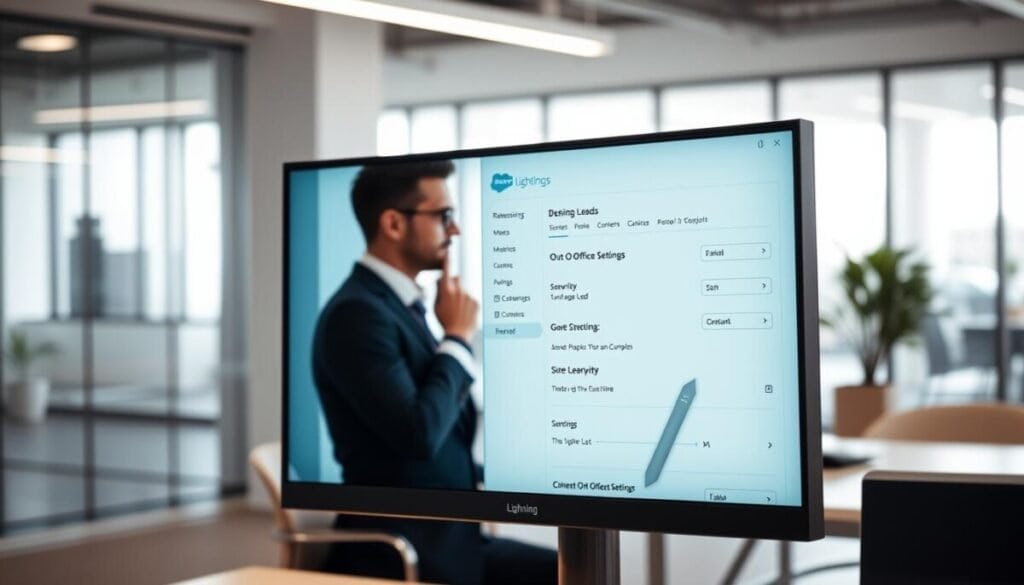
Access the Setup menu and enter ‘Chatter Settings’ in Quick Find to start configuration.
Enable the checkbox labeled “Users can set Out of Office messages” to allow users set this feature. Click Save after changing the chatter settings. Changes apply across the Lightning page and to all people who have access.
Instruct each user to open their profile by clicking their name. Select a start date and end date. Enter a clear office message in the message box. The text appears next to the name in salesforce chatter and in search chatter results.
Administrators centralize control—ensures consistent messages and profile behavior.
- Confirm profile access and cookies settings for consistent visibility.
- Test with a sample user to verify data and page display.
- Advise users set out-of periods before scheduled absences.
| Step | Action | Result |
|---|---|---|
| Locate | Setup → Quick Find → Chatter Settings | Chatter configuration page opens |
| Enable | Select “Users can set Out of Office messages” → click save | Users set messages; feature active |
| Personalize | User clicks name → set start date, end date → add message | Message shows by name across Lightning pages |
Managing Lead and Case Reassignment During Absences
Create reassignment logic that detects unavailable profiles and redirects cases immediately. Define an hourly automation to scan profile status and reallocate work. The auto-assignment engine runs every hour via Omni-channel routing.
Allow managers to override automation when required. Manual assignment provides a review layer. Managers inspect the home page view and assign high-priority cases by hand.
Automated Versus Manual Assignment Strategies
Automated routing reduces manual intervention by 25% in optimized setups. Configure rules to move cases from an unavailable user to a designated queue during absence.
- Hourly automation — distributes to available agents.
- Manual review — managers assign by priority and current load.
- Home page monitoring — track which users are unavailable and who has access to reassigned work.
| Mode | Trigger | Benefit |
|---|---|---|
| Automated | Hourly job evaluates profile status | Faster distribution; fewer bottlenecks |
| Manual | Manager review on home page | Priority-based assignment; controlled handoffs |
| Hybrid | Auto-routing with manual overrides | Balance speed and discretion |
Use chatter and salesforce chatter posts to notify people about reassignment. Post clear office message entries with start date and end date. Include alternate contacts and email instructions to keep customers informed and reduce questions.
Enhancing Customer Satisfaction Through Custom Implementations

Customize the platform to convert internal presence flags into clear, customer-facing messages and routing actions.
Implement a solution that shares agent availability with customers and internal teams. Grazitti’s custom build for a Spatial Data Company raised customer satisfaction by 15% and reduced manual intervention for support by 25%.
Bridge internal status and external channels—publish an office message to customer portals and trigger automated case reassignment. Display real-time status on the home page so people see current assignment availability.
- Faster case resolution—automation reroutes a case when an agent is away.
- Clear posts and messages—customers receive a concise message and alternate contact details.
- Reduced manual steps—managers use a user-friendly interface to track status and access data.
Consult experts for tailored settings and integration. For implementation steps, review a practical guide on setting an office message and compare CRM tool options at CRM tools.
Best Practices for Maintaining Communication While Away
Announce availability changes with explicit instructions for urgent matters and fallback contacts.
Draft a standardized office message template. Include who handles urgent issues, expected return date, and alternate contact details. Place the message in the chatter post and in email signature.
Update messages promptly when plans change. Regularly refresh the chatter status to reflect new dates or contacts. Encourage people to check status before escalation.
- Use automated email replies with links to help resources and FAQs.
- Document absence details in the system for traceability and search visibility.
- Train users to follow template fields—contact, dates, priorities.
Maintain consistent communication to protect customer relationships and deadlines. Standard templates reduce ambiguity. Managers should verify cookies and search settings so messages display correctly.
| Practice | Action | Benefit |
|---|---|---|
| Template | Standardize message fields—contact, return date, priority | Consistent customer experiences |
| Chatter updates | Post status changes; refresh when needed | Real-time visibility for teams |
| Automated emails | Auto-reply with links and alternate contacts | Reduces basic questions; supports self-service |
For offline tool recommendations and resource links, consult this guide on offline digital tools.
Streamlining Your Workflow for Future Out of Office Periods
Formalize a checklist that prompts users to set start date and end date and verify profile details.
Use Quick Find to open chatter settings. Instruct users set one status entry, add a clear message, then click save. Schedule the status when planning time away.
Automate reassignment rules to detect the post and route any active case to a queue. Audit prior results to spot gaps in data and page visibility. Review search chatter traces and cookies settings so people find alternate contacts.
Maintain this routine — it prevents customer questions and keeps team workload steady while a user is away. Get started with one test and scale the process systemwide.