
Feeling confident your team will get a timely reply while you’re away? This guide shows you how to set an automated away message that keeps your reputation intact and your calendar tidy.
You’ll learn clear, practical steps for the desktop client and the modern web client. Follow each short step to set a start and end date, pick the right option for internal versus external replies, and craft a professional message people will trust.
Whether you use Windows or the web interface, this feature saves time and reduces interruptions. Use it to mark events, protect personal time, and give colleagues clear expectations.
Key Takeaways
- Set a clear start and end date to manage expectations.
- Choose the correct reply option for internal and external contacts.
- Use both web and Windows clients to match your workflow.
- Keep messages brief, professional, and informative.
- Mark events on your calendar to protect your personal time.
Why Professional Out of Office Communication Matters
A concise away message keeps projects moving and protects your focus during vacation. When you use Microsoft 365, a short automated reply manages expectations for colleagues and partners.
You should state clear dates and an alternative contact. That tells people when they can expect a reply. It also reduces repeated email pings while you enjoy personal time.
Effective replies save time for everyone. They prevent confusion and cut follow-ups. A well-written message supports your work reputation and the broader organization.
- Set availability and a secondary contact to keep projects on track.
- Keep the message brief, professional, and actionable.
- Use one line for urgent issues and one for routine requests.
| Benefit | What to Include | Quick Tip |
|---|---|---|
| Clarity for colleagues | Return date and alternate contact | Use a single sentence for the contact |
| Reduced inbox interruptions | Phrase about delayed replies | Avoid lengthy explanations |
| Maintains professional image | Polite tone and concise message | Match company style |
| Project continuity | Point person and critical tasks | List only essentials |
How to Schedule Out of Office Outlook Replies in the New Interface
This section shows how to enable automatic replies and tailor messages for internal and external contacts.
Open the new app and go to the View tab to find Automatic Replies for your account.
Setting up automatic replies
Toggle the switch to turn on automatic replies for the chosen account. Then select Send replies only during a time period and enter a clear start time and end time.
Pick precise dates so your calendar reflects the correct days. Click the save button to apply the changes to your account and update meetings and events.
Customizing messages for different audiences
Use the dedicated tabs to write one message for colleagues and another for people outside your organization. Keep each message short and include a point of contact for urgent matters.
- Draft a concise message in the text box for internal contacts.
- Use the external tab to set a different office message for others.
- Verify settings in the app to confirm the response is active.
| Step | Action | Why it matters |
|---|---|---|
| View tab | Locate Automatic Replies | Find the toggle and account options quickly |
| Toggle | Turn on replies | Activates send automatic replies for the account |
| Time period | Set start and end times | Ensures calendar and meetings show correct status |
| Tabs | Customize internal/external messages | Delivers the right message to the right people |
Configuring Automatic Responses in Classic Outlook
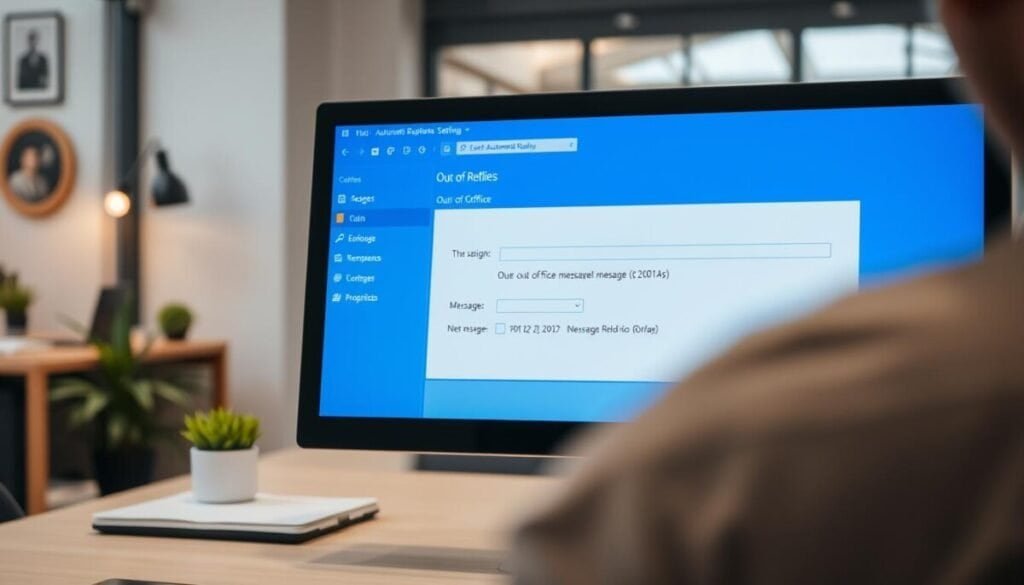
Use the classic desktop client to ensure your away message runs correctly for every account. Start at the File tab to check for the Automatic Replies button on the selected account.
Using rules for non-Exchange accounts
If the Automatic Replies button is missing, create a rule to send replies for POP or IMAP email. Open Rules and Alerts, pick New Rule, and choose the template that replies using a specific message.
Define a clear start and end date in the dialog box so the response stops when your time away ends. Test the rule with a personal email to confirm it works.
- Create a calendar event for your vacation and set Show As to Out of Office.
- Don’t mark the days as busy; that can confuse colleagues who need to book meetings.
- Review settings in the View tab before you leave to confirm replies are active.
| Step | Action | Why it matters |
|---|---|---|
| File tab | Check Automatic Replies | Find the fastest method for your account |
| Rules | Create auto-reply for POP/IMAP | Ensures email responses when server-side support is unavailable |
| Calendar | Set Show As: Out of Office | Signals availability for meetings and events |
Managing Your Calendar Availability During Time Away

Use the calendar to protect your time and avoid meeting conflicts. Create a New Event and mark the span of your vacation so colleagues see when you are unavailable.
Blocking time on your own calendar
Open New Event and set the dates. Use the All day checkbox for full days and set Show As to Out of Office so the time displays in purple.
Include your name in the event title and add a short message with a backup contact. If you prefer visibility without blocking others, duplicate the appointment and mark the copy as Free.
Sharing vacation time with colleagues
Microsoft Exchange Server lets you view coworkers’ availability when you compose meeting invites. That helps avoid booking during your planned days away.
Use a meeting request to share dates, or follow guidance to add your away event to others’ for broader visibility.
| Action | Why it matters | Quick tip |
|---|---|---|
| Create New Event | Blocks your calendar and signals unavailability | Use All day for full-day breaks |
| Set Show As: Out of Office | Shows purple status to team | Add name in title for clarity |
| Send meeting marked Free | Shares dates without blocking others | Duplicate appointment and mark as Free |
| Check Exchange availability | Avoids conflicts when planning before vacation | Confirm colleagues’ free/busy info |
Also consider linking your calendar notes to team tools or set offline status on Teams so your presence matches your calendar entries.
Streamlining Your Absence Management with Automation
A synced leave workflow keeps your team informed without extra clicks from you. Tools like Vacation Tracker let users request vacation via Slack or Microsoft Teams and, once approved, add that time to your calendar with a single click.
This removes the manual step of toggling automatic replies every time you take time away. The app pushes the approved date to your account and sets the correct event on your calendar. That ensures your message and calendar status match the actual time you are absent.
Benefits are immediate:
- Auto-updates your calendar and email replies so meetings reflect your availability.
- Reduces human error by syncing approved vacation data with Microsoft 365.
- Gives users a simple dashboard to manage leave and notify the organization.
| Action | Outcome | Quick win |
|---|---|---|
| Submit leave via app | Approved dates sync to calendar | Fewer manual steps |
| Click to add event | Send automatic replies activate on date | Accurate message timing |
| Dashboard review | Organization notified | Clear backup contacts |
Ensuring a Seamless Transition Before You Sign Off
Confirming a few final settings keeps your team moving while you’re away.
Before you leave, verify that your automatic replies are active and that your calendar shows the correct dates. Double-check your start time and end time so people know exactly when you return.
Provide a short office message with a backup contact for urgent issues. Review meetings and delegate events so work continues without interruption.
Save your changes in the web or desktop app and test with a quick email. For a step-by-step checklist, see this how-to guide to ensure every option is set correctly.