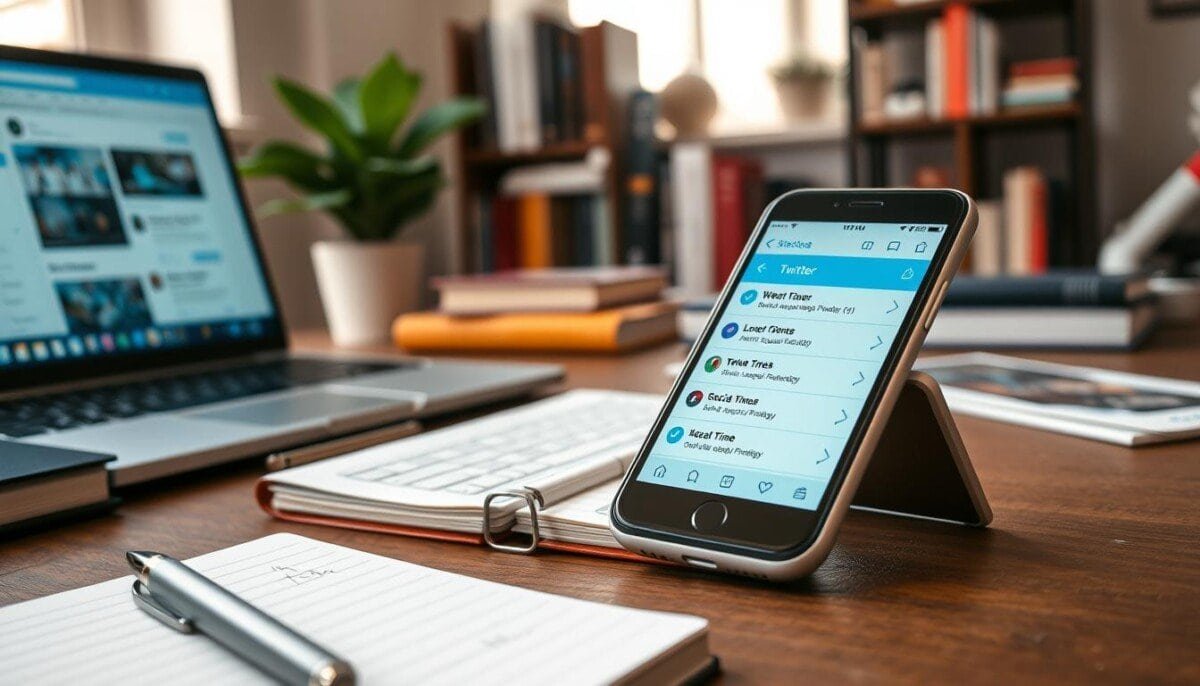
Can you keep a strong mobile presence without a built-in scheduler?
You can. X’s native app on Android lacks a built-in scheduler, but there are clear mobile-friendly ways to publish posts without a desktop. Use X Pro in your mobile browser at pro.x.com to compose, pick date and time, and manage queued items. Third-party tools such as Buffer, Hootsuite, and Later also give you mobile scheduling with useful free tiers and visual calendars.
The native app still helps: tap back and Save Draft to store work, then open Drafts from the composer. We’ll show you step-by-step actions, where scheduled items live on your phone, and how to edit or cancel posts fast when plans change.
Expect a practical comparison of free vs. paid options, timing and content strategy based on analytics, and quick fixes for common mobile errors like timezone mismatches and media upload failures. For an advanced automation option, see the Google Sheets workflow for bulk posting via API in the Google Sheets workflow.
Key Takeaways
- You’ll learn every mobile method to queue posts, from X Pro to top third-party apps.
- Drafts in the native app let you save and polish content on the go.
- Free plans often suffice for light users; upgrade for advanced analytics and bulk tools.
- Follow quick troubleshooting steps for failed posts, media errors, and timezone issues.
- Use analytics to refine timing, cadence, and content mix for better engagement.
What Android users need to know before scheduling tweets
Start by understanding the limits of the official mobile app so you pick the right workflow. Right now, the native app lacks a built-in scheduler. That affects how you plan, prepare, and publish from your phone.
Current state: no native scheduling in the X/Twitter app
You cannot set a future date or time inside the official app. On desktop and the web, X provides a scheduler under Unsent Tweets > Scheduled. For true scheduling on mobile, use X Pro at pro.x.com or a trusted third-party tool.
What you can do natively on mobile
Use Drafts to park ideas. Tap back, choose Save Draft, then open Drafts from the composer to edit and post later.
- Threads: Compose multi-part messages and keep them ready to publish when you choose.
- Media: Upload images, videos, or GIFs; crop and trim on your phone to speed later posting.
- Security: Only grant necessary permissions to third-party tools and enable 2FA on your account.
Tip: If you need a reliable mobile workflow, plan who drafts on phone and who publishes from a browser. For details about thread limitations and fixes, see why you might not be able to schedule a.
schedule tweets android
Mobile users have multiple paths to set future posts without relying on a desktop.
Android-friendly ways: X Pro in a mobile browser and third-party tools
X Pro (pro.x.com) gives full scheduling from Chrome on your phone. It feels native and avoids extra installs.
Popular third-party tools each have clear limits. Buffer’s free tier allows 10 scheduled posts per profile. Hootsuite offers a 30‑day free trial with a calendar and collaboration. Later gives 10 posts/month and a visual calendar. Typefully and Planable add multi-account and approval workflows.
When to use each method based on your goals and accounts
- Use X Pro for quick, no‑install posting that stays in your account.
- Choose Buffer for a simple quota and clean mobile queue.
- Pick Hootsuite for teams, calendars, and trial flexibility.
- Try Later for image-first planning; use Typefully for text and best-time advice.
| Tool | Free limit / Trial | Best for | Mobile feature |
|---|---|---|---|
| X Pro | Web access, no app needed | Individuals who want native-like control | Full scheduler via mobile browser |
| Buffer | 10 posts/profile free | Solo creators keeping a light queue | Simple mobile queue and editor |
| Hootsuite | 30‑day trial, unlimited during trial | Teams and agencies | Calendar view, collaboration tools |
| Later / Typefully / Planable | 10 posts / best-time features / desktop connect | Visual media planning / best-time writers / approval workflows | Visual calendar / multi-account / mobile approvals |
Use X Pro in your Android browser to schedule posts
Use your mobile browser to access pro.x.com and set future posts without a desktop. The web interface gives the same composing tools you expect on the desktop, including a calendar picker and timezone confirmation.
Accessing pro.x.com and logging in
Open Chrome on your phone and navigate to pro.x.com. Sign in with your account credentials, then grant any permissions the site requests. Add the page to your home screen for faster access later.
Composing, choosing date/time, and confirming
Tap the Post button, write your message, and attach media if needed. Tap the calendar icon, pick a date and time, verify the timezone, then press the Schedule button to confirm. The interface displays a preview and the chosen date time before posting.
Where to view, edit, or delete scheduled tweets on mobile
Open the Scheduled section to review planned items. From there you can edit content, reschedule to a new time, or delete scheduled entries before they publish.
Limitations on small screens and usability tips
The layout is not fully optimized for small displays. Targets can be tiny and menus may require extra scrolling.
- Use landscape mode and pinch-to-zoom to hit small buttons.
- Keep a stable connection and avoid switching tabs mid-composition.
- Prepare repeatable copy in a notes app and paste it to speed up entry.
- If layout breaks, clear cache or try a different mobile browser.
| Step | Action | Tip |
|---|---|---|
| 1 | Open Chrome → pro.x.com → sign in | Add to home screen for quick access |
| 2 | Tap Post → compose → add media | Prepare text in notes to paste |
| 3 | Tap calendar icon → pick date & time → confirm | Verify timezone before you tap the button |
| 4 | Manage under Scheduled → edit / reschedule / delete scheduled | Use landscape and zoom for precise taps |
Create and manage drafts in the native X app on Android

A quick back-tap stores unfinished posts as drafts you can publish later. Start a new tweet, then tap the back arrow and choose Save Draft. That saves your text, media, or thread to the app on your device.
To retrieve work, tap the compose button, then pick Drafts. Open any item to continue editing, attach or remove media, then post when you’re ready.
Why drafts aren’t the same as scheduled tweets
Drafts require manual posting. They don’t publish automatically. Use them to stage time-sensitive updates you’ll post live.
- Drafts support text, images, videos, and threads for full prep.
- They live on the device/account only — not a shared calendar.
- Delete stale drafts to keep your queue tidy and reduce errors.
- Avoid storing passwords or sensitive info in drafts to protect your account.
| Action | How | Best use |
|---|---|---|
| Save draft | Tap back in composer → Save Draft | Quick ideas, partial threads, media prep |
| Access drafts | Tap compose → Drafts | Edit and publish manually |
| Move to automated flow | Compose in draft → use X Pro or third-party tool | When you need reliable advance posting |
Schedule Twitter posts on Android with Buffer
Buffer offers a lightweight mobile workflow that puts queued posts under your control. The free plan lets you hold ten scheduled posts per social profile. That makes Buffer a good starting point for solo marketers and small teams.
Getting started is quick. Install Buffer, create an account, and connect your X profile. Authorize access so the app can publish for you.
Free limits, connecting accounts, and queuing
Tap the + button, pick your profile, write the tweet, and attach images or links. Choose Schedule and pick either a suggested time or a custom time to fit your plan. With these straightforward steps, you can manage your social media presence effectively. This feature allows you to plan content in advance, ensuring you never miss an opportunity to engage with your audience. You can schedule tweets easily on iPhone, making it convenient to maintain your online presence while on the go. With these steps, you can easily manage your tweeting schedule and ensure that your content reaches your audience at the optimal times. Moreover, if you’re on the go, you can also schedule tweets using mobile app, allowing for greater flexibility in your social media strategy. This feature enables you to maintain engagement even when you’re busy or away from your computer. By taking advantage of this scheduling feature, you can strategically plan your tweets to coincide with peak engagement times for your audience. When you schedule tweets for better engagement, you enhance the likelihood of your content being seen and appreciated. This proactive approach not only helps maintain your social media presence but also allows you to focus on creating quality content rather than merely reacting to the moment. By leveraging this feature, you can optimize your posting times based on when your audience is most active. Additionally, you can seamlessly integrate your social media management into your daily routine, making it easier than ever to schedule tweets from your mobile device. This flexibility enhances your ability to stay connected and relevant in a fast-paced digital landscape.
Custom times vs. suggested times for better engagement
Use suggested times to capture peak engagement automatically. For campaigns, set precise custom times to match launches or cross‑platform posts.
Reordering, editing, and deleting in the queue
The queue shows upcoming items in order. Drag items to reorder them quickly. Tap any entry to edit copy or images without losing its slot.
- Delete scheduled items in one tap if plans change.
- Set a posting calendar in settings to maintain a steady cadence.
- Monitor the mobile dashboard to adjust times as performance data arrives.
- Keep image uploads under size limits to avoid failed posts.
| Action | How | Why it matters |
|---|---|---|
| Install & connect | Install Buffer → create account → connect X | Grants publishing access and links your accounts |
| Compose | Tap + → select profile → add text, images, hashtags | Build posts with media and context for better engagement |
| Pick times | Use suggested times or set custom time | Balance reach with campaign timing |
| Manage queue | Drag to reorder → edit → delete scheduled | Keep your pipeline flexible and current |
Start with the free 10‑post limit and upgrade when your pipeline grows. For deeper how‑to guidance, see how do I schedule my tweets.
Advanced mobile scheduling with Hootsuite and Later
Advanced mobile tools let teams run full publishing workflows from a phone without a desktop. Hootsuite and Later bring distinct strengths for mobile-first planning. Both offer Android apps and visual calendars to keep your posts organized.
Hootsuite mobile: trial power and team controls
Hootsuite gives a 30‑day free trial with unlimited post queuing and support for three social profiles. Use the calendar view to drag-and-drop items and assign entries for review.
Later mobile: visual-first media management
Later’s free plan permits 10 posts per profile per month. Its media library stores assets so you upload once and reuse across platforms. The visual calendar is ideal for image-led workflow and basic analytics.
Which app fits your workflow
Choose by how your team works. Pick Hootsuite if you need approvals, notes, and fast account switching. Pick Later if your strategy centers on visuals and a reusable media library.
| Feature | Hootsuite | Later |
|---|---|---|
| Free trial / plan | 30‑day trial, unlimited during trial | Free: 10 posts/profile per month |
| Best for | Teams, approvals, collaboration | Visual content, image-led brands |
| Mobile strengths | Calendar, assign/review, multi-account | Media library, visual calendar, basic analytics |
Test both on your phone and compare dashboard features, post windows, and how quickly you can switch accounts. For more mobile app options, see mobile apps for Twitter scheduling.
Planable and Typefully on Android: simple scheduling and team workflows
For team workflows and clean drafting, two tools stand out with strong mobile support.
Planable connects once on desktop, then lets your team compose and set a date and time from the Android app. Use the shared calendar to preview how posts render and drag items to adjust spacing.
Approvals, comments, and a clear review flow reduce errors before anything goes live. Planable also supports bulk CSV uploads and recurring slots so you can fill a month in advance.
Typefully: focused drafting and smart timing
Typefully gives a distraction-free editor and one-tap scheduling. Choose “next free slot” or “find best time” to publish when engagement peaks.
- Add images and alt text while you draft to improve accessibility.
- Manage multiple accounts with fast switching to keep daily work efficient.
- Use templates and checklists to apply best practices consistently.
- Combine both tools: Typefully for crisp writing, Planable for team approvals and calendar control to scale your presence.
| Feature | Planable | Typefully |
|---|---|---|
| Primary strength | Team approvals & calendar | Distraction-free writing |
| Bulk options | CSV uploads, recurring slots | Notable time suggestions |
| Best for | Collaboration on posts | Single-writer clarity & multi-account use |
Optimize your scheduled tweets for timing, content, and engagement

Timing and format together determine whether a post reaches real people or gets lost in the feed.
Start with test windows and adjust with real data. Use Buffer and Hootsuite suggested times, Typefully’s best-time hints, and Later’s visual calendar to spot gaps. In X Pro you can edit or delete scheduled items before they publish.
- Spacing: Begin with posts 2–3 hours apart; tighten only if engagement improves.
- Test times: Try morning, midday, and evening; compare clicks and replies by date and time.
- Audience: Prioritize local time zones; shift slots when cross-timezone activity appears.
- Content mix: Deploy short text, images, short video, threads, and occasional polls to boost engagement.
- Editing: Regularly edit or delete scheduled items that are outdated or off-message.
Measure and iterate. Tag links with UTM parameters, use tool analytics to find top formats, and update your posting strategy weekly. For step-by-step help on how to schedule tweets from mobile tools, see how to schedule tweets. Additionally, explore automation tools that can help streamline your social media management. By integrating with APIs, you can manage multiple accounts and schedule tweets effortlessly with api, ensuring consistent engagement even during peak hours. Keep track of your performance metrics to refine your approach and maximize reach over time. In addition, consider utilizing A/B testing for different types of content to see which resonates best with your audience. By analyzing the results, you can refine your messaging and schedule tweets effectively, enhancing overall engagement. Remember, the key to a successful social media strategy lies in continuous experimentation and adaptation.
| Focus | Action | Why it matters |
|---|---|---|
| Timing | Test morning/midday/evening; record best times | Find when your audience is most active to increase engagement |
| Content | Rotate short text, image, video, thread, poll | Different formats drive different types of engagement and clicks |
| Analytics | Use Buffer/Hootsuite/Typefully/Later data weekly | Replicate top-performing date/time and formats |
Troubleshooting, security, and cost-smart choices on Android
Most posting failures come from mismatch issues you can resolve on your phone. Start with quick checks: verify your date time, confirm a solid internet connection, and retry the post.
Fixing common posting failures, media errors, and timezone mismatches
If a post fails, first confirm your device time and the tool timezone match. Mismatched settings often push a post to the wrong window.
Compress images to JPG or PNG and re-encode large videos to MP4. Weak connectivity also causes failures — switch networks or retry on stable Wi‑Fi.
Account safety: permissions, 2FA, and trusted tools
Enable two-factor authentication on your account and remove unused apps. Review permissions quarterly to limit access to your social media profiles.
Only connect reputable tools and read privacy policies before granting rights.
Free vs. paid options: when upgrading makes sense
Start with free tiers like X Pro (web), Buffer, or Later to test workflows. Upgrade when you need bulk posting, collaboration, or deeper analytics.
- Document troubleshooting steps for your team to cut recovery time.
- Use bulk delete or reschedule features to clear a paused campaign quickly.
- Keep a minimal fallback: a notes template and mobile browser access to pro.x.com.
| Issue | Quick fix | When to escalate |
|---|---|---|
| Failed post | Check date time and connection | Repeat failures across accounts |
| Media error | Compress/re-encode to JPG/PNG/MP4 | Upload blocked by platform |
| Security | Enable 2FA; audit apps | Unrecognized logins or breaches |
For more mobile tool options and comparisons, see mobile apps for Twitter scheduling.
Your mobile Twitter scheduling game plan
Pick one reliable method and use it to move from ad‑hoc posting to consistent output. Start with a single tool (X Pro, Buffer, Hootsuite, Later, Planable, or Typefully) and connect your profiles. Enable 2FA and set the correct timezone before you go live.
Quick action checklist:
- Choose your primary tool and link accounts.
- Create one week of content geared to your audience.
- Set posting windows and stagger posts for segments.
- Follow best practices: concise copy, clear CTAs, and strong visuals.
- Review analytics weekly and iterate your strategy.
For extra tips on bulk workflows and replies, see this schedule tweets guide and the schedule replies guide. Keep live responses active to boost engagement and trust.