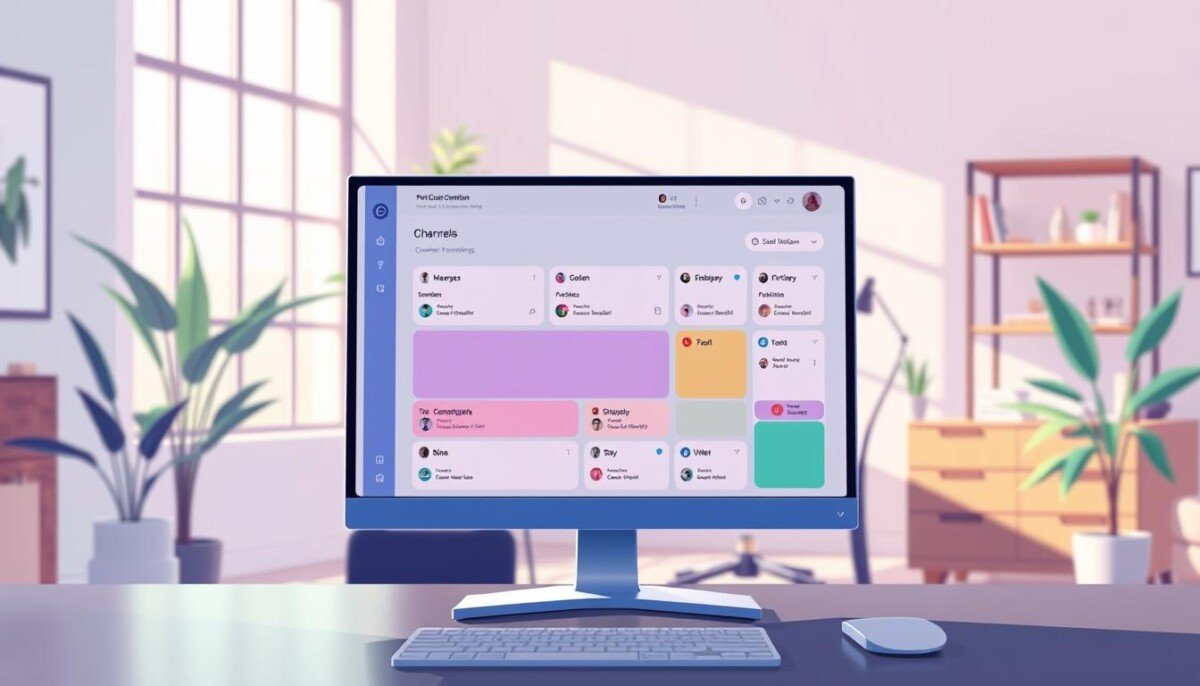
Question: Can a disciplined sidebar layout convert scattered conversations into a predictable flow of project knowledge?
Implement a systematic plan. Define workspace priorities. Create a clear map of people, projects, and tools.
The guide explains paid plan features that enable custom organization. Emphasize that custom views remain personal—no impact on other members. Use the sidebar to surface critical updates and ensure rapid access to information.
Plan by grouping channels and direct messages into labeled blocks. Limit visible items to reduce noise. Maintain a structure that supports team planning and efficient project management.
Outcome: Faster access to company updates. Better distribution of knowledge. Less context switching during daily work.
Key Takeaways
- Enable custom sections on paid plans to personalize the workspace view.
- Organize channels and direct messages to prioritize critical information.
- Keep views user-specific—customization does not alter team displays.
- Plan sidebar layout to reduce friction across teams and projects.
- Use structured access to preserve knowledge and speed up updates.
Understanding the Value of Slack Channel Sections
Map workspace items by project, team, and priority to improve information retrieval.
Channels provide a single source of truth for work. Default streams—#general or #all-companyname and #social—give company-wide updates and casual space for members. Use them as anchors for governance and cross-team notices.
Custom sections act as folders. Group channels, direct messages, and apps to reduce noise and speed access. Paid plans add advanced features to pin critical data and tailor the sidebar view without affecting other people.
- Core benefit—clarity. Teams see roles and responsibilities in one place.
- Collaboration—external work expands via Slack Connect to share data with partners.
- Productivity—group by project or team to minimize context switching.
| Item | Default | Custom | Paid Features |
|---|---|---|---|
| Company updates | #general / #all-companyname | Grouped by priority | Pinned and highlighted |
| Social / casual | #social | Separate folder | Notification controls |
| External work | Separate workspaces | Integrated folders | Slack Connect for data sharing |
| Personal messages | Direct messages | Placed in user folders | Custom sorting options |
For a broader view of collaboration and communication tools, consult this guide on online communication tools.
Getting Started with Slack Channel Sections
Start configuration on the desktop app, then mirror the structure on mobile. Follow a strict sequence to produce predictable access to information and messages.
Desktop Setup
Navigate to the Home tab. Click the Channels header. Select the option to create section.
Assign a short name. Add an emoji for visual scanning. Group apps, dms, and channels by project or priority.
Mobile Setup
Tap the conversation header for any channel or direct message. Long-press the star icon. Choose the create section option.
Confirm the name. Use the same emoji taxonomy used on desktop to ensure consistent team behavior.
- Access: Sidebar sections are available to members and guests on paid plans.
- Settings: Rename or delete any section at any time.
- Outcome: Quick access to vital conversations and organized knowledge across devices.
| Platform | Trigger | Result |
|---|---|---|
| Desktop | Home → Channels → Create section | Named folders; emoji identifier; grouped channels |
| Mobile | Tap header → Long-press star → Create section | Mirror desktop structure; mobile access to named folders |
| Settings | Rename / Delete | Adjust taxonomy; preserve workspace knowledge |
Organizing Your Sidebar for Maximum Productivity
Place high-value conversations at the top of the sidebar for instant visibility. Group channels, direct messages, and apps into a single folder-like view. This reduces search time and surfaces critical updates.
Configure unread-only views within a section to filter noise. Set display preferences to show unread conversations first. Choose sorting—alphabetical, recent activity, or priority—based on workflow needs.
- Organizational folders: Use sidebar sections to group channels, apps, and important conversations for faster retrieval.
- Top placement: Keep urgent work and messages at the top to catch unread items immediately.
- Sorting options: Apply recent-activity or priority sort to keep team knowledge current.
- Collapsing: Collapse inactive folders to reduce visual clutter during high-pressure projects.
For tactical guidance on tools and integration, consult the how to use online tools guide. Implement this taxonomy to keep the workspace focused and information retrievable for teams and projects.
Tailoring Sections to Your Professional Role

Map each professional role to a predictable sidebar layout for faster access to updates.
Sales and account management: Create an accounts section to group channels shared with customers. Place contract negotiations, account updates, and client notes together. This reduces search time and preserves account knowledge.
Technical and developer workflows: Group channels for code reviews, deployment planning, and incident feedback. Name each channel with the project and environment. Keep CI/CD threads and post-deploy notes accessible for on-call teams.
Legal and compliance filing: Reserve a section for contracts, filings, and patent reviews. Control access. Tag conversations that contain sensitive information. Maintain an audit-friendly organization for compliance reviews.
- Managers group direct reports for one-click access to people and progress.
- Cross-functional projects get dedicated grouping to track team tasks and knowledge transfer.
- Standardize names and emoji taxonomy to speed scanning and reduce errors.
Managing Conversations Within Your Custom Sections
Define sorting and visibility preferences to surface the most relevant conversations first.
Adjust display settings per section to control how channels, apps, and direct messages appear. Each named group holds an independent Show and Sort configuration.
Hover the section name to open the menu. Choose sorting by alphabetical order, recent activity, or priority. Select the option that keeps the most important messages at the top.
Desktop users collapse or expand a section with the arrow icon. Use keyboard shortcuts for rapid toggling. This preserves screen space during focused work.
- Granular control—Manage visibility for channels, apps, and direct messages individually.
- Sorting options—Alphabetical, recent activity, or priority to surface team feedback.
- Role-specific views—Developers keep code-related channels organized by role and priority.
- Removal—Removing a conversation returns it to the default Channels or Direct messages list.
- Shortcuts—Use desktop keys to expand or collapse groups quickly.
Leveraging Slack Connect for External Collaboration

Link the workspace to external partners to centralize project deliverables and reduce email cycles.
Slack Connect connects the workspace with agencies, vendors, and partner teams. Shared channels let both sides exchange deliverables and skip long email threads.
Each company may assign a unique name to the same shared channel. This preserves internal naming conventions while keeping joint work readable for members on both sides.
Connect creates a default section that remains system-managed—cannot be renamed or deleted. Move any conversation into custom groups to align with an established sidebar taxonomy.
- Enable seamless access for external teams—grant permissions per project.
- Replace email threads—share files and information directly inside shared channels.
- Preserve team knowledge—store deliverables in the workspace for later retrieval.
Result: Faster collaboration with partners; clearer access control; reduced context switching across company projects.
Best Practices for Channel Naming Conventions
Define a rigid naming taxonomy to eliminate ambiguity across teams.
Use prefixes to group conversations—#project-, #team-, #client-. Apply location tags where relevant; example: #nyc-sales. Keep names short; prefer hyphens for readability.
Require consistent patterns for any shared workspaces with external partners. For slack connect links, append an organization code. Pin naming guidelines in the main announcement area to enforce compliance.
Social or informal groups get predictable prefixes—#social- or #fun-. That preserves discoverability and prevents duplicate names.
- Establish a registry for new names—prevent collisions.
- Document prefix rules and examples in a pinned post.
- Audit names quarterly to preserve institutional knowledge.
| Prefix | Use case | Example | Enforcement |
|---|---|---|---|
| #project- | Cross-functional workstreams | #project-payments | Pinned guideline; creation approval |
| #team- | Internal group work | #team-growth | Auto-tagging; review |
| #client- | Customer-specific work | #client-acme | Partner naming policy |
| #social- | Informal engagement | #social-coffee | Open creation; naming checklist |
For step-by-step setup and further governance, consult the guide to organize your channels.
Streamlining Your Digital Workspace for Long-Term Success
Standardize naming, placement, and visibility rules to ensure important messages remain reachable.
Implement a recurring audit. Review the sidebar and remove stale items. Archive old conversations and inactive work to reduce noise.
Define one taxonomy for teams and projects. Enforce the taxonomy via onboarding and periodic checks. Tailor the taxonomy for developers, managers, and accounts to preserve role-specific knowledge.
Use available tools and settings to pin critical messages and control access. Link the workspace to a broader digital workplace strategy. Test integrations with project workflow tools.
Result: a scalable workspace—faster access, fewer interruptions, sustained productivity.