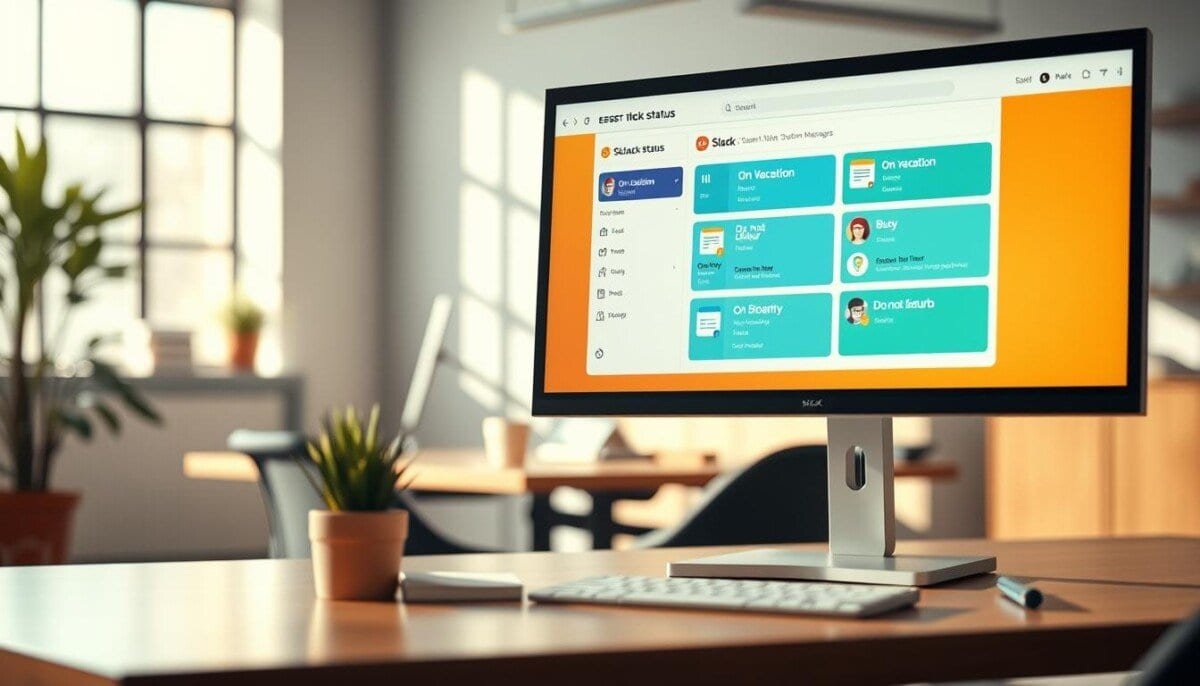
70% of teams report fewer interruptions when presence indicators reflect real tasks. This fact demonstrates scale—small cues drive major gains in coordination.
Follow this guide for a systematic method to create clear presence signals. Define an emoji and a short message that explains current availability.
Every user profile displays an emoji next to the name—the primary cue for work context. Hover on desktop to view the full entry. The platform shows a 💬 bubble by default when no emoji is selected.
Navigate the interface to set entries that reflect tasks, meetings, or breaks. Integrate third‑party apps to automate updates that mirror calendar events and real‑time changes.
Apply this procedure to reduce guesswork and to keep teams aligned. Track entries and refine messages for clarity. Ensure each entry uses concise wording and a distinct emoji.
Key Takeaways
- Implement a systematic method to create precise presence entries.
- Use an emoji next to the name as the primary activity indicator.
- Hover reveals the full message on desktop—use short, informative text.
- Automate with apps to sync updates with calendar events.
- Standardize entries to reduce interruptions and improve handoffs.
Understanding the Role of Slack Custom Status
Treat availability indicators as a governance tool for team communication.
Define concise presence entries that set response expectations. Use short phrases and an emoji to convey availability quickly.
Five default options exist—examples include 🗓 in a meeting, 🤒 out sick, and 🏝 on vacation. These presets enable rapid updates for members across the workspace.
Workspace owners and admins control suggested entries. Configure suggestions to reflect operational hours, project workflows, and team norms.
- Communication control — A visible indicator tells coworkers when immediate collaboration is inappropriate.
- Interruption reduction — Clear entries lower message noise and improve deep‑work windows.
- Administrative oversight — Admins tailor options to enforce consistent availability signals.
Adopt standardized entries across the team. Monitor adoption metrics and refine labels to maintain clear workplace communication and predictable availability.
How to Set Your Slack Custom Status

Use the interface controls described here to set an immediate presence indicator.
Desktop Procedures
Click the profile picture in the sidebar. Select the Update your status field to open the status box.
Enter a short status message and pick an emoji to add visual context. Choose an expiry time from the options menu.
To edit an existing entry—open the profile menu, select the current entry, then change or clear the message. Save changes to publish immediately.
Mobile Procedures
Tap the profile photo in the app. Tap the status field to type a new message or pick a suggested option.
Use the emoji selector to pair an icon with the message. Set visibility so only selected people or the whole workspace can view the entry.
- Notification control — Configure the app to pause notifications automatically when a message is set.
- Visibility — Limit which members see the entry via the visibility option.
- Edit — Access the profile to modify the box at any time.
| Action | Desktop | Mobile |
|---|---|---|
| Open profile | Click profile picture in sidebar | Tap profile photo in app |
| Enter message | Type in status box; choose emoji | Type or select suggested option; add emoji |
| Visibility & notifications | Set visibility; enable auto-pause for notifications | Set visibility; enable auto-pause for notifications |
Managing Availability and Notification Settings
Manage availability settings to minimize interruptive messages during focused tasks.
System activity tracking sets a user to away after ten minutes of desktop inactivity. The mobile app likewise marks a user away when closed. These automatic rules preserve the signal of true availability.
Pausing Notifications for Deep Work
Pause notifications to protect concentrated work intervals. Use the pause function in the profile menu or the app to stop alerts for a chosen duration. Additionally, you can set do not disturb in Slack to further minimize distractions during these focused sessions. This feature allows you to customize your availability, ensuring that you’re not interrupted unless it’s absolutely necessary. Make sure to communicate your status with your team to maintain workflow efficiency.
Manually override the automatic status message to show active or away. This override signals teammates that the user is engaged in uninterrupted work.
- Automatic tracking — System marks away after ten minutes of inactivity.
- Manual control — Set availability to active or away at any time via the profile menu.
- Notification pause — Use the app function to block alerts during complex tasks.
| Action | Result | When to use |
|---|---|---|
| Auto-away | Reflects inactivity | Short breaks; idle desktop |
| Manual override | Force availability label | Deep work; meetings off-platform |
| Pause notifications | Suppress alerts | Focus sessions; concentrated tasks |
Advanced Customization for Workspace Members
Assign timed entries and targeted visibility so colleagues receive accurate availability cues.
Assign a duration when members set status entries. Use the expiry option to clear a message automatically after a chosen time.
Limit viewing to specific people or channels from the profile menu. Restrict visibility for sensitive notes or mark the entry private to the user.
- Define duration — auto-clear after a set time.
- Compose messages — up to 100 characters for clear context.
- Target viewers — choose people, channels, or private display.
- Integrate apps — automate updates from calendars and external tools.
| Feature | Limit | Recommended use |
|---|---|---|
| Message length | 100 characters | Task, meeting time, or vacation date |
| Visibility | People / Channels / Private | Restrict sensitive notifications |
| Automation | Apps integration | Sync with calendar for accurate presence |
Use these customization options to maintain a professional presence. Edit the box in the profile to tune messages. Manage notifications to match current workload. To enhance your efficiency, consider implementing slack message management tips like using channels for specific topics and setting reminders for important tasks. Utilizing these strategies can help streamline communication and reduce distractions. Additionally, leveraging integrations with other tools can further optimize your workflow and keep your focus sharp. One effective way to boost productivity is to integrate focus apps with Slack, allowing you to compartmentalize your tasks more effectively. By connecting your favorite productivity tools, you can create a centralized hub for all your work-related activities. This not only enhances focus but also encourages a more organized approach to managing projects and deadlines.
Integrating Apps to Automate Your Status
Connect scheduling tools and HR platforms to publish accurate availability without manual edits.
Calendar Syncing
Link Google Calendar or Outlook Calendar to the profile. The integration marks a user as busy during a meeting and free when the event ends.
Benefit: Automated presence updates reduce manual work and maintain accurate availability for the team.
Third Party App Integration
Install workforce apps such as Zenefits to update entries when people are on PTO or vacation. The app writes a clear status message—then clears it after the allotted time.
- Google Calendar / Outlook — auto-update during scheduled meetings.
- Zenefits — automated PTO and vacation availability tracking.
- In-app calls — presence updates while voice/video calls run; resets on completion.
- Result — fewer manual edits; more reliable availability for people across the org.
| Integration | Primary function | When to use |
|---|---|---|
| Google / Outlook | Mark meeting busy | Scheduled meetings |
| Zenefits | PTO updates | Paid time off |
| In-app calls | Temporary busy | Voice/video calls |
For implementation guidance, follow an automation walkthrough on automating presence. For scheduling tool workflows see a practical guide to social scheduling scheduling integrations.
Maximizing Team Communication Through Status Updates
Make every presence entry predictable so the team knows when to expect replies. Use a short message paired with an emoji next to the name.
Edit availability often to reflect real-time work and vacation. Keep messages concise — clear end times and contact instructions improve throughput.
Enforce a simple governance routine: assign posting owners, set templates, and monitor message activity. Leverage apps and calendar sync to automate updates and reduce manual edits.
For implementation workflows and governance, consult the internal communications guide. For scheduling offline presence across platforms, review how to schedule offline presence.