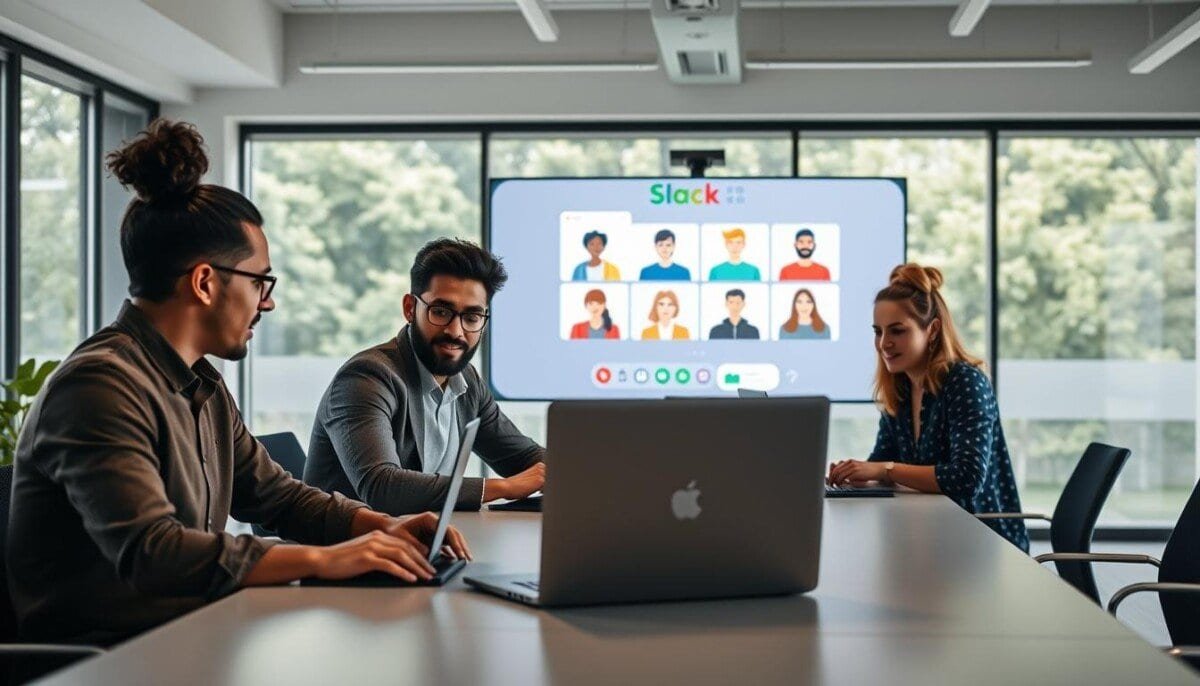
80% of teams report shorter ad-hoc meetings after adopting quick audio sessions —the reduction scales with participant limits and tool choice.
Define the environment before starting. This guide slack document maps rules and steps to get started. Use a channel or a direct message to start huddle sessions. Click the headphones icon in the conversation header to start huddle in any channel direct message.
Recognize limits across plans. Free accounts allow two participants; paid plans support up to fifty. Rely on the sidebar to spot active sessions — a headphones icon appears next to the channel or direct message.
Manage media controls from the desktop app. Anyone can enable video by clicking the camera icon at the bottom. Every huddle issues a join link so people can connect from anywhere.
Key Takeaways
- Initiate a huddle from any channel or direct message—use the headphones icon.
- Account plan dictates participant caps—free = two; paid = up to fifty.
- Monitor the sidebar to identify active sessions at the top of the workspace.
- Enable or disable video with the camera control in the desktop app.
- Use the unique huddle link to include remote people across plans.
Understanding the Role of Slack Huddles in Modern Collaboration
Replicate impromptu office chats in virtual channels to shorten decision cycles. Implement short audio sessions as the default interaction for rapid problem solving.
Move beyond scheduled meeting blocks. Replace lengthy status meetings with brief, contextual exchanges that mirror desk-side conversations.
Use short sessions to swarm incidents, run one-on-ones, or host virtual coffee breaks. These tactics preserve team cohesion while reducing interruptions to deep work.
Defining your huddle strategy
Organize channels by project or team. Ensure each channel maps to a clear purpose—task tracking, incident triage, or social check-ins.
- Optimize channel naming for discoverability—project-code, team-name, or sprint-id.
- Designate specific channels for live audio to limit cross-talk.
- Encourage managers to get started with a pilot and document norms; see how to use online tools for adoption guidance.
| Use Case | Recommended Channel Type | Expected Outcome |
|---|---|---|
| Incident triage | Incident-response channel | Faster resolution; audit trail in messages |
| Daily check-in | Team-standup channel | Shorter updates; fewer scheduled meetings |
| One-on-one | Direct message or private channel | Focused coaching; reduced scheduling friction |
| Social interaction | Watercooler channel | Maintained morale; distributed team cohesion |
Key instruction: Standardize channel purpose. Archive off-topic streams. Treat messages as the searchable record for future reference.
Mastering Slack Huddles Focus Techniques for Uninterrupted Work

Require a clear agenda and success criteria before any quick audio session starts. Set a time box. Assign the host and note-taker.
Control who shares screen. Permit up to two people to share at once. Use that limit for pair programming or document review. Allow drawing tools to circle issues on the shared screen.
Use the canvas to take notes during the session. Preserve notes after the meeting ends. Link canvas entries to the project channel for traceability.
- Use the hand raise emoji to queue speakers — manage turn-taking.
- Use screen sharing to address complex tasks and get immediate feedback.
- Use the desktop app camera and audio controls to confirm presence without disrupting others.
Document outcomes and post the link to notes in the channel. For tools that improve team time management, reference the productivity apps guide.
Managing Notifications and Availability During Active Sessions

Configure availability controls to minimize cross-channel interruptions during any live session. Use the Do Not Disturb setting to pause alerts when uninterrupted time is required.
Setting Boundaries with Do Not Disturb
Enable Do Not Disturb before joining a huddle to suppress incoming notifications. Adjust the duration to match the expected time of the session.
Customize notification sounds or mute them entirely in settings. Ensure that messages from unrelated channels do not surface while the session is active.
- Set a clear status with an emoji to signal availability to people and reduce manual interruptions.
- Treat each channel direct message as a controlled stream—align notification preferences with project needs.
- Use priority overrides only for critical messages to keep the session uninterrupted.
Document the team standard for notifications in the project channel. For scheduling dedicated uninterrupted blocks, reference the guide to schedule uninterrupted time.
Streamlining Communication with Screen Sharing and Collaborative Tools
Set a single source of visual truth so every participant sees the same content. Assign the presenter role at the top of the session. Limit simultaneous presenters to two people to reduce confusion.
Effective Screen Sharing Practices
Allow up to two people to share screen simultaneously. Use the pencil icon to draw on the shared screen. Save annotated screenshots to the project channel for traceability.
Taking Notes in Canvas
Open the canvas from the bottom-right corner of the session window. Take notes there; the canvas remains available in the conversation tab after the meeting ends.
Keep project notes in canvas. Link notes and messages to the project channel. That preserves a permanent record and improves retrievability.
Using Emoji Reactions for Silent Feedback
Use emoji reactions and stickers for real-time, nonverbal feedback. Use a dedicated emoji for a raised hand to queue speakers. Use a thumbs or a short thanks feedback emoji to acknowledge contributions without interrupting the speaker.
- Desktop app supports drawing on shared screen — essential for technical explanation.
- Store links and notes in canvas to ensure every message and resource is retrievable.
- For feature details, consult the official huddle features page and the productivity apps guide.
Organizing Your Workspace to Minimize Digital Distractions
Structure the workspace so the most critical streams surface in the sidebar.
Rename each channel by project or team. Use a predictable prefix—project-code or team-name—to speed retrieval. Keep names terse.
Prioritize channels by current tasks. Pin active channels to the top. Archive inactive channels on a schedule.
Reply in threads to keep conversations tied to their original messages. Threads prevent cross-channel noise and reduce context switches.
- Set notifications to critical-only during deep work blocks.
- Limit audible alerts in settings for nonessential streams.
- Maintain the sidebar weekly—remove stale channels and reorganize priorities.
Treat each huddle request as an interrupt decision. Use a short status update to indicate availability. Reserve the second huddle mention for escalation only.
Teams that maintain clean channels spend less time searching and more time on productive work. For project-level practices, consult the remote project guide at project management for remote teams.
Leveraging Advanced Settings for a Smoother Experience
Optimize multimedia and alert preferences so every session starts without wasted setup time.
Open the huddle preferences menu. Change the notification sound. Set default join behavior. Save a consistent profile for recurring sessions.
Configure device captures. Select microphone and camera presets. Test input and output levels before the call. Reduce troubleshooting during the session.
Enable live captions in English when needed — note: captions are transient and not stored after the session ends.
- Adjust the sidebar to pin priority channels and improve visibility.
- Lock video and mic preferences to prevent accidental toggles.
- Review defaults periodically to match project needs and remote workplace rules.
| Setting | Action | Benefit |
|---|---|---|
| Notification sound | Select custom tone in preferences | Reduce missed alerts; faster response |
| Microphone profile | Choose device and test gain | Clear audio; fewer repeats |
| Video defaults | Set resolution and camera source | Consistent visual quality for presenters |
| Captions | Enable live English captions | Improve accessibility; no transcript retention |
For implementation patterns and adoption research, consult this team collaboration case study. Apply settings systematically across channels to enforce standards.
Cultivating a Productive Digital Environment for Your Team
Set explicit team rules so quick audio bursts reduce scheduled meeting load.
Require a single channel for live catch-ups. Use brief video when visual context is needed. Share the session join link so people join when they have time.
Use the canvas to take notes. Save canvas notes to the project channel. That keeps plans and tasks accessible to all people on the team.
Encourage thanks feedback via emoji reactions. Use short messages to confirm next steps. Track tasks at the top of the channel to keep work on target.
Outcome: clearer messages, visible notes, fewer long meetings, and a supported team that spends more time on results.



