Question: Can one authoritative system stop interruptions after work hours while keeping essential alerts live?
Define precise rules. Navigate to the profile picture and select the preferences menu. Adjust global settings to allow only mentions and direct messages by default.
Configure desktop behavior — leave the app running in the notification area even when the window is closed. Set mobile devices independently to prevent off-hours interruptions.
Use banner options to include preview message content or to uncheck boxes for specific message types. Track keywords in channels to receive targeted alerts for relevant posts.
Result: A reproducible method to pause alerts outside defined work hours while preserving critical message flow across devices and the workspace.
Key Takeaways
- Access settings via the profile picture — then select preferences to adjust global options.
- Limit alerts to mentions and direct messages to reduce noise.
- Manage desktop and mobile notifications independently for true off-hour silence.
- Use banner and preview options to control content visibility in alerts.
- Keep the app running in the notification area to maintain background monitoring.
Why You Need a Slack Notification Schedule
A deliberate alert policy reduces interruptions and improves task flow. Implement a timed control to protect focus. Preserve off-hours for rest. Prevent context switching during deep work.
Enable Do Not Disturb to show the “z” icon next to the user name. That signal enforces availability limits across the workspace. Use per-day preferences, introduced in 2020, to stop nonessential pings on weekends.
Manage delivery via the profile picture and then select preferences menu. Uncheck box options for channels and banners to silence noise. Leave the app running in the background when the window closed to retain badge counts for direct messages.
- Pause alerts on the fly for breaks — lunch or short rest.
- Workspace owners can apply default DND hours for all members.
- Red badges still surface direct messages — urgent items remain visible.
| Action | Effect | Control Point |
|---|---|---|
| Enable DND | Stops pop-ups — shows “z” icon | Profile settings |
| Per-day prefs | Blocks weekend pings | Preferences menu |
| Pause briefly | Preserves focus for short intervals | Quick pause control |
How to Configure Your Slack Notification Schedule
Set a precise delivery window to control when alerts reach the desktop and mobile app.
Desktop Setup
Click the arrow near the workspace name. Select the option to set a notification schedule.
Choose Every day, Weekdays, or Custom. Uncheck box items in the preferences menu to narrow which messages trigger alerts.
When the window closed, leave the app running in the notification area. The desktop icon flashes if the computer is idle for 10 seconds — useful for missed direct messages.
Mobile App Configuration
Tap the “You” icon on the toolbar. Open the notifications menu and set timing for mobile notifications.
Confirm the preferences menu reflects the chosen delivery window. These settings sync automatically across all connected devices.
- Verify settings via the profile picture and the preferences menu.
- Allow only mentions and direct messages to reduce noise.
- Use the running notification area to stay aware of urgent messages even when the window closed.
Advanced Customization for Your Notification Preferences
Configure precise keyword triggers to capture only the topics that demand attention. Apply targeted rules to reduce noise. Keep essential alerts active.
Setting Keyword Alerts
Open the preferences menu — click profile picture and select the appropriate pane. Enter exact keywords to monitor channels without broad false matches.
Keyword matches highlight text in yellow. Matches are case-insensitive and require exact wording. Mentions in threads do not trigger alerts.
- Use the select preferences menu to add terms that should produce immediate notifications.
- Choose whether to include preview message in the banner or hide previews for privacy.
- Customize sounds for new messages, huddles, and direct messages from the same settings panel.
- Uncheck box options for specific types to limit alerts to the most critical posts.
- Override per device so mobile notifications and desktop behave independently—allow desktop focus while mobile remains quiet.
For full configuration guidance, follow this help article: Configure your Slack notifications.
Managing Time Zones and Availability Status
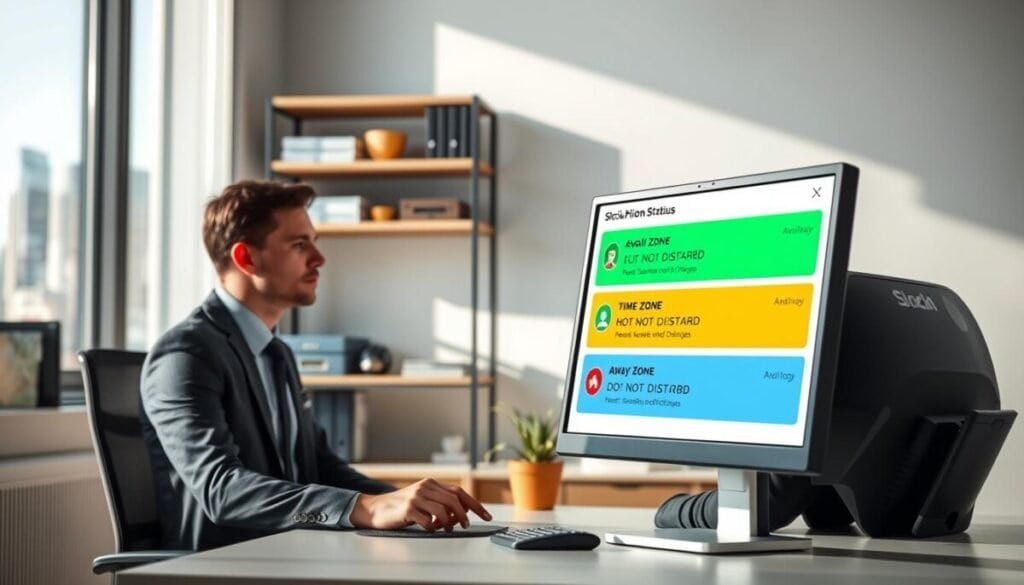
Set the account time zone so automated presence and Do Not Disturb windows trigger at the correct local hour.
Adjusting local time requires opening the profile settings and confirming the displayed clock. Click profile picture, then select preferences menu to set local time. This ensures Do Not Disturb and other availability controls run on the user’s local hours.
Using Custom Profile Fields
On paid plans, workspace owners may add fields that show working hours. Use those fields to declare availability. This reduces ad hoc questions across channels and clarifies when direct messages may be handled.
Leveraging Calendar Integrations
Enable Google Calendar or Microsoft Outlook integrations to automate status updates. Calendar events toggle presence — meeting times convert to away or busy states. This sync prevents nonurgent notifications from arriving during meetings.
- Confirm settings via the profile picture and the preferences menu.
- Include preview message notification options when presence must remain visible.
- Configure the slack app to leave app running in the notification area when the window closed for reliable status updates.
| Capability | Effect | Control Point |
|---|---|---|
| Local time zone | Aligns DND and hourly rules | Profile → select preferences menu |
| Custom profile fields | Displays working hours to team | Workspace settings → profile fields |
| Calendar integration | Automates status from events | Google Calendar / Outlook connector |
Maintaining Long-Term Digital Wellness
Enforce regular controls on incoming alerts to prevent chronic context switching.
Establish repeat review points. Periodically click profile picture and select preferences or open the preferences menu. Confirm app settings align with work hours and days off.
Limit mobile notifications and desktop delivery when the window closed. Prioritize direct messages and key messages only. Disable excess alerts to protect cognitive bandwidth.
Use consistent Do Not Disturb hours. Reassess the profile and settings as roles change. Treat the slack platform as a communication tool — not a constant source of interruption.